
Swatch Configuration
From the eCommerce Module, you can modify the swatch configuration of your matrix items in your webstore.
- From the eCommerce Module > Item > Find Item.
- From the Item List, access the Matrix Group tab to view only the Matrix Items in your inventory.
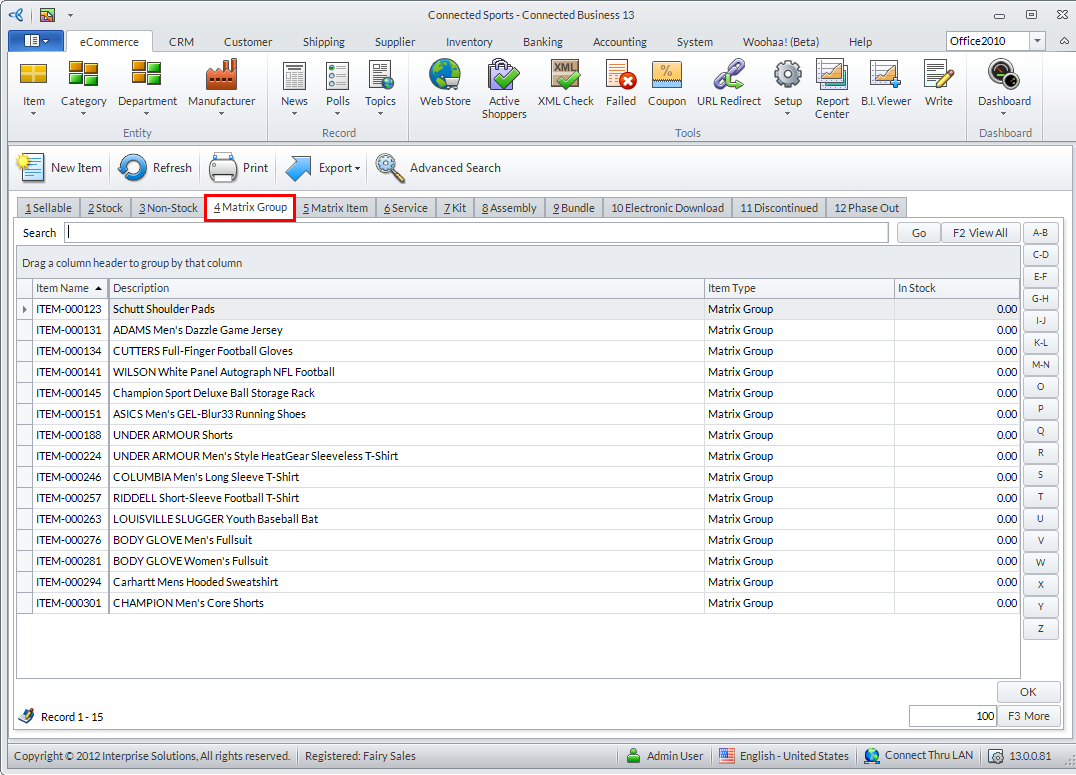
Click Image to Enlarge

Make sure to click F2 to view all the inventory items in the list.
- This action shows the Item form.
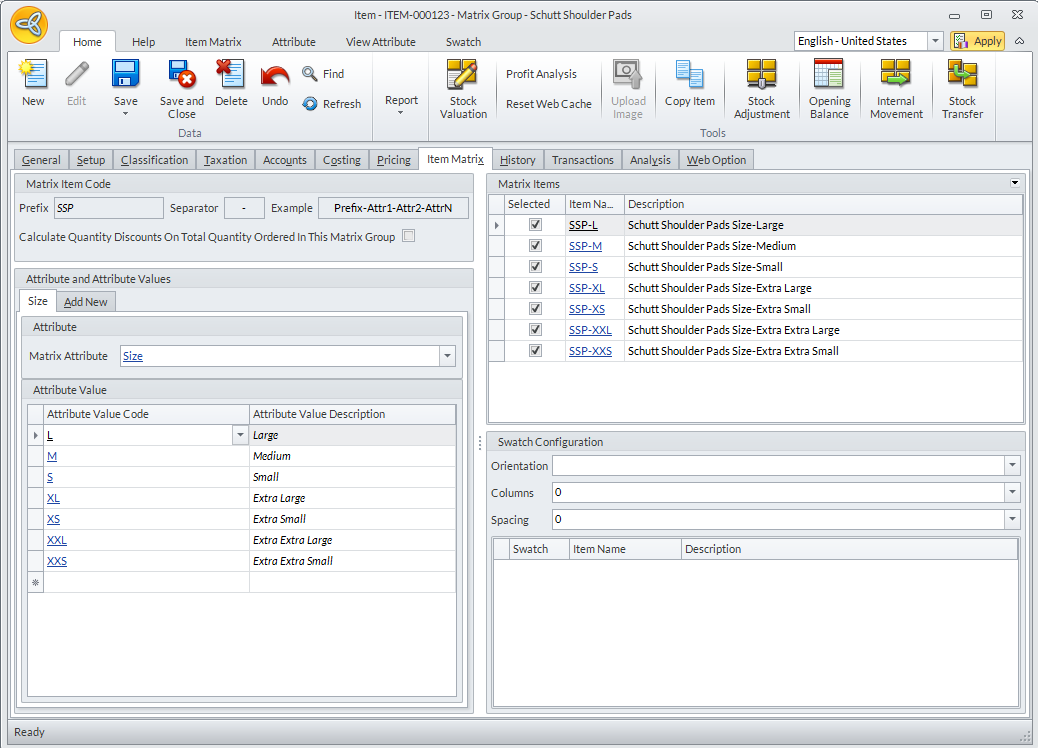
Click Image to Enlarge
Choose the Item Matrix tab and look for the Swatch Configuration tab on the menu page.
- From there, setup the required Orientation, Columns and Spacing specifications for the Matrix item images. Then, click on the Swatch field and supply the pictures appropriate to the product that you will sell in your store site.
- Next, click on Add item button in the Swatch Configuration section then Save and Close to complete the process.
Upload images for every matrix item on the Web option tab so the images will be seen on the website.
For more information, please refer to the Set Up Matrix/Multi-Attribute Items online documentation.