
Special Order Pop up
|
Content
|
|---|
If you have multiple attributes for an item, the special order pop up will help you easily enter the attributes for a specific item during order entry. Follow the instructions below on how special order pop up can be assigned to an item and the order process with special order pop up.
SETTING UP THE SPECIAL ORDER POP UP
- From the Inventory Module, click Setup ► Special Order Pop Up. The Special Order Pop Up form will be displayed.
- From the form, select New button from the menu. The Detail tab will be displayed.
Click Image to Enlarge
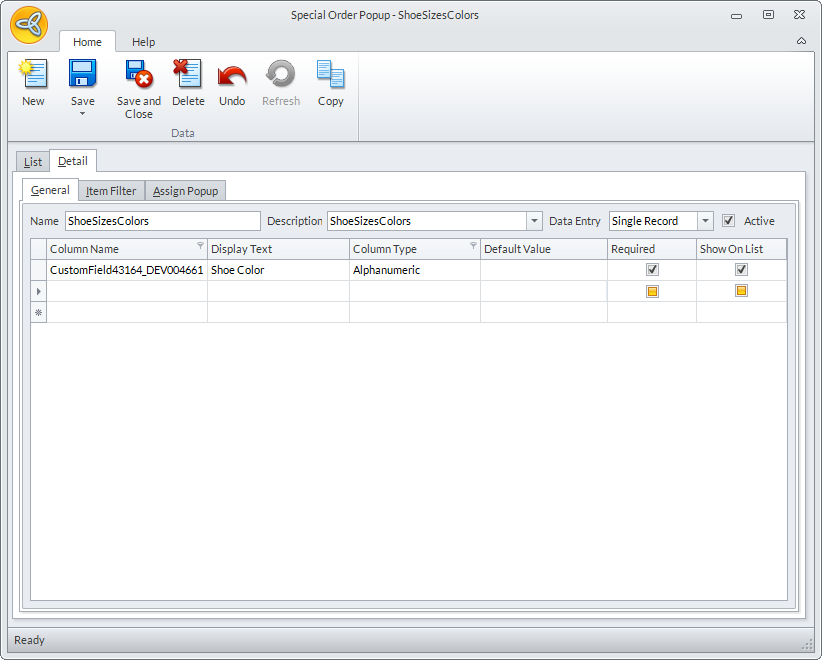
- On the Details tab, enter the information on the following fields:
Field Name Description Name Indicates the name of the Special Order Pop up. Description A brief description of the Special order Pop up. Data Entry The type of data entry on order and invoice forms.
Single Record - when selected, allows you to create single record entry in the sales order and sales invoices.
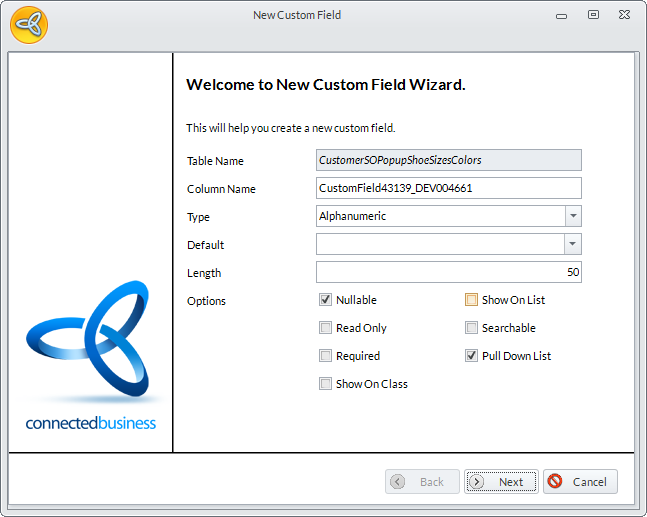
Multiple Record - when selected, allows you to create multiple record entry in the sales order and sales invoices.Active When checked, the special order pop up will be in the list of selections once you assign a special order pop up for an item. - To create a new attribute, click on a blank Column Name field to display the New Custom Field Wizard. Refer to Creating New Custom Fields for more information.
Click Image to Enlarge
- After creating the new custom field, it will now be added on the list under the column name.
- Tick the Required checkbox if the custom field is required during order entry.
- Check Show on List checkbox if the custom field needs to be shown on the pop up form during order entry.
- Click Save and Close to save the newly created Special Order Pop Up.
- You may add more fields by following the steps above.

ASSIGN A SPECIAL ORDER POP UP ON AN ITEM
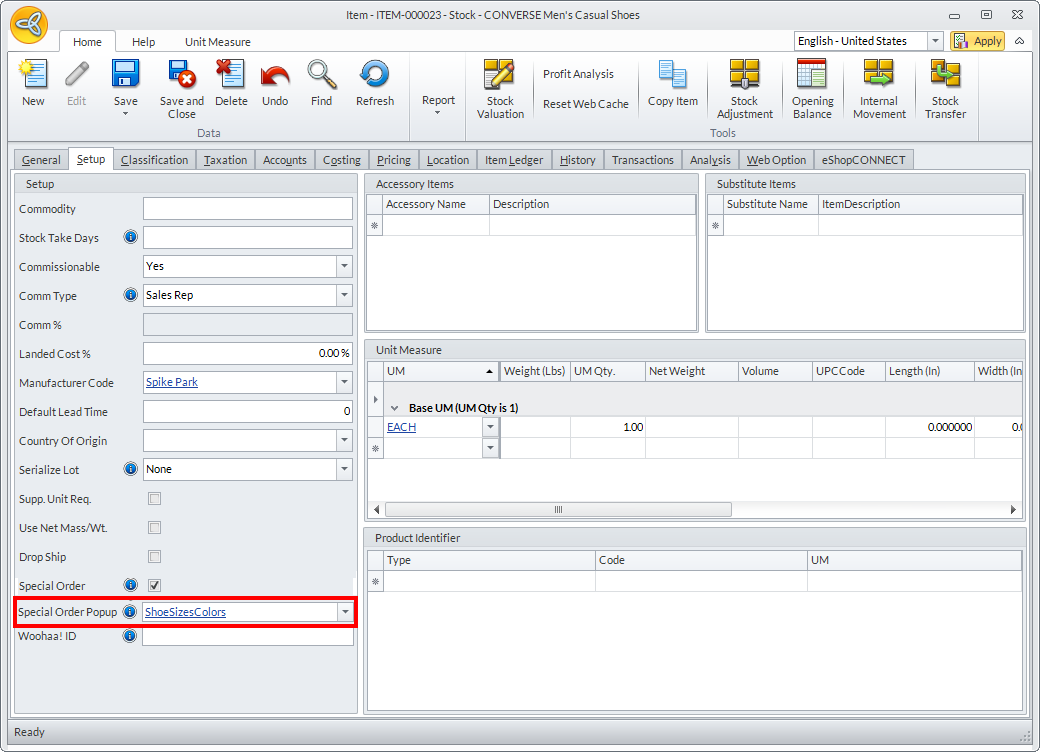
You can set up from the Setup tab of the Inventory Item form a specific Special Order Pop Up form you want to be displayed whenever the item is being purchased.
- From the Inventory Module, click Item ► Find Item.
- From the Item form, click on the Setup tab and at the bottom part of the Setup section, click the pulldown button of the Special Order Pop Up field to bring out the list of available Special Order Pop Up you may assign to the selected item.
Click Image to Enlarge
- Click Save and Close button to save the changes made in the item form.

You can only assign special order pop up for stock, non stock and service items only.
HOW TO ORDER ITEMS WITH SPECIAL ORDER POP UP
This process is also applicable when creating sales orders.
- From the Customer Module, click Order ► New Order. From the list that will be displayed select one customer entry to log the sales order to.
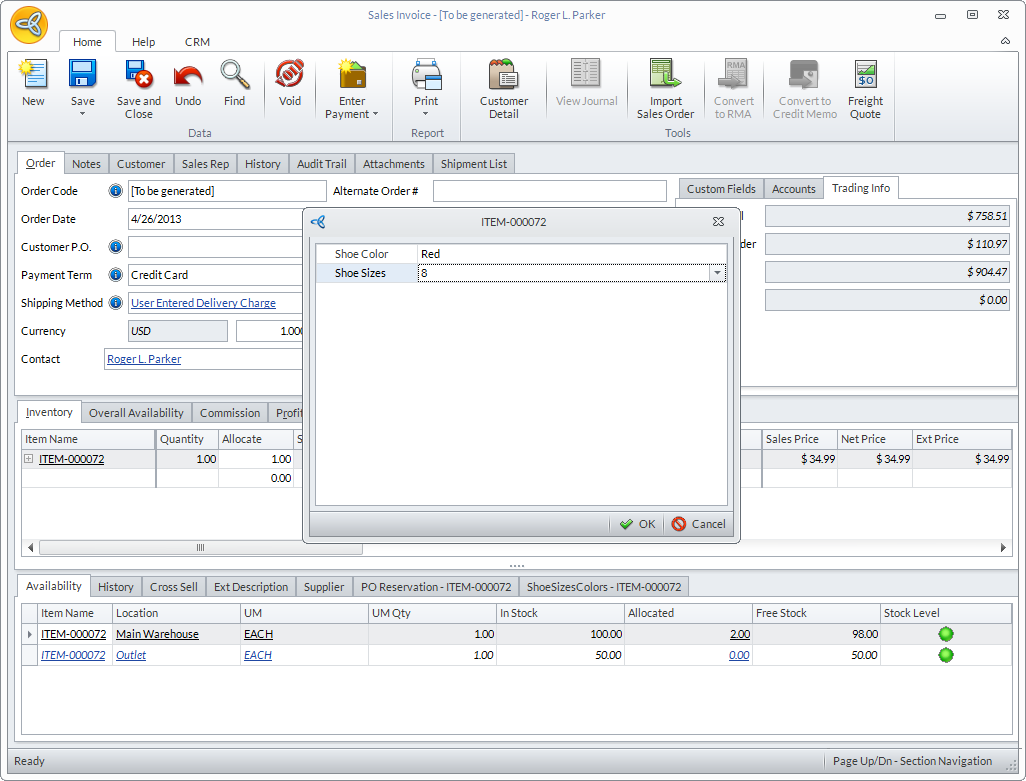
- Enter the item(s) with an assigned special order pop up in the Inventory tab. When you hover the cursor on the Allocate column, the Special Order Pop Up will be displayed.
- For Single Item Entry
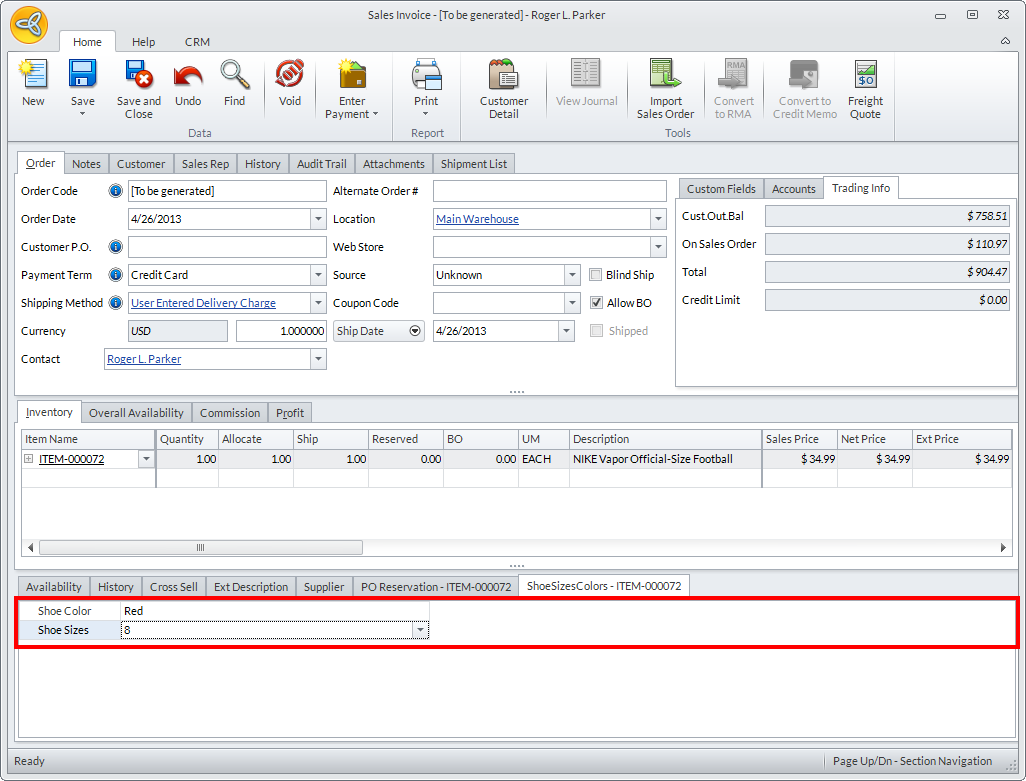
When the Data Entry of the Special Order Pop up assigned to an item is set to a Single Record, you can only enter one row with various attributes, which means that only one combination for each attributes.
Click Image to Enlarge
When you want to check the item, click on the + button beside the item to expand the details.
Click Image to Enlarge
- For Multiple Order Entry
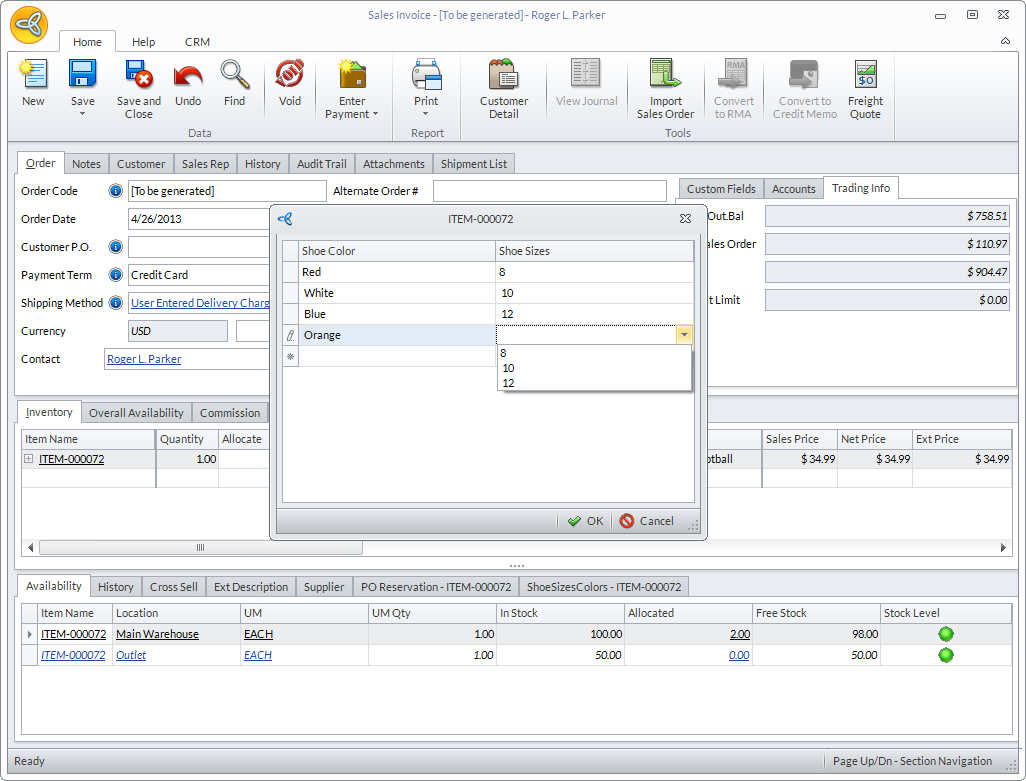
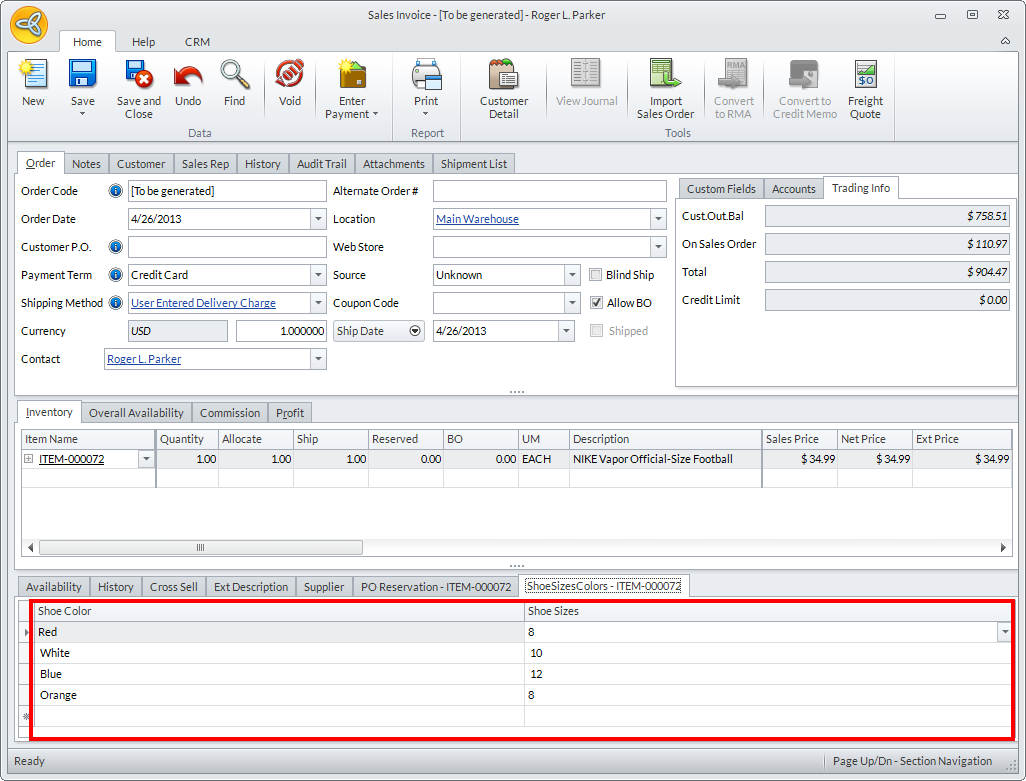
When the Data Entry of the Special Order Pop up assigned to an item is set to a Multiple Record, you can order several combinations for each attributes or as many as you'd like.
Click Image to Enlarge
When you want to check the item, click on the + button beside the item to expand the details.
Click Image to Enlarge
- For Single Item Entry
- Click Save to save the sales order.
When you print the sales order or sales invoice report, the item attributes are included in the report.