
Set Up Super Tooltips
Connected Business is tailored with a descriptive tool tip item also known as Super Tooltip (Supertip), to give information for each field registered under the User Role. Supertips are additional information you can provide to Connected Business form fields and checkboxes to discuss briefly what the specific field is for.
Users can hover their mouse cursor over the tooltip sign corresponding to the field. The system also allows you to add or edit Bubble Help Text content using an editor that can support HTML Text Formatting.
- From the System Manager Module > Customize > Role. The User Role list form will be displayed
- On the User Role form, select a module that you want to add a tooltip from the Selected Module section.
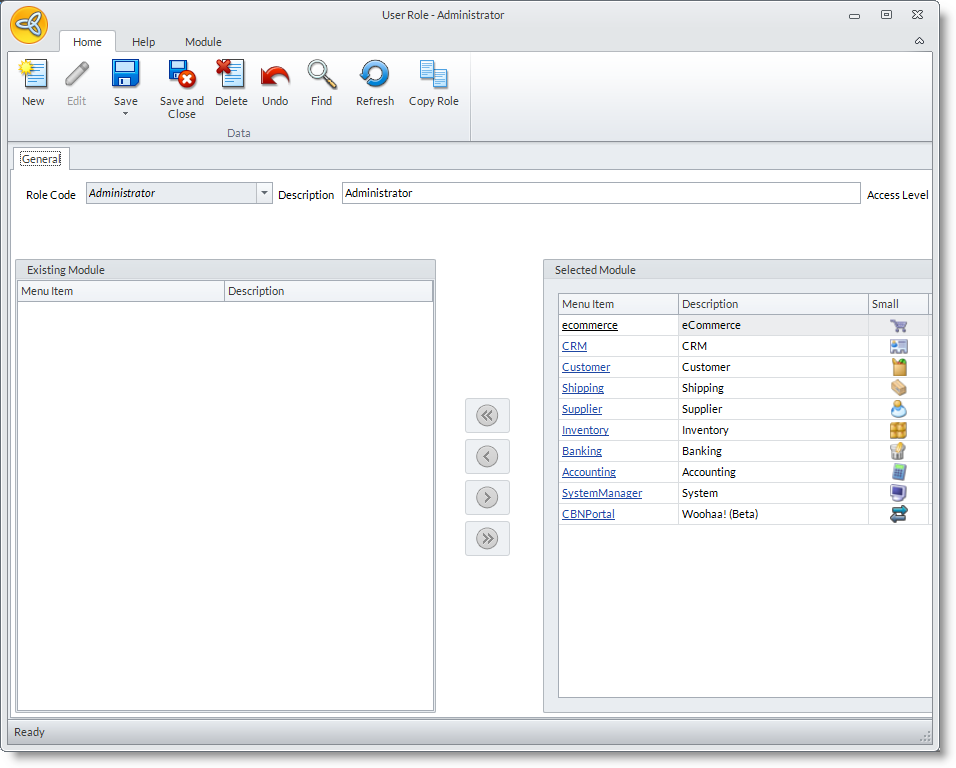
Click Image to Enlarge
- On the User Role editor form, select a form entry from the Detail tab. Note that User Role customization does not apply to entities that is derived from a wizard such as prospects, customers, etc.
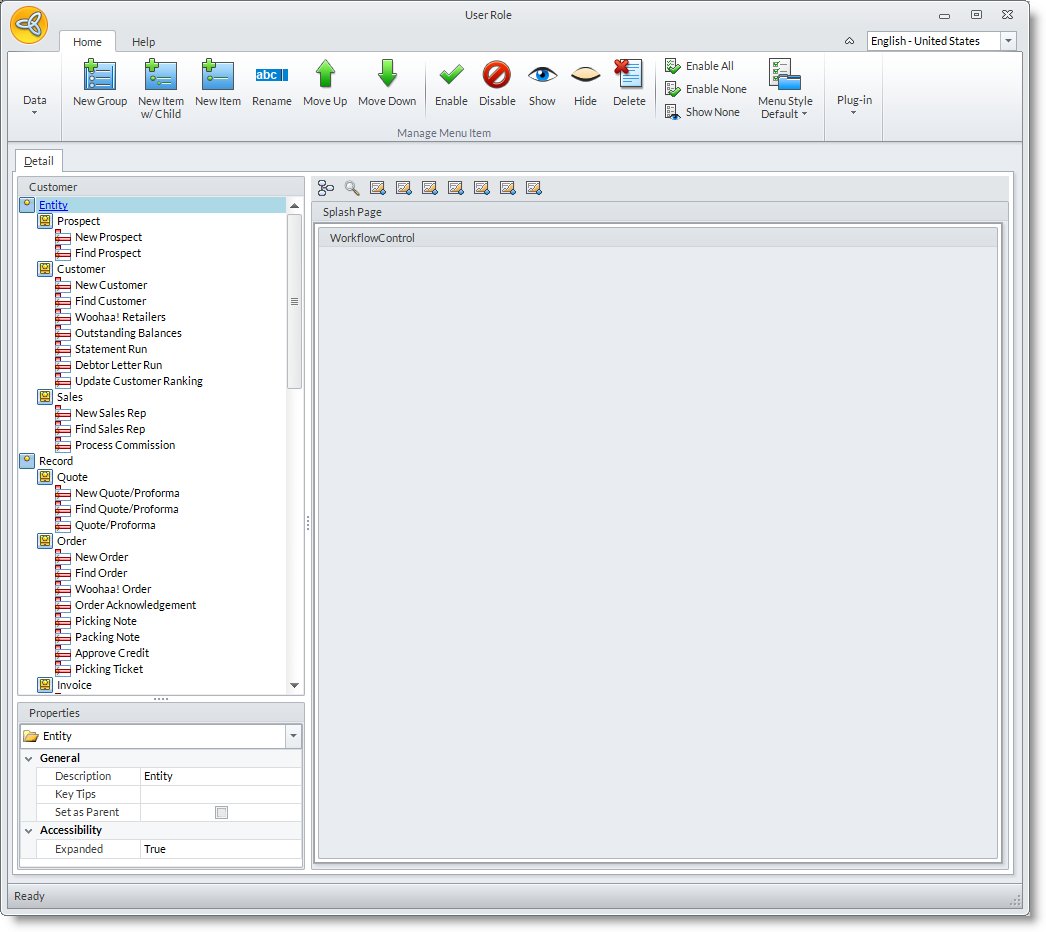
Click Image to Enlarge
- On the form editor, you may right click on the field or checkboxes, then select Edit Bubble Help. Tooltips can only be applied on a field and checkboxes within a form.
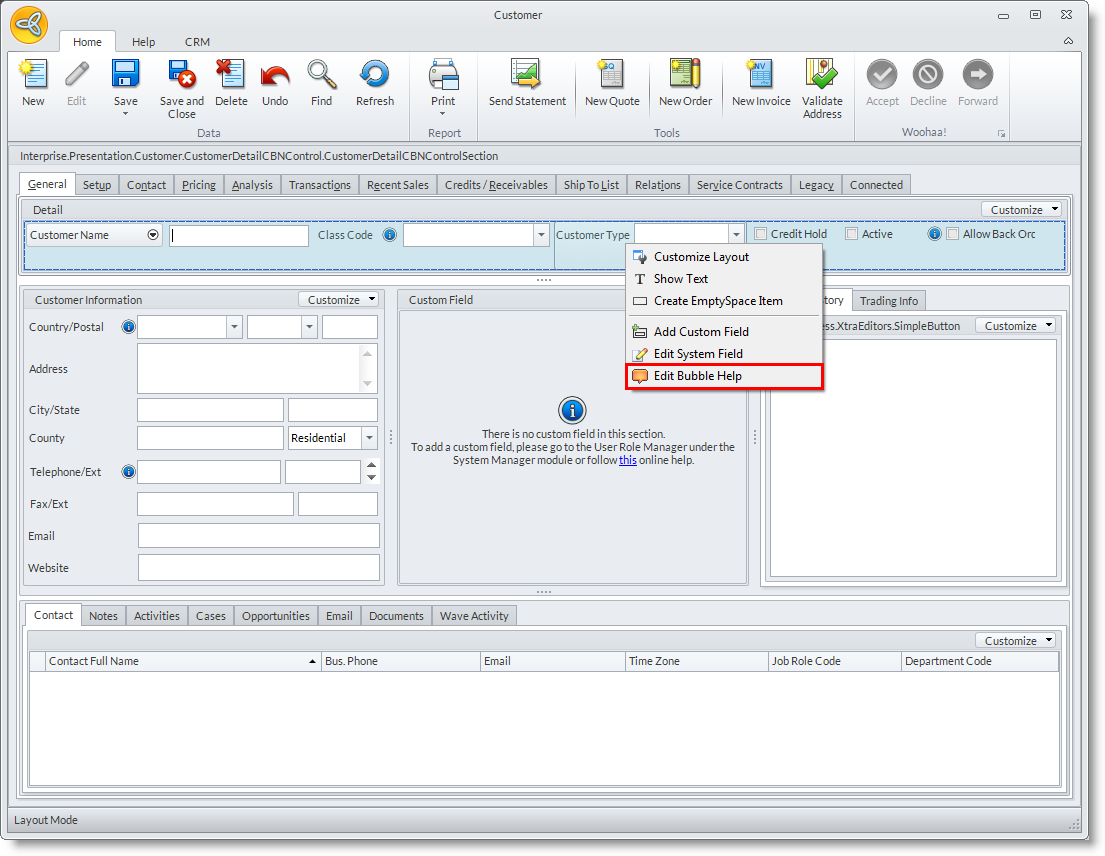
Click Image to Enlarge
- The Super Tip Editor screen will be displayed. This text editor dialog screen enables you to edit the tooltip text that appears whenever you hover over the specific field you have selected. It is comprised of two tabs: Bubble Help Editor and Preview tabs.
You can directly input the Plain Text or the HTML format in the Bubble Help Editor.

Click Image to Enlarge

If the Bubble Help Editor is left blank, or if its contents is the same as the selected field (e.g. Customer Type), no tooltip icon will be displayed beside the selected field.
- The table below shows the supported HTML tags for the Super Tip Editor.
Tag
End Tag Description <br>
Use the <br> tag to enter a single line break. <color=value>
Examples:
<color=red>
<color=0,255,0>
<color=#0000FF></color> Use this tag to modify the color of the text. <backcolor=value>
Examples:
<backcolor=red>
<backcolor=0,255,0>
<backcolor=#0000FF></backcolor> Use this tag to modify the color of the background. <size=value>
Examples:
<size=10>
<size=+4>
<size=-4></size> Use this tag to modify the the font size. <b> </b> Use this tag to make the selected text as bold. <i> </i> Use this tag to make the selected text as italics. - Click OK from the text editor screen to save your inputs. You can preview your the newly created Bubble Help content by hovering your mouse cursor over the field you placed the tooltip, or by clicking the tooltip icon directly beside the field.
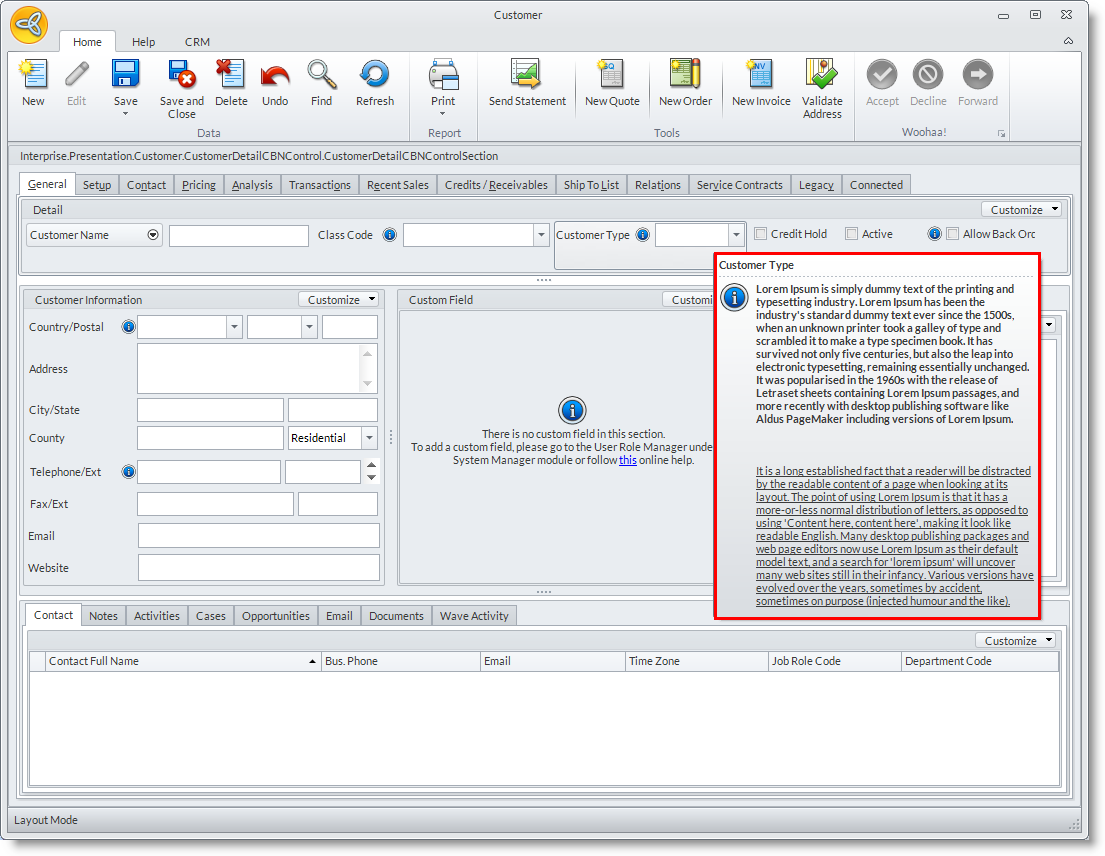
Click Image to Enlarge
- Click Save and Close to apply the changes.