
Set Up Multi-Location in POS
This article talks about how multi location is implemented in Connected Business POS.

This feature is only available in Connected Business v14 and higher.
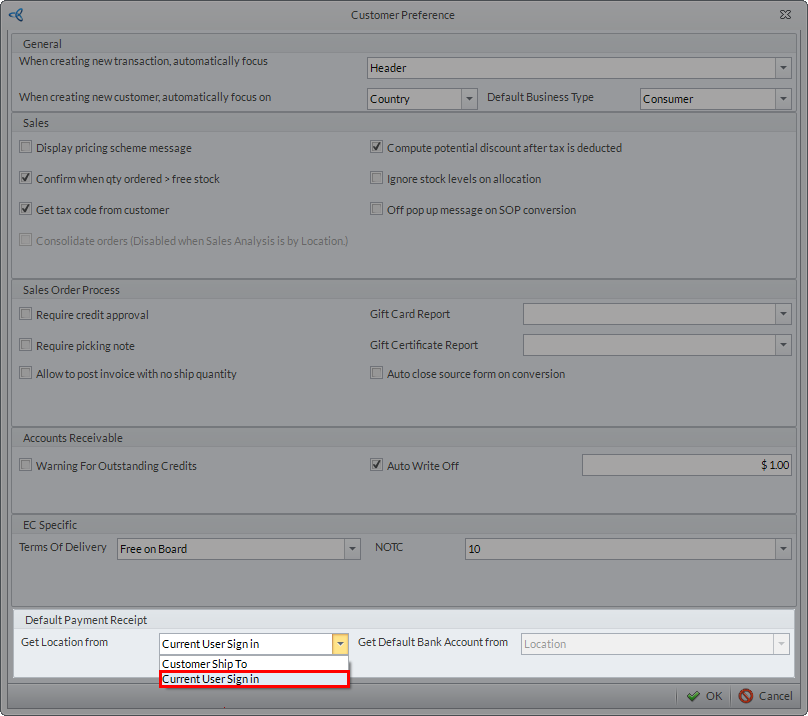
In order to use Multi-Location in Connected Business POS, the default location for all POS transactions should be based on the location of the currently signed-in user in the Connected Business backend application. To set this preference, go to Customer module > Setup > Customer Preference. The Customer Preference form will be displayed. In the Default Payment Receipt section, select Current User Sign In then click OK.
Click Image to Enlarge
Once set up in the backend, the default location for all Connected Business POS transactions will be based on the default location set up in the POS workstation.

Click Image to Enlarge
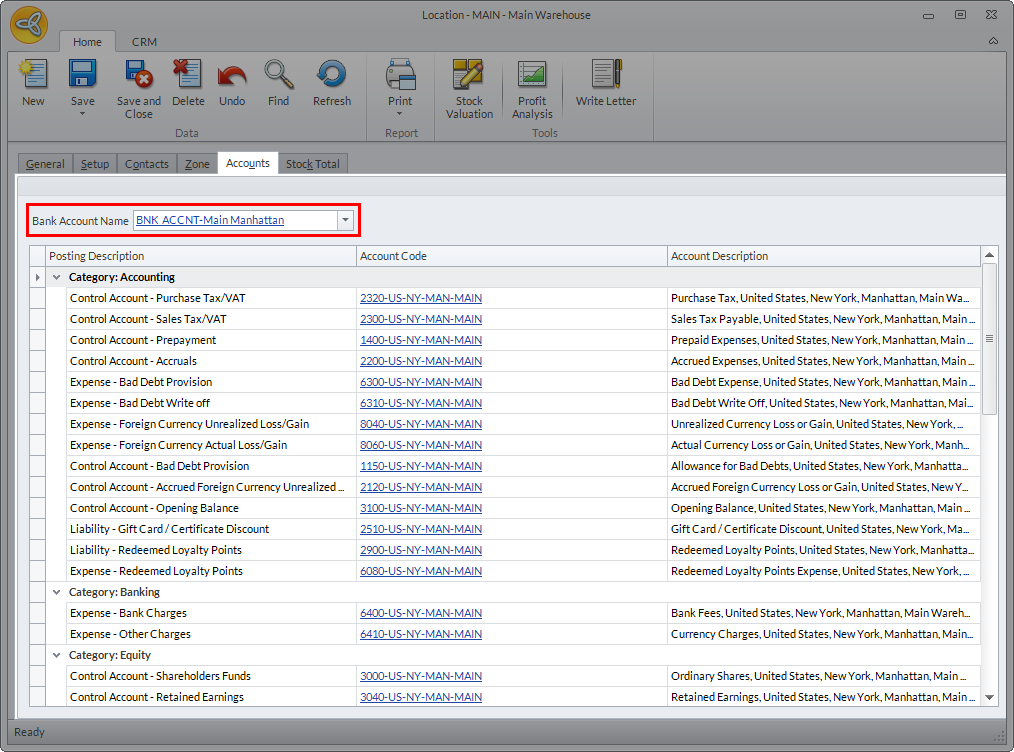
Also, the bank account to be used for all POS transactions will be based on the defined bank account of the default location set up in the workstation. To check the bank account used for the location, go to Inventory module (from the Connected Business backend) > Location > Find Location. Select the location from the list of locations to display the Location form. From the form, go to the Accounts tab and the bank account used is indicated in the Bank Account Name field.
Click Image to Enlarge
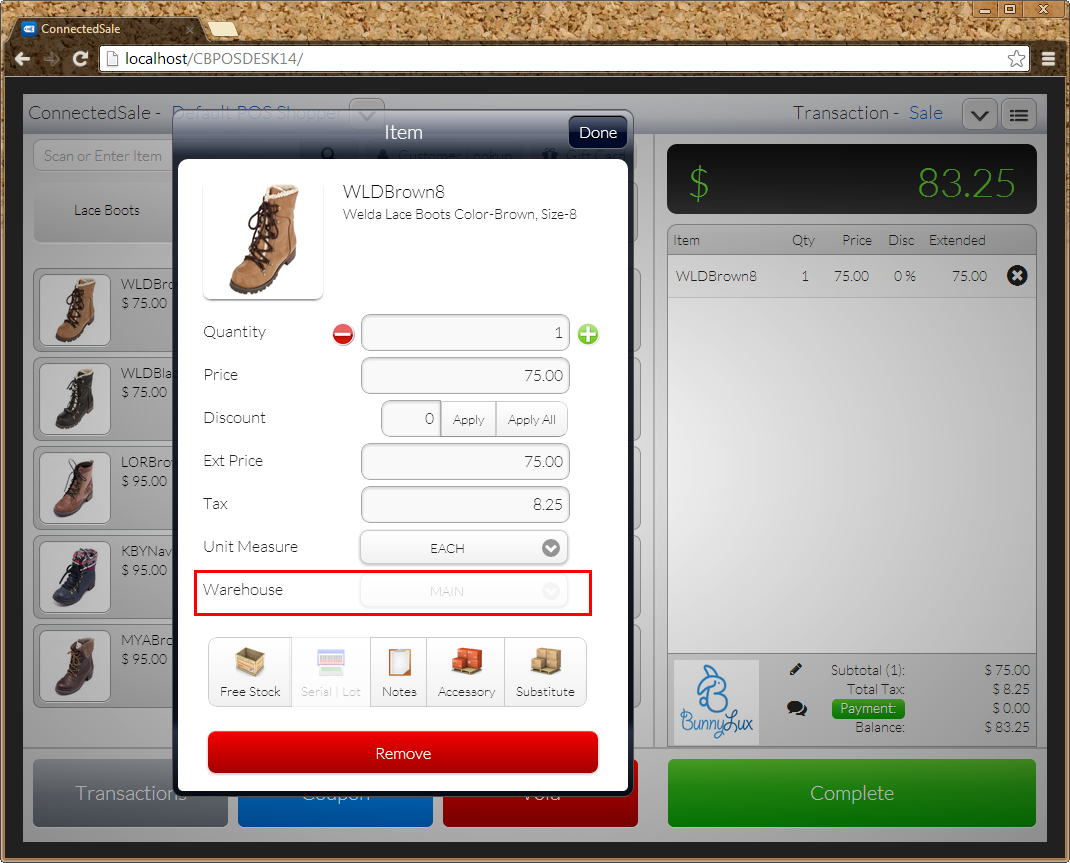
Note that if Multi Location is used in POS, the location for the item cannot be changed for all POS transactions as the option to change the location will be disabled.
Click Image to Enlarge