
Set Up Item Stocks
After the creation of an item the first concern that a certain store admin has is providing the created items with the necessary amount of available stocks for it to be ordered. This is very important especially for those stores who don’t cater back orders or non-stock products.
This article will describe how to set up Item Stocks in Connected Business..
Create Order of Products from Supplier
To order products from a supplier,
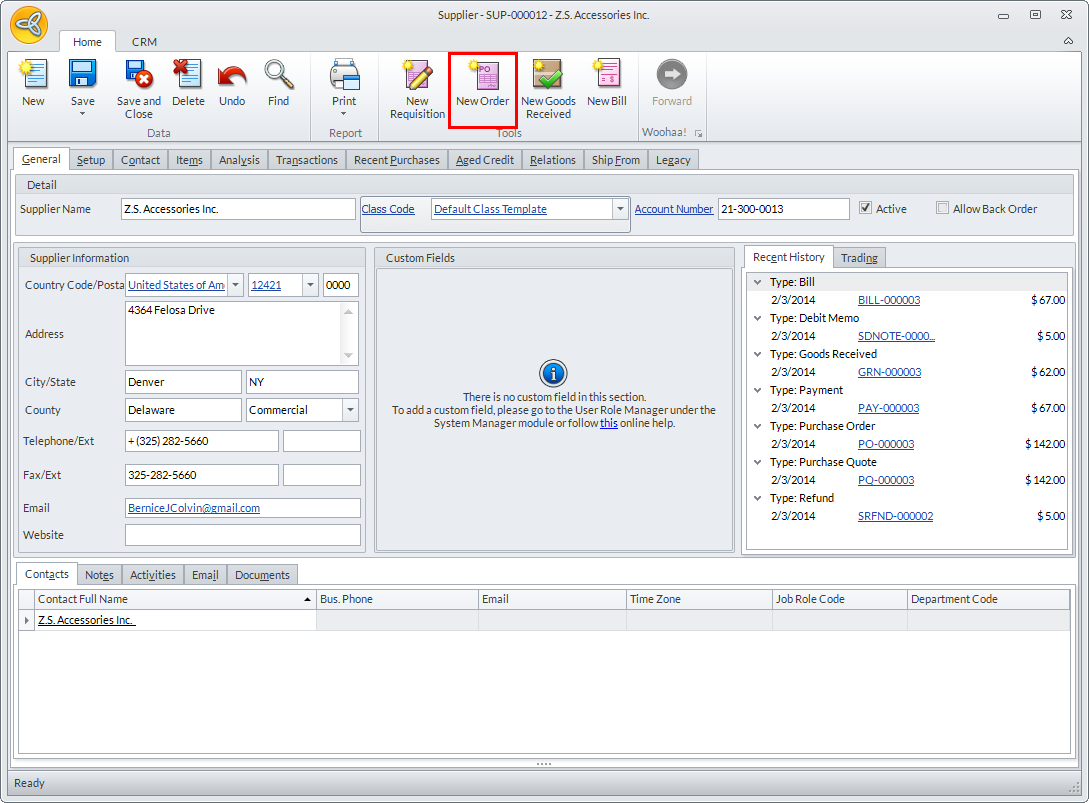
- From the Supplier module, go to Supplier > Find Supplier. The List of Suppliers will be displayed.
- Select a supplier from the the list. The corresponding Supplier form will be displayed.
Click Image to Enlarge
- Click New Order. The Purchase Order form will be displayed.
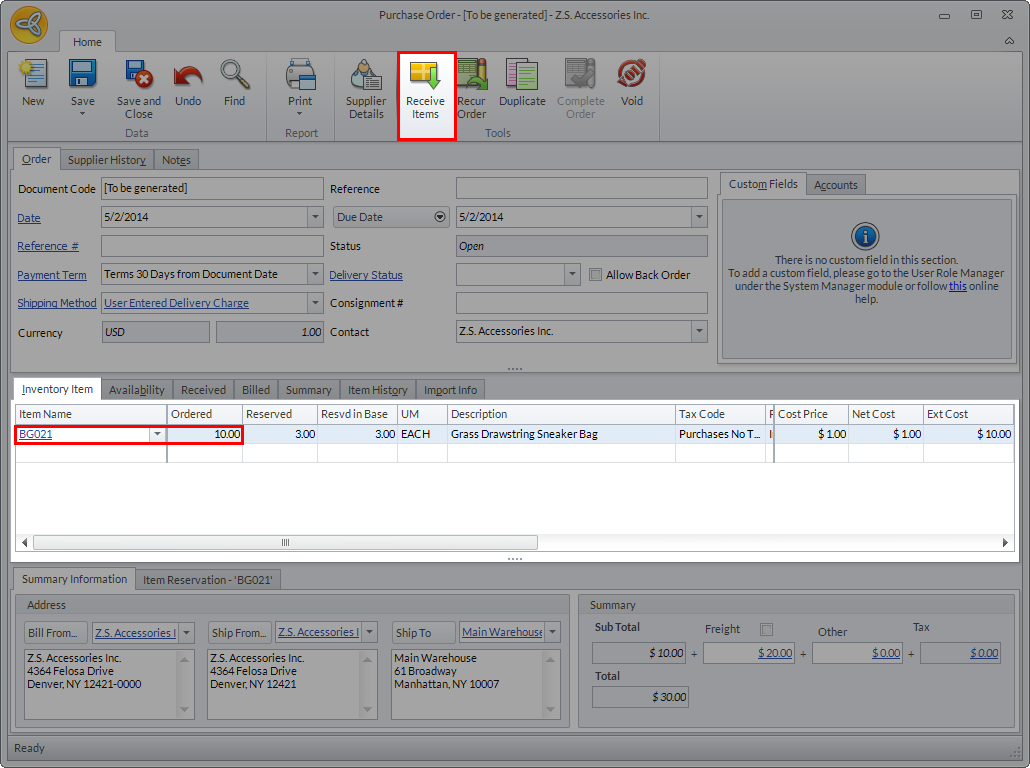
- Under the Inventory Item tab, expand the Item Name dropdown and select a stock item to order, then set the quantity of the item.
Click Image to Enlarge
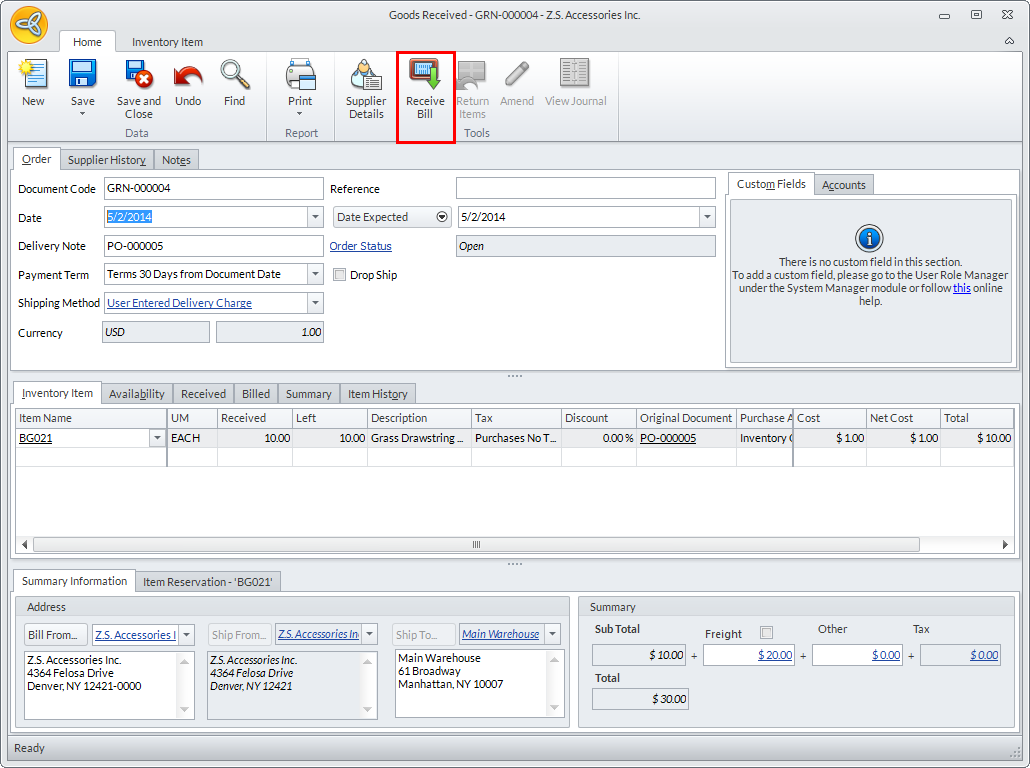
- Click Receive Items, then Yes on the subsequent prompt. The Goods Received form will be displayed.
- Save and Post the form, then click Receive Bill. Click Yes on the prompt to confirm.
Click Image to Enlarge
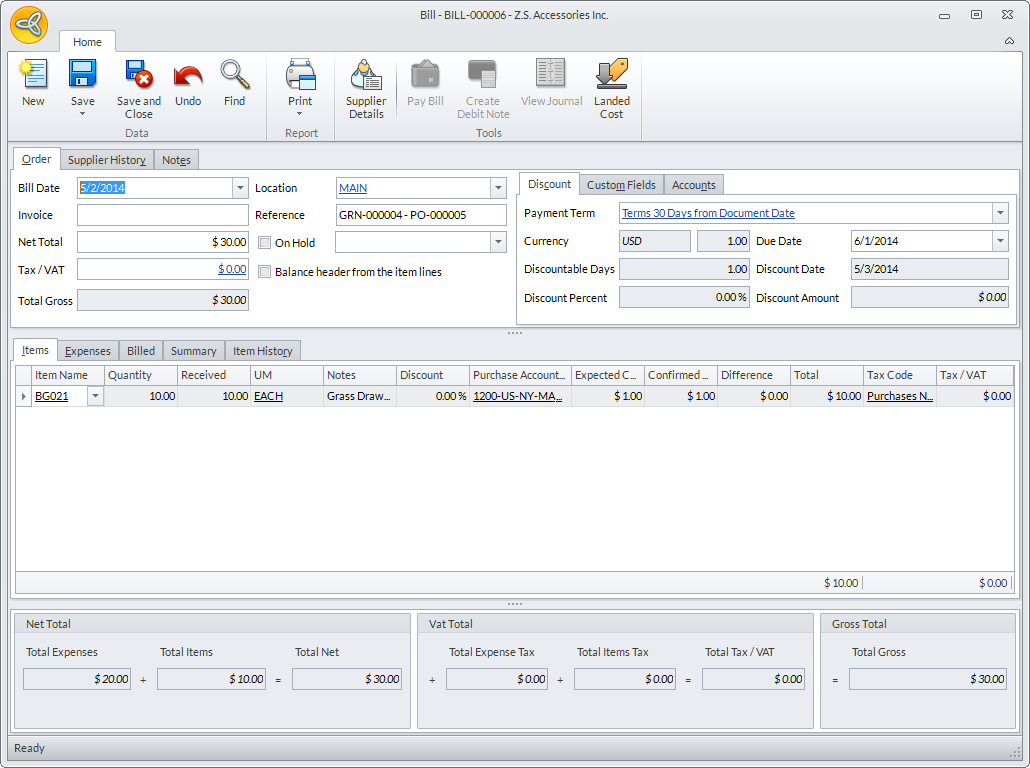
- Once the process is completed, click Yes on the prompt. The Bill form will be displayed.
- Confirm the details then either Save and Post the bill, if there are no more changes to be done, or Save and Close if the bill will be modified at a later time.
Click Image to Enlarge
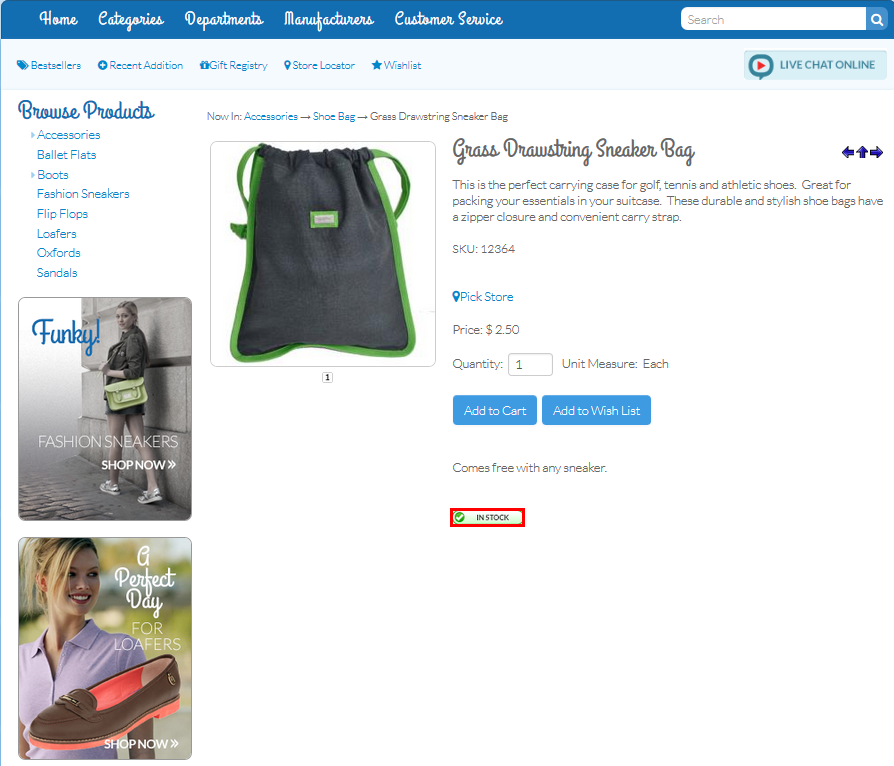
If previously Out of Stock, the status of the item on the webstore will be changed to In Stock.
Click Image to Enlarge

Adjust Item Stocks Directly
To adjust item stocks,
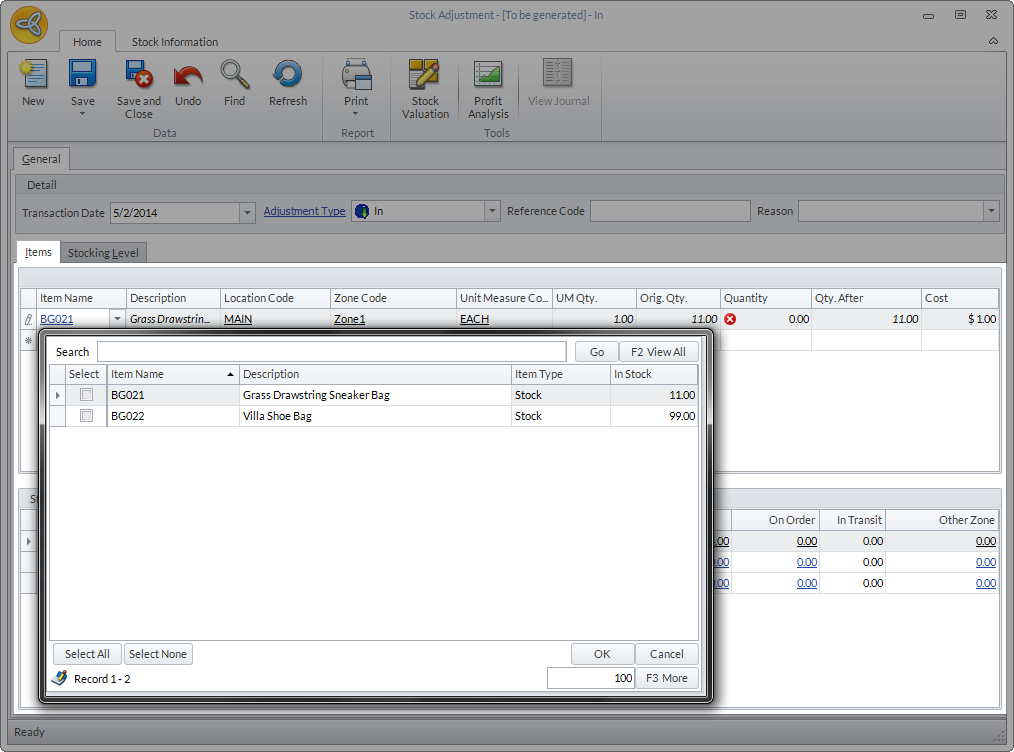
- From the Inventory module, go to Stock > Stock Adjustment > New Adjustment. The Stock Adjustment form will be displayed.
- Expand the Item Name dropdown and select an item.
Click Image to Enlarge
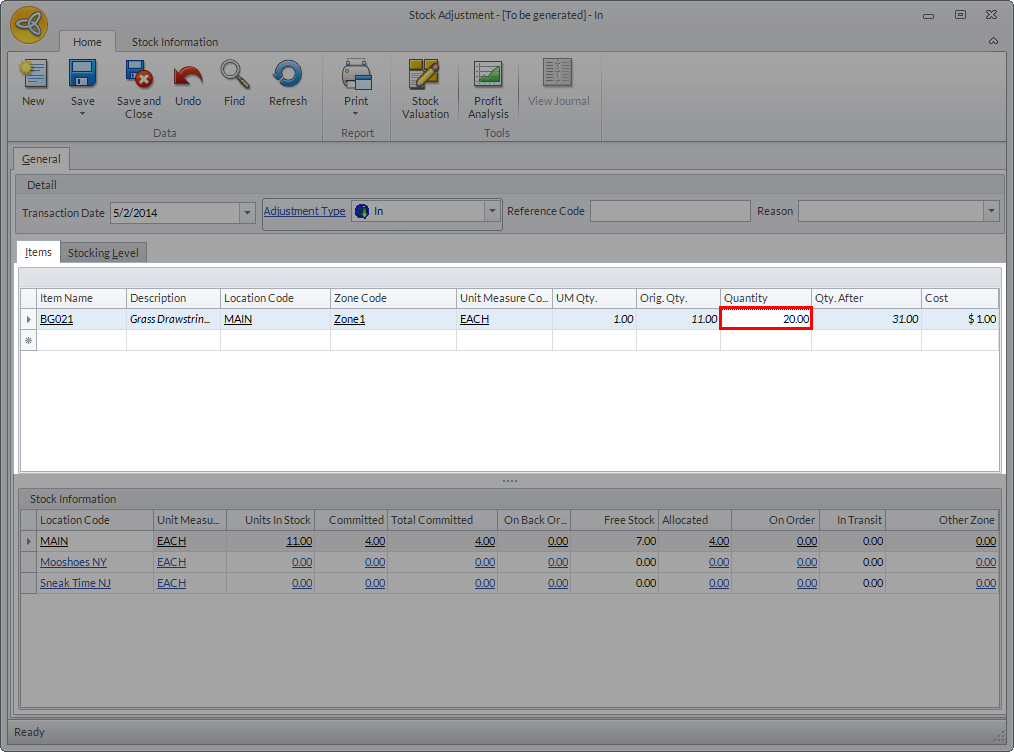
- In the Quantity field, enter the stock adjustment amount. Save and Close the form to apply changes.
Click Image to Enlarge
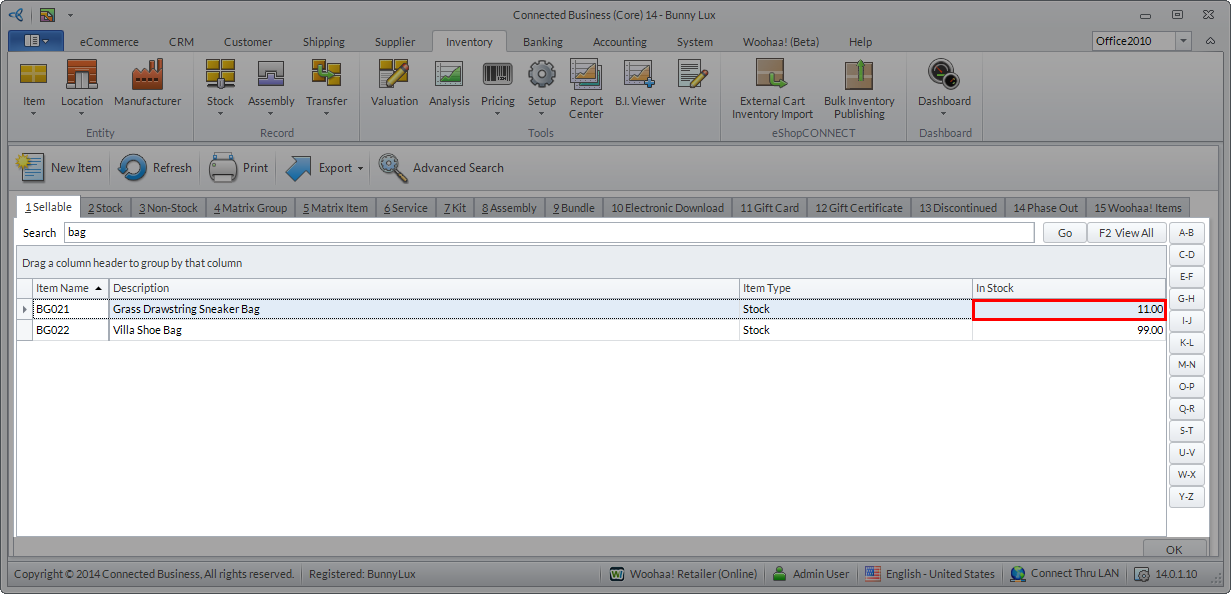
- Confirm the change by going to Item > Find Item and searching for the item. Notice how the value in the In Stockfield has changed.
Before Adjustment:
Click Image to Enlarge
After Adjustment:
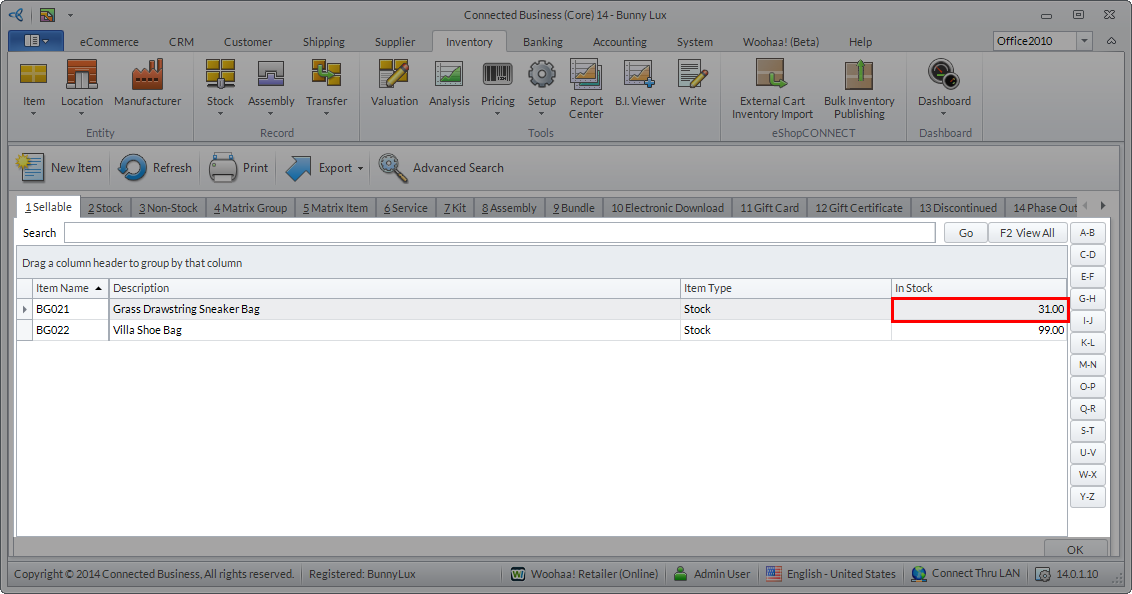
Click Image to Enlarge