
Change Tax and Payment Terms
| Content |
|---|
Tax Terms determine the tax rate applied to a transaction. Payment Terms define the agreed upon terms of payment between the seller and buyer. In previous versions of Connected Business POS, the tax and payment terms are automatically set based on what is defined in the class template assigned for new and exising customers. Once assigned, the tax terms and payment terms cannot be changed.
In the new version, tax and payment terms can now be set as preferred regardless of what is defined in the assigned class template, as will be demonstrated in this article.

This feature is only available in Connected Business v14 and higher.
Change Tax Term
Change Tax Code
If this option is enabled, the tax code assigned to the customer’s Ship To can be changed when necessary. To enable the ability to change the tax code,
- On the POS Dashboard, go to the Settings module.
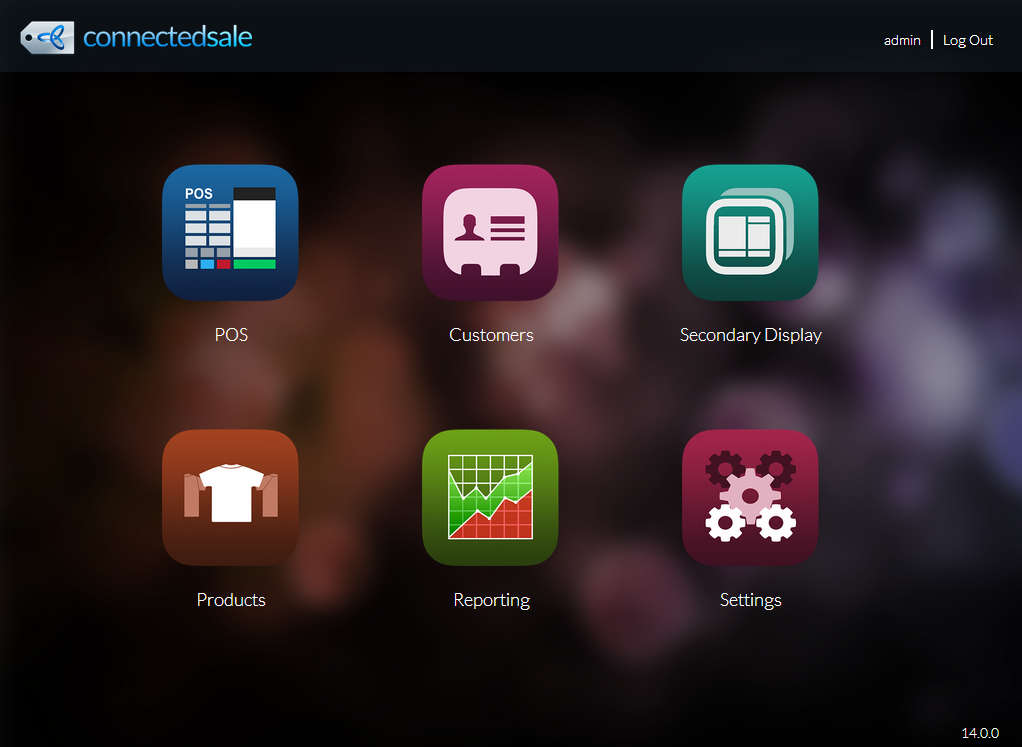
Click Image to Enlarge
- Set Allow Change Tax Code to On. Tap Back to return to the dashboard and apply changes.
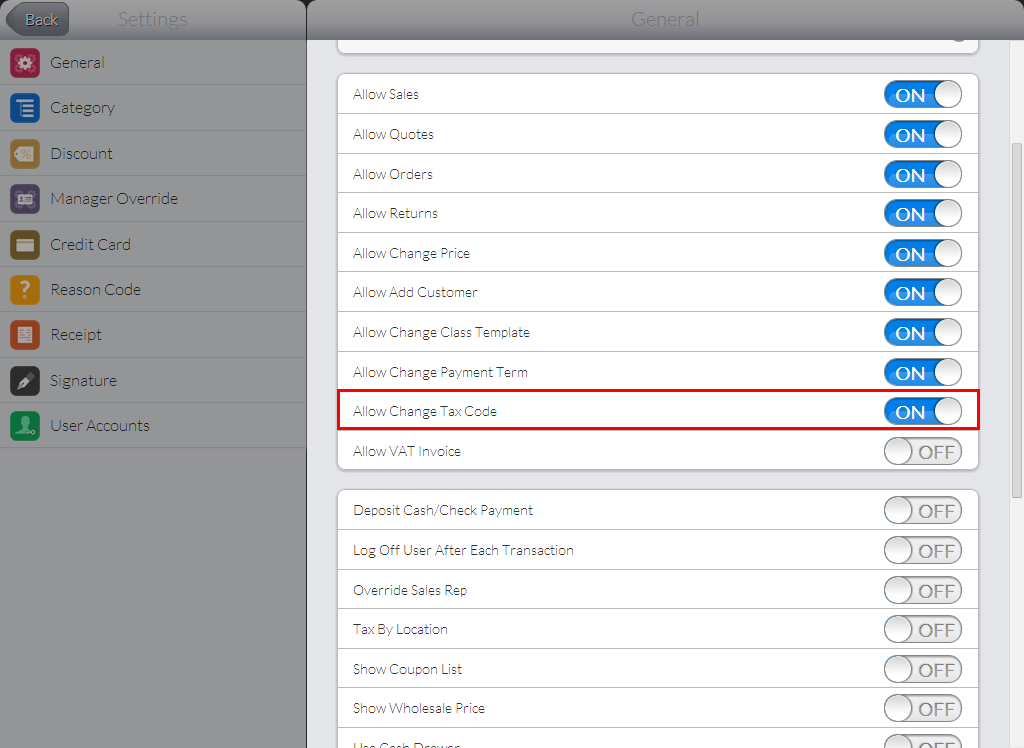
Click Image to Enlarge
- Go the POS module.
- Tap Customer Lookup then select a customer from the list.
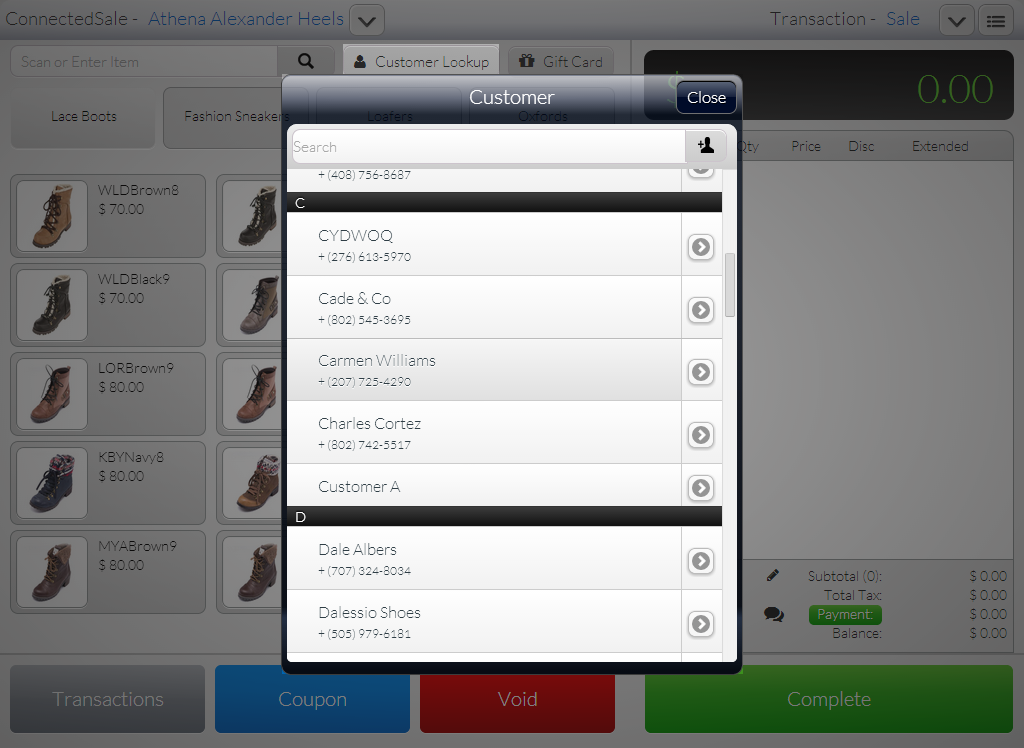
Click Image to Enlarge
- Tap the Dropdown Arrow next to the customer name (
 ). The Shipping Information panel will appear.
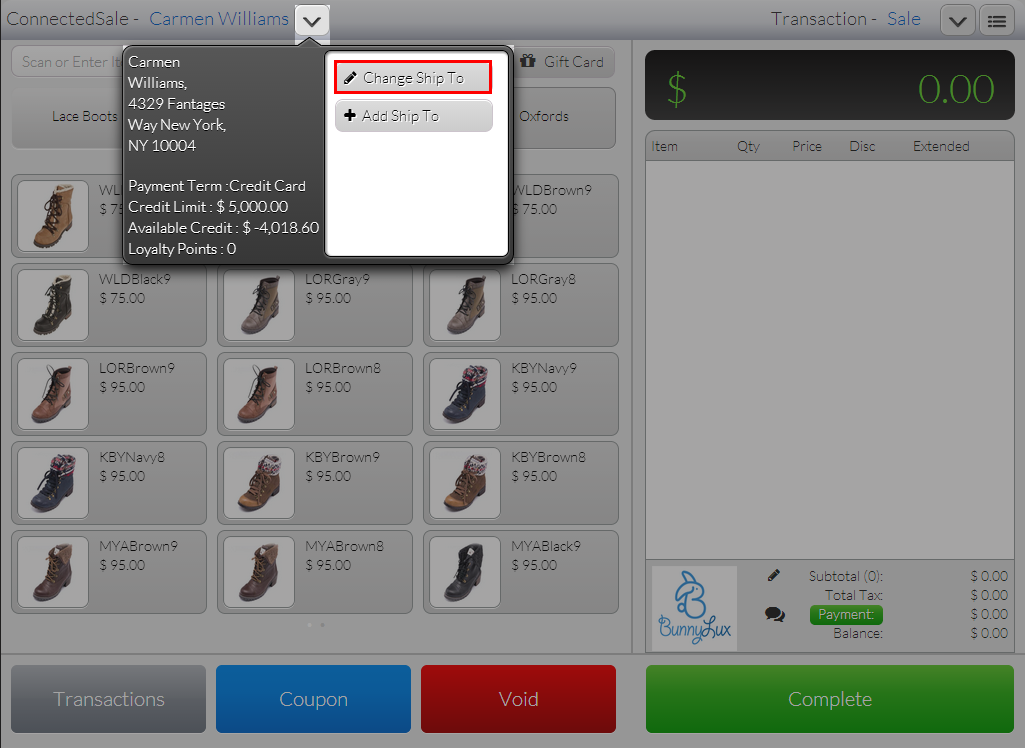
Click Image to Enlarge
- Tap Change Ship To. The Shipping Address list will be displayed.
- Click the Arrow Icon (
 ) next to a customer on the list. The customer’s Shipping Information screen will be displayed.
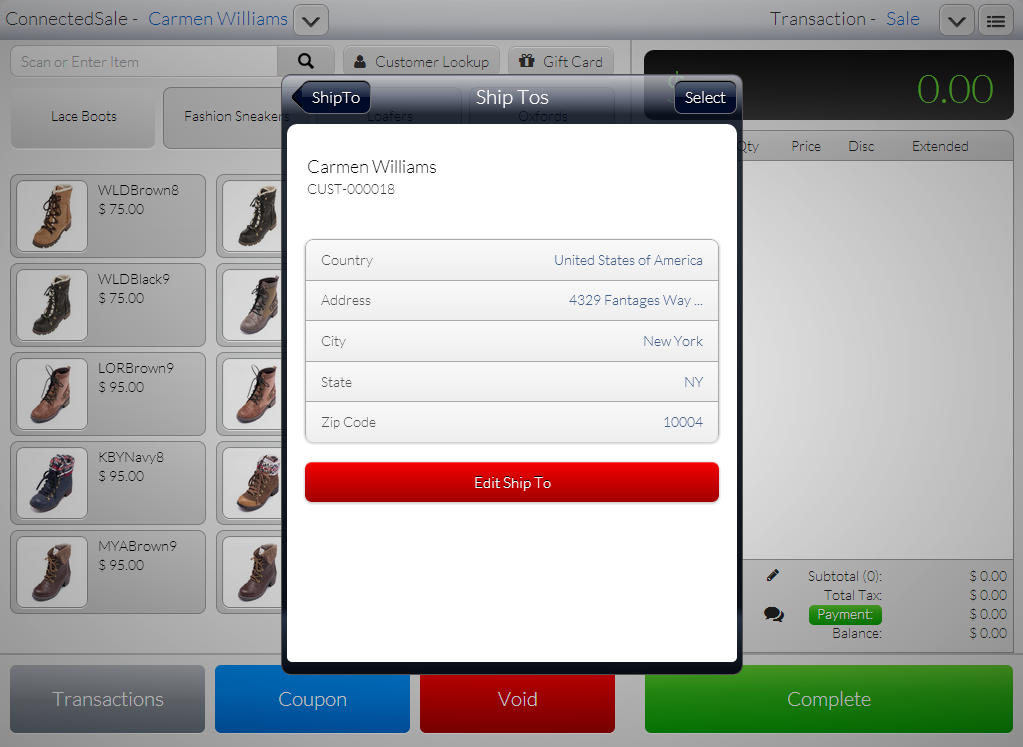
Click Image to Enlarge
- Click Edit Ship To. The Edit Ship To form will be displayed.
- In the Tax Code field, select an available tax term from the dropdown.
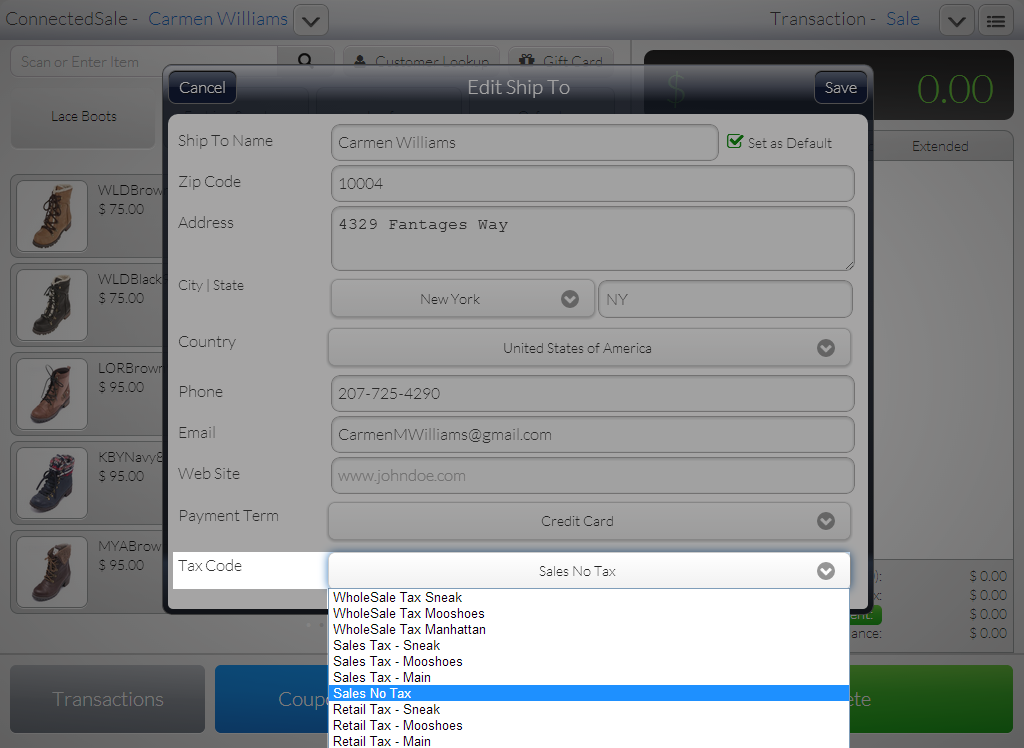
Click Image to Enlarge
- Tap Save to apply changes.
Tax by Location
If this option is enabled, the tax term for all POS transactions will be based on the defined tax term of the default location set up in the workstation and not the tax term set up for the customer. To enable Tax By Location,
- On the POS Dashboard, go to the Settings module.
- Toggle the Tax By Location option to on.
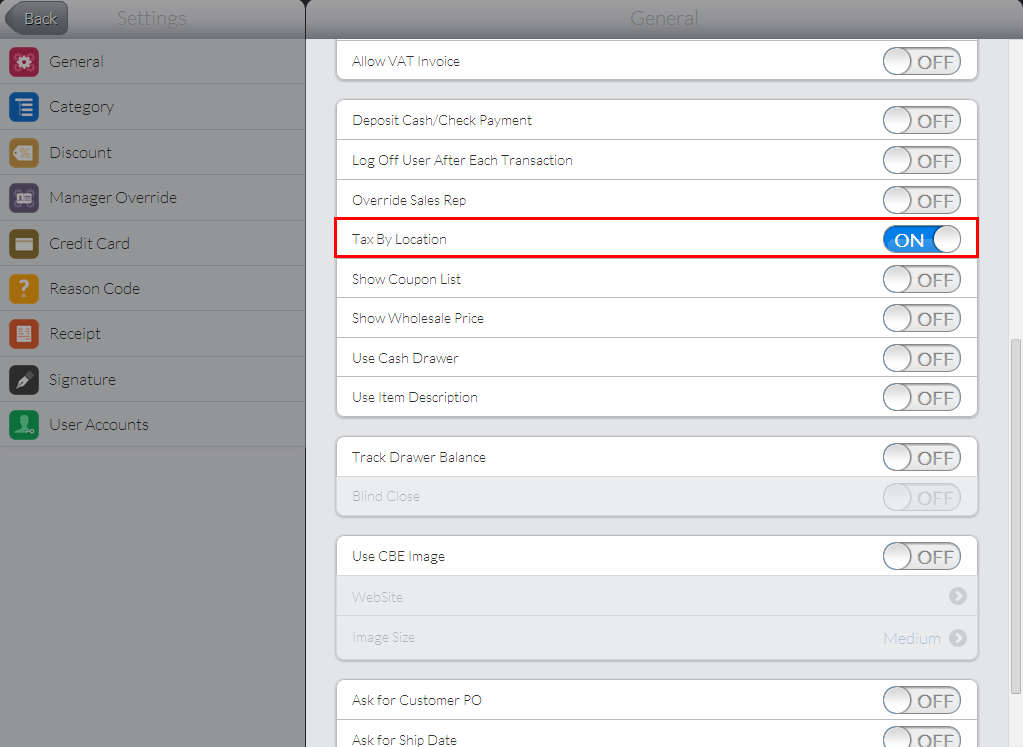
Click Image to Enlarge
- Tap Back to return to the dashboard and apply the changes.
If both Tax by Location and Change Tax Code options are turned off, the tax term most recently set up for each individual customer will be used.

Change Payment Term
If this option is enabled, payment terms assigned to individual customers can be changed. To enable the changing of payment terms,
- On the POS Dashboard, go to the Settings module.
- Set Allow Change Payment Term to On. Tap Back to apply changes and return to the dashboard.
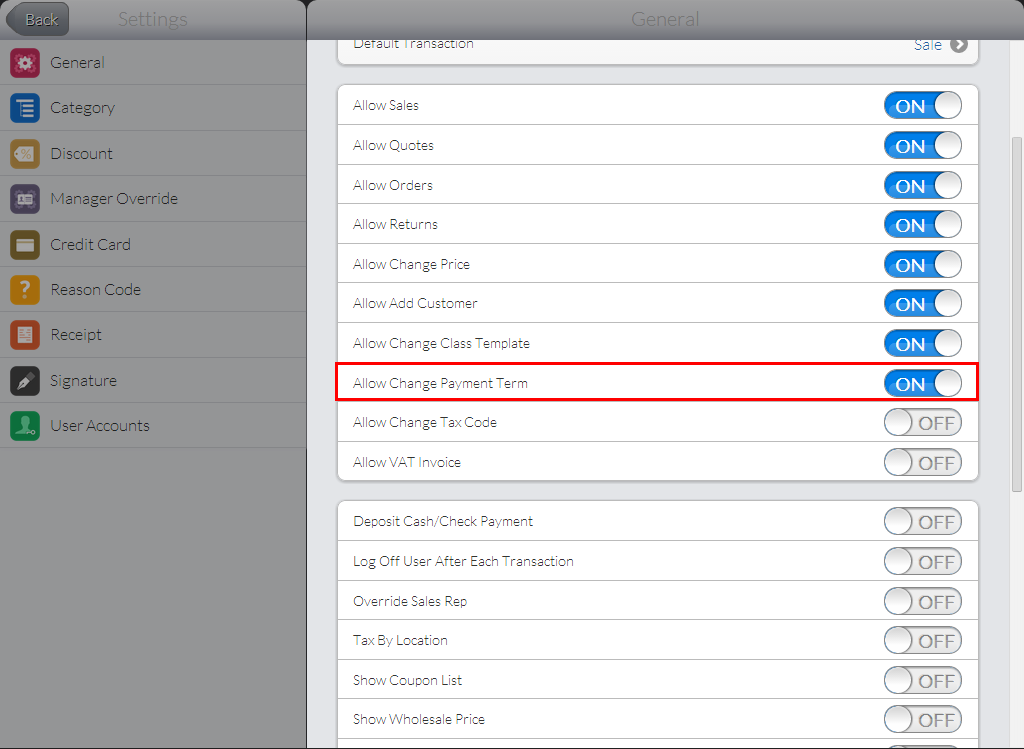
Click Image to Enlarge
- Go the POS module.
- Tap Customer Lookup then select a customer from the list.
- Tap the Dropdown Arrow next to the customer name (). The Shipping Information panel will appear.
- Tap Change Ship To. The Shipping Address list will be displayed.
- Click the Arrow Icon () next to a customer on the list. The customer’s Shipping Information screen will be displayed.
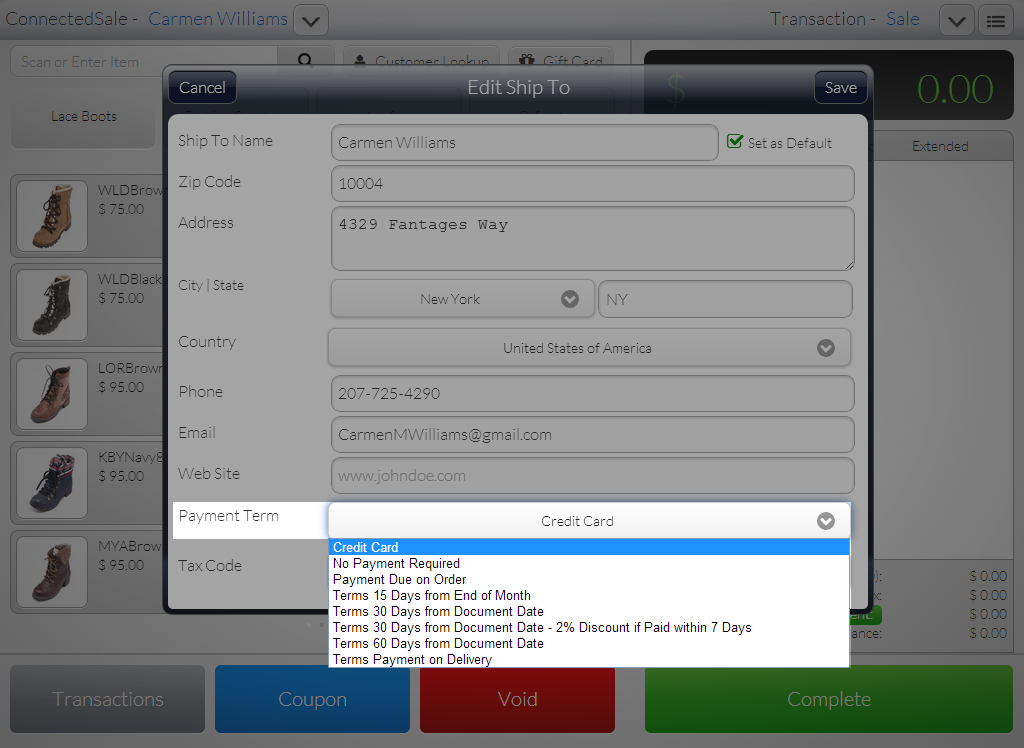
- Click Edit Ship To. The Edit Ship To form will be displayed.
- In the Payment Term field, select an available payment term from the dropdown.
Click Image to Enlarge
- Tap Save to apply changes.