
Send Debtor/Reminder Letters
|
Content
|
|---|
Overview
The Debtor Letter Run menu item allows you to produce debtor letters and send them to customers through the Debtor Letter Run Wizard.
Send Reminder or Debtor letters
Steps
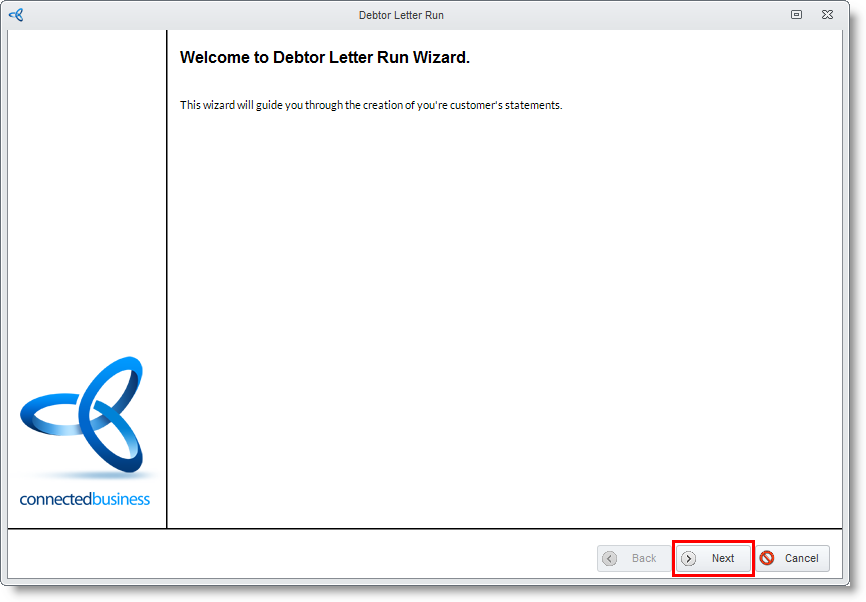
- From the Customer module, select Customer > Debtor Letter Run under the Customer drop down list. The Debtor Letter Run Wizard will display. Click Next button to continue.
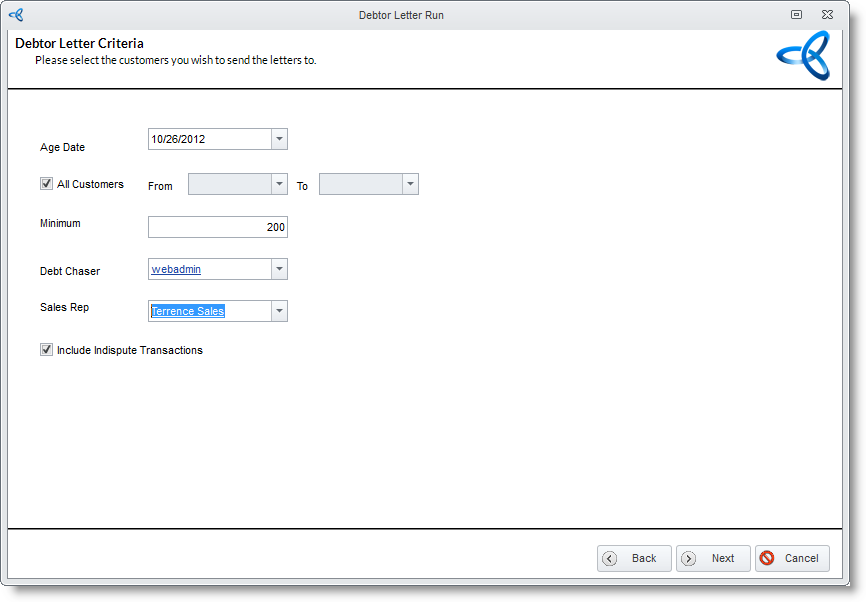
- Set the criteria for selecting customers to send the statements to. You choose a combination of all available criteria. You may filter transactions by age date, by customers, minimum balance, debt chaser and/or sales rep group, and you can choose to include all transactions that are in dispute. Click Next to continue.
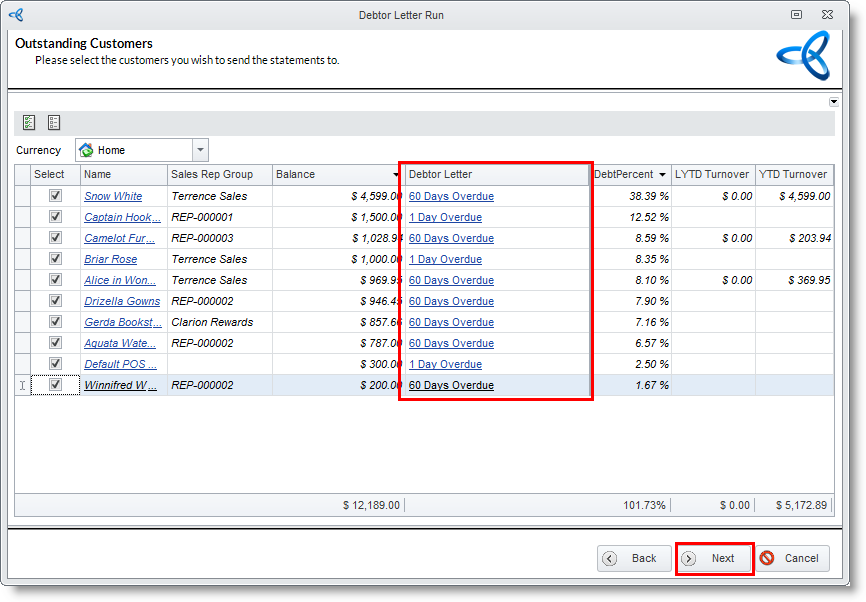
- Select the customer you will create the debtor letters for. In the Debtor Letter column. On the Debtor Letter setup form that will be displayed, select the appropriate debtor letter type to send to the customers. Click Next to continue.
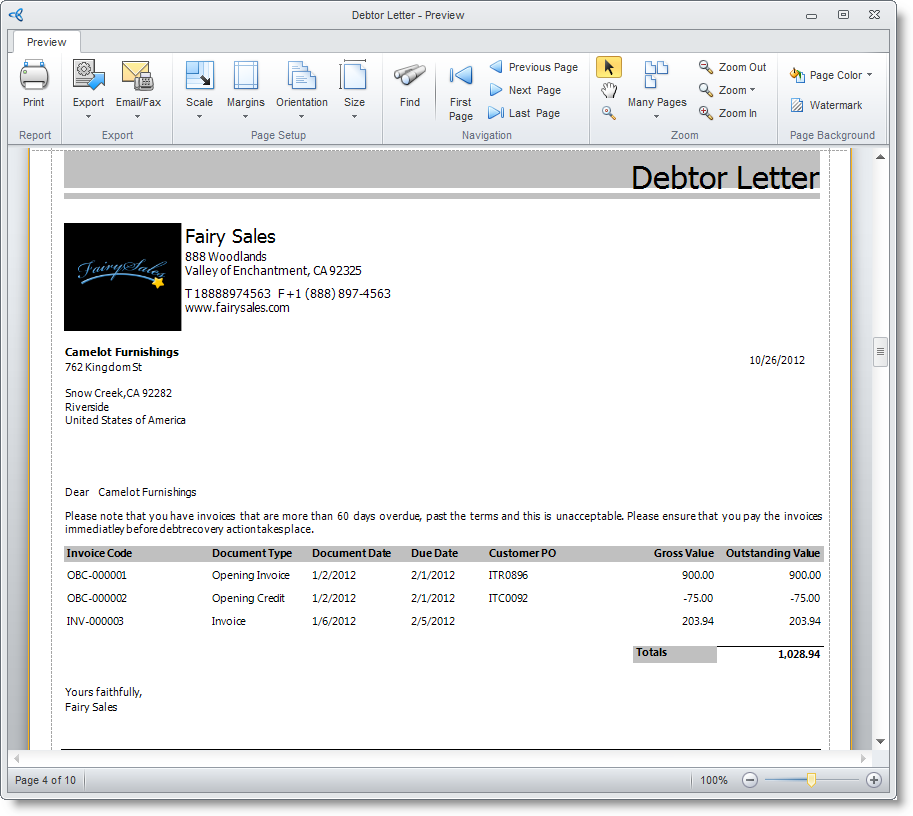
- The debtor letters are created for each customer selected. Click Finish to exit the wizard. The Print Dialog window will display. You may set your preferences before sending the letters to the customers. You can choose to print, or send the letters via email or fax.

Compose Debtor Letters
Debtor Letters are used to inform your customers about their overdue invoices thru email. When sending debtor letters in a debtor letter run, Interprise Suite defaults the debtor letter to send based on the number of days overdue.
- From the Customer module, select Setup > Debtor Letter. The Debtor Letter form will display.
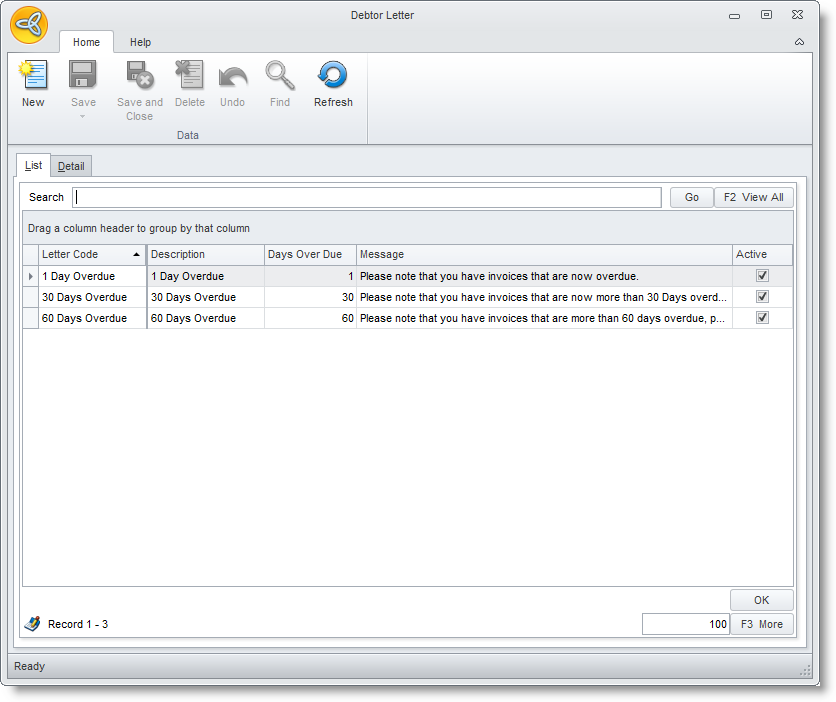
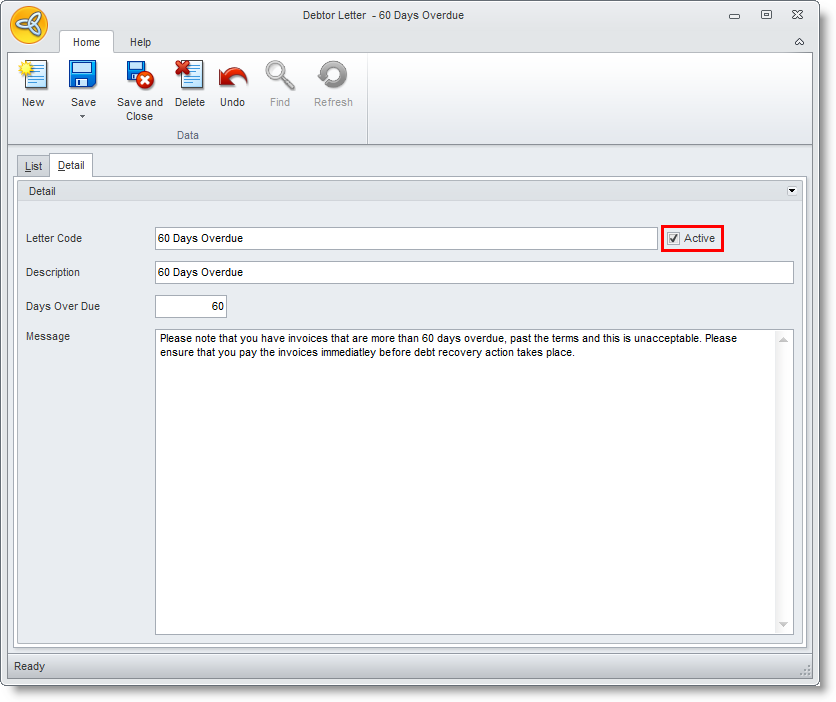
- Enter the Letter Code and Description.
- Enter the number of days overdue in the Days Overdue field.
- Enter the corresponding letter content in the Message field.
- Click the Active checkbox.

You can also inactivate the debtor letter by unticking the Active checkbox.
- Save the details before closing the Debtor Letter form.
If you want to delete a debtor letter, click on the Delete button from the Debtor letter menu options.