
Run Import Manager in Connected Business v14
This article talks about how to run the Import Manager in Connected Business v14.
Starting with Connected Business v14, the Import Manager will no longer be installed automatically with the application. It is now added as a feature that can be optionally installed by the user upon installing Connected Business.
In line with this, the Import Manager button has been removed from the System Manager module of the Connected Business application.

The Import Manager is 32-bit by default; however, it can be executed on 64-bit systems, regardless of the MS office version.
Install Import Manager
To install the import manager, make sure the select the feature upon installing Connected Business.
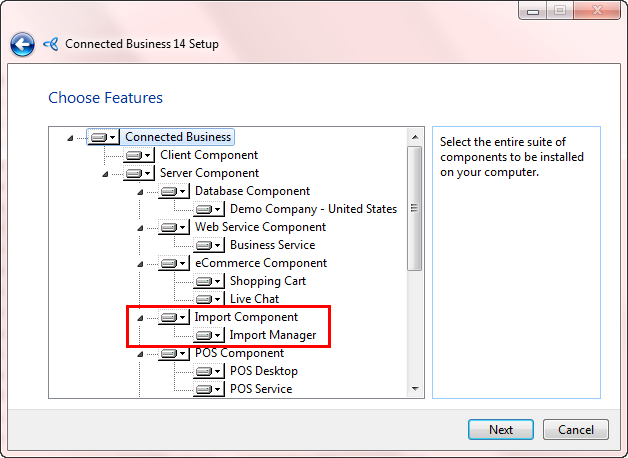
Click Image to Enlarge
Once installed, an Import Manager icon will be added on the desktop and in the programs folder where you can run the application.
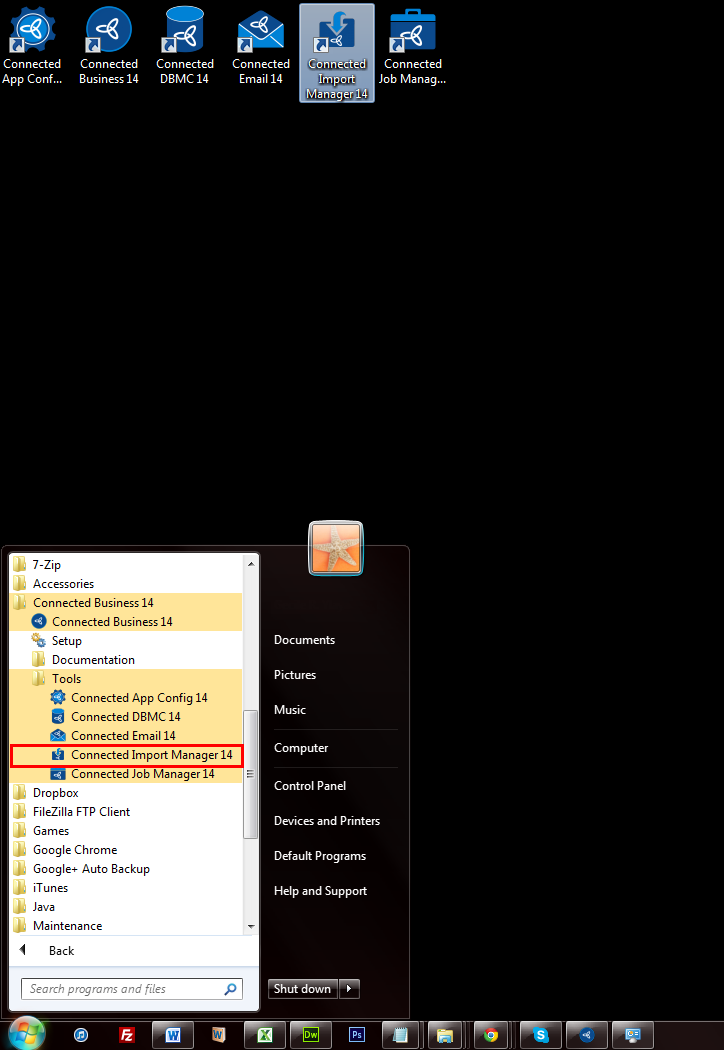
Click Image to Enlarge

Run Import Manager
Upon launching the import manager, the system will run a validation to verify the database connection. If the system detects any discrepancies in the configuration, a message prompt will be displayed indicating the discrepancy detected, e.g. user account not setup, incorrect password, etc.
You cannot run the Import Manager unless the database connection is validated.
Click OK to load the configuration tool, modify the database connection as needed then click Save and Close to save the configuration.
If no configuration is made and you decided to just go ahead and run the Import Manager, a message prompt will be displayed indicating that the application is unable to connect to your company database. Click OK to load the configuration tool or click Cancel to close the Import Manager window.
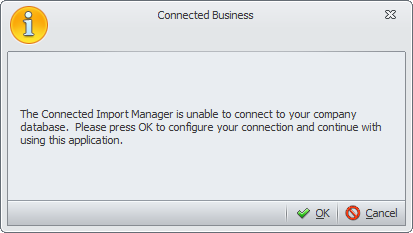
This is only applicable if the database connection is not yet configured in the Connected Business application.
If no discrepancies are detected, the Import Manager window will be displayed.
In the Import Manager window, the Connected Business version and company name are indicated.
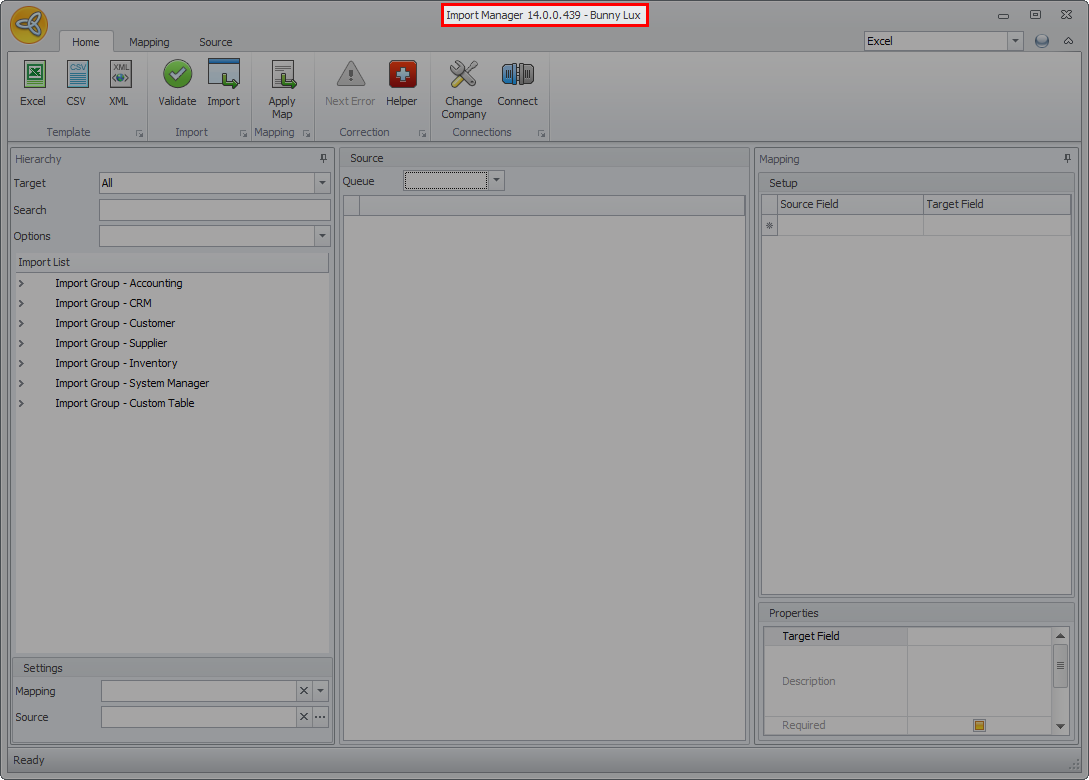
Click Image to Enlarge
If you want to change the company where the data will be imported, click the Change Company button. This will load the Connected Application Configuration Tool form. Modify the database connection as needed then click Save and Close.
Changing the database connection will reset all modifications made in the current import data loaded in the source grid.

Click Image to Enlarge
For more information about the Import Manager, you can refer to Import Manager.