
Rounding Rules in Item Pricing
Pricing is a method of assigning a purchase value to a certain product. For stores with large inventories, this can be a process that takes time.
In Connected Business, you can define rounding rules to streamline the pricing process by rounding off or modifying multiple item prices at once based on preset values. This article will demonstrate how rounding rules are set up and applied in Connected Business.

This feature is only available in Connected Business v14 and higher.
Set Rounding Rules
To define rounding rules,
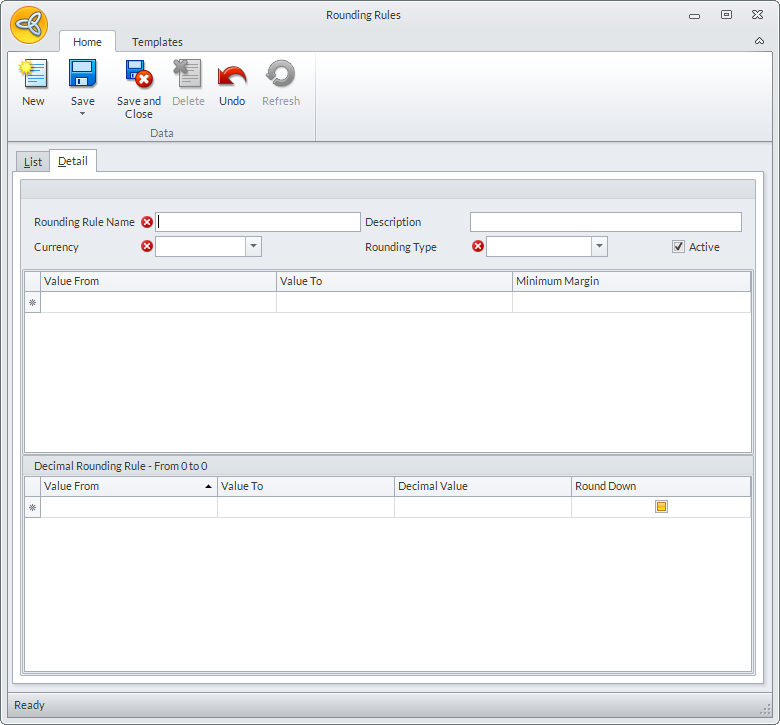
- Go to System module > Setup > Rounding Rules. The Rounding Rules form will be displayed.
- Click the New button to switch to the Detail tab..
Click Image to Enlarge
The following table describes the function of the fields in the Rounding Rules form.
Field Function/Description Rounding Rule Name The name of the rounding rule. Description The rounding rule description. Currency The currency to be used when applying the rounding rule. Rounding Type The type of rounding to be used for the rounding rule. The options are:
* SIMPLE - If selected, the rounding rule will only be applied to the whole number of the value.
* DECIMAL ONLY - If selected, the rounding rule will only be applied to the decimal portion of the value.Value From & Value To The range of values where the rounding rule will be applied. Rounded Value The number a value will be rounded off to. Minimum Margin The minimum margin before a value is rounded off. Decimal The rounded value for decimals if the value falls within the given range. This section will only be enabled if the Rounding Type is set to Decimal Only. Round Down Tick this checkbox if you want to round down the integer if the decimal falls within a specified range.
- Enter the preferred values for the rounding rule (name, description, currency, and rounding type) then click Save or Save and Close.

Create Rounding Rule Template
This only applies for Decimal Rounding Rules.
To create a rounding rule template,
- In the Rounding Rules form, click the New button.
- Enter the details for the rounding rule such as the name, description and currency.
- Set the Rounding Type to Decimal Only.
- Define the scope of the rounding rule by entering the values in the Value From/To, Rounding Value, and Minimum Margin fields.
- In the Decimal Rounding Rule section, define the decimal values for the rounding rule.
- Click the Templates tab in the ribbon menu then click Save. The Save Rounding Rule Template dialog box will be displayed.

Click Image to Enlarge
- Enter the details for the Template Code and Template Description then click OK to save the template.
You can apply the template to new or existing decimal rounding rules. To do this,
- From the Rounding Rule form, click the New button (to apply the template to a new decimal rounding rule) or select a rounding rule from the list (to apply template to an existing decimal rounding rule). The form will switch to the Detail tab.
- For new decimal rounding rules, enter the rounding rule details, go to the Templates tab then click Apply. For existing decimal rounding rules, go to the Templates tab then click Apply to modify the decimal rounding rule values. The Apply Rounding Rules Template form will be displayed.
- Select the template to be applied to the decimal rounding rule.

Click Image to Enlarge
A message prompt will be displayed confirming the application of the template to the rounding rule. Click Yes to proceed.
You can also click the node button right beside the template code to view the template details.

Click Image to Enlarge
The values in the Decimal Rounding Rule section of the form will be updated with the values defined in the template.
- Click Save or Save and Close to apply changes.
Apply Rounding Rules
To apply rounding rule,
- Go to Inventory module > Pricing > Item Pricing > Item. The Inventory Item Pricing Wizard will appear.

Click Image to Enlarge
- Define the values for Location, Currency and set the criteria to filter the results for item pricing. Click Next to proceed.
- In the Pricing List page, the list of items ready for pricing will be displayed. Click Next. The Round Price dialog box will be displayed.

Click Image to Enlarge
- Select the rounding rule from the drop down list and tick which item pricing type (Retail, Wholesale, and Suggested Retail) to apply the Rounding Rule to. Click OK to apply.

Click Image to Enlarge
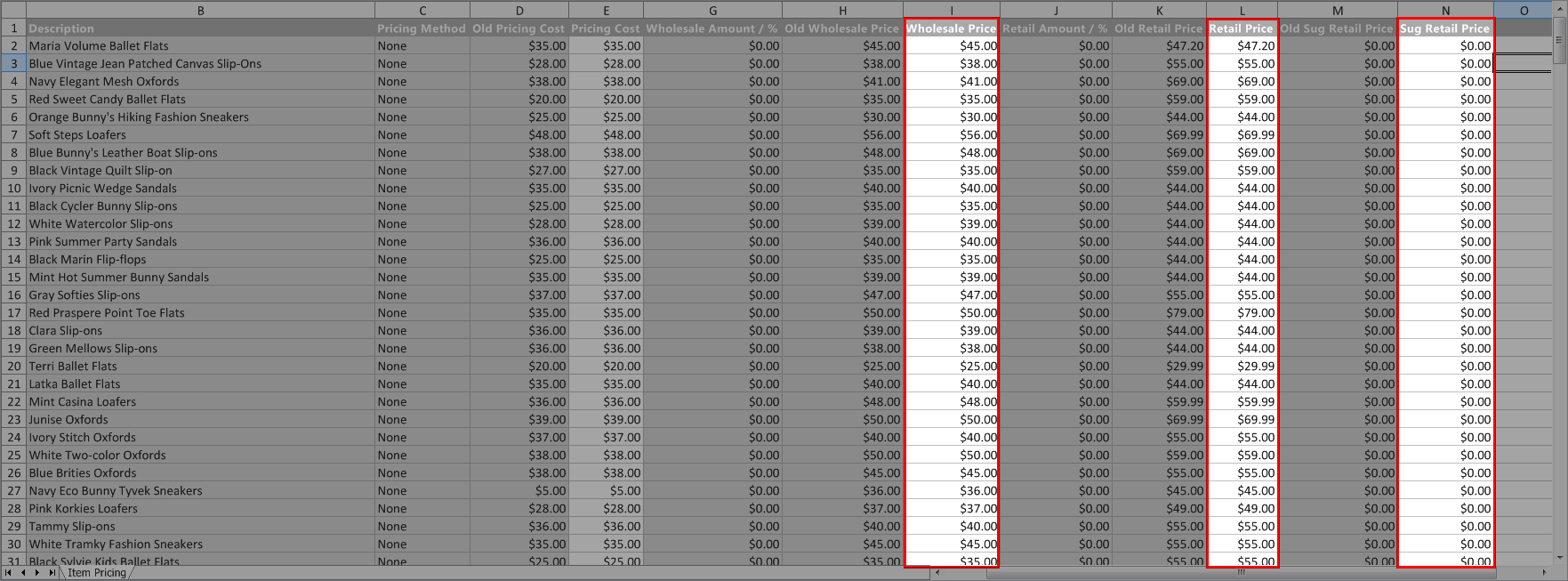
The pricing will be updated based on the rounding rule applied. See images below.
If you want to change the rounding rule applied, click the Apply Rounding Rule button to load the Rounding Price dialog box. Change the rounding rule as needed then click OK.
Price list BEFORE the rounding rule is applied:
Click Image to Enlarge
Price list AFTER the rounding rule is applied:

Click Image to Enlarge
Only the values for Wholesale Price, Retail Price, and Suggested Retail Price are affected by the Rounding Rules.
You can also check the pricing for each item by clicking the item name code from the wizard. This will load the Item Detail form. From the form, go to the Pricing tab and the updated pricing details for the item will be displayed.

Click Image to Enlarge