
Reset Cache
A cache (pronounced "cash") keeps recently-used information in a temporary storage where it can be quickly accessed. For example, a Web browser like Internet Explorer uses a cache to store the pages, images, and URLs of recently visited Web sites in your hard drive. The cache acts as a copier and a storage area to reduce bandwidth usage, server overload, and quick data retrieval as you browse previously-accessed web documents, pages and elements from the Internet. As a result, caching provides web users quicker and more efficient browsing tasks.
To apply the concept of “Cache” on our ebusiness Suite, let us discuss the following:
Why we need to reset the Cache of the eCommerce Admin Site?
We need to reset the cache in order for us to see the changes made in the eBusiness Suite. It is highly-recommended to click the Reset Cache button every after significant modification to your Admin Site has been made, so the previously-residing data on the memory will not override the current adjustments you have specified.
When do we need to reset the eCommerce Admin Site?
- Any changes made in Application Configuration.
- Any changes made in String Resource
- Uploading a picture in the Web Options
To reset admin site cache,
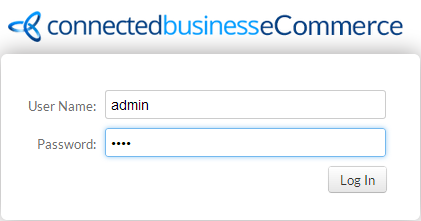
- Log-in to the admin site.
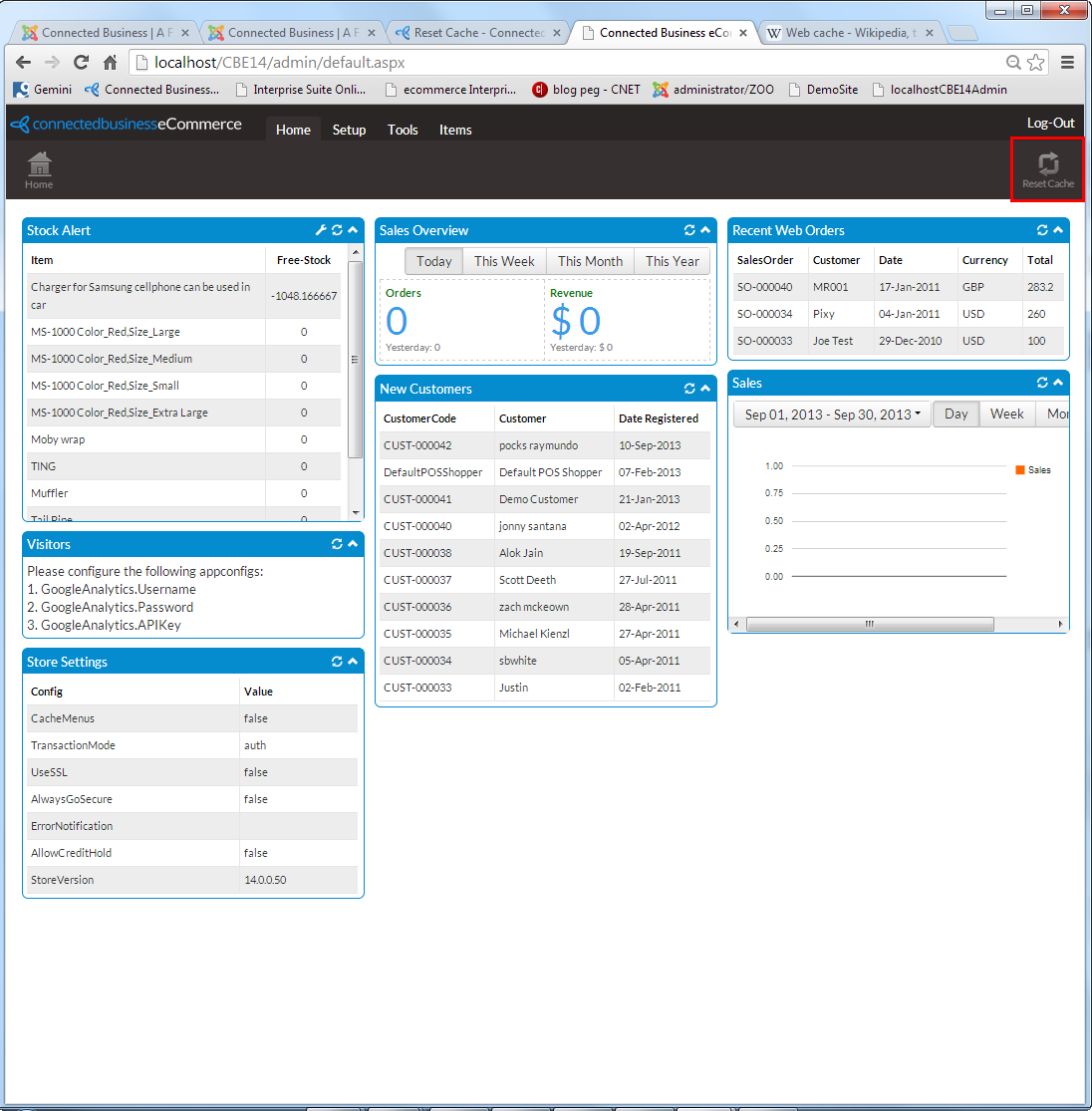
- The Admin Site Home Page will be displayed. Click on the Reset Cache button from the top right area of the screen.
Click Image to Enlarge