
Process Supplier Receipt (CB 14)
This article will discuss how to process supplier receipt in Connected Business 14.
Record Supplier Receipt
- Go to Supplier module > Receipt > New Receipt. The list of active suppliers will be displayed.
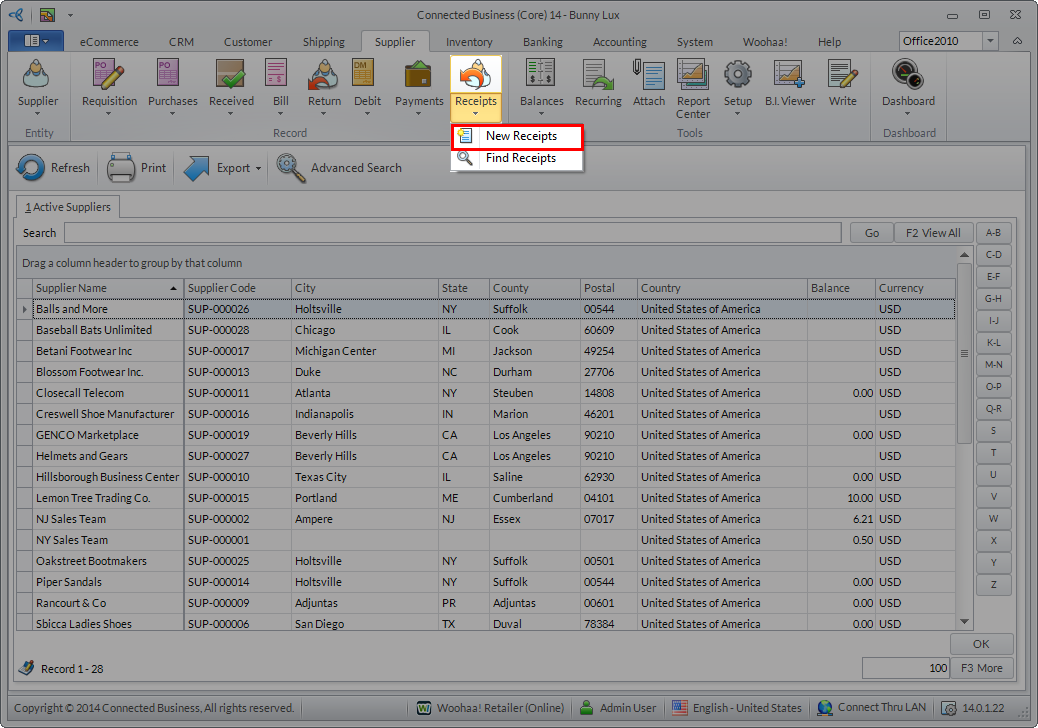
Click Image to Enlarge
- Select the supplier that issued the receipt. The Receipt form will be displayed.
- Enter the amount refunded in the Amount field. In the Bank Information section, select the bank account and payment method for depositing the received. (Note: The received amount will be deposited to bank account regardless if it's allocated or not.)

Click Image to Enlarge
- Select how you want to process the receipt:
- ALLOCATE RECEIPT FROM SUPPLIER
If the supplier has existing credits, you can allocate the receipt against the credits. To do this,- Tick the checkbox of the credit document code where the receipt will be allocated. By default, the outstanding balance of the credit will be added to the total receipt amount. Change the amount to the actual amount received.
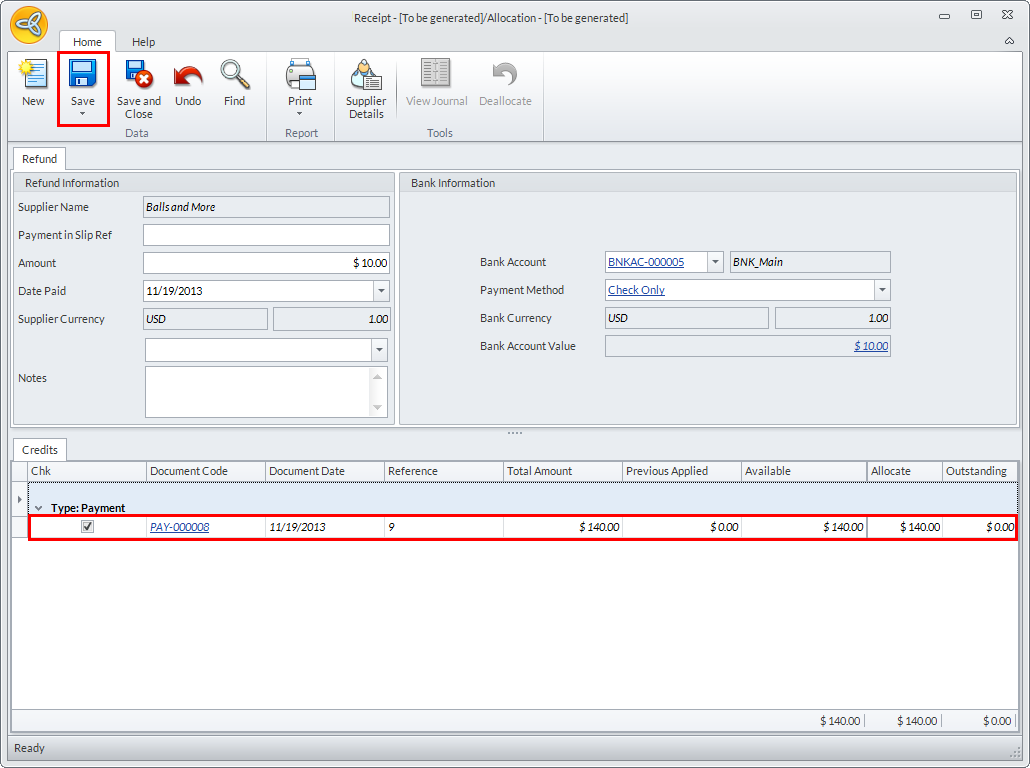
Click Image to Enlarge
- Click Save to post the receipt. A prompt message will be displayed indicating that the transaction did not generate any gain/loss or settlement discount amount. Click OK.
- Once posted, the outstanding balance will be updated. You can check the total amount allocated in the Allocate section of the form.
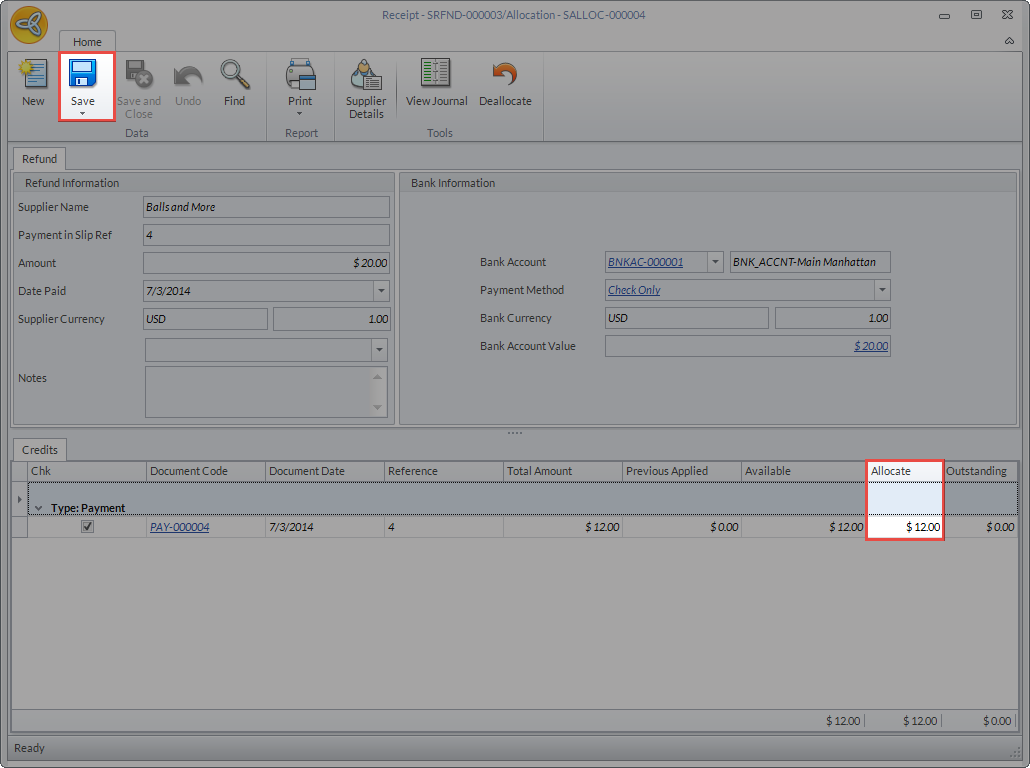
Click Image to Enlarge
Click Image to Enlarge
- Tick the checkbox of the credit document code where the receipt will be allocated. By default, the outstanding balance of the credit will be added to the total receipt amount. Change the amount to the actual amount received.
- DO NOT ALLOCATE BUT POST RECEIPT
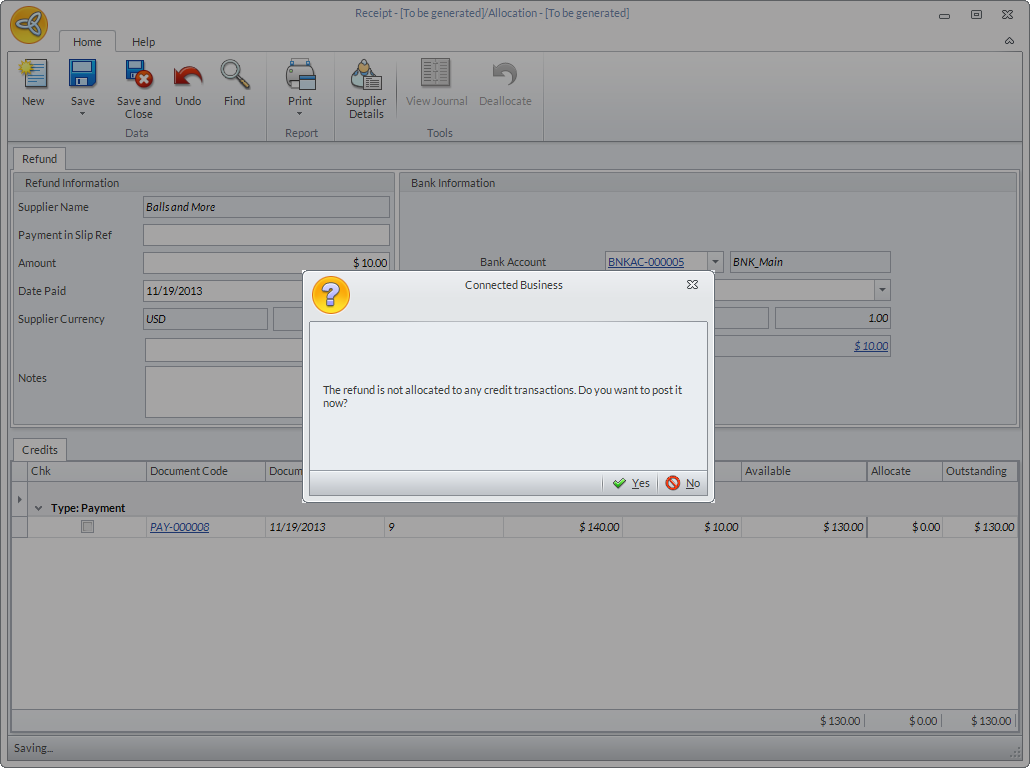
If you want to post the receipt without allocating it to any credits, click Save and Close. A message prompt will be displayed indicating that the receipt is not allocated to any credit transactions. Click Yes.

Once posted, you cannot modify the receipt amount anymore.
Click Image to Enlarge
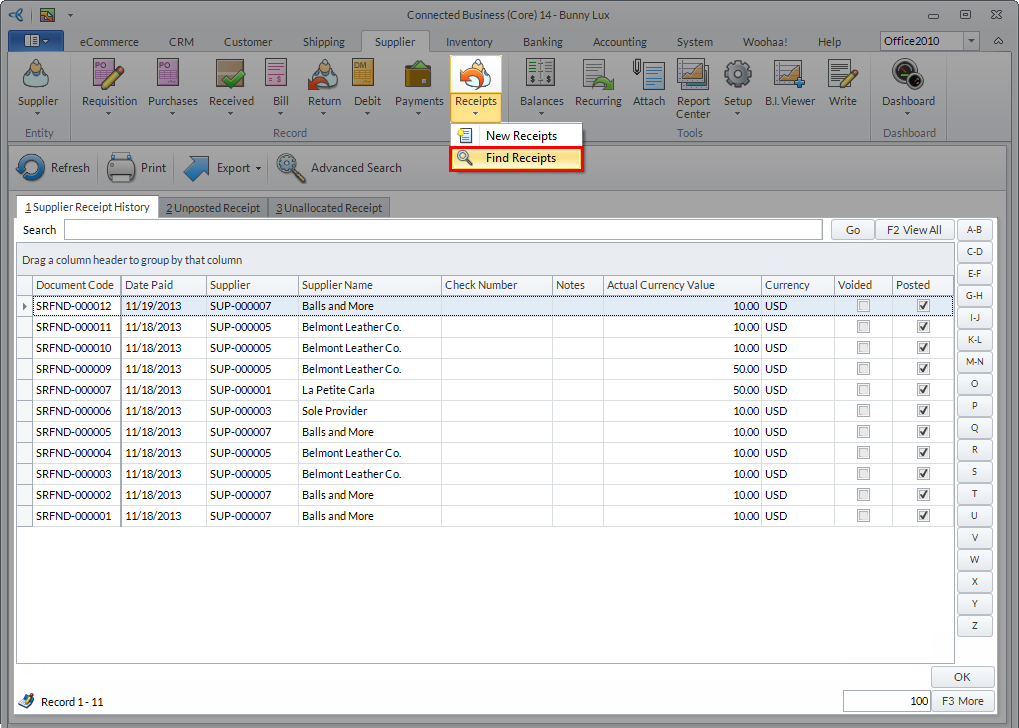
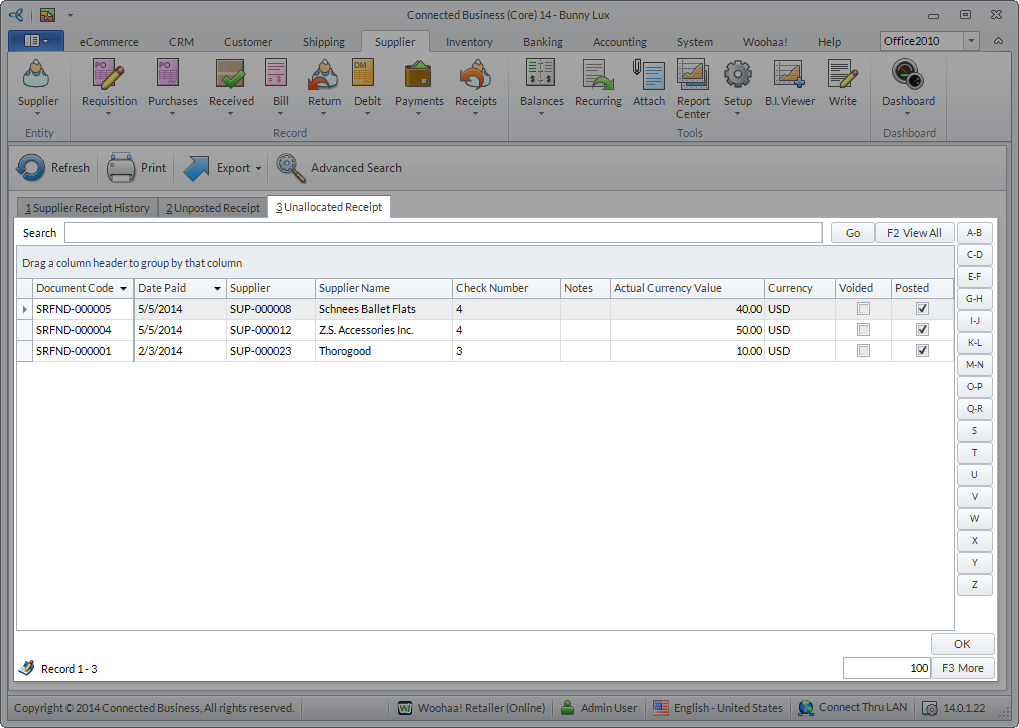
You can view the list of unallocated and posted supplier receipt from Receipt > Find Receipt > Unallocated Receipt.
Click Image to Enlarge
- DO NOT ALLOCATE AND POST RECEIPT
If you do not want to allocate nor post the receipt, click Save and Close. A message prompt will be displayed indicating that the receipt is not allocated to any credit transactions. Click No.
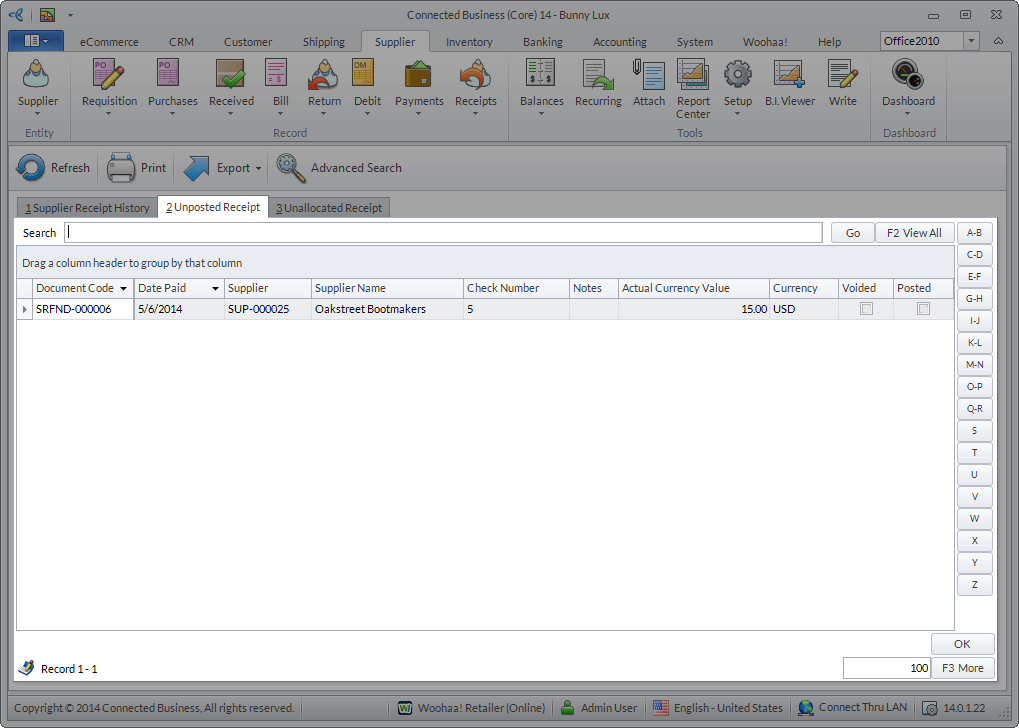
You can view the list of unallocated and unposted supplier receipt from Receipt > Find Receipt > Unposted Receipt.
Click Image to Enlarge
- ALLOCATE RECEIPT FROM SUPPLIER

Apply Receipt to Debit Memo
Aside from allocating the receipt to payments using the Payment form, you can now apply the receipt directly from the debit memo form.
Only unallocated supplier receipt can be used to make new payments, debit memo, etc.
To use unallocated supplier receipt for debit memos,
- Create a new debit memo. Go to Supplier module > Debit > New Debit Memo. The list of Active Suppliers will be displayed.
- Select the supplier from the list. The Debit Memo form will be displayed. Enter the amount to be paid in the Net Total field and click Save and Post.
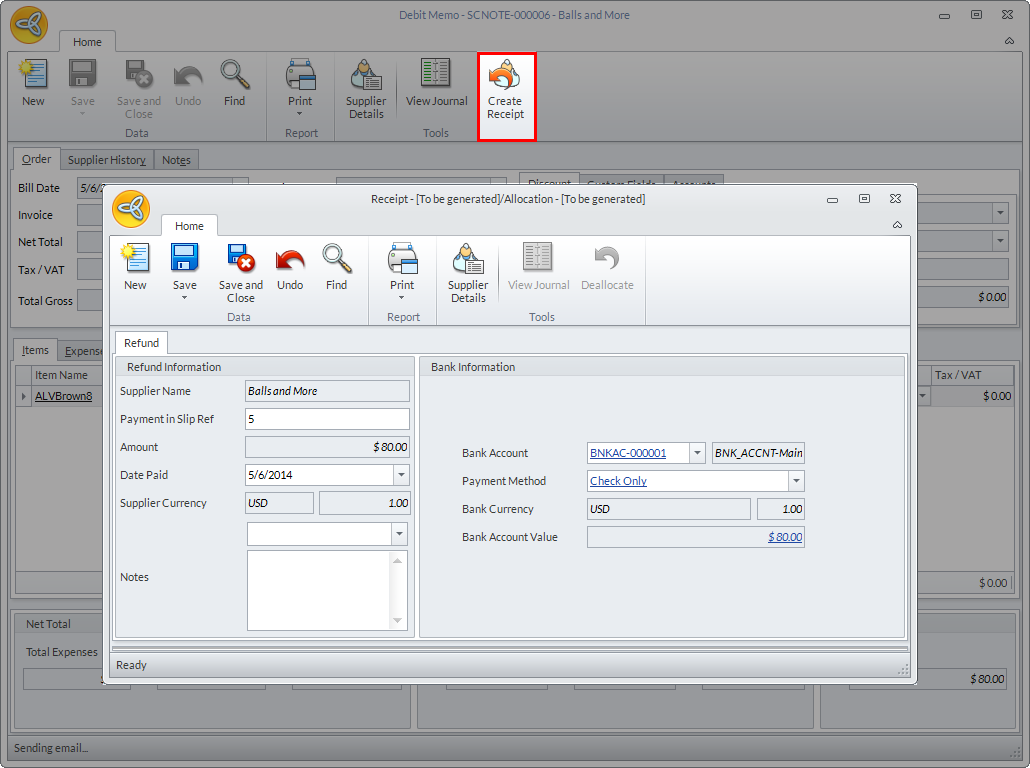
- Once posted, click Create Receipt. The Receipt form will be displayed. The receipt amount will be automatically indicated in the Amount field.
Click Image to Enlarge
- Click Save. Close the form.