
Process Supplier Receipt (CB 13)
| Content |
|---|
This article talks about processing supplier refund in Connected Business 13.
Record Supplier Refund
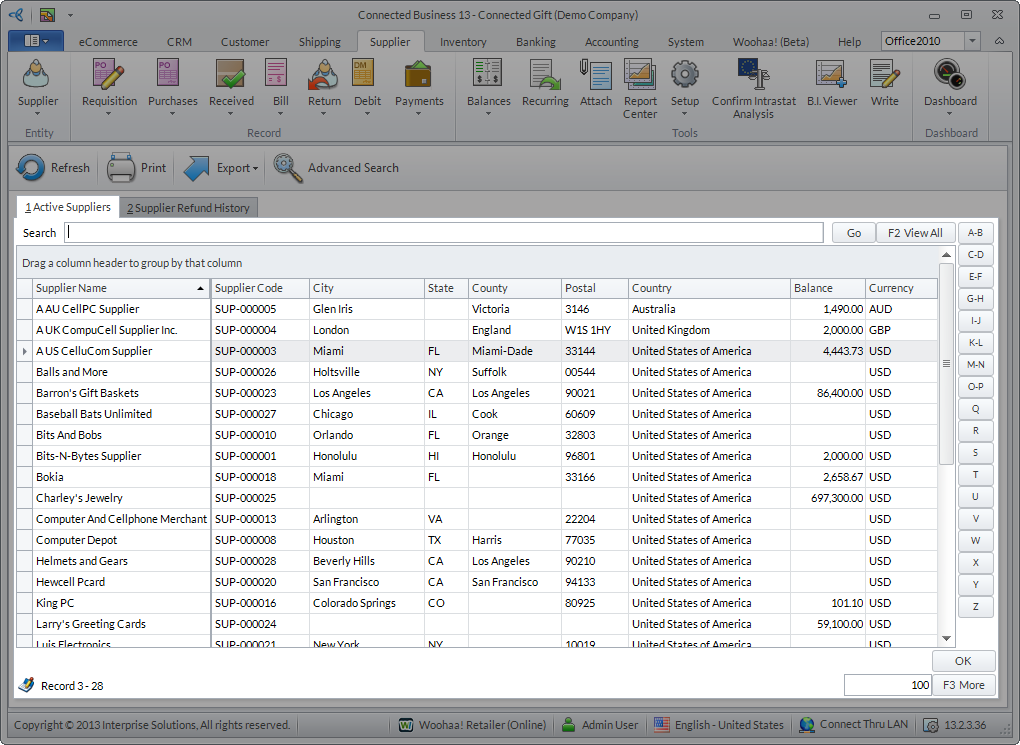
- Go to Supplier module > Payments > Supplier Refund. The list of active suppliers will be displayed.
Click Image to Enlarge
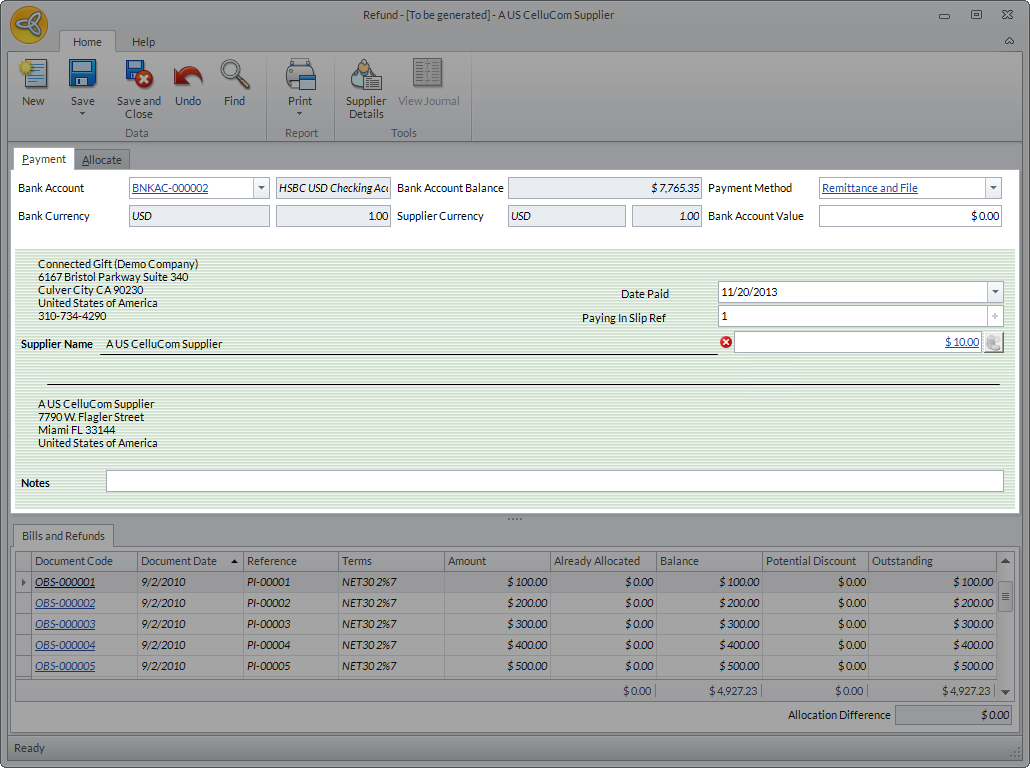
- Select the supplier where the refund was received from. The Refund form will be displayed. The supplier details will be automatically indicated in the form.
Click Image to Enlarge
- In the Bank Account field, select the bank cccount where the refund will be deposited.
- In the Payment Method field, select the payment method on how the payment was received from the supplier.
- In the Date field, select the date when the refund was received. By default, the date is set to the current date.
- In the Paying In Slip Ref field, click the (+) button to generate a slip number (if required).
- In the field below the Paying In Slip Ref, enter the refund amount received. Refund amount must be based on the bank account currency.
- After entering all refund details, click Save or Save and Close to post the refund.

View Supplier Refund
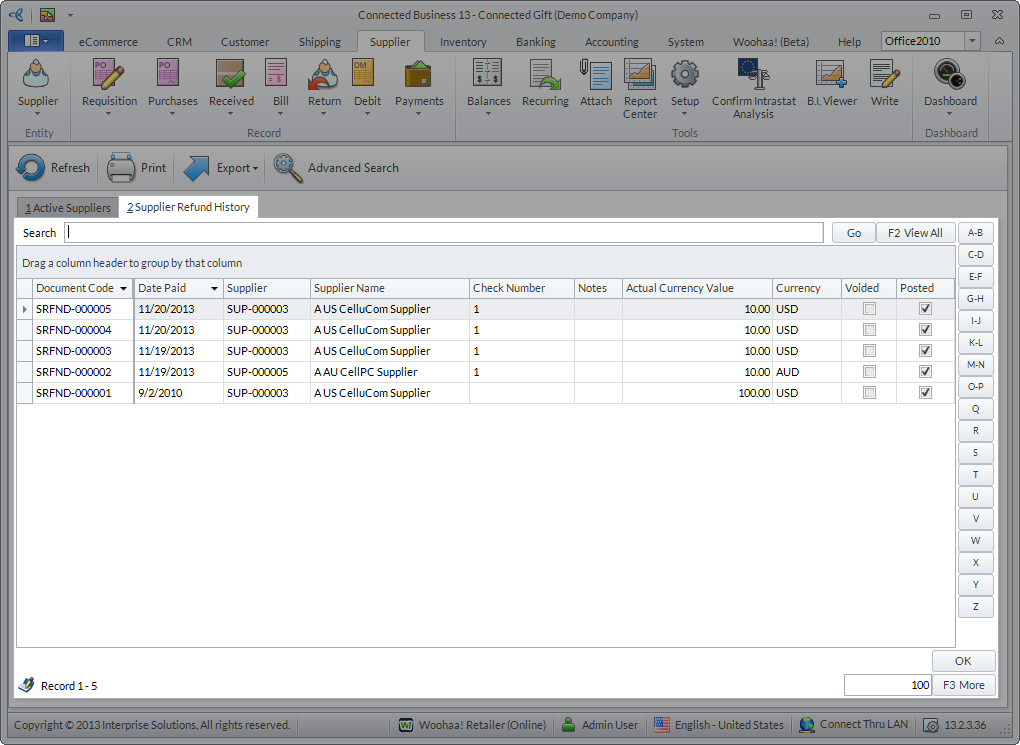
To view posted supplier refunds, go to Supplier module > Payments > Supplier Refund > Supplier Refund History.
Click Image to Enlarge
Print Supplier Refund
To print supplier refund,
- Open the refund form from the Supplier module > Supplier Refund > Supplier Refund History tab.
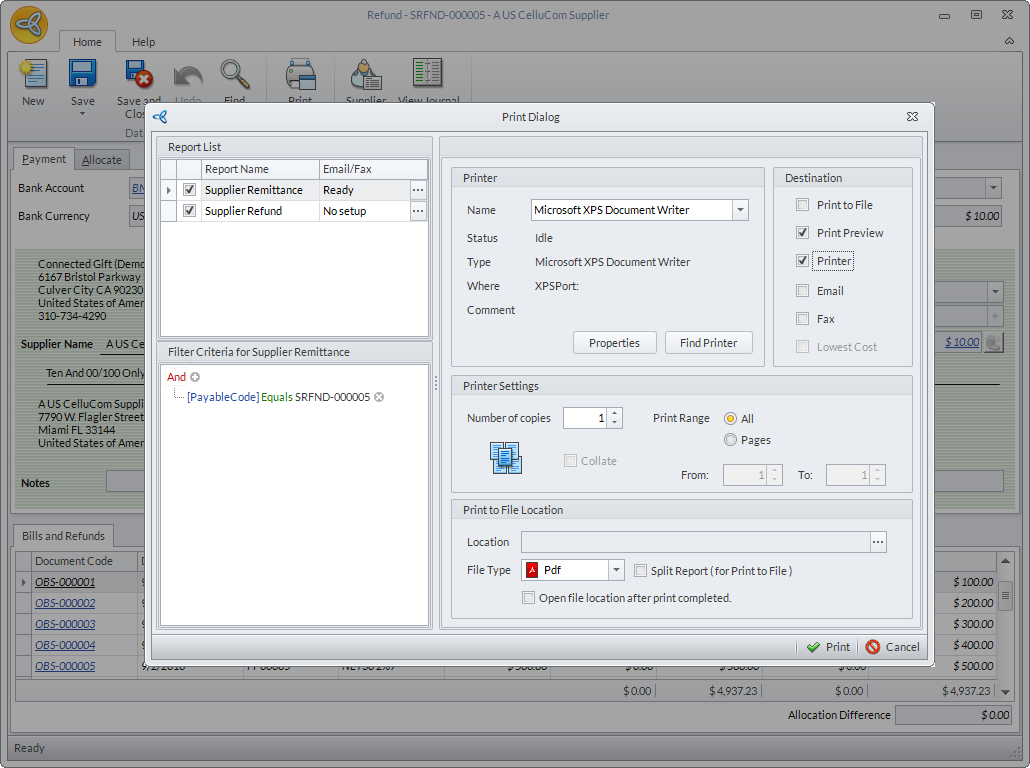
- In the Refund form, click the Print button. The Print Dialog window will be displayed.
Click Image to Enlarge
- In the Destination section, select Printer. This will enable the Printer section.
- In the Printer section, select the printer. If you want to define the printer properties before printing, click the Properties button or if you want to use another printer, click Find Printer.
- After setting the printer properties, click Print.
If you want to send the supplier refund document to contacts instead of printing it, just tick the Email or Fax checkbox as the printing destination.
If you want to send the supplier doc by email, enter the recipient's email in the Email Address field. You can change the default message in the Email tab as needed.
If you want to send the supplier doc by fax, enter the fax number in the Fax Number field. You can change the default message in the Fax tab as needed.
Apply Supplier Refund to Payments
You can apply the refund to supplier payments, debits, credits, etc. To do this,
- Go to Supplier module > Payment > New Payment. The list of active suppliers will be displayed.
- Select the supplier from the list. The Payment form will be displayed.
- Go to the Allocate tab to view the list of payments for the supplier. Select the supplier payment where the refund will be allocated.
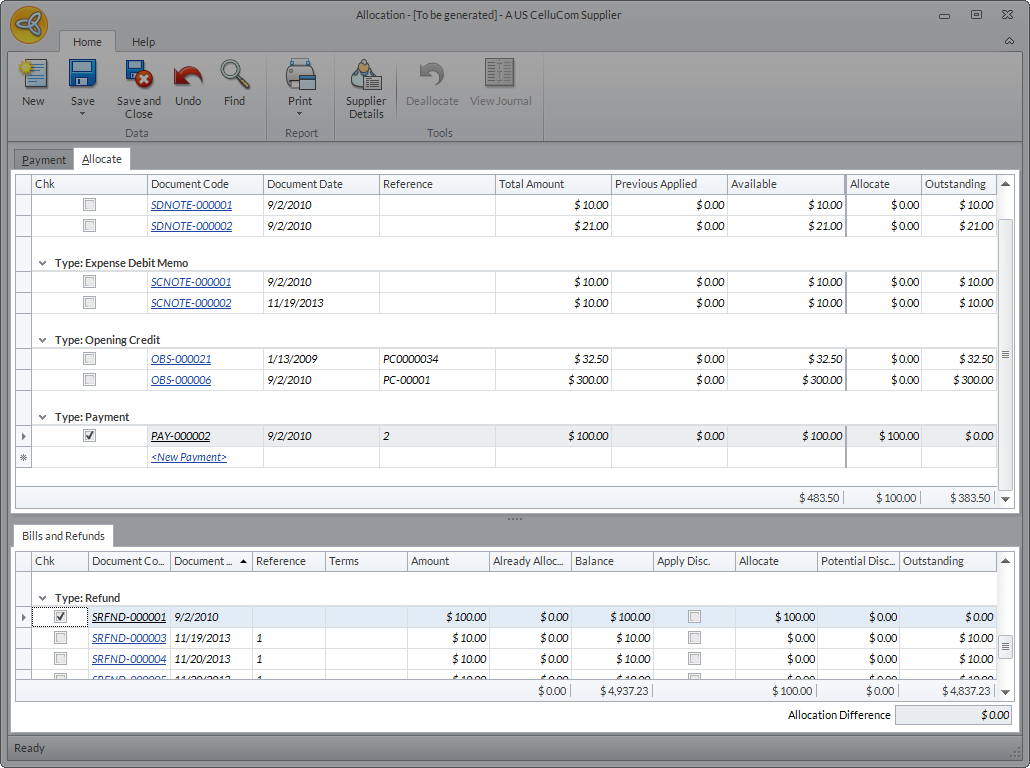
Click Image to Enlarge
- In the Bills and Refunds section, select the refund to be allocated to the payment.
- Click Save.

There should be no allocation difference to save the allocation. You can amend the value in the Allocate column of the Allocate tab or select another document (payment or credit) for the refund allocation.