
Process Shipments With Prepackaged / Regular Items
This article will discuss how to process shipment transactions with prepacked items along with regular items.
In Connected Business, you are given the ability to automatically or manually generate labels for shipment transactions with prepacked items. In processing shipment transactions, the system automatically detects if there prepacked items included in the shipment. A pop-up window will be displayed upon opening the shipment form confirming if you want to automatically or manually generate the labels for the prepacked items.
Before generating the labels for the shipping transactions with prepacked items, make sure that the following are set up:
- The item must be set as prepacked in the Item Detail form. You can check if the item is set as prepacked from the Unit Measure section of the Setup tab in the Item Detail form.

Click Image to Enlarge
- Carrier account must be set up correctly. Refer to Carrier Setup.
Generate Labels for Shipments With Prepacked Items
To generate labels for shipments with prepacked items,
- Create a sales order or sales invoice with prepacked and regular items. Save the SO/SI.
- Open the shipment form by going to the Shipment List tab and click Yes to load the shipment form. Alternately, you can also go to the Shipping module► From SO / From INV and select the SO /SI.

Click Image to Enlarge
- Upon opening the shipment form, a pop-up window will be displayed indicating that there are prepacked items in the shipment transaction. Confirm how you want to generate the labels.

Click Image to Enlarge
- Select Yes if you want the system to automatically generate the labels for the prepacked items. After the labels are generated, manually generate the labels for the regular items by clicking Get Label (F12).
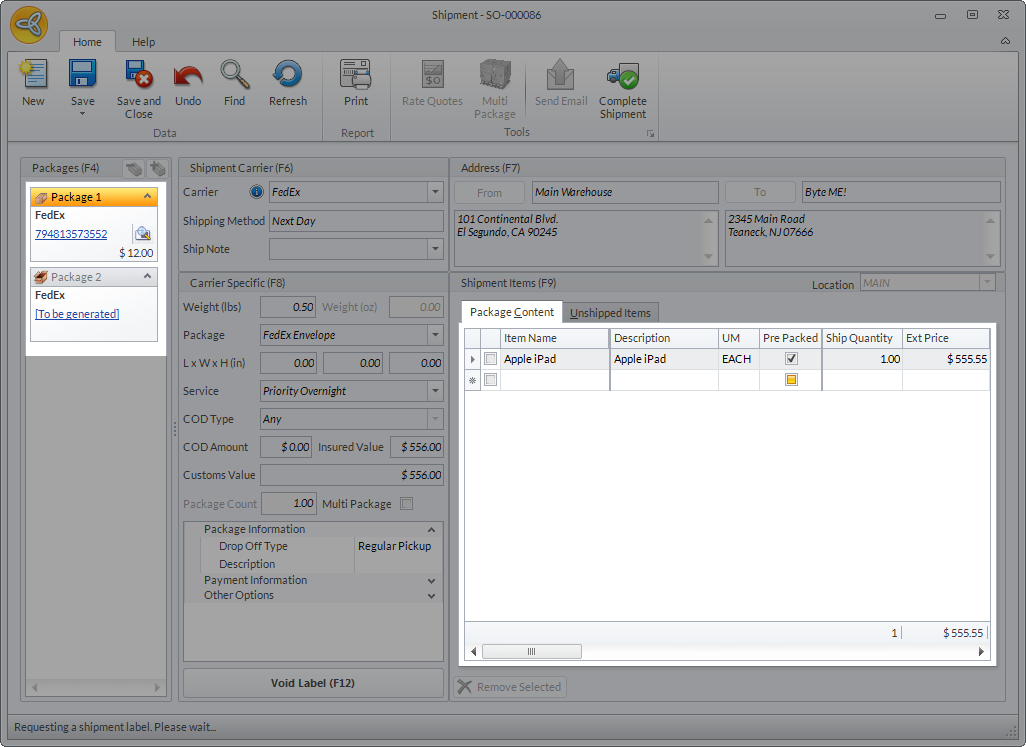
Click Image to Enlarge
- Select No if you want to manually generate the labels for both the prepacked and regular items. Click on Get Label (F12) to generate the labels . The system will generate the labels for the regular items first followed by the labels for the prepacked items.
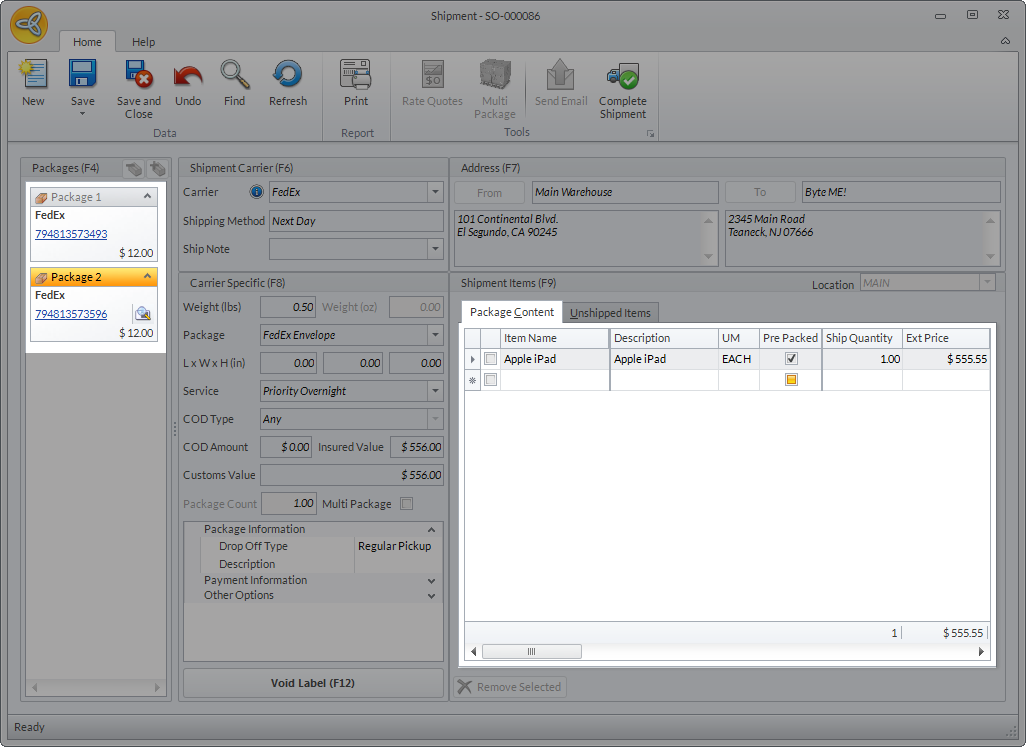
Click Image to Enlarge

A separate package and label will be generated for each prepacked item. If you have x number of prepacked items, the system will also generate x number of labels and package for all prepacked items in the shipment.
- Select Yes if you want the system to automatically generate the labels for the prepacked items. After the labels are generated, manually generate the labels for the regular items by clicking Get Label (F12).
- You can click on the View icon or click on Print to get a preview of the labels for each package in the shipment.