
Process Prepacked and Oversized Items
With Connected Business' flexibility to integrate with other modules, you can easily have items, which come in their own packages or items that are beyond the normal size of items usually shipped, ready for shipping.
Set Item As Prepacked
The prepacked or prepackaged option allows you to set up items as “ready to ship” along with its weight and dimensions. To make this feature more flexible, you can define prepackaged items per unit of measure.
For example, if you define a product that is packaged in a shippable case and a shippable inner pack, you can create a unit of measure for each of these and identify them as prepackaged along with their respective weights and dimensions. When you enter an order for two cases, the shipping module will automatically enter real-time shipping rates for the two cases or print two shipping labels based on the weights and dimensions of the case.
- From the Inventory module, select Go to Item > Find Item. The list of existing items will then display.
- Select item from the list.
- Click on the Setup tab of the Item form. On the Unit Measure section, set the dimension such as height, width and length of the item and tick the PrePacked column checkbox.
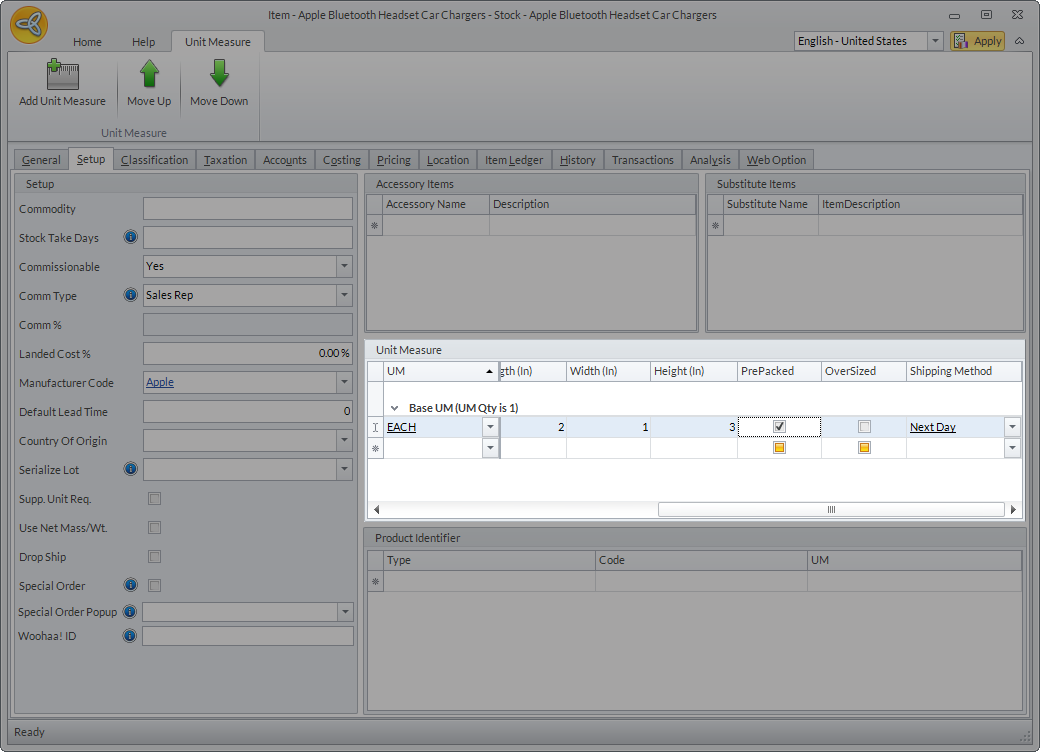
Click Image to Enlarge
- Click Save and Close.

Set Item As Oversized
The oversize option allows you to flag items as being too large to ship with a normal carrier per unit of measure along with an alternate shipping method. Should an oversized item be ordered, the Connected Business real-time shipping rate engine will determine the shipping rate for this item separately and how to process the shipment at the shipping station.
- From the Inventory module, select Go to Item > Find Item. The list of existing items will then display.
- Select item from the list.
- Click on the Setup tab of the Item form. On the Unit Measure section, set the dimension such as height, width and length of the item and tick the OverSized column checkbox.
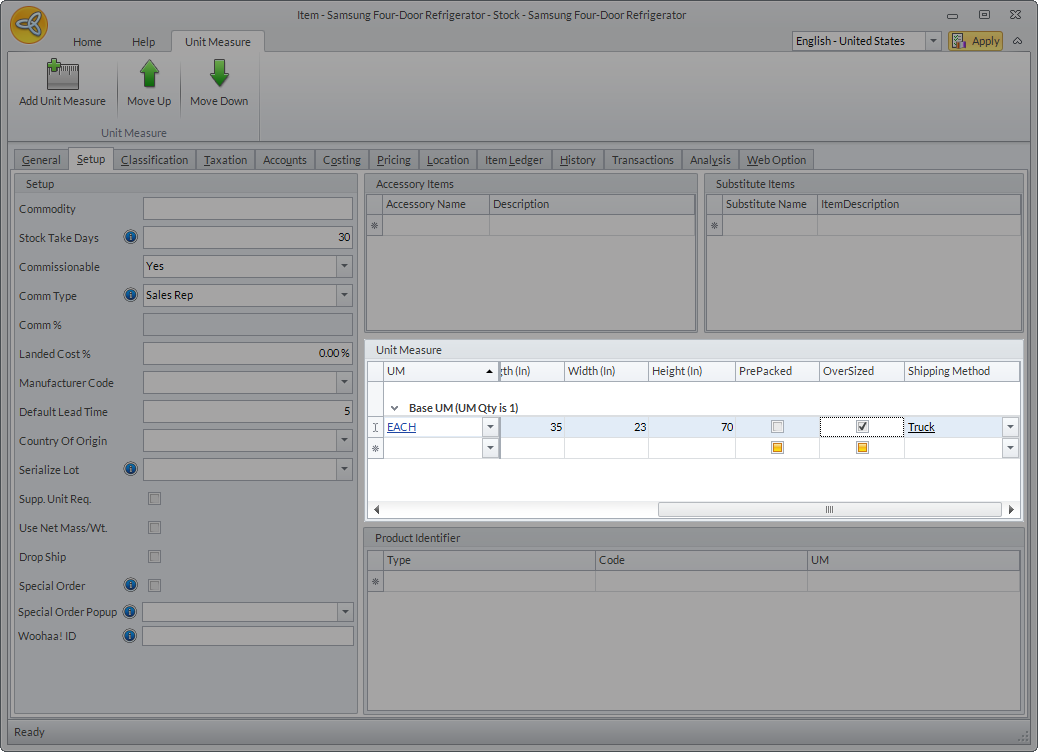
Click Image to Enlarge
- Click Save and Close.