
Process Goods Received from Partially Fulfilled Orders
This document demonstrates how to record goods received if the items are fewer than indicated in the Purchase Order form. This process depends on whether the transaction allows back orders or not.
Transactions that allow back orders can generate multiple Goods Received entries from a single Purchase Order. This Purchase Order will close when the entire order is filled. If the back order feature is disabled, the form will automatically close after you save and post the first Goods Received form.

This feature is only available in Connected Business v14 and higher.
Enabled Back Order
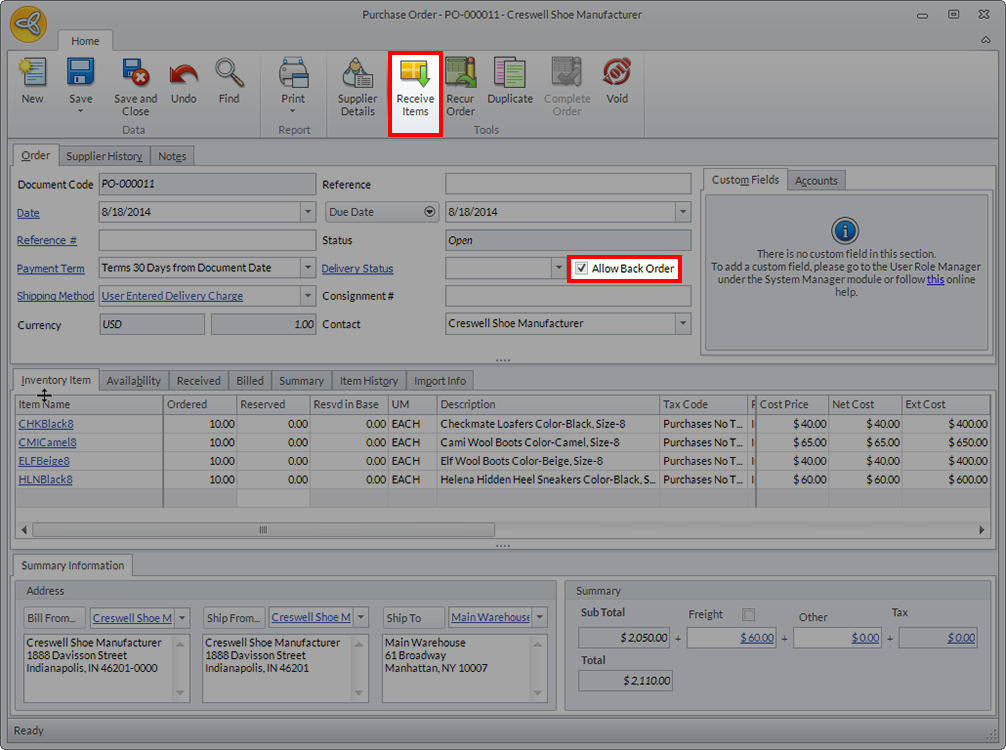
- On your Purchase Order form, tick the Allow Back Order box. Convert the order into a Goods Received form by clicking on the Receive Items button.
Click Image to Enlarge
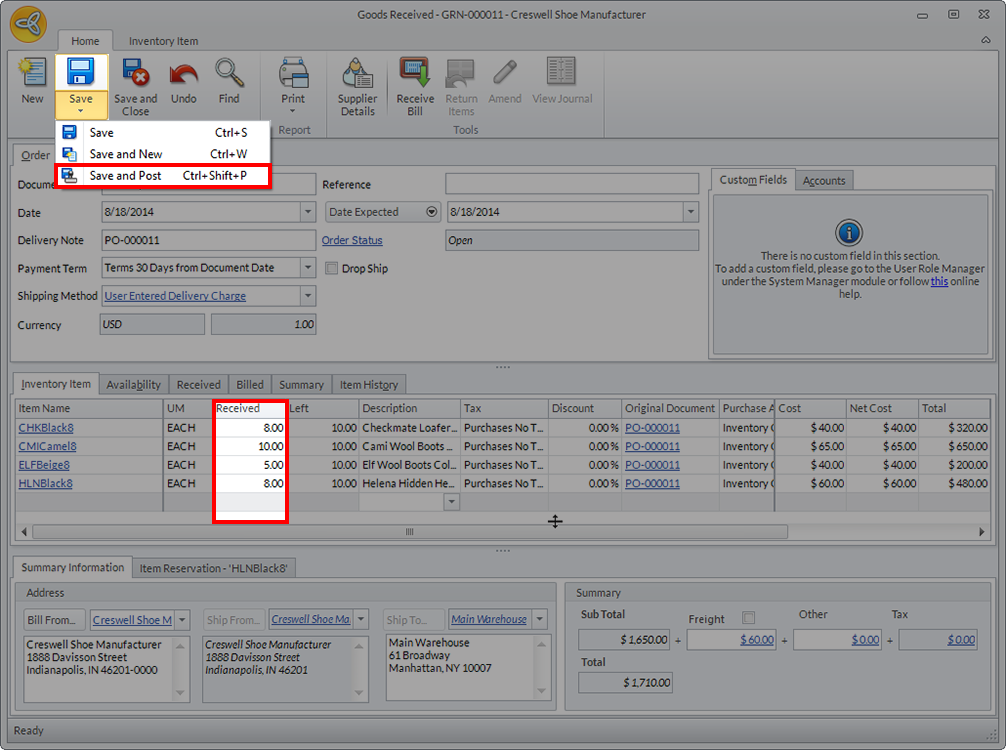
- In the Inventory Item tab of the Goods Received form, update the Received Items column based on the quantity of products you have received. Click Save and Post.
Click Image to Enlarge
- The Purchase Order remains open as long as there are outstanding back orders. Go to Supplier module > Purchases > Find Purchase > Open Purchase Orders tab. The transaction's status is indicated as Partial.

Click Image to Enlarge
- Click the Purchase Order to load the form. The Inventory Items tab lists that quantity of back orders you have not yet received. You can create a new Goods Received form once you've received your back order.
Click Image to Enlarge
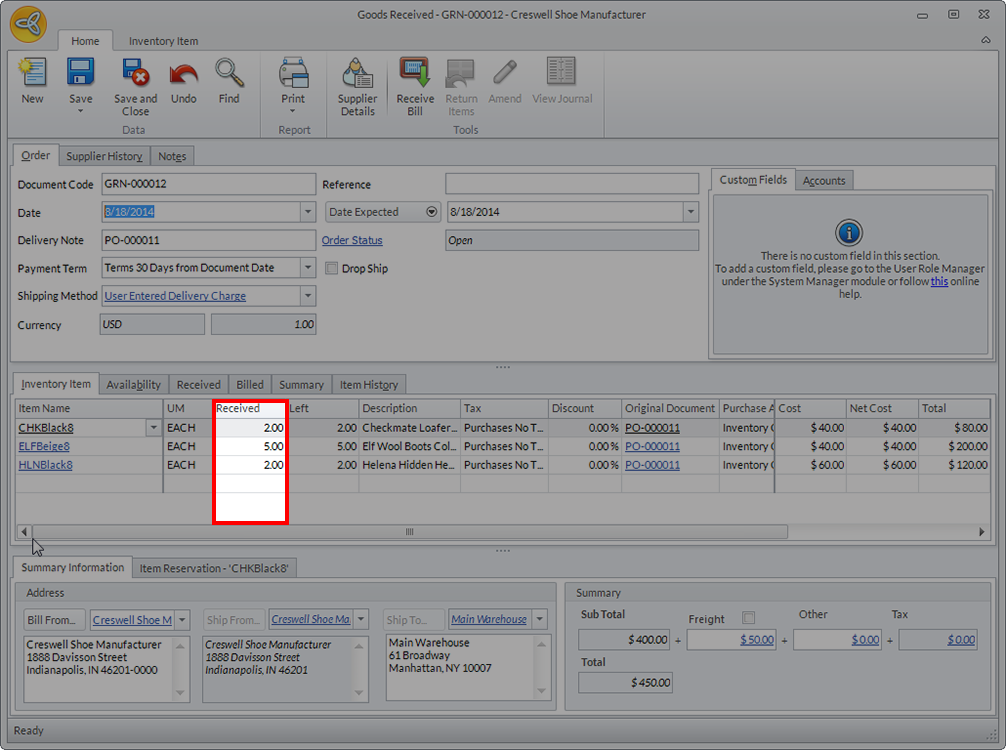
- On the new Goods Received form, the received column under the Inventory Item tab indicates quantity of outstanding orders from the supplier.
- Click Save and Post. If the supplier has already fulfilled the entire order, the Purchase Order will then be complete.

Disabled Back Order
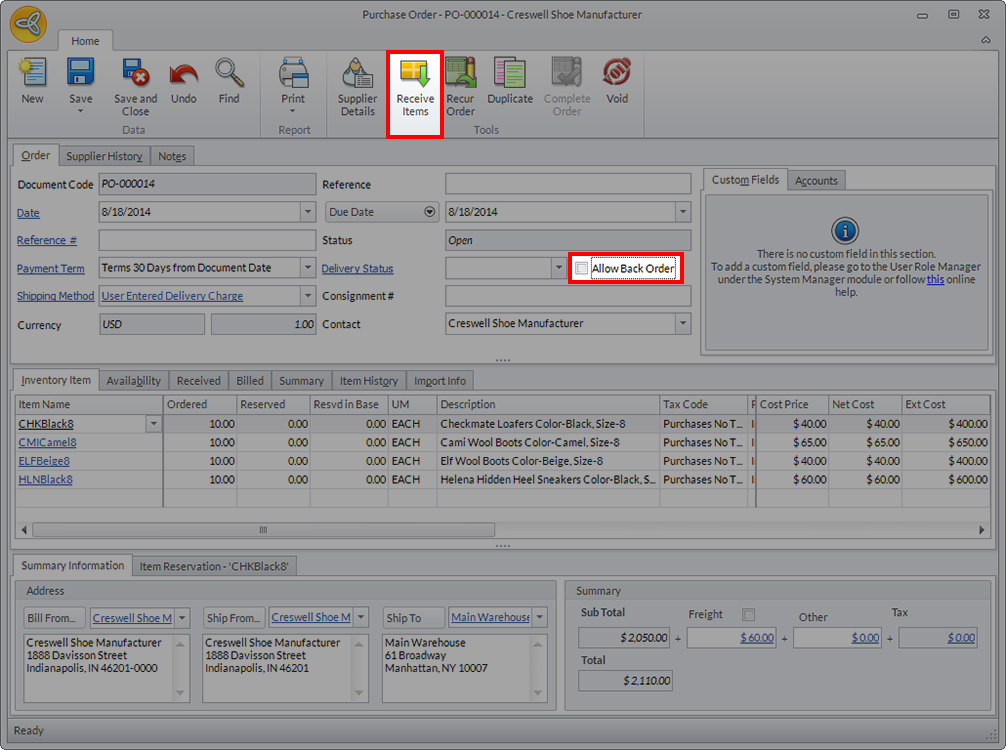
- Open the Purchase Order form. Make sure that the Allow Back Order option is unticked. Click on the Receive Items button.
Click Image to Enlarge
- After the Goods Received form is created, you can update the quantity of received items under the Inventory Item tab.

Click Image to Enlarge
- Click Save and Post to complete the transaction. This action automatically closes the original Purchase Order.
- You can still view the Purchase Order by going to Supplier module > Purchases > Find Purchase Order. You can find the entry under the Purchase Order History tab.
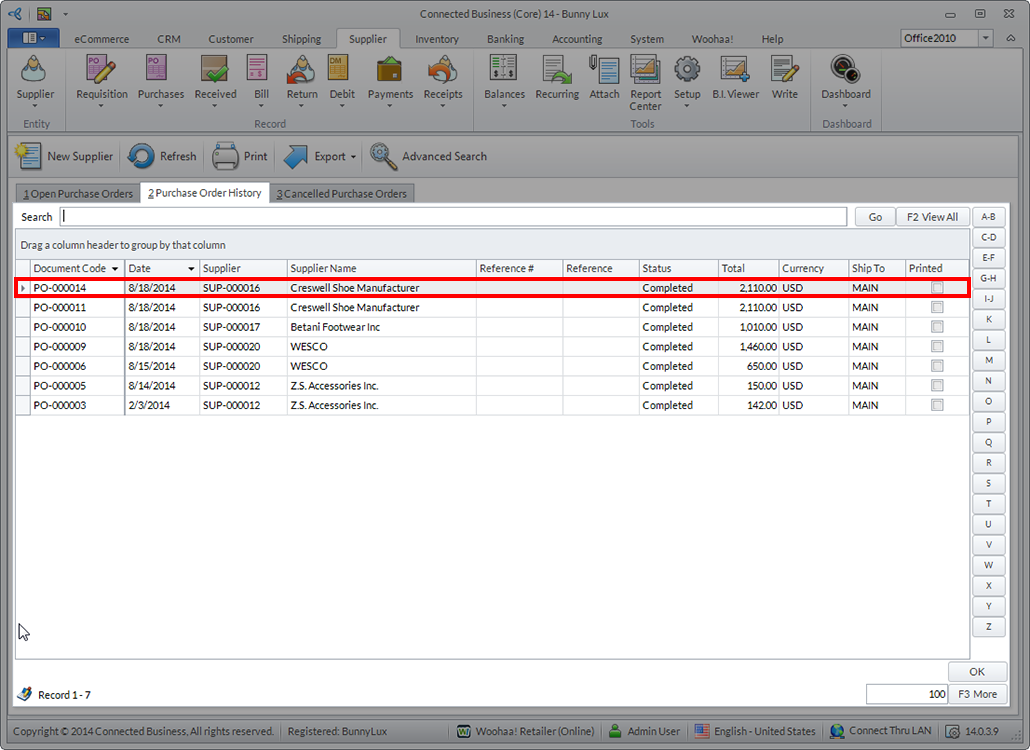
Click Image to Enlarge
- When you load the Purchase Order form, the Receive Items button will be disabled.
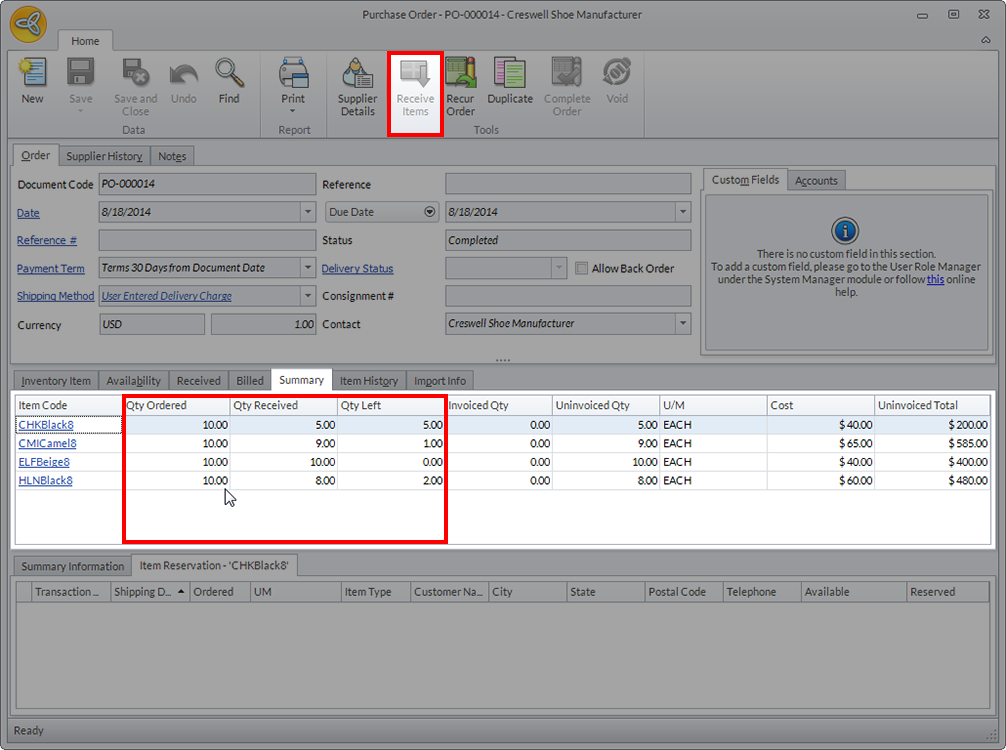
Click Image to Enlarge
- You can view a summary of the transaction in the Summary tab. The list will indicate the quantity of goods received compared to the quantity of the goods ordered. If you want to re-order the rest of the items, you need to create a new purchase order.