
Process Direct Refund in Interprise Gateway v2.0
The Interprise Gateway 2.0 in Connected Business now enables processing of customer credit card refund.

To use this feature, the blind functionality must be enabled in the merchant account. You need to contact Transnational to enable Blind Credit.
Set Up Merchant Account
Before you can process a credit card for direct refund, you must set up the merchant account in the credit card gateway as well as set up the payment type to be used for the gateway. To set up the merchant account,
- Go to Banking > Setup > Credit Card Gateway and the list of all credit card gateways will be displayed.
>
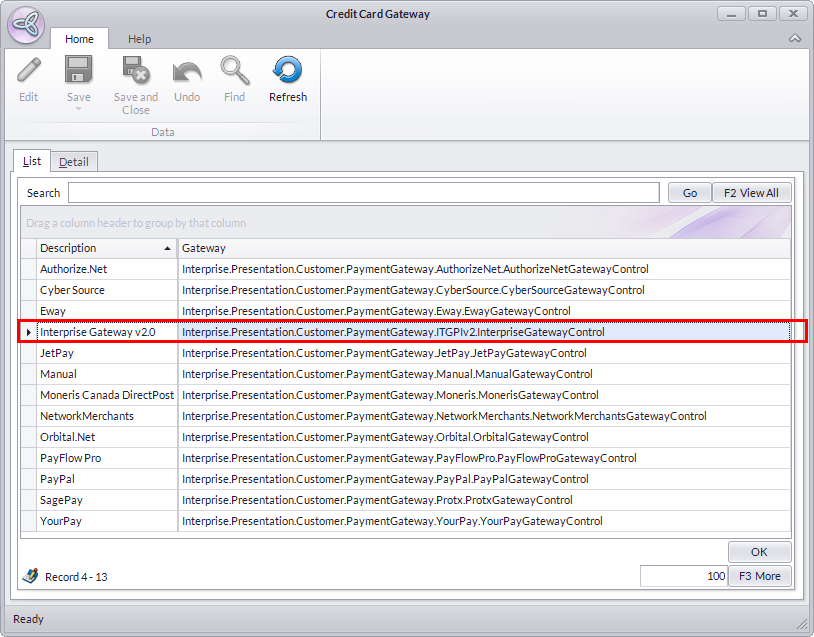
- Select Interprise Gateway 2.0 to view the gateway details.
Click Image to Enlarge
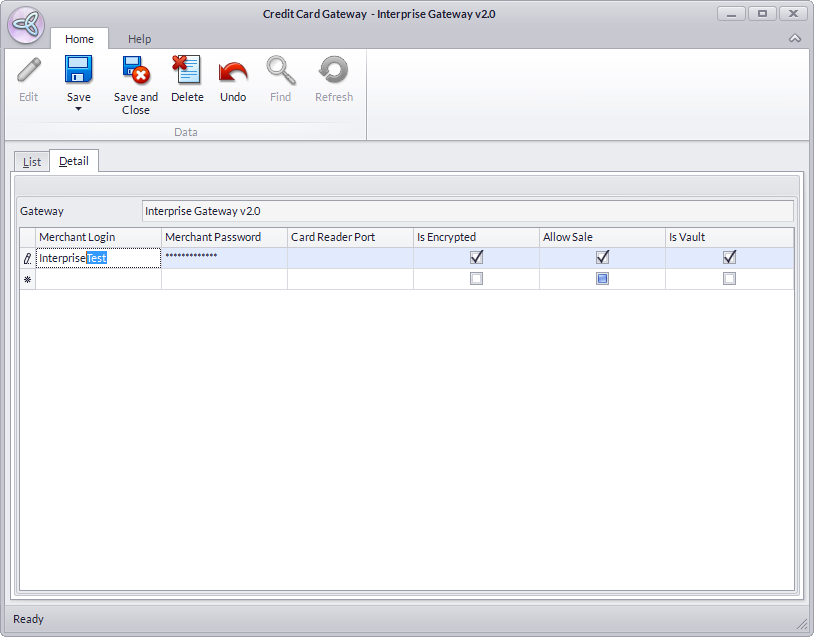
- Enter the details for the following fields and save your changes.
Field Description Merchant Login The merchant account used when logging in to Interprise Gateway v2.0. Merchant Password The password used to access Interprie Gateway v2.0. Enter password by clicking on the ellipsis button. Card Reader Port Select the available card reader port to which your card reader device will be connected. This is applicable to unencrypted card reader. Is Encrypted If checked, the card reader is encrypted making it secure for scanning data information. Once selected, card reader port field will be disabled. Check if your card reader is unencrypted. Allow Sale If checked, sales transactions will now be available using credit cards for processing payments. Is Vault If checked, the merchant account will be used for credit card tokenization.
Set Up Payment Type
After setting up the merchant account, set up the payment type to be used for the gateway. To set up the payment type,
- Go to Banking > Setup > Payment > Type and the Payment Type form will be displayed.
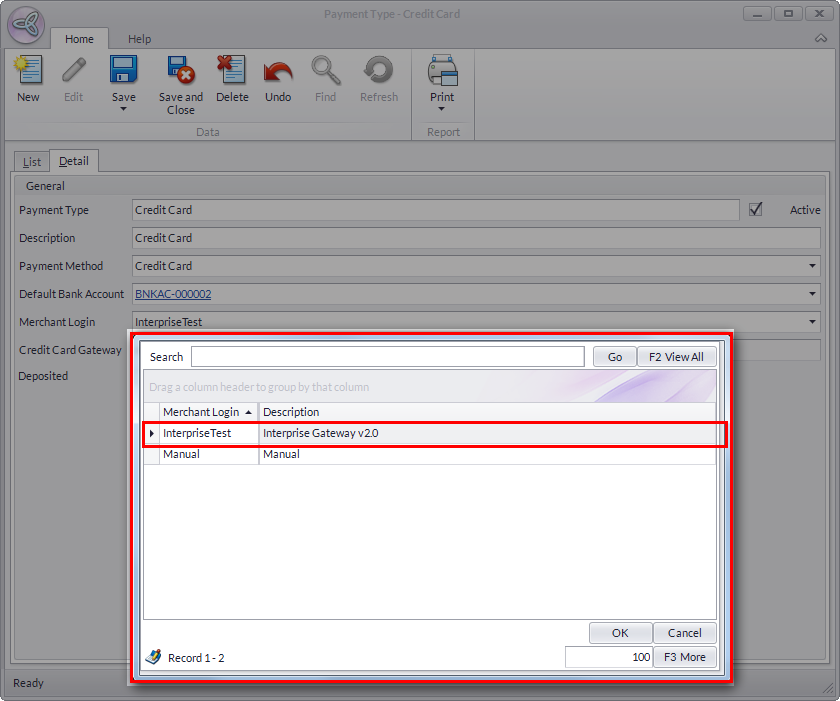
- Select Credit Card in the list to view the payment type details.
- Select the merchant login for Interprise Gateway v2.0 and save your changes.
Click Image to Enlarge
Process Direct Refund
To process a direct refund,
- Go to the Customer module> Receipt > Customer Refund and the list of Bill To Customers will be displayed.
- Select a customer from the list to load the Refund form.
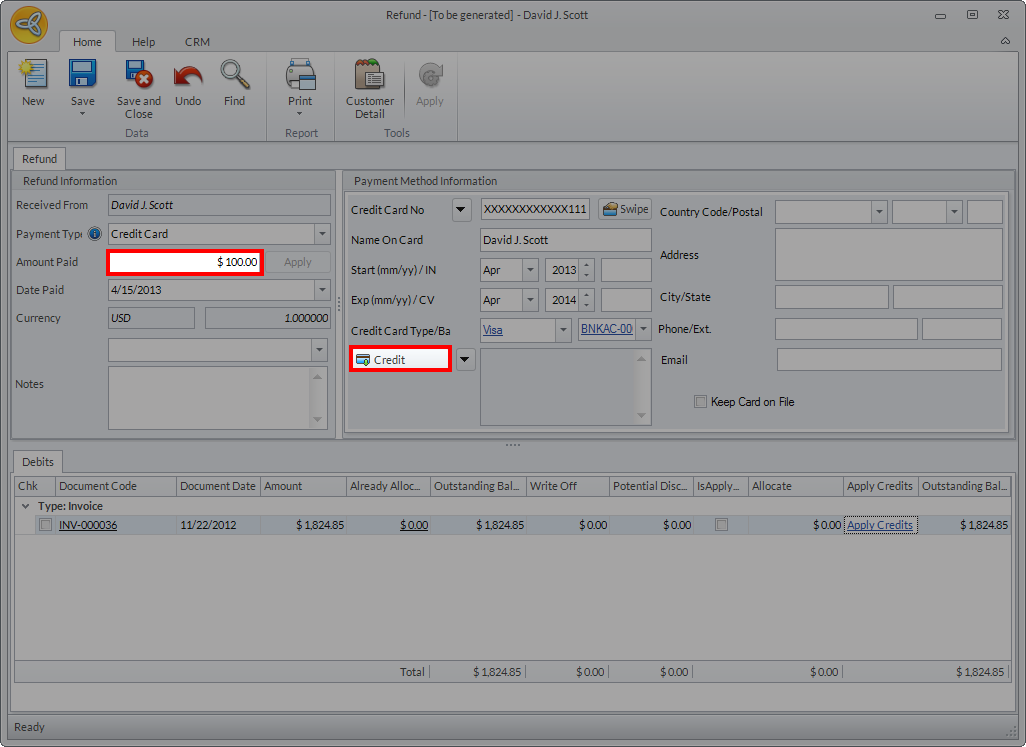
- Enter the amount to be credited in the Amount Paid field and make sure that the Payment Type is set to Credit Card.
Click Image to Enlarge
- Enter the credit card details and click Credit button to process the refund.
- A confirmation message (Response Message: Success) will be displayed indicating that the refund was successfully processed.
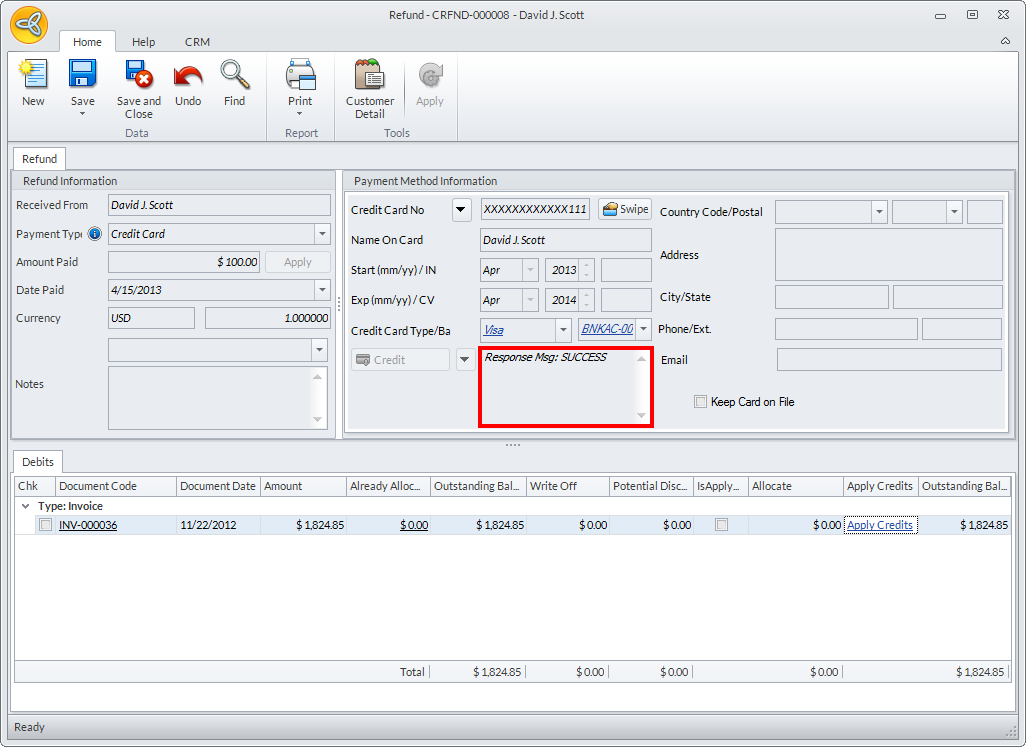
Click Image to Enlarge
You can also check if the refund went through from the virtual terminal of your merchant account in the gateway site.
Apply Refund to Credit Memo
You can also apply the refund directly to an existing credit memo. To do this,
- Open the Customer Refund form and click on the Apply Credits link under the Refund section.The Apply Credits form will be displayed.
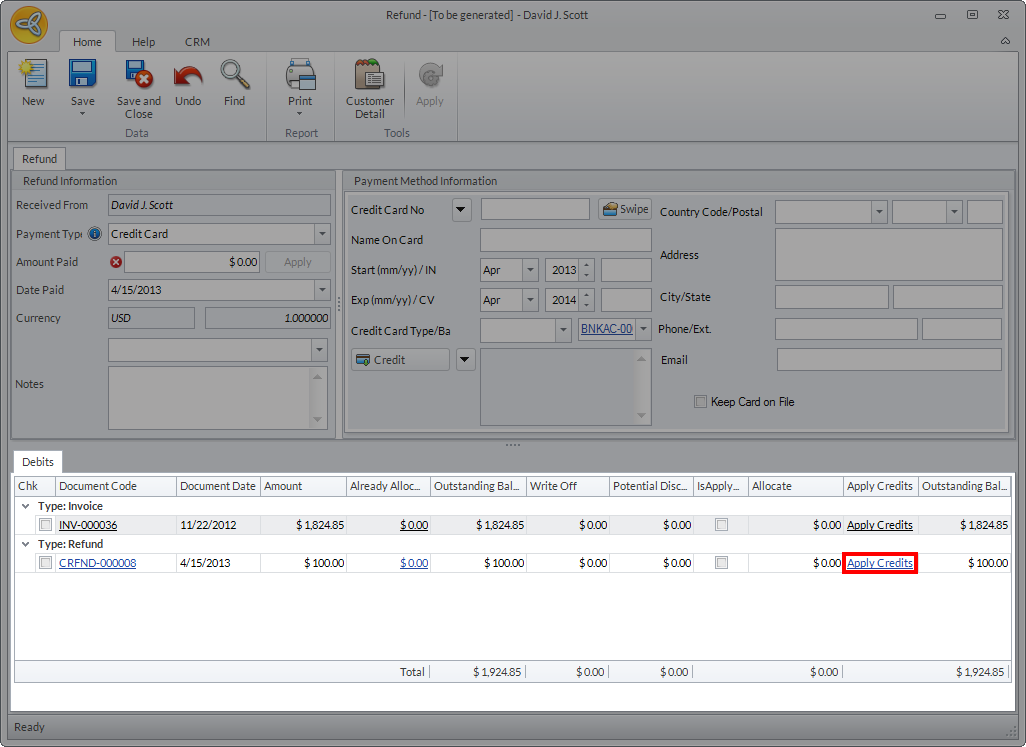
Click Image to Enlarge
- Tick the credit note. Notice that upon selecting the credit note, the outstanding balance of the credit memo is updated to 0.
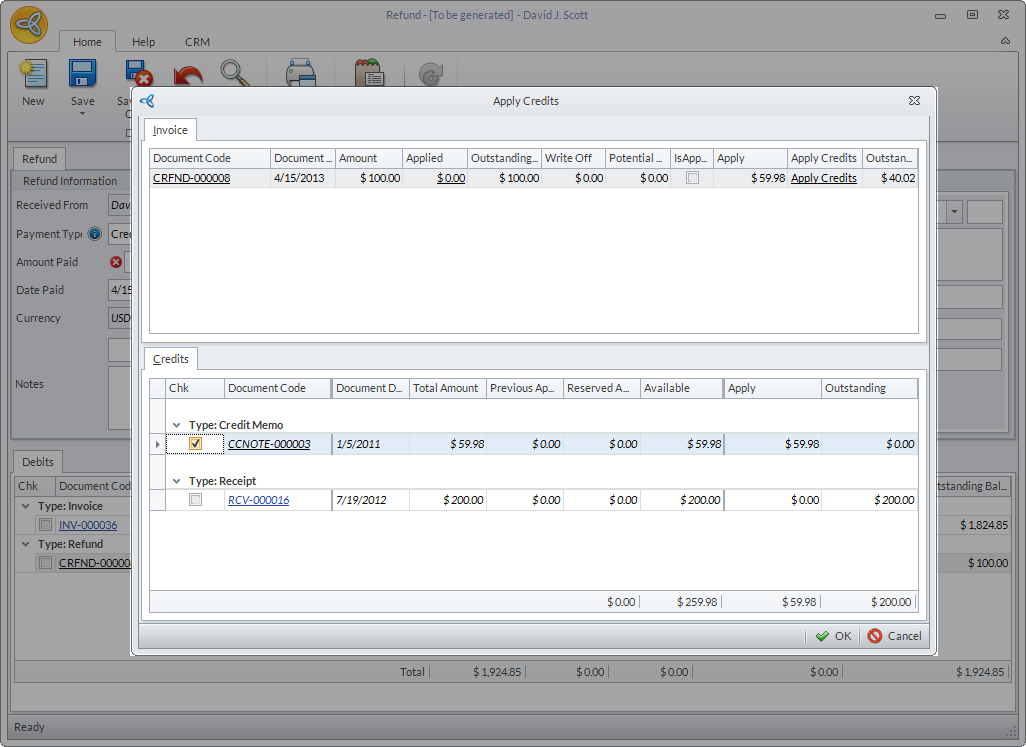
Click Image to Enlarge
- Click OK to apply the refund.