
View Amount Tendered and Change Due on Receipts
Amount Tendered is the amount of cash payment a customer uses to purchase an item. Change Due refers to the amount to be returned to the customer in the event the amount tendered is more than the item’s purchase price. In Connected Business POS both can now be viewed in the receipt.

This feature is only available in Connected Business v14 or higher.
To view the amount tendered and change due,
- On the POS module, select an item/s to purchase then tap Complete. The Payment Options screen will be displayed.
- Select Cash. The Cash/Other payment screen will be displayed.

Click Image to Enlarge
Amount tendered and change due can be viewed only in Cash payment transactions.
- Enter amount to be used for payment then tap Done. A Change Due confirmation prompt will be displayed.

Click Image to Enlarge
- Tap Yes to confirm the Change Due.
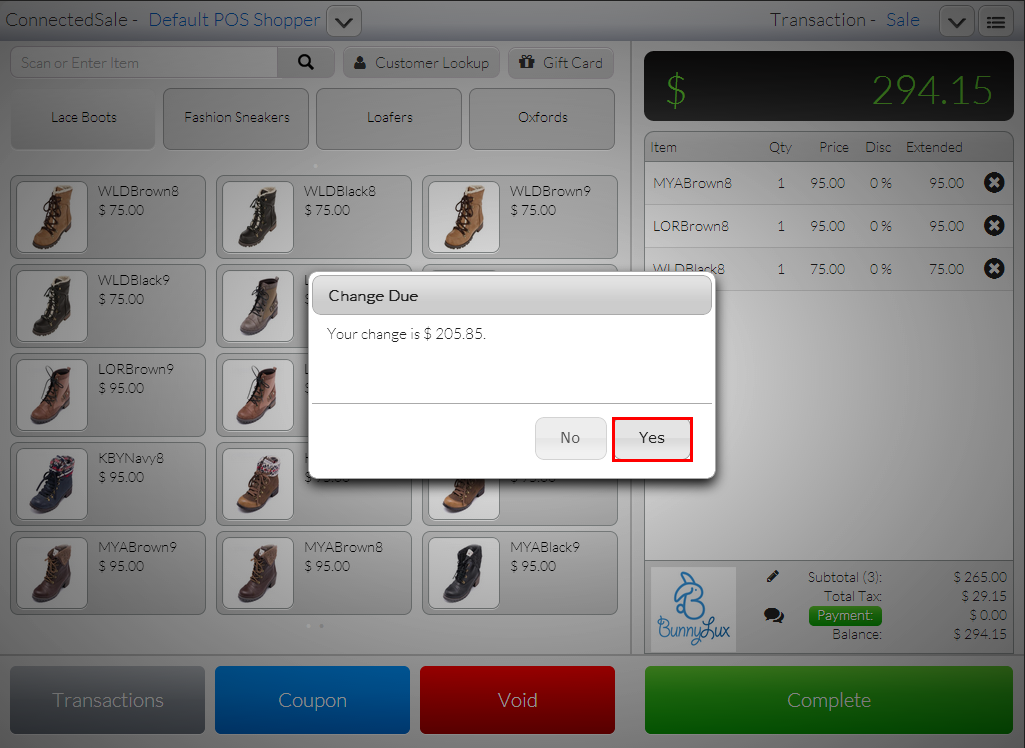
Click Image to Enlarge
A print preview of the receipt will be displayed with the total amount tendered and change due.

Click Image to Enlarge