
POS Payment and Refund
| Content |
|---|
This article talks about how to process and allocate payments (cash, check, credit) in Connected Business POS.
Process Cash Payment
To process cash payment, simply click the Complete button and select Cash as the payment type.

Click Image to Enlarge
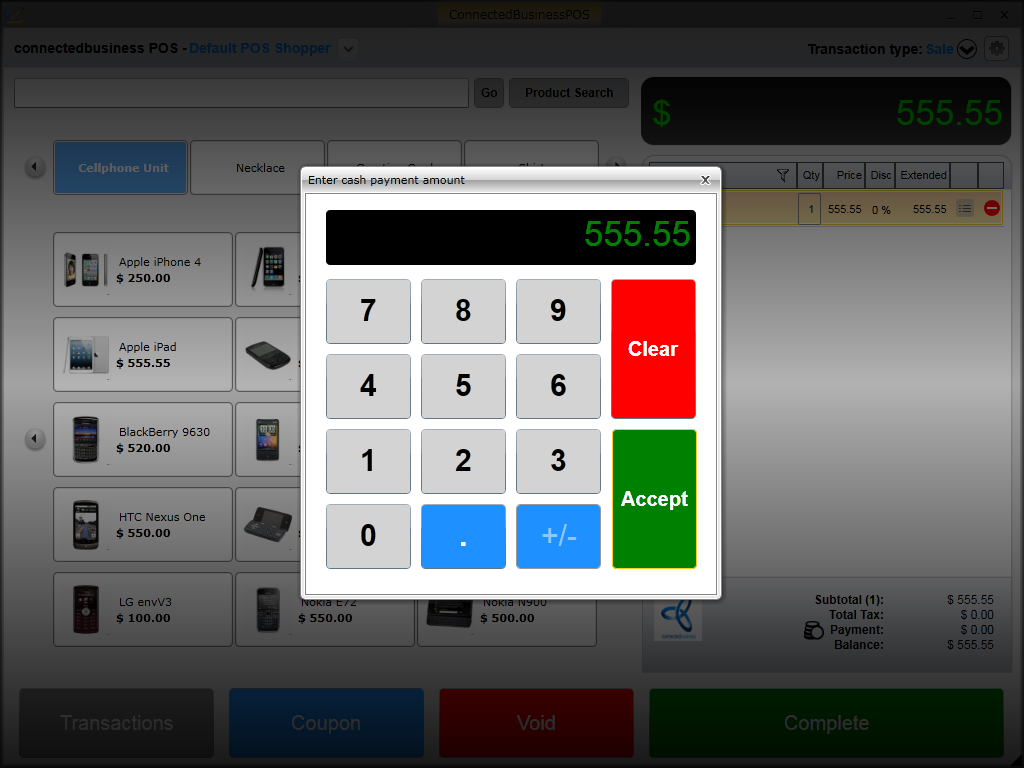
Enter the total amount to be paid in the numeric keypad and click Accept.
Click Image to Enlarge
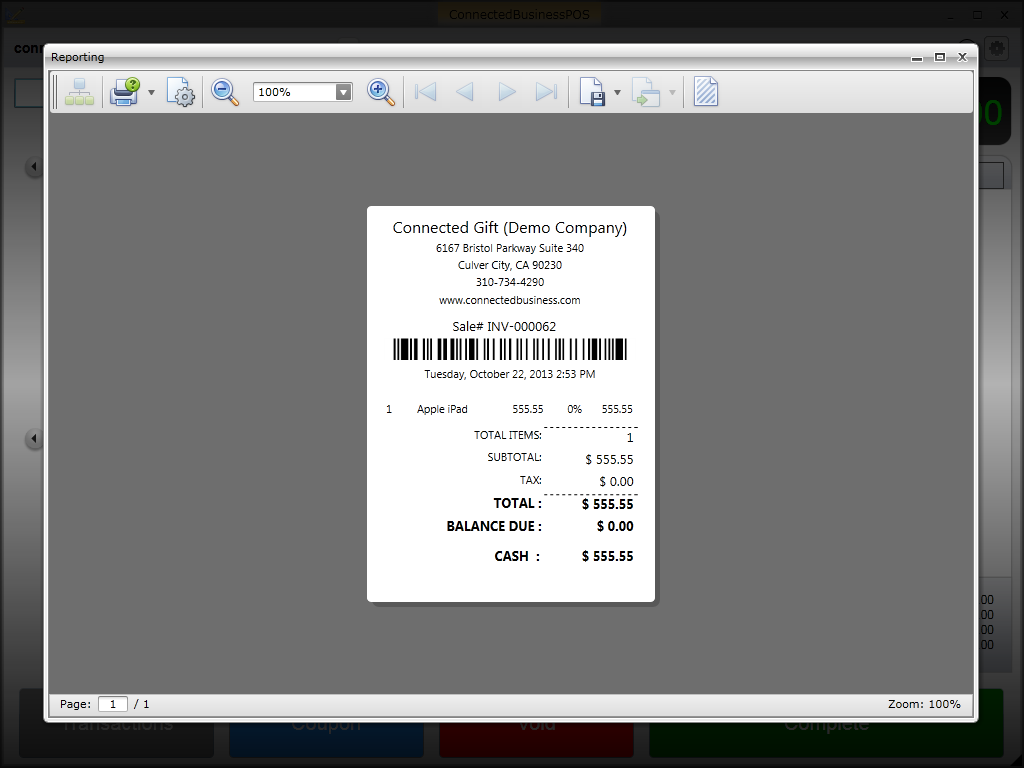
A print preview of the payment receipt will be displayed. You can opt to print the receipt or close the window to process another transaction.
Click Image to Enlarge

Process Check Payment
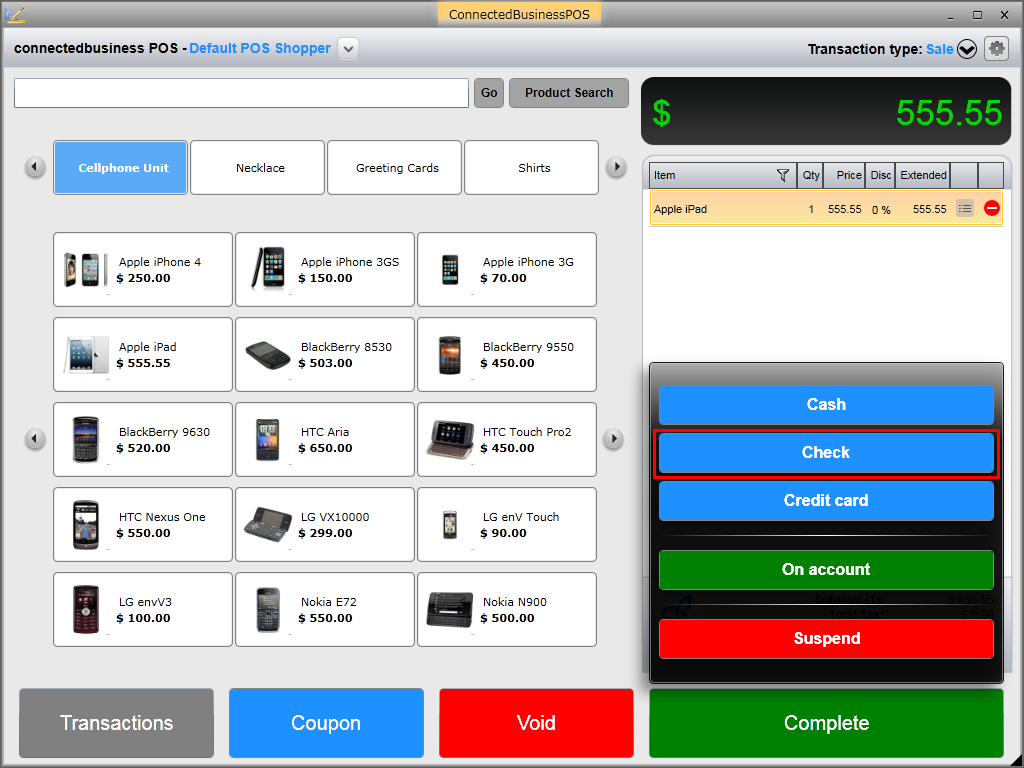
To process a check payment, click the Complete button and select Check as the payment type.
Click Image to Enlarge
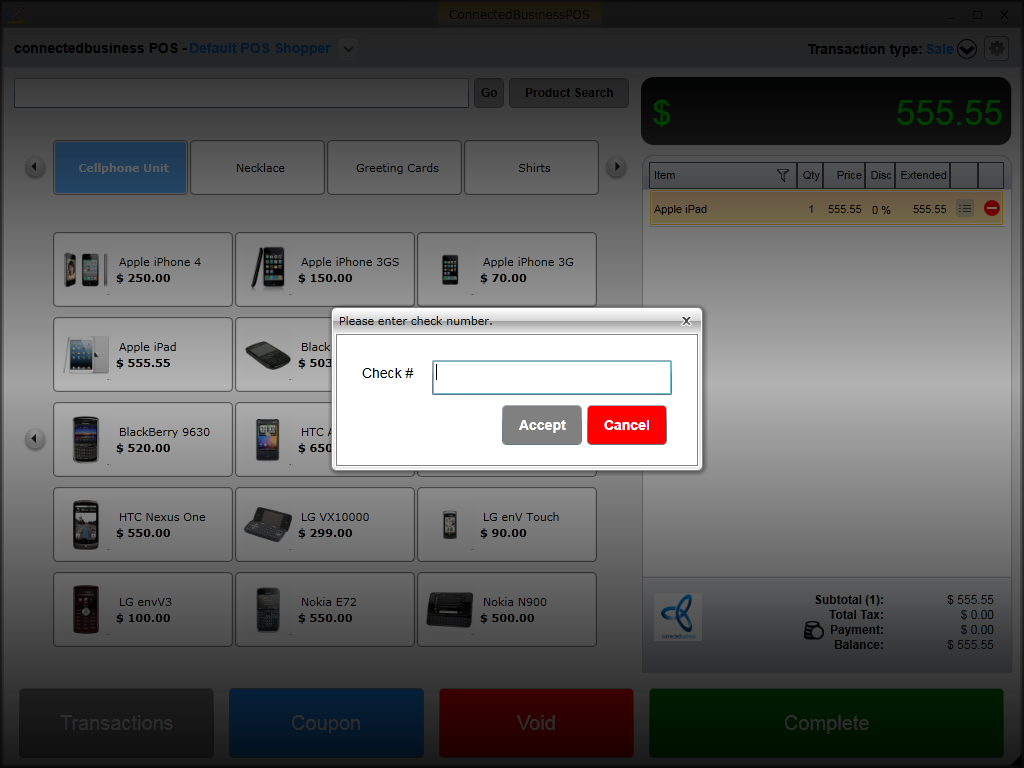
The check number window will be displayed. Enter the check number and click Accept.
Click Image to Enlarge
The numeric keypad will be displayed. Enter the total amount to be paid and click Accept.
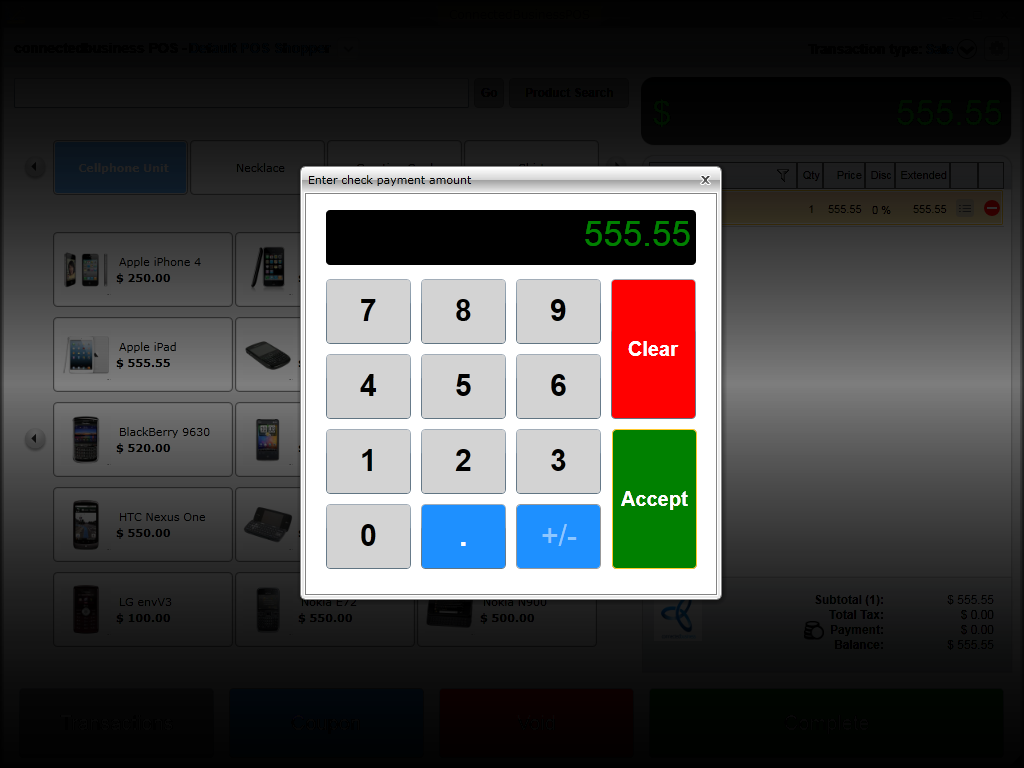
Click Image to Enlarge
A preview of the payment receipt will be displayed indicating the check number and the total amount paid.
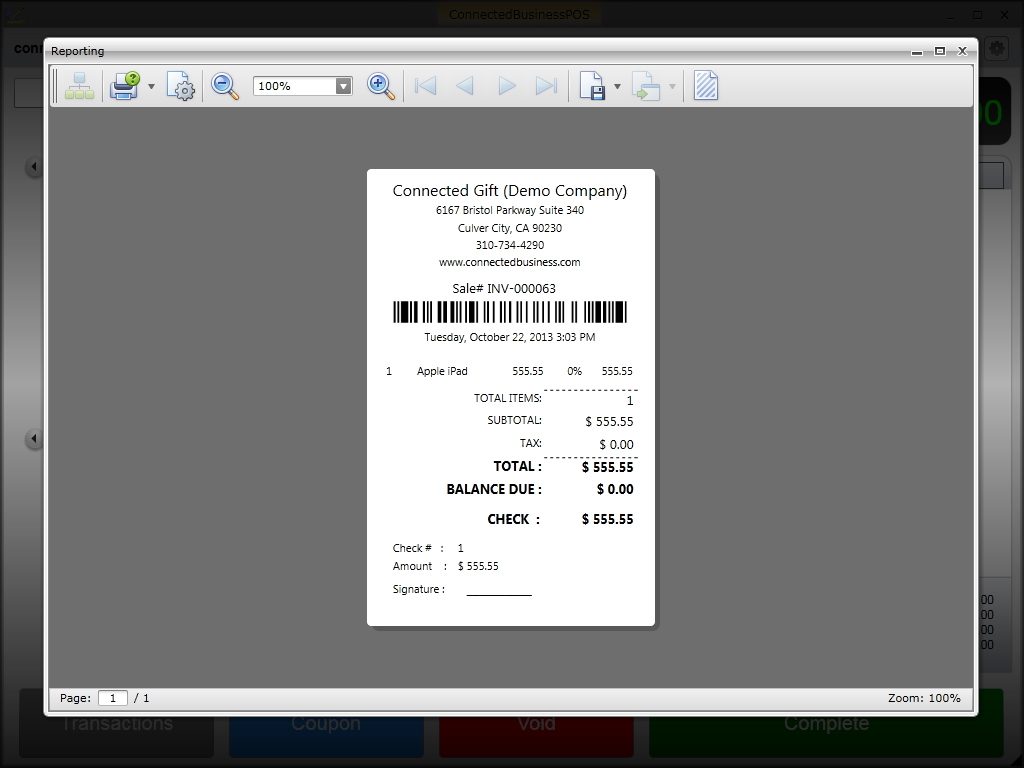
Click Image to Enlarge
Process Credit Card Payment
To process a credit card payment, click the Complete button and select Credit Card as the payment type.
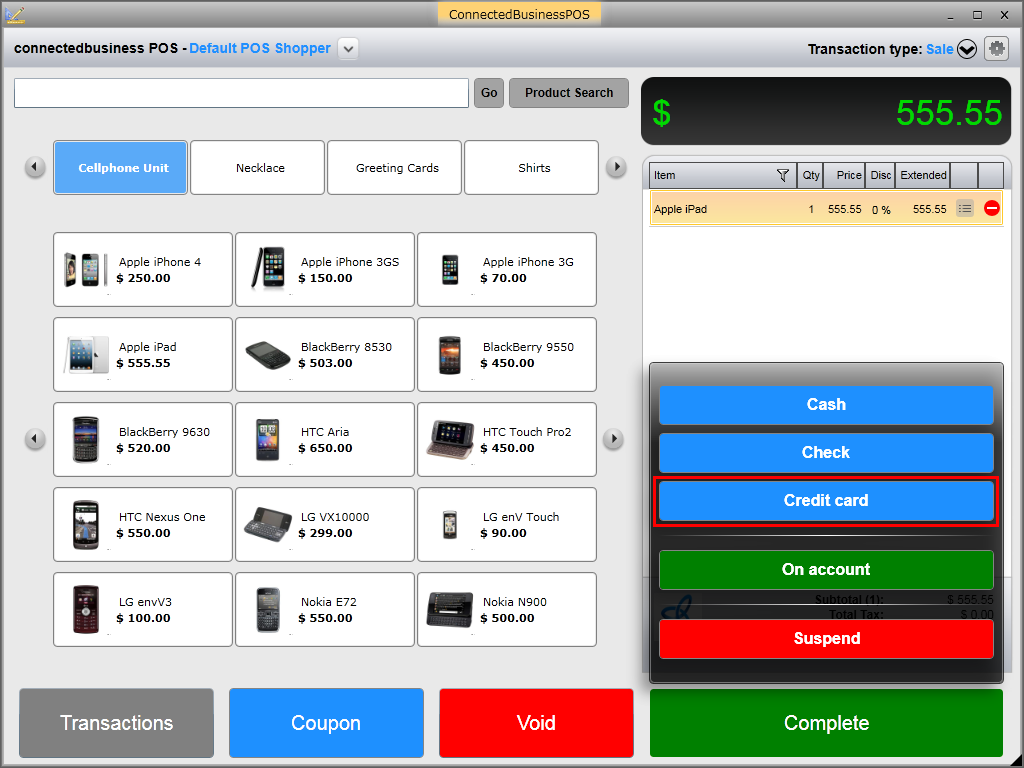
Click Image to Enlarge
The Swipe Credit Card window will be displayed. Enter the credit card information. If you are using a credit card reader, the fields will be automatically populated with the credit card information once the card is swiped. To manually enter the credit card information, click the Manual button.
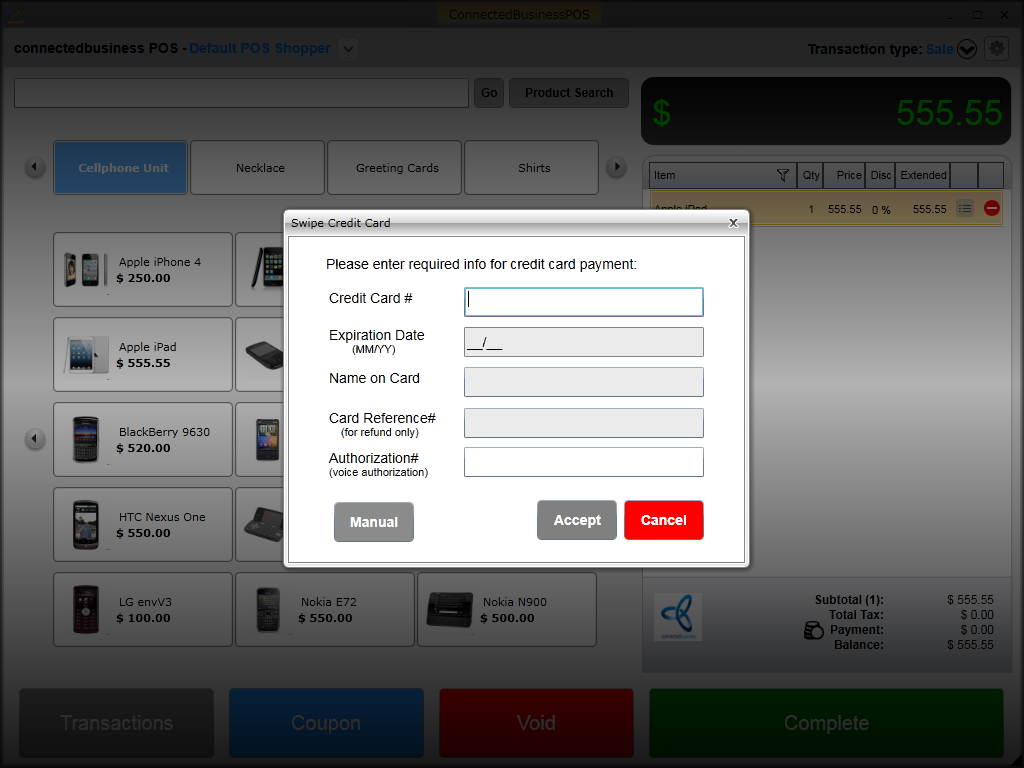
Click Image to Enlarge

In cases where you are unable to connect to the payment gateway to process the payment, you can call the customer's bank for the authorization number. Enter the number in the Authorization # field and click Accept.
After entering all the credit card details (credit card #, expiration date and name on card). click Accept. Enter the total amount to be paid in the numeric keypad and click Accept.

Click Image to Enlarge
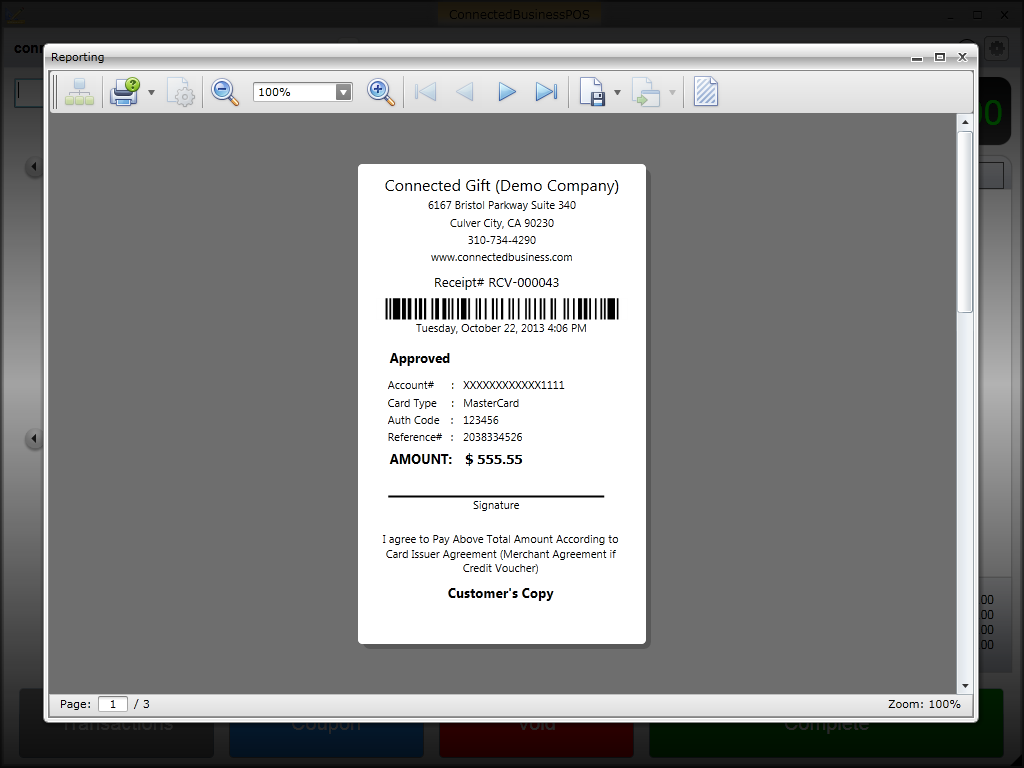
A print preview of the payment receipt will be displayed indicating the status of the card payment. You can opt to print the receipt for the customer to sign or close the window to process another transaction.
Click Image to Enlarge
Process Partial and Combined Payments
Aside from full payments, Connected Business also accepts partial payments and even process the transaction payment combining the different payment types (cash, check, credit card).
Partial Payments
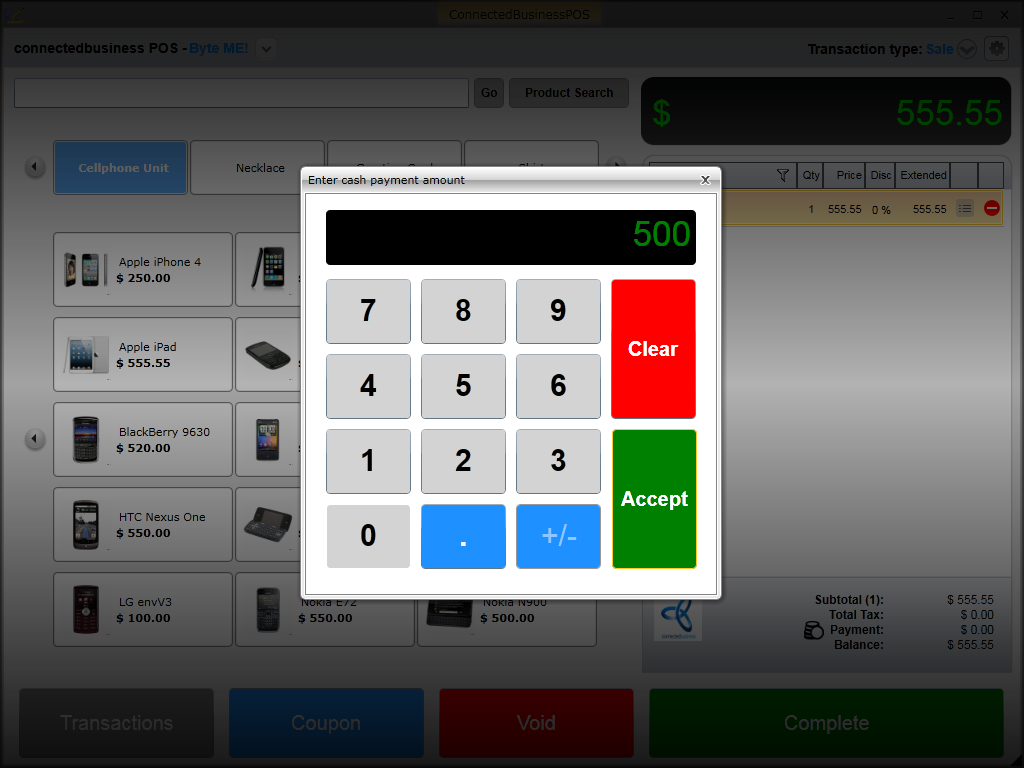
To process a partial payment, simply click on the Complete button and select the payment type (cash, check, credit card). Enter the amount(lesser than the total amount to be paid) and click Accept.
Click Image to Enlarge
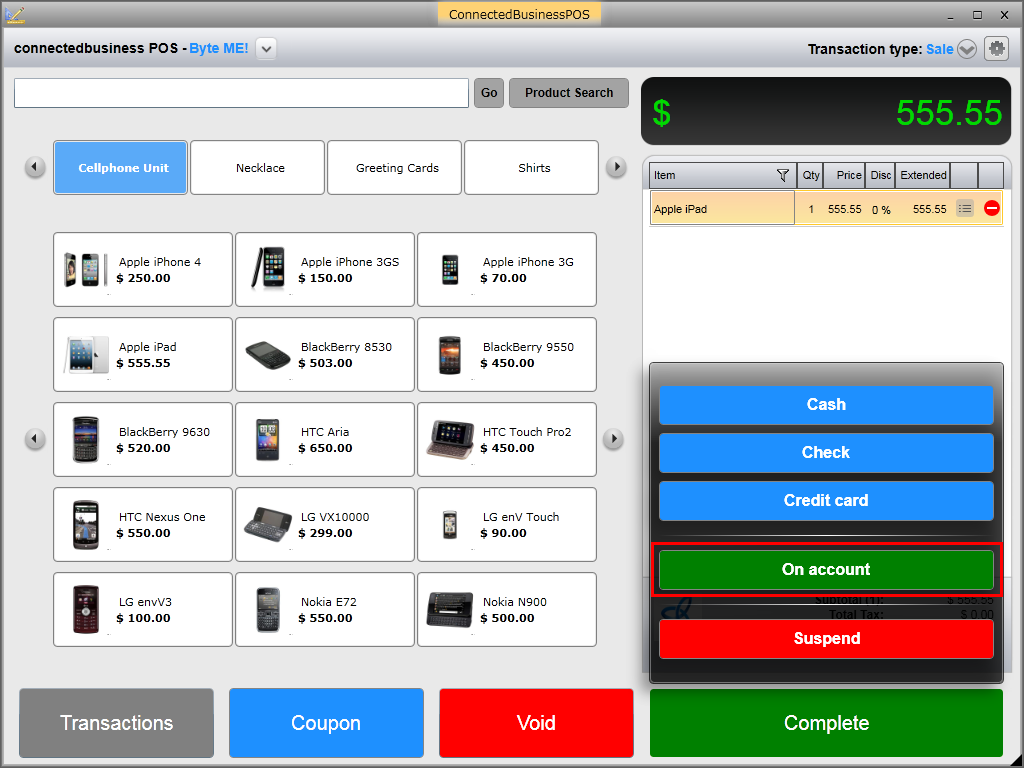
Click the Complete button and select On Account. The remaining amount will be added on the customer's outstanding balance.
Click Image to Enlarge
You cannot process partial payments for Sale transactions if the customer's payment term is COD.
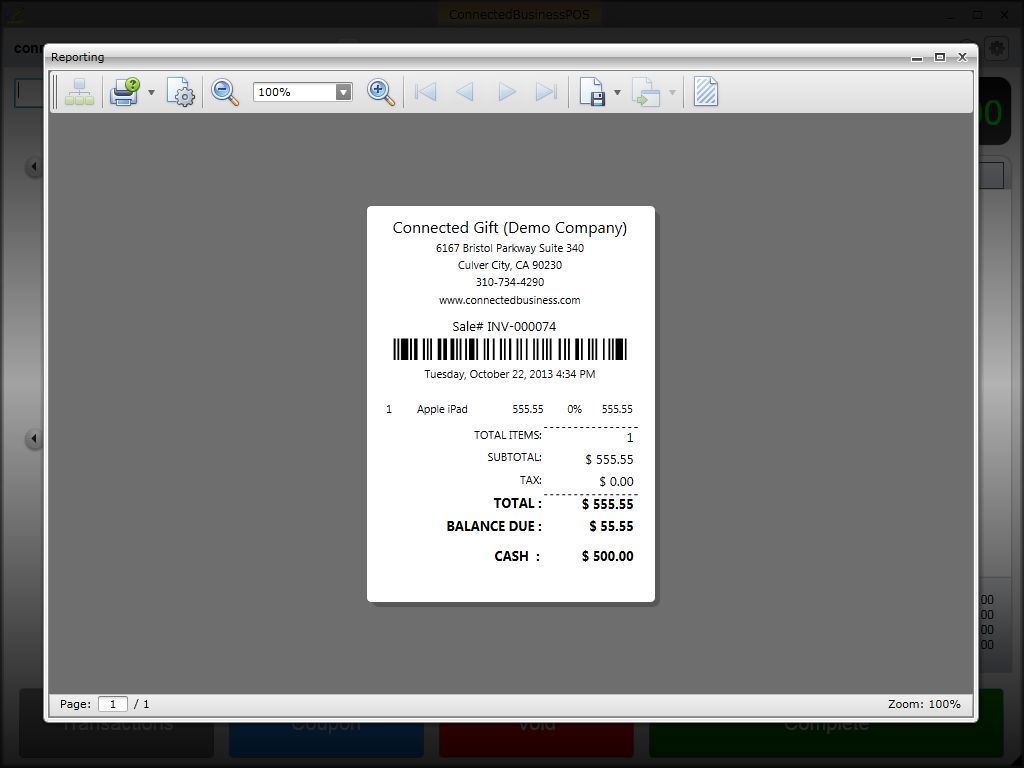
A print preview of the payment receipt will be displayed indicating the total amount paid and the balance due.
Click Image to Enlarge
Combined Payments
To process payments for transactions combining the different payment types, simply click on the Complete button and select the first payment type. Enter the amount(lesser than the total amount to be paid) and click Accept. Select the second payment type to be used and enter the amount (lesser or equal to the remaining balance) and click Accept.
Upon processing the full payment for the transaction, a print preview of the receipt/s will be displayed indicating the total amount paid for each payment type used.

Click Image to Enlarge
Apply Payment
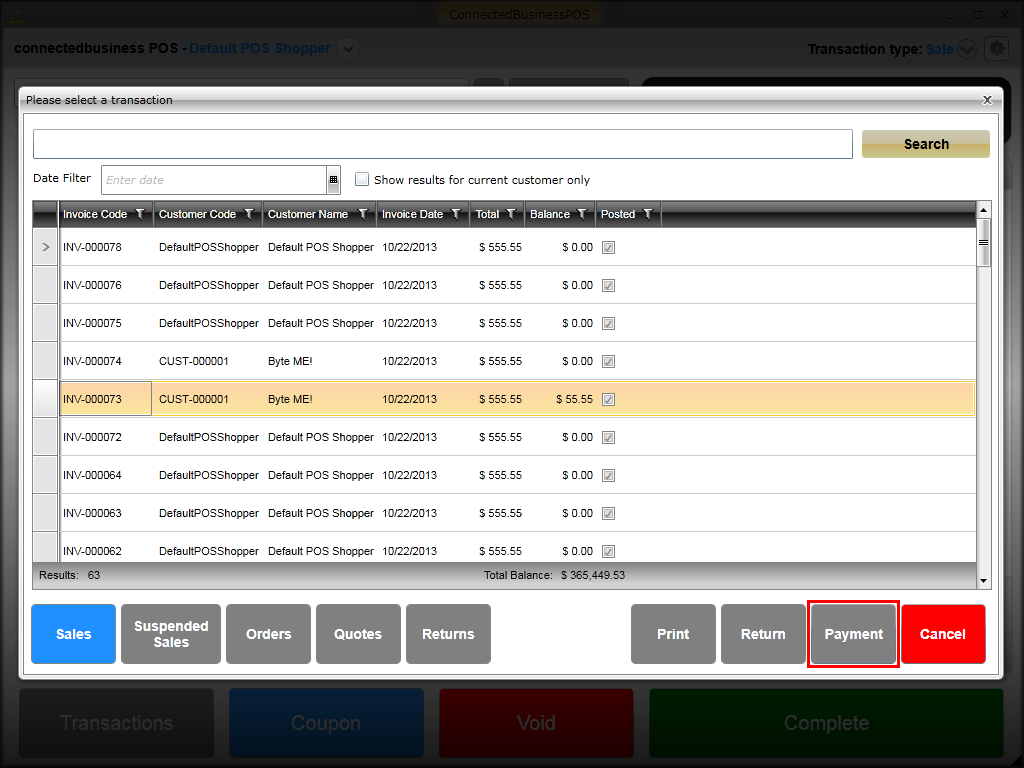
You can apply payments to posted invoices with outstanding balance. To apply a payment, click the Transactions button and select Sales. The list of sales invoices will be displayed. Select the invoice to be processed and click Payment.
Click Image to Enlarge
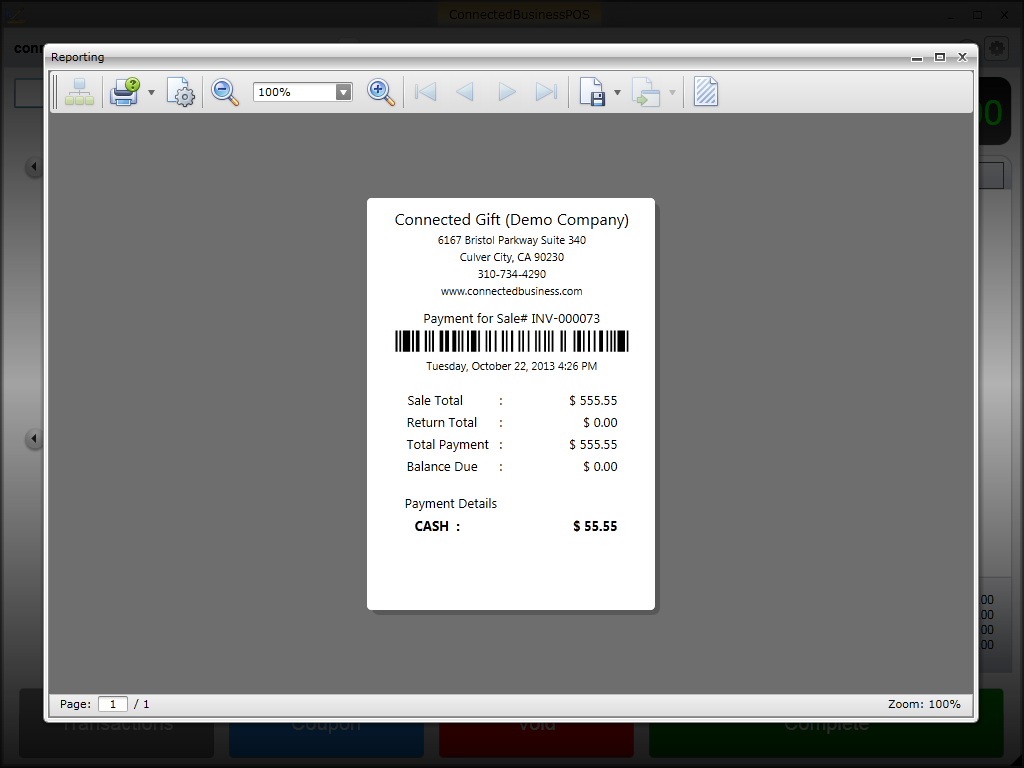
The invoice details will be displayed in the transaction tape. Click Complete and select the payment type to be used. Process the payment and a print preview of the receipt will be displayed indicating the total amount applied to the invoice.
Click Image to Enlarge
Process Refund
You can process a cash, check or credit card refund for transactions in POS. However, for credit card refunds, the transaction must have been paid with a credit card.
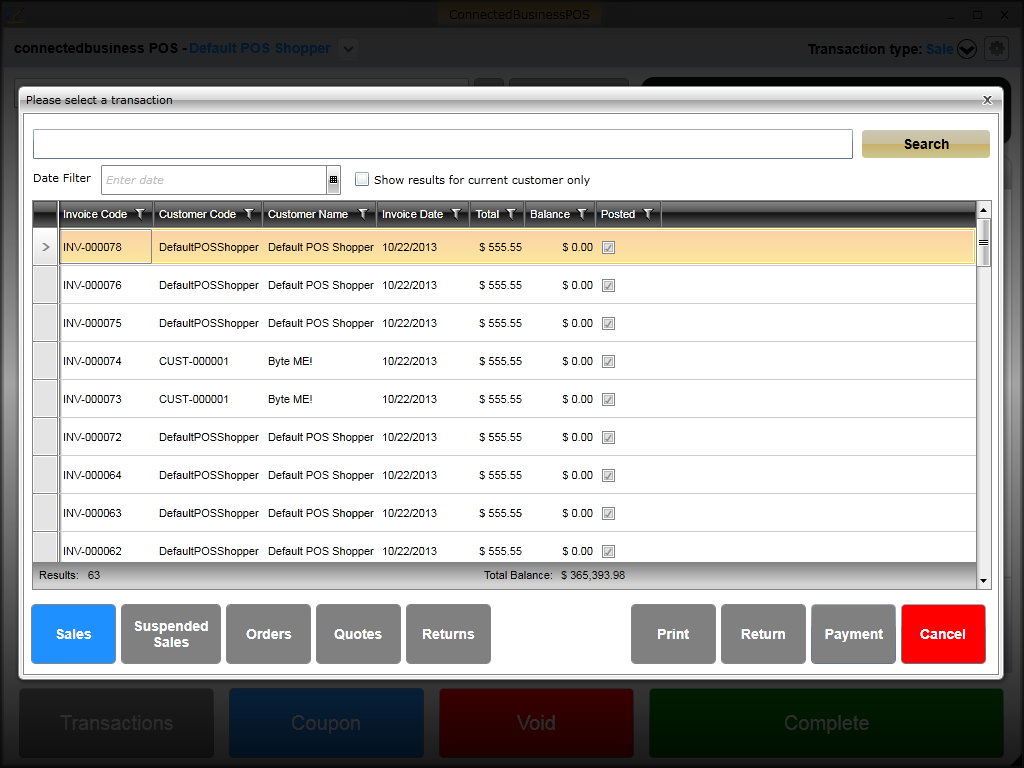
To process a refund, click the Transactions button and select Sales. The list of posted sales invoices will be displayed. Select the invoice to be refunded and click Return.
Click Image to Enlarge
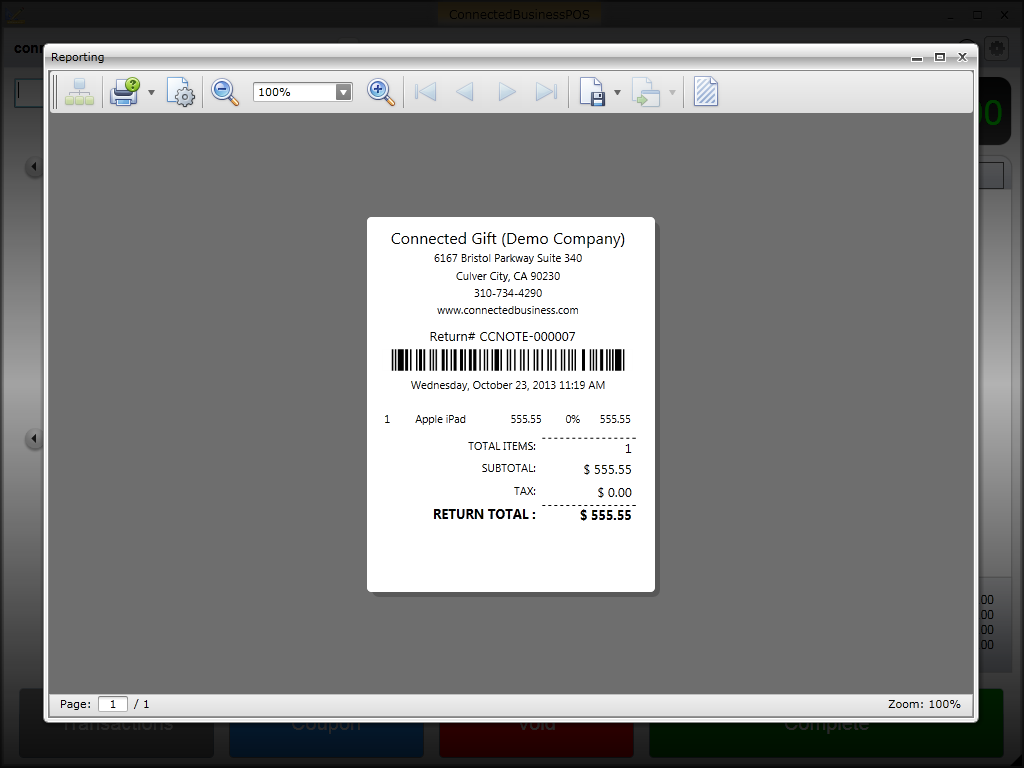
The invoice details will be displayed in the transaction tape. Click Complete and select the payment type to be used for the refund.
A print preview of the receipt will be displayed indicating the total amount refunded.
Click Image to Enlarge