
PayFlowPro
This article will demonstrate how to set up the PayFlow Pro payment gateway.
To set up the PayFlow Pro payment gateway,
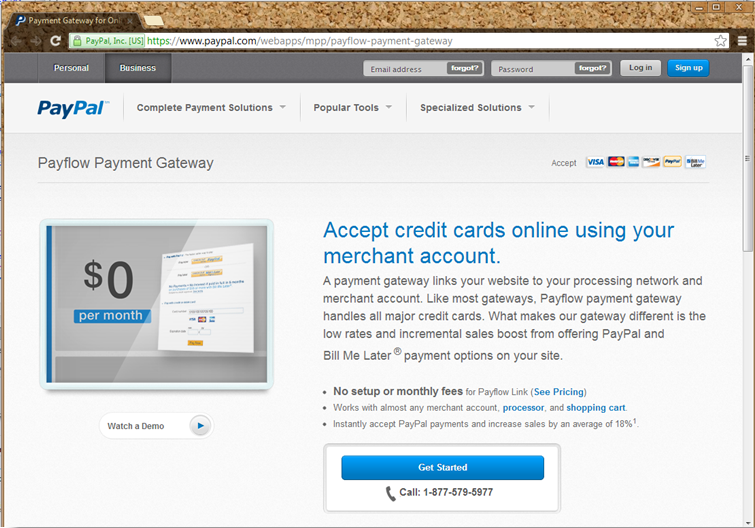
- Apply for a PayFlow Pro payment gateway account. Go to https://www.paypal.com/webapps/mpp/payflow-payment-gateway and follow the procedures on how set up a merchant account.
Click Image to Enlarge
- Set up PayFlow Pro payment gateway in Connected Business.
- Open the Connected Business application.
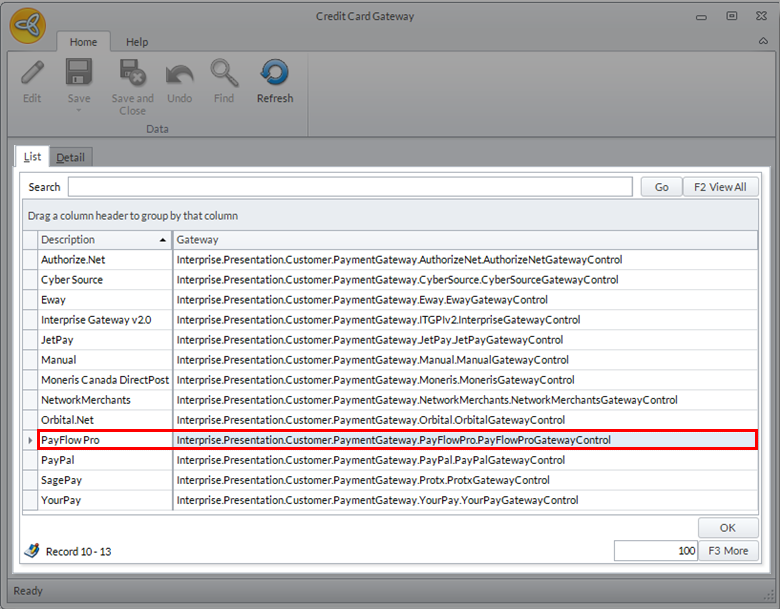
- Go to Banking > Setup and select Credit Card Gateway option. The list of supported credit card gateway will be displayed.
- Select PayFlow Pro and the gateway details will be displayed.
Click Image to Enlarge
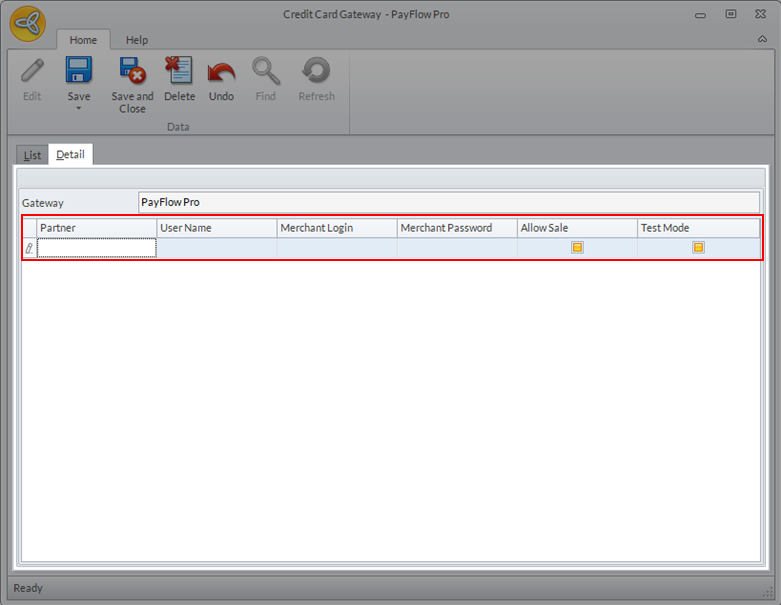
Enter the details for the following fields then click Save and Closeto apply changes.:- Partner:
- Username
- Merchant Login:
- Merchant Password:
- Allow Sale: Check / Uncheck
- Test Mode: Check / Uncheck
Click Image to Enlarge
- After setting the configurations, set PayFlow Pro as the payment gateway for the website. Go to eCommerce module > Webstore and the list of existing webstores will be displayed.
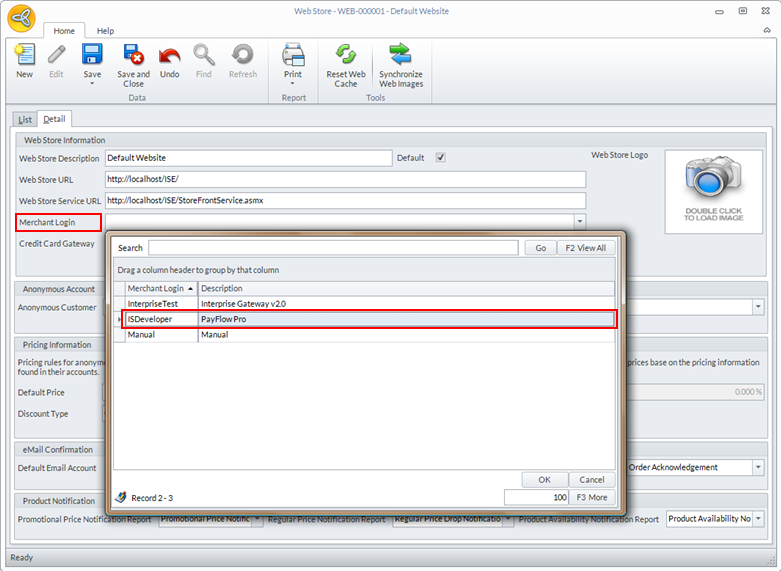
- Select the webstore where you want to use the gateway and the webstore details will be displayed.
- In the Merchant Login field, select PayFlow Pro from the dropdown list.
Click Image to Enlarge
- Click Save and Close to save your settings.
- Open the Connected Business application.