
Ordering Process Through Category
You can browse for items in the webstore by scanning each Category the available items belong in.
To do so,
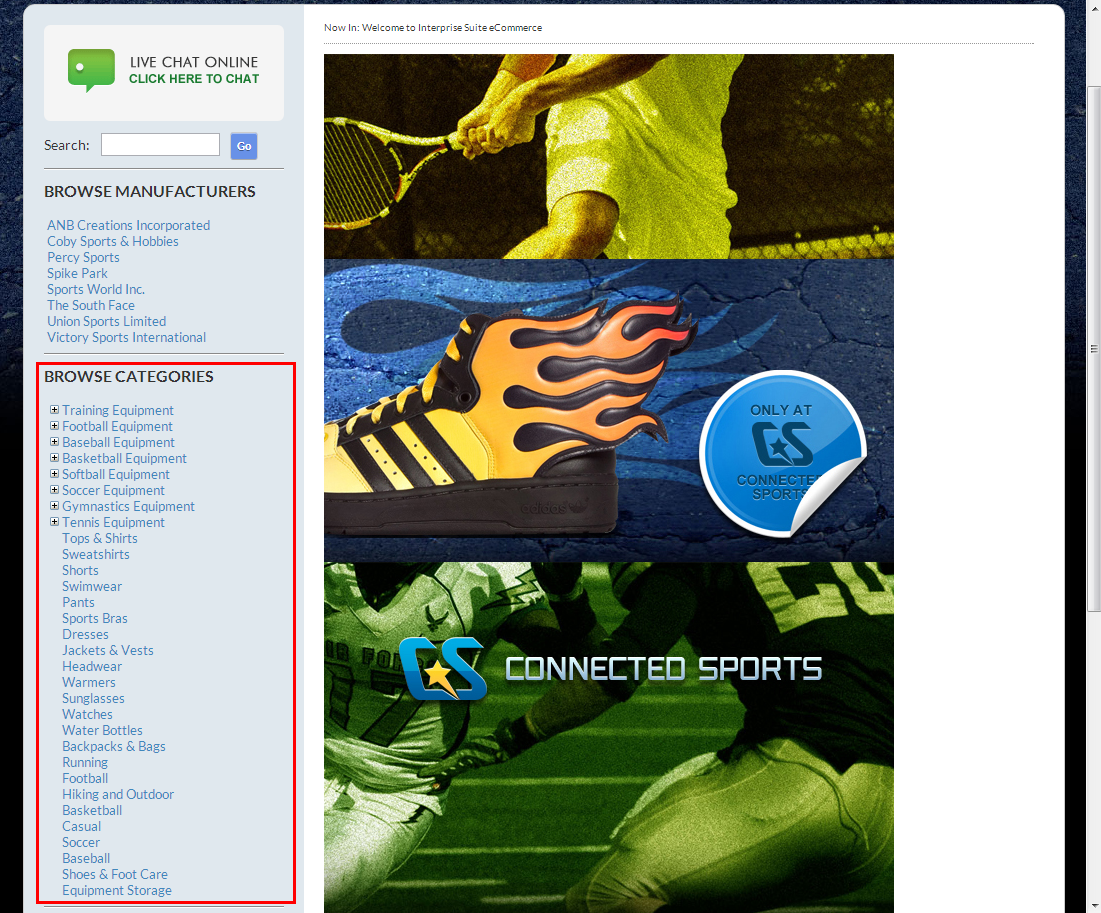
- From the webstore, you can find a list of categories of items on the column sider:
Click Image to Enlarge
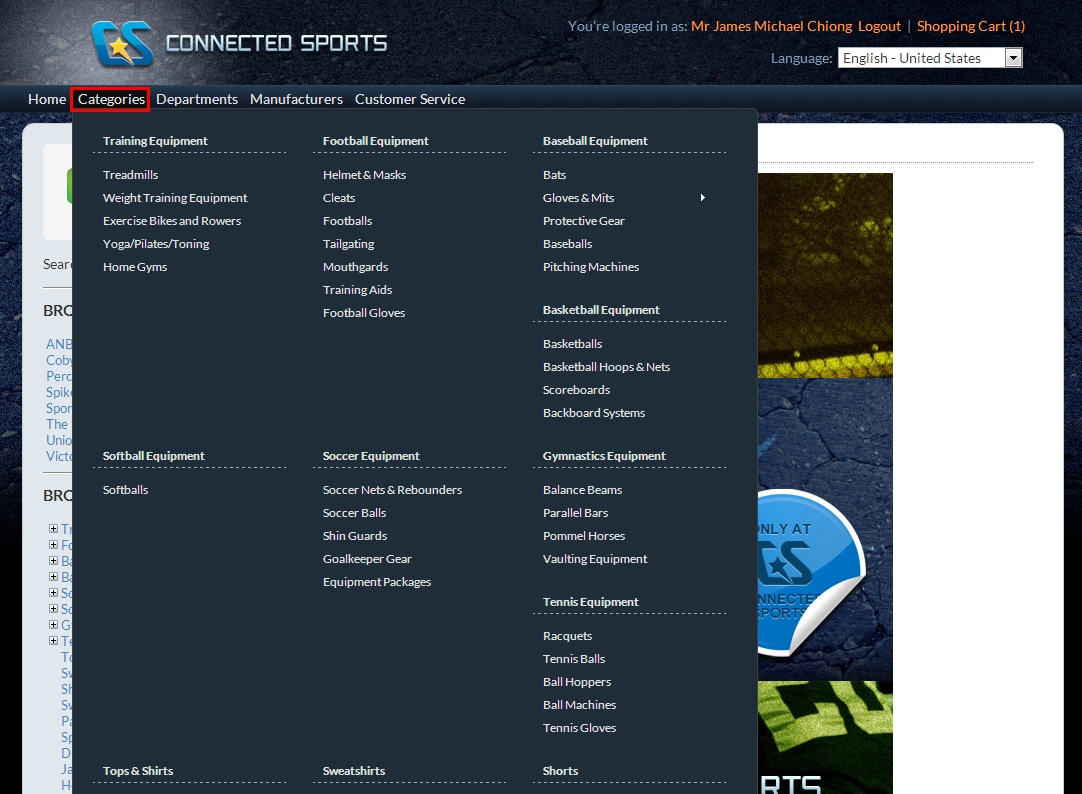
Or from the top menu of the webstore:
Click Image to Enlarge
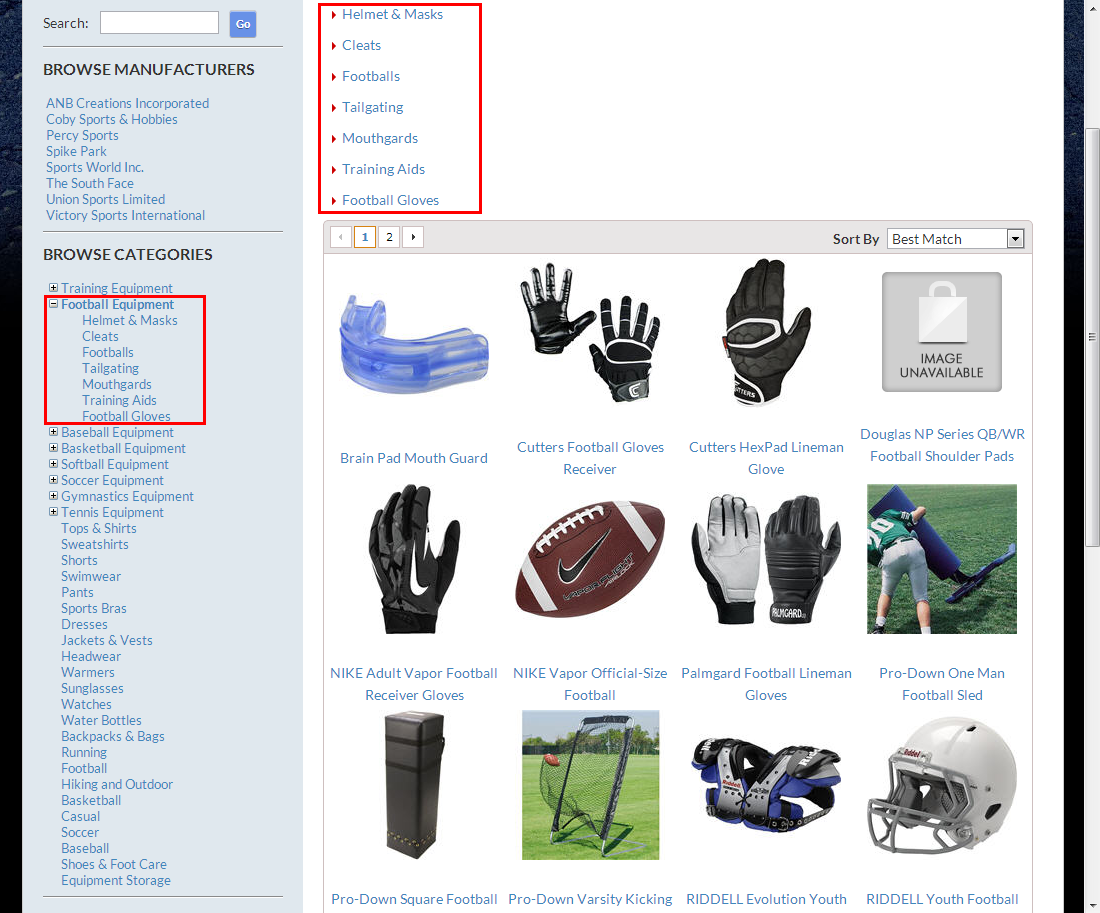
- Upon selection of a category, a list of sub-categories will be displayed as well as the items that belong to the whole category umbrella.
Click Image to Enlarge
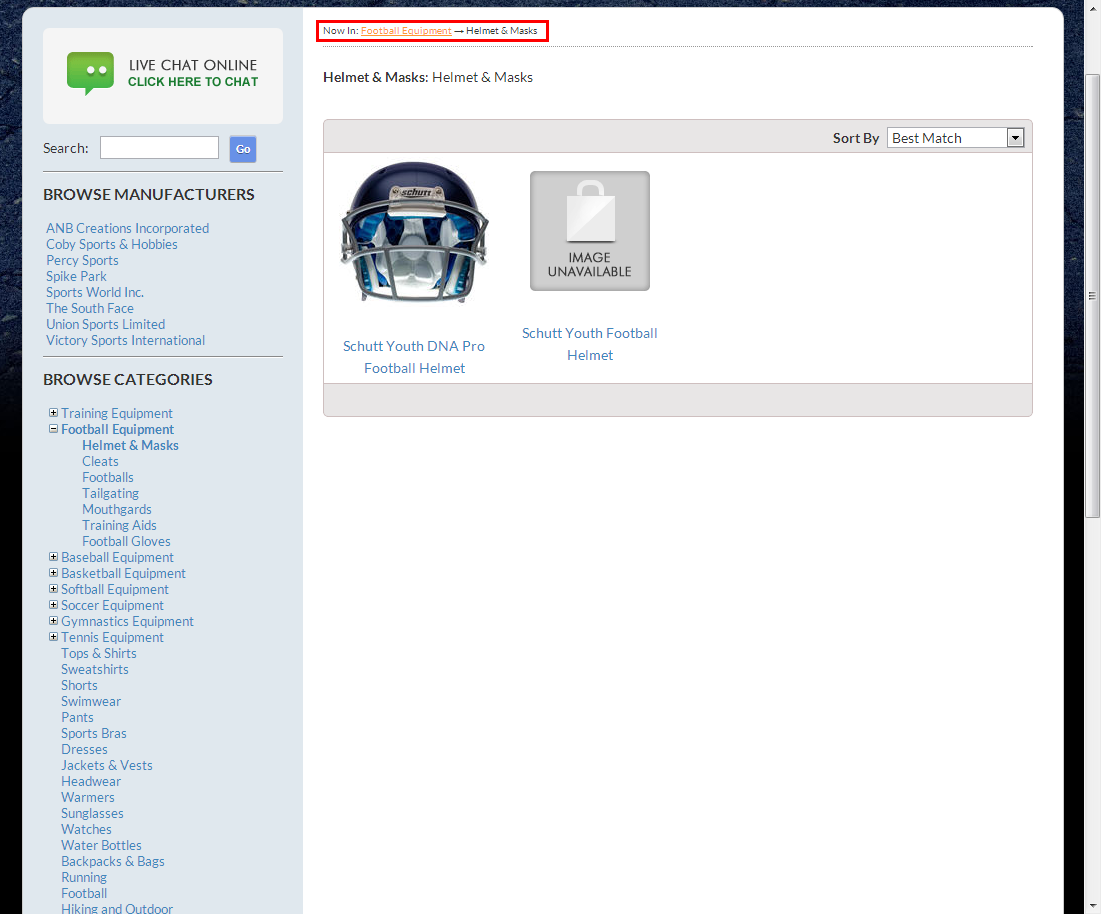
Select a sub-category and the list of items displayed will be filtered more to items that belong to the sub-category.
Click Image to Enlarge
- Selecting an item brings you to the item detail page. Click Add to Cart to include the item to the cart that you will check out later, or Add to Wishlist to bookmark the item to be viewed or add to your shopping cart later.
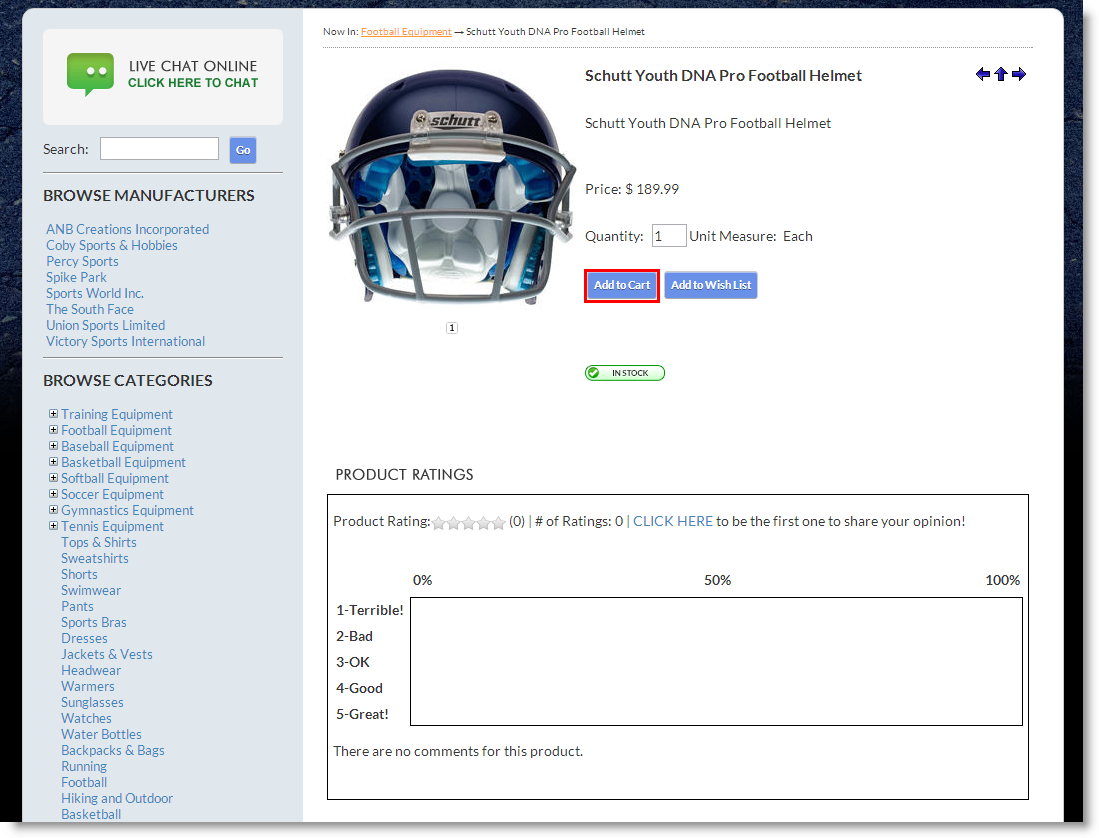
Click Image to Enlarge
Click Add to Cart to bring you to your shopping cart page.
- From the shopping cart page you can either Continue Shopping to browse for more items, or Checkout Now to set-up the checkout details.
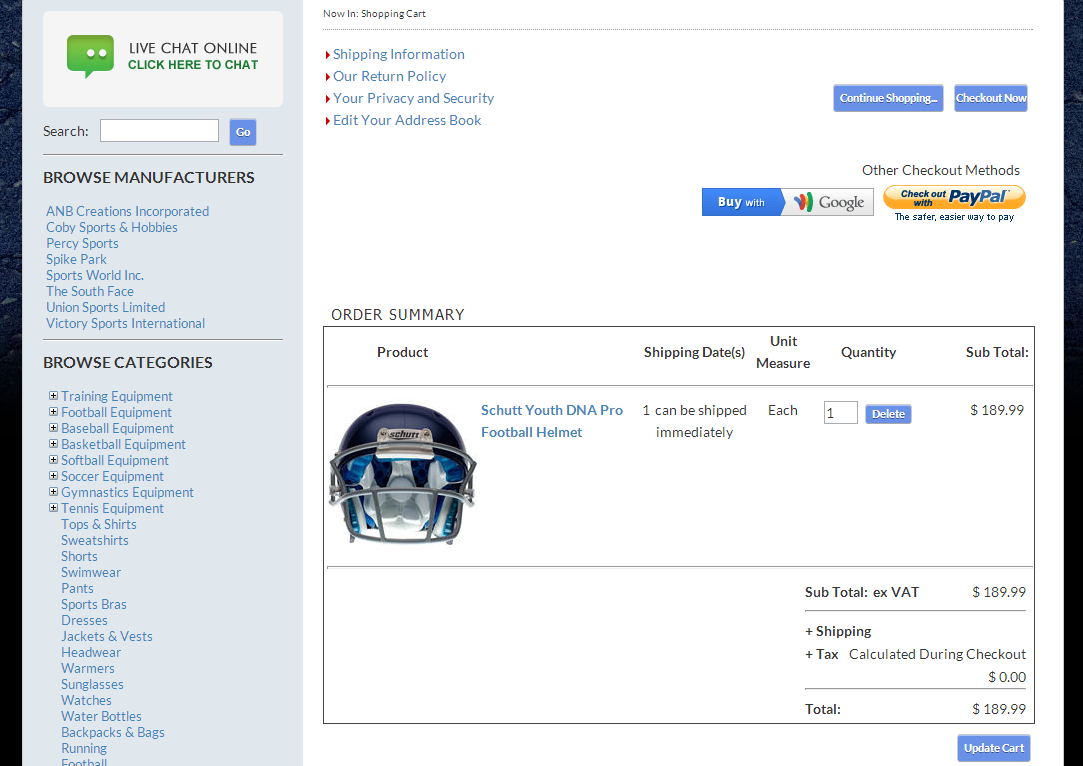
Click Image to Enlarge