
Order Adjustments
|
Content
|
|---|
You can void an item or transaction in the Mobile Connected Sale by following the processes dicussed below.
Void an Item
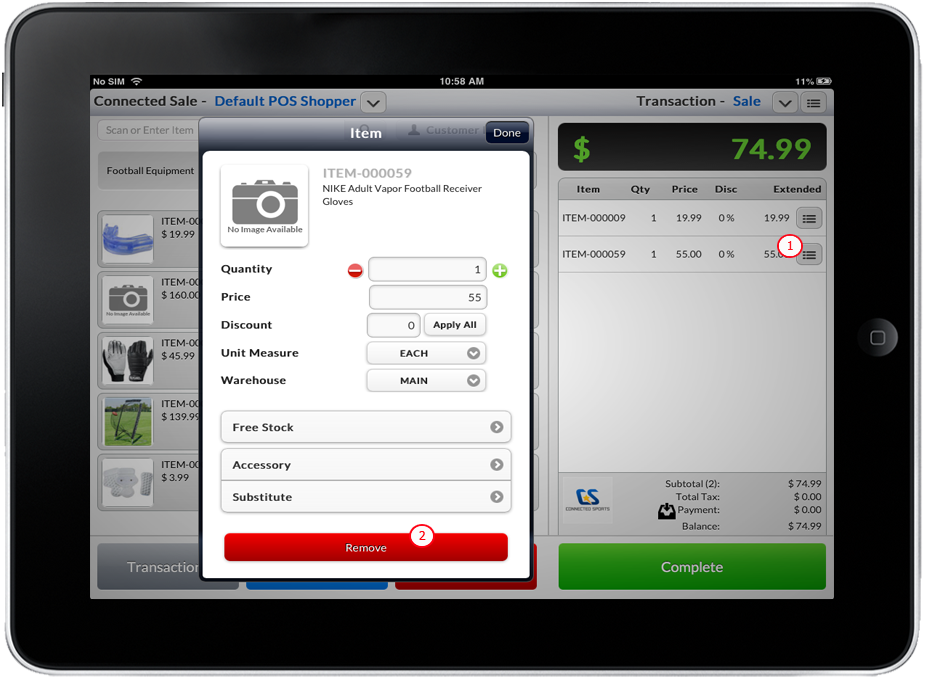
- Tap the desired item on the Item List. A new form will load.
- Tap the Remove button.
Click Image to Enlarge

Void a Transaction
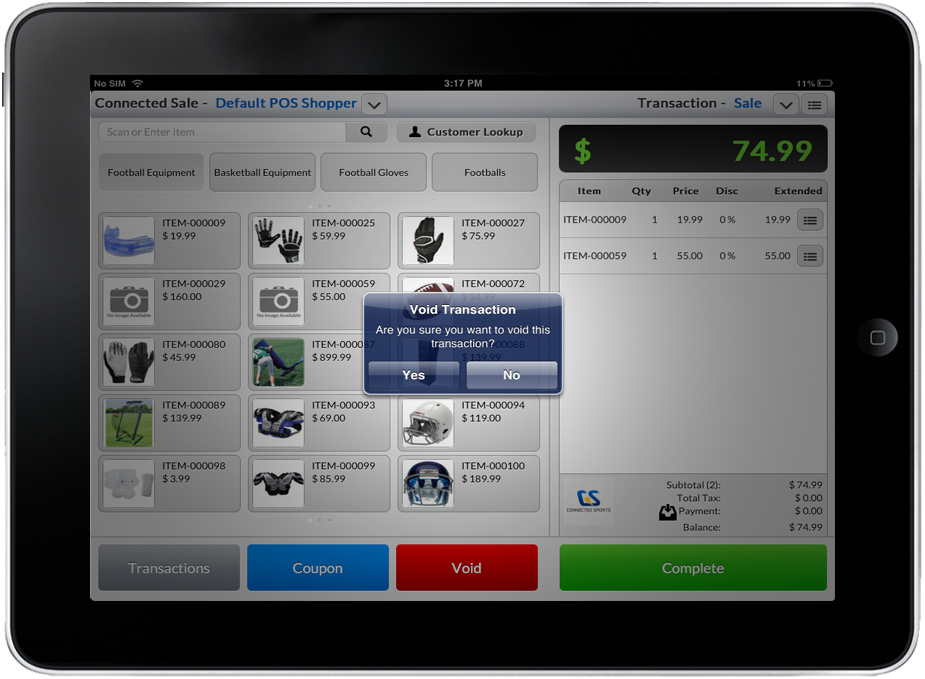
- Tap Void button, a dialog box confirming to void the transaction will be displayed.
- Select Yes to void the current transaction.
Click Image to Enlarge
Create Refund
In this process, you will learn how to create a refund in Connected Sale.
ALLOW RETURNS
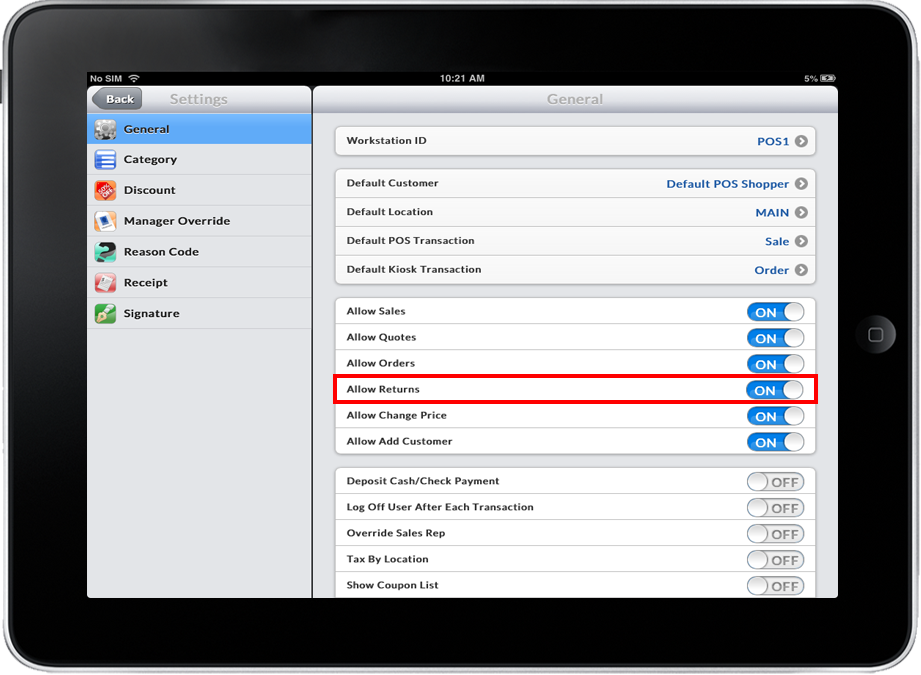
Set up Allow Returns option to create refund transactions.
- Click Settings button from the POS Dashboard.
- Tap on the General.
- Swipe the round button to the right beside the Allow Returns from left to right to make the value ON.
Click Image to Enlarge
DEFINE THE INVOICE DETAILS
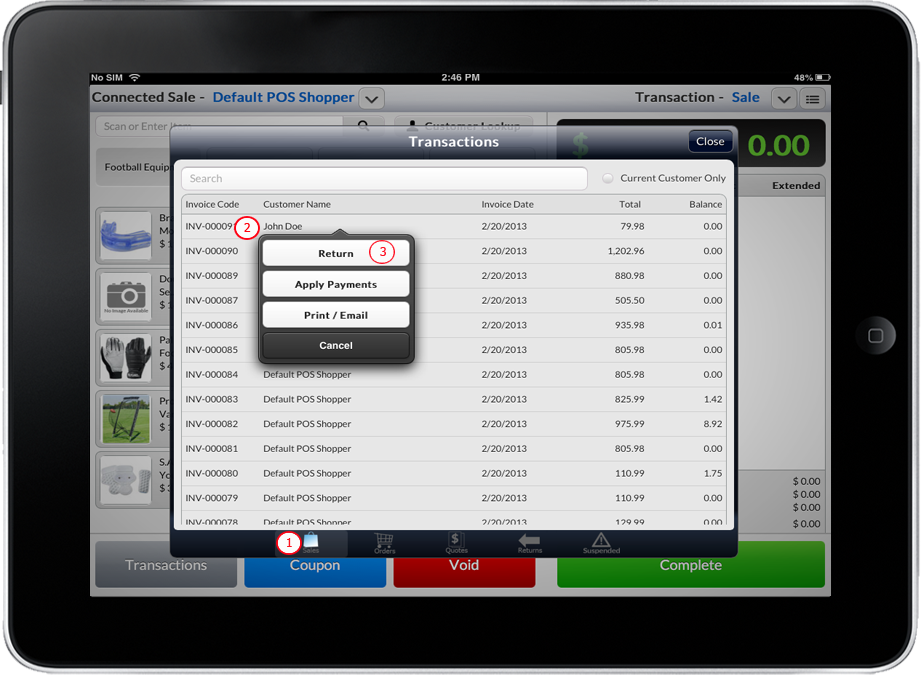
- Tap on Transactions button. A pop up form will be displayed on the screen containing previous transactions.
- Select Sales button that is located at the bottom of the form. List of sales invoice will be displayed.
- Select a transaction from the list or key in the search textbox field the transaction detail to be searched and Tap a specific item.

Make sure that the invoice transaction selected is already posted. You cannot create credit memo for unsaved transaction(s).
-
After tapping the desired transaction select and tap Return.
Click Image to Enlarge
- Tap the Complete button to convert the sale transaction to credit memo.