
Navigate the Screen Menu
POS
Below are the basic navigation screen for POS.
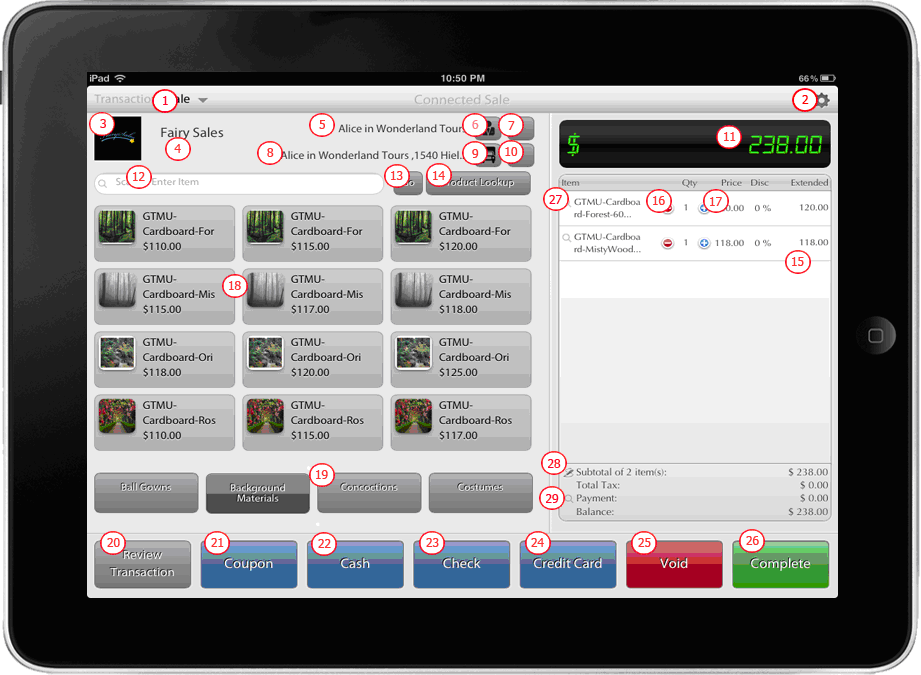
Click Image to Enlarge
- Current Customer – Displays the current customer in POS.
- Shipping Details button – Displays the customer's current Shipping Address, Change Shipping Address button and Add Shipping Address button.
- Transaction Type – States the type of transaction selected whether Sale, Order, Quote or Return transaction.
- Action Button – Displays Print Z-Tape/X-Tape, Close/Open Workstation (if configured), Back to Dashboard and Logout button.
- Search Item Textbox – Accepts the name or barcode of an item/product.
- Product Lookup Button – Loads a form/window that displays the list of product(s) available.
- Change Customer Button - Displays a list of active customers.
- Category Buttons – Displays items/products present in the selected category.
- Sub-Total – Displays the Total amount of the selected items.
- Items in a Category Buttons – Displays and adds an item/product in current transaction.
- View Item details in the cart – shows the details of the selected item.
- POS Product List - Displays the items/products in the current transaction.
- Company Logo and Server URL – Displays the logo of the company.
- Signature Button – shows the signature attached to the transaction.
- View Payment Button – shows the payment details attached to the transaction.
- Transactions Button - displays the list of transactions grouped into quote, order and sales for review purposes.
- Coupon - enters the coupon discount information.
- Void Transaction Button - cancels current transaction.
- Complete Button - Displays the different types of payment (Cash, Check, Credit Card, On Account and Suspend button) available in the current transaction.
Kiosk
Below are the basic navigation functions in the Kiosk.
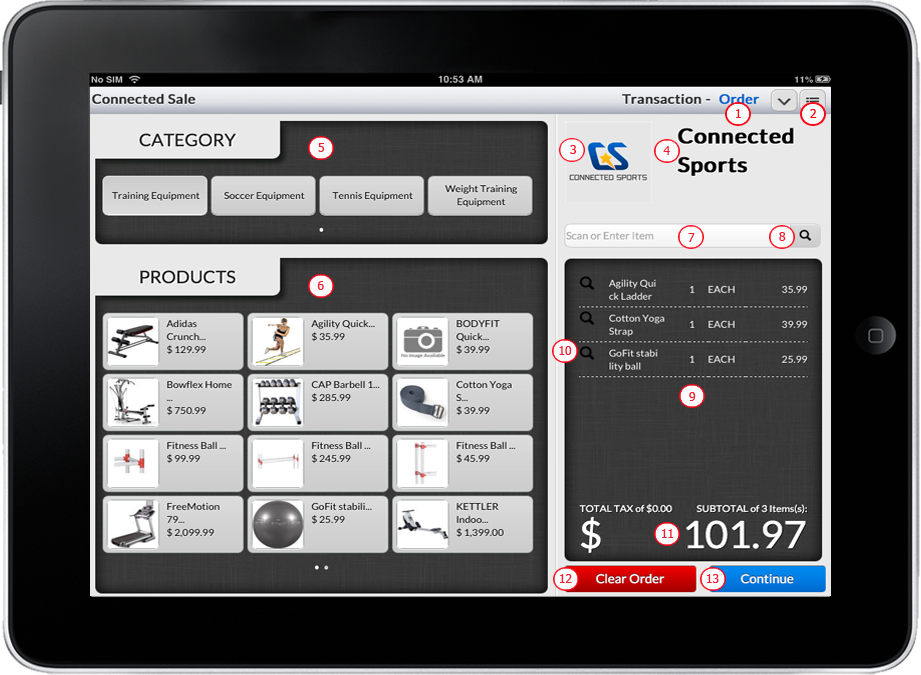
Click Image to Enlarge
- Transaction Type – States the type of transaction selected whether Sale, Order, Quote or Return transaction.
- Action Button – Displays Print Z-Tape/X-Tape, Close/Open Workstation (if configured), Back to Dashboard and Logout button.
- Company Logo – Displays the logo of the company.
- Company Name – Displays the company name using the Kiosk.
- Category Buttons – Displays items/products present in the selected category.
- Items in a Category Buttons – Displays and adds an item/product in current transaction.
- Search Item Textbox – Accepts the name or barcode of an item/product.
- Product Lookup Button – Loads a form/window that displays the list of product(s) available.
- Kiosk Transaction Items – Displays the items/products in the current transaction.
- View Item details in the cart – shows the details of the selected item.
- Sub-Total Display – Displays the Total amount of the selected items.
- Clear Order Button – Resets Current Transaction.
- Continue Button – Proceeds to the next step of the Transaction.