
Multi Package Shipment
If you have orders that require multiple packages, you can make use of the Multi Package feature in Connected Business. This feature allows you to send multiple packages in a single shipment transaction, thus, reducing the time end effort to print multiple shipping labels and to lower the shipment cost.
When using the multi package shipment in Connected Business, you have the option to specify the weight as well as the description, package type, dimensions, COD amount, and insured value for EACH of the packages. This allows you to easily identify which package contains what item based on the specifications indicated on the package.
For the system to generate the correct shipping label for your multi package shipments, make sure that you have the following set up correctly.
- The item must have an indicated weight.
- The sender / recipient must have the correct shipping address.
- Carrier account must be set up correctly.
Process Multi Package Shipment

The Multi Package feature is only applicable using FedEx and UPS carriers.
To process a multi-box shipment,
- Create a new sales order or sales invoice. Make sure that the item has weight indicated. Save the sales order or sales invoice.
- Open the SO / SI shipment form from the Shipping module > Shipment > From SO / From INV.
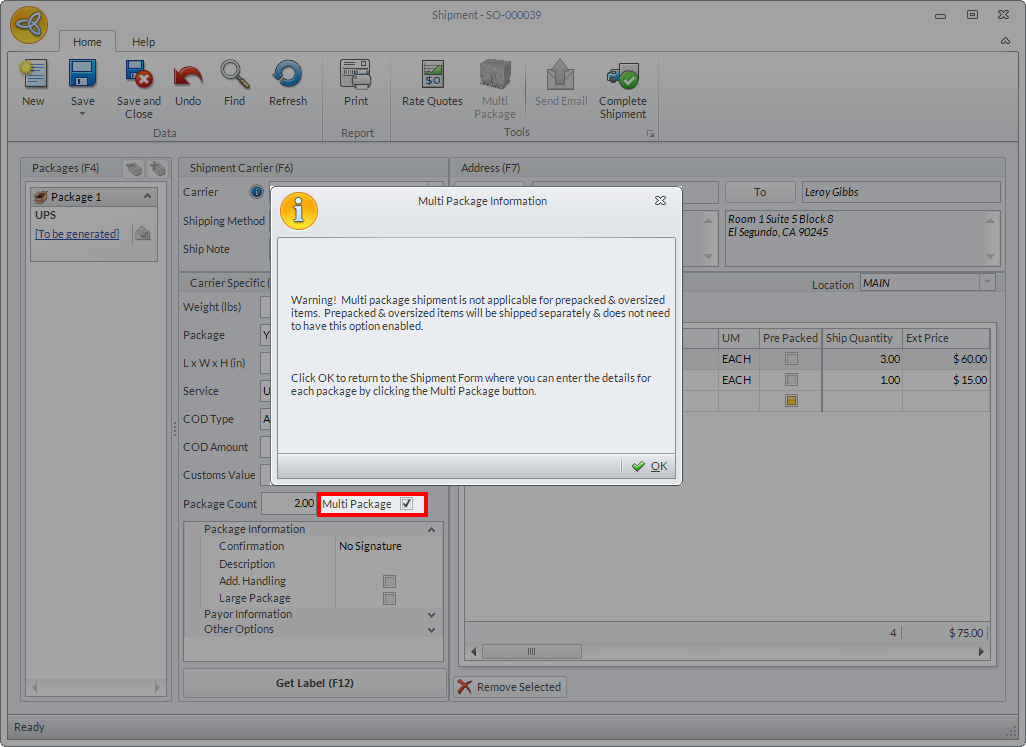
- In the Shipment form, tick the Multi-Package checkbox. A pop-up message will be displayed indicating that multi-package shipment is not applicable for prepacked and oversized items. Click OK to close the popup message.
Click Image to Enlarge
Upon ticking the Multi Package option, the Multi Package button will be enabled and the Rate Quotes and Package Content Grid will be disabled.
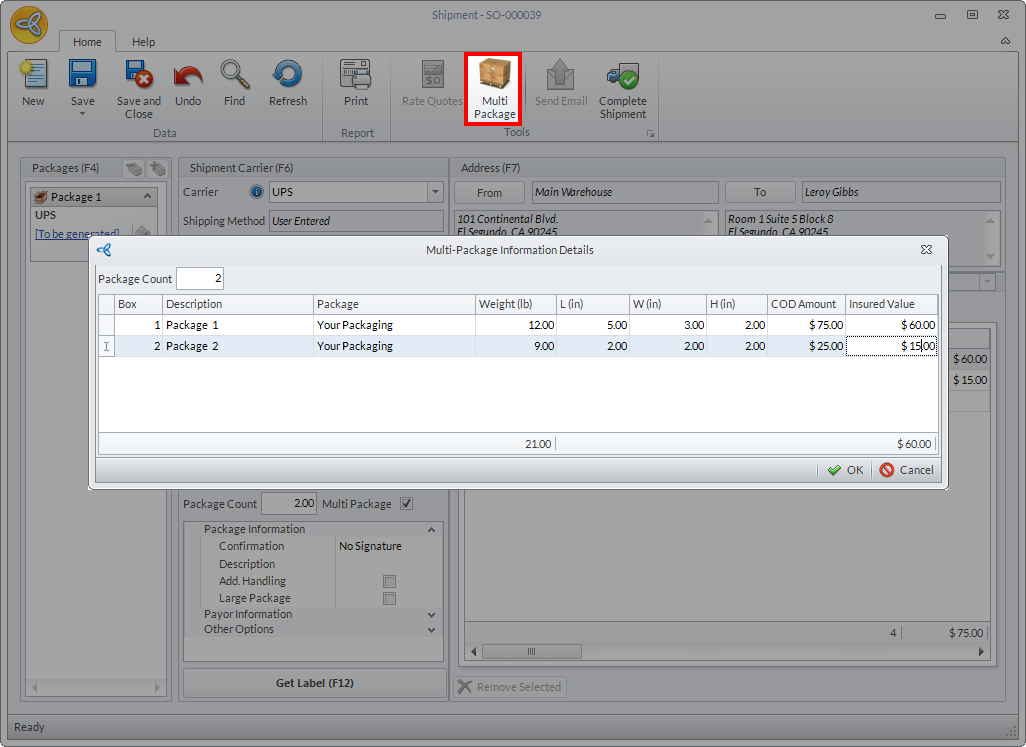
- Click the Multi Package button to load the Multi-Package Information Details popup form. By default, the package count is set to 2. You can modify the package count as needed.
Click Image to Enlarge
Specify the shipment details for the following fields and click OK.
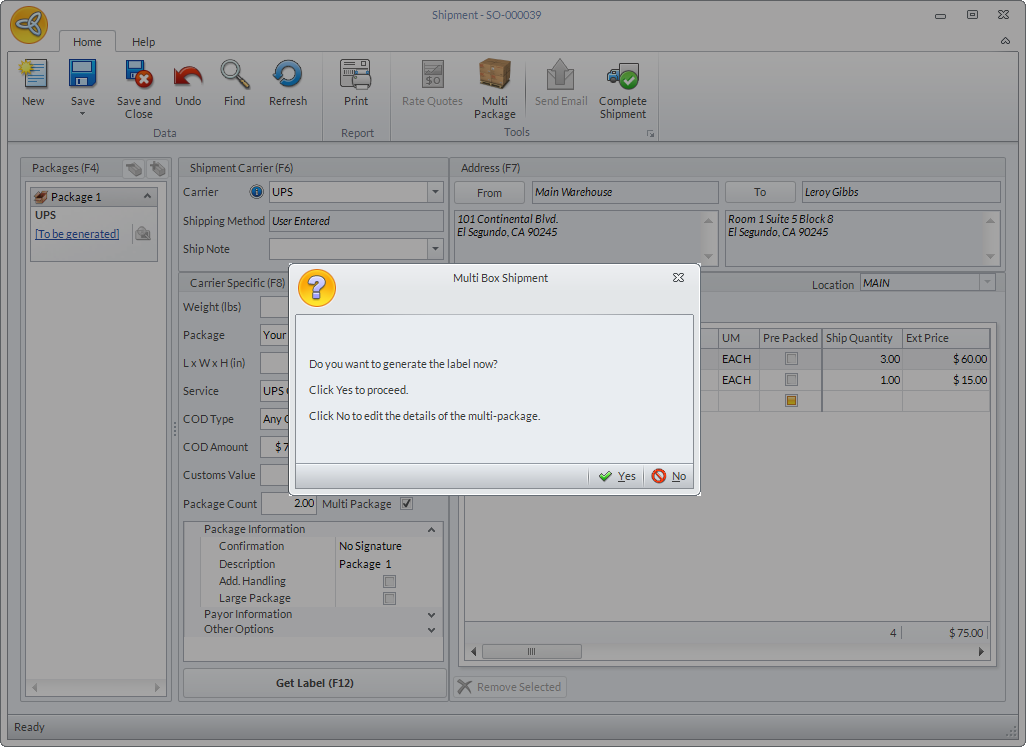
Field Description Description Package The package type selected for the shipment. Weight Dimensions (L, W, H) COD Amount The amount to be collected by the shipping carrier upon delivery of the package and will be sent to the retailer minus the shipping fee. Insured Value - A popup message will be displayed confirming if you want to print the label or modify the shipment details.
Click Image to Enlarge
- If you click YES, the system will generate the labels.
- If you click NO, no labels will be generated. You can click on the Multi Package button to modify the shipment details and manually click on the Get Label button to generate the labels.
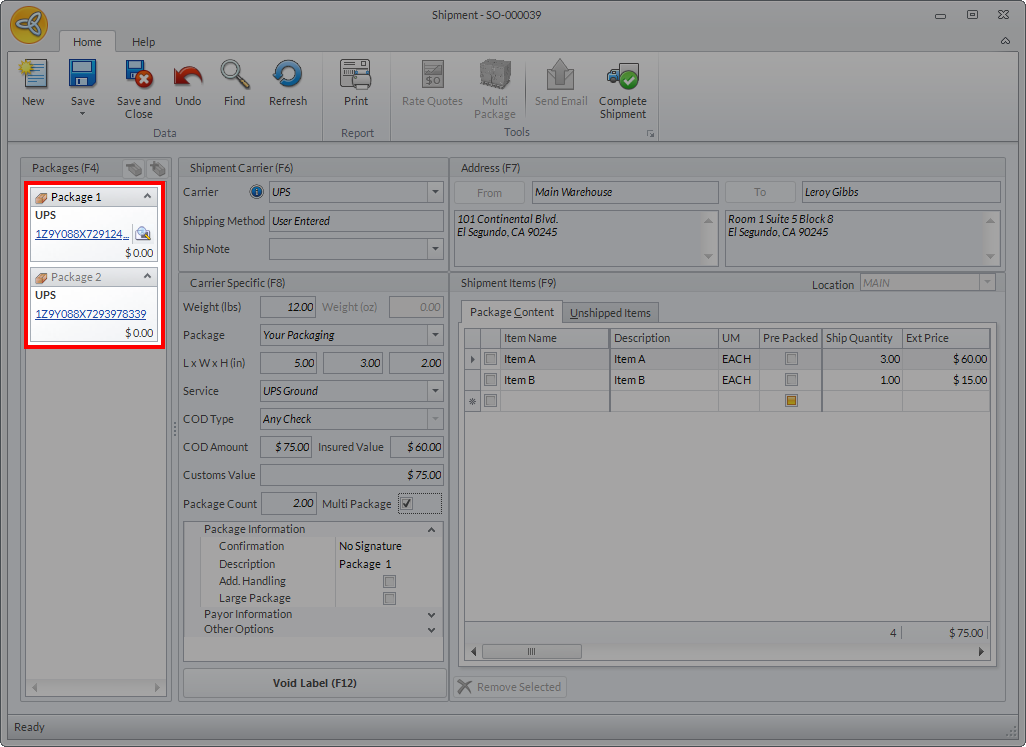
- Once the labels are printed, you will notice that the number of labels printed corresponds to the number of packages in the shipment.
Click Image to Enlarge
- Click the View icon (
 ) beside the label number to view the label. You can also click on the Print button to print the labels all at once.

Click Image to Enlarge