
Moneris Canada DirectPost
Below are the steps in setting up Moneris Canada DirectPost Payment Gateway.
Apply for a Moneris Canada DirectPost Payment Gateway Account
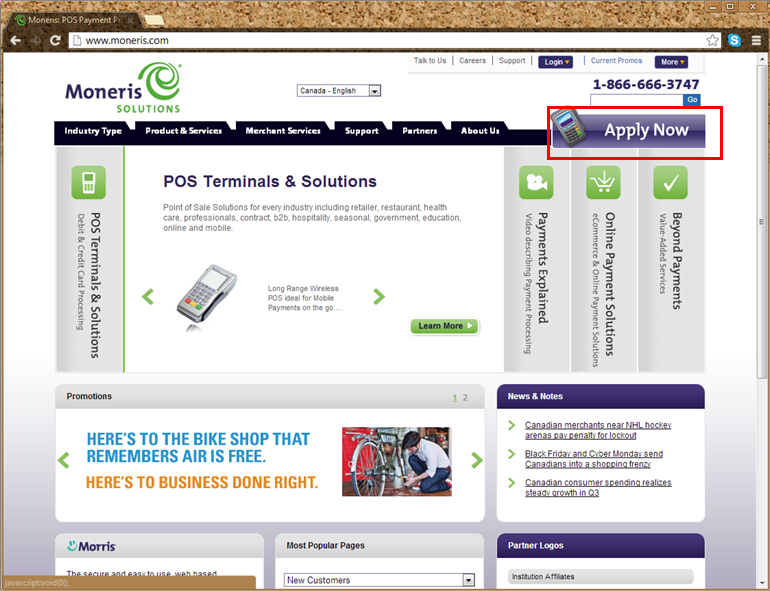
Go to http://www.moneris.com/ and click the Apply Now button to sign up for an account.
Click Image to Enlarge
Set Up Moneris Canada DirectPost Payment Gateway in Connected Business
- Open the Connected Business application.
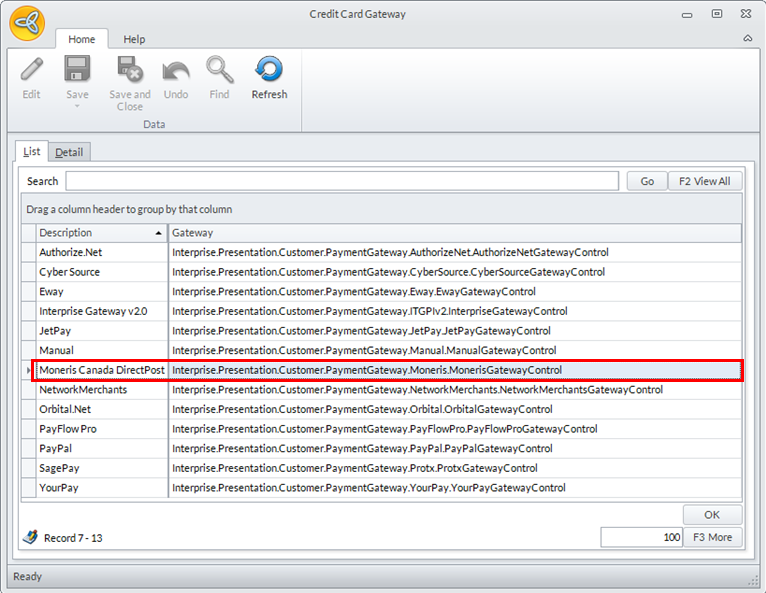
- Go to Banking > Setup and select the Credit Card Gateway option. The list of supported credit card gateways will be displayed.
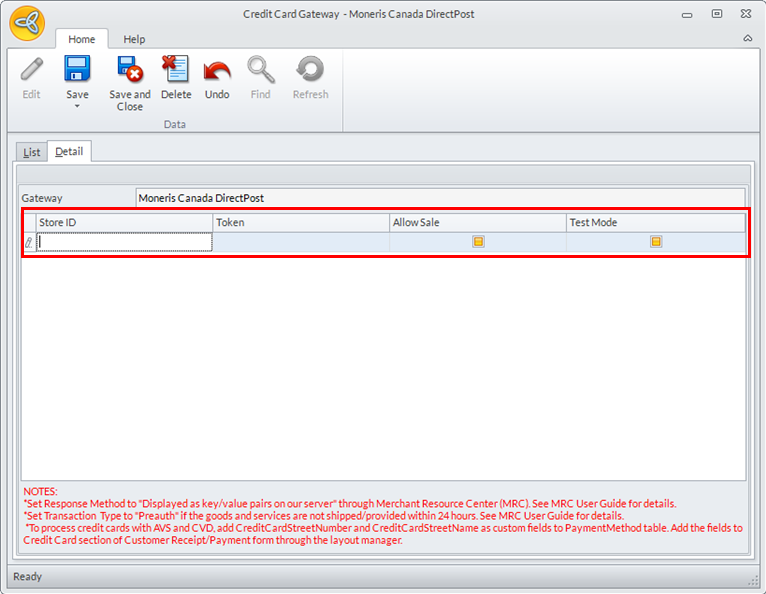
- Select Moneris Canada DirectPost from the list and the gateway details will be displayed. Check the Allow Sale option.
Click Image to Enlarge
Click Image to Enlarge
Enter the details for the following fields:
- Store ID:
- Token:
- Allow Sale: Check / Uncheck
- Test Mode: Check / Uncheck

Unless you plan to go live with your system, DO NOT UNCHECK THE TEST MODE OPTION IF THE EBUSINESS SYSTEM IS STILL IN DEVELOPMENT STAGE, otherwise, you might incur charges for any transactions made using the gateway.
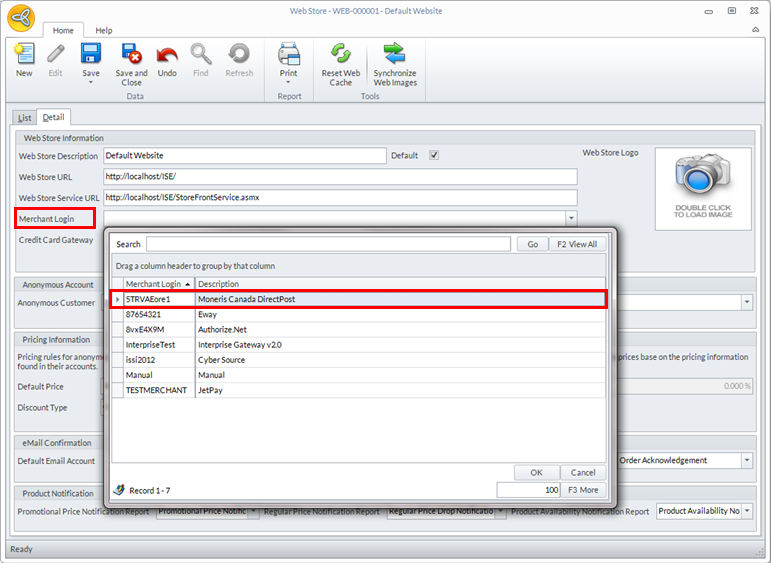
- After setting the configurations for Moneris Canada DirectPost Gateway, set it as the payment gateway for the website. Go to eCommerce module > Webstore and the list of existing webstores will be displayed.
- Select the webstore where you want to use the gateway and the webstore details will be displayed.
- In the Merchant Login field, select Moneris Canada DirectPost from the dropdown list.
Click Image to Enlarge
- Click Save and Close to save your settings.
The gateway setup only works with the website into which it was defined. You need to set up the gateway for every website you want to use it for.