
Modify Existing Column Properties
Learn how to modify existing column properties by following these steps:
Steps
- Go to the System Manager module.
- Select Customize > Data Dictionary button from the menu. The Data Dictionary form will display.
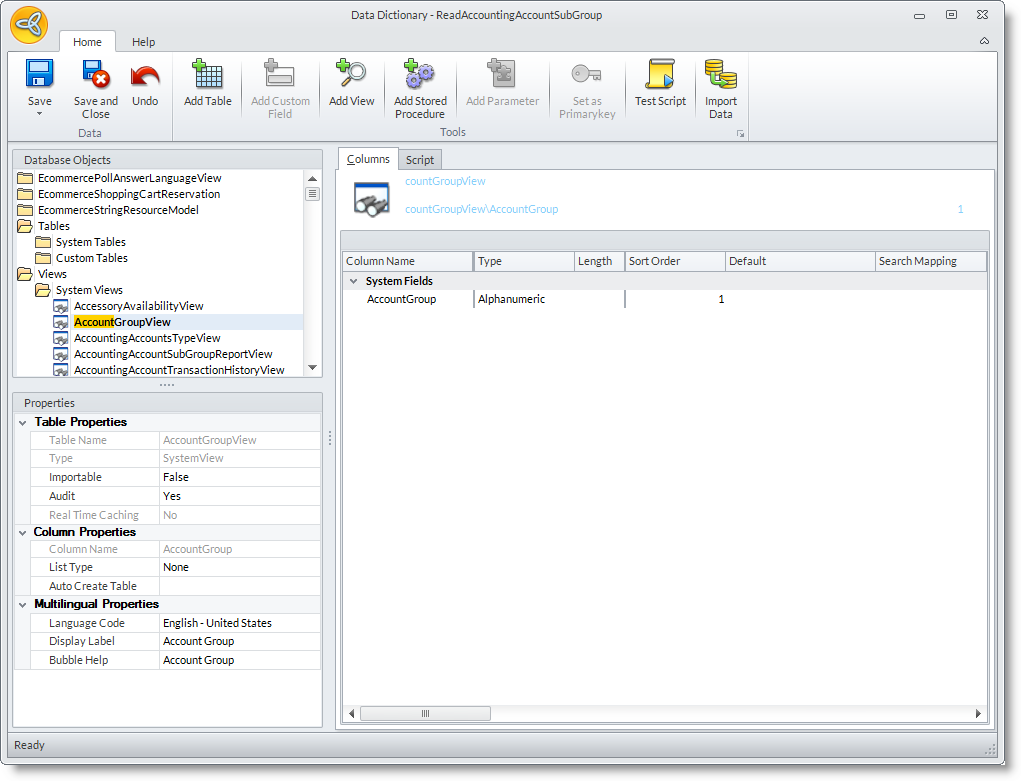
- The Database Objects List on the left lists all tables, views and stored procedures (from your existing system views and tables as well as custom views and tables created in the data dictionary).
- To modify an existing column property,
- Select the views in the Data Dictionary Objects list. The views are arranged in an alphabetical manner so you can search for the view by typing in the first few letters of the view name from the System Views folder.
- You may modify the column properties in the Column tab.
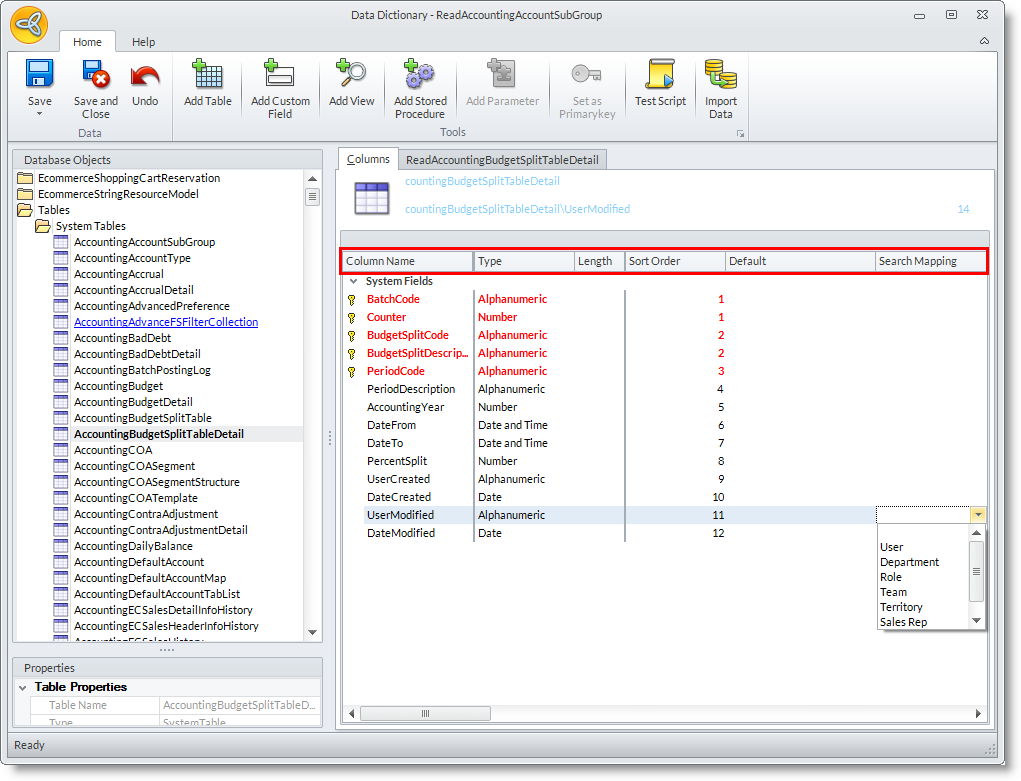
- Select the views in the Data Dictionary Objects list. The views are arranged in an alphabetical manner so you can search for the view by typing in the first few letters of the view name from the System Views folder.
|
Field |
Description |
| Column Name | shows the column name or field name in the table or form. |
| Type | shows the type of data supported (alphanumeric, numbers only, date etc.). |
| Length | shows the maximum recommended length of characters |
| Sort Order | shows the sort order of the field in the form. You can rearrange the sort order of the fields by changing their sort order number. |
| Default | shows the default value for the field. |
| Search Mapping | Select the value to which the column should be mapped. This is useful in finding specific searches in the forms. See: Using the Seach Manager |
