
Mass Print Shipment Labels
This article talks about the bulk printing feature of Connected Business.
Connected Business gives you the ability to print the shipping labels for all sales orders in bulk.
With the Bulk Printing feature, you can increase your efficiency in packing and shipping as you can batch print the shipping labels for all sales order ready for shipment.

You can only print the labels in bulk for orders with single line items and/or prepackaged items.
Print Shipment Labels in Bulk
To mass print shipment labels,
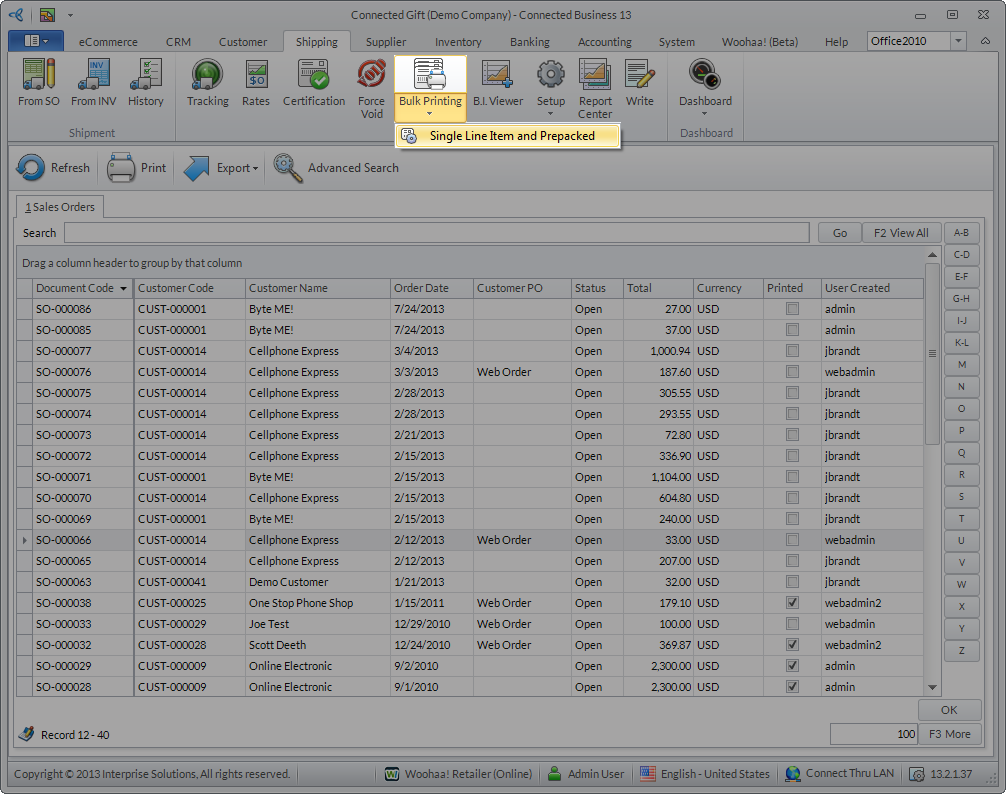
- Go to the Shipping module > Bulk Printing > Single Line Item and Prepacked.
Click Image to Enlarge
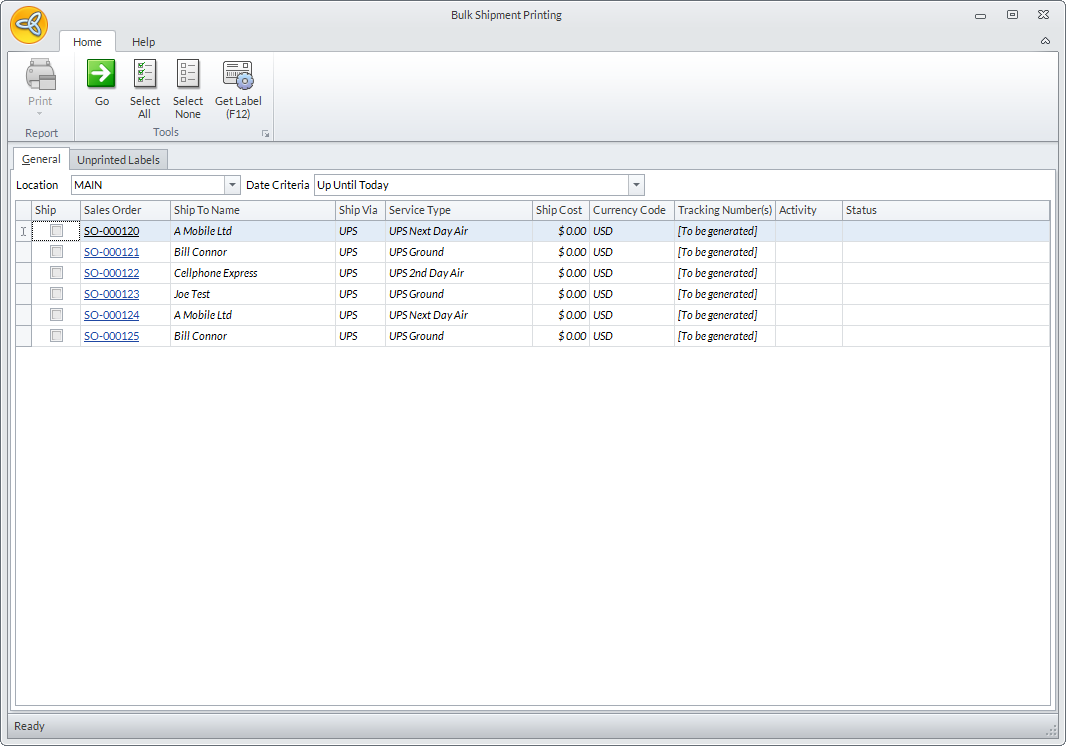
The Bulk Shipment Printing form will be displayed.
Click Image to Enlarge
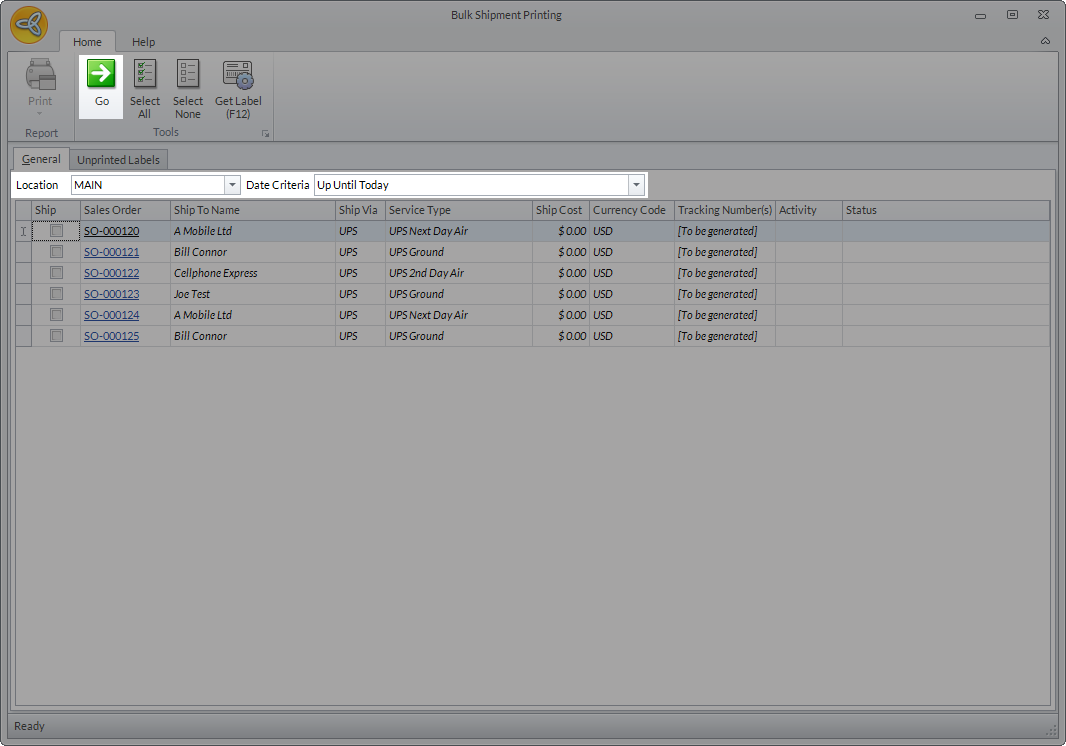
- You can filter the number of sales orders to be displayed by defining the location and date criteria. Click Go to apply the filter.
Click Image to Enlarge
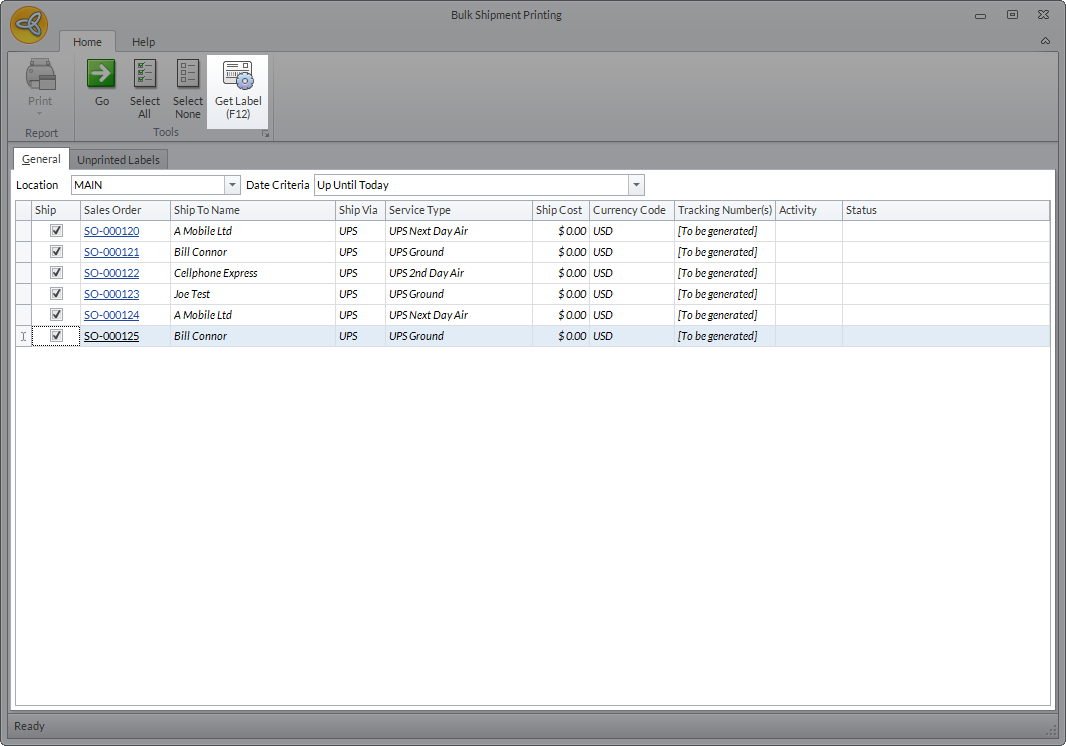
- From the list, select the number of SO you want to process and click Get Label (F12). The system will automatically process and generate the shipping label for all sales orders selected.
Click Image to Enlarge
- Upon generating the labels, the details for the Ship Cost,Tracking Numbers and Status will be updated.

Click Image to Enlarge
If you encounter any errors while generating the labels, you can check the cause of the error from the Status column. You can also open the affected SO directly from the Bulk Shipment Printing form to update and try generating the label again.
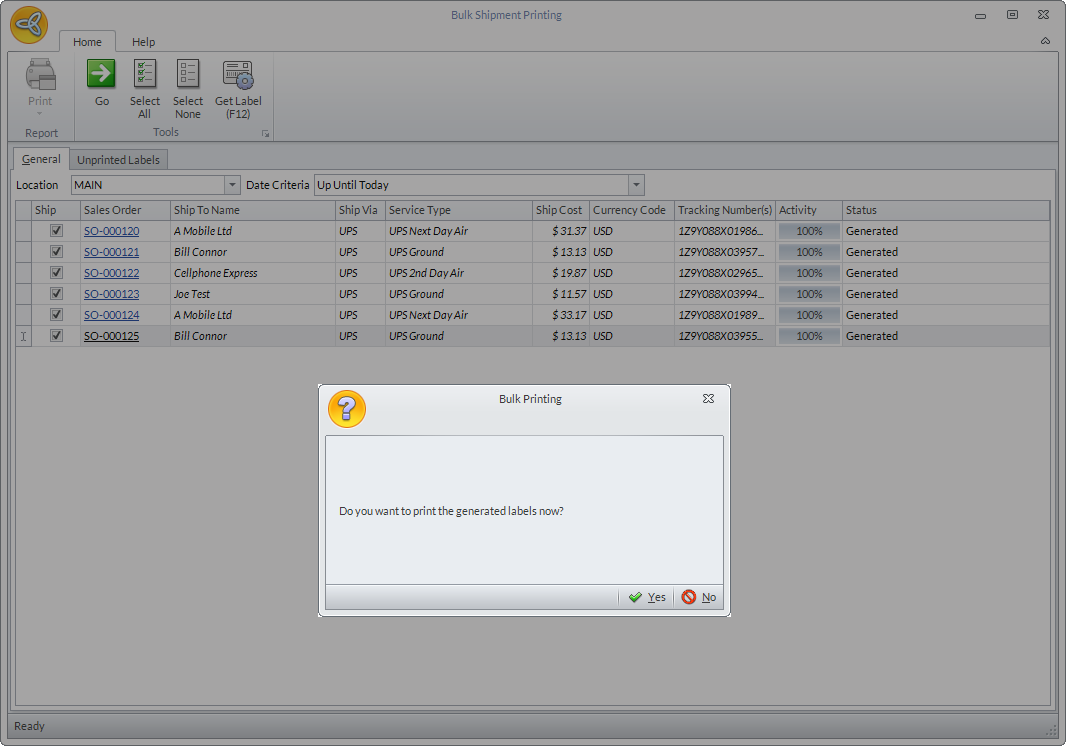
- Once the labels are generated, a message window will pop up confirming if you want to print the shipment labels or not.
Click Image to Enlarge
If you select Yes, the system will go ahead and print the shipping labels.
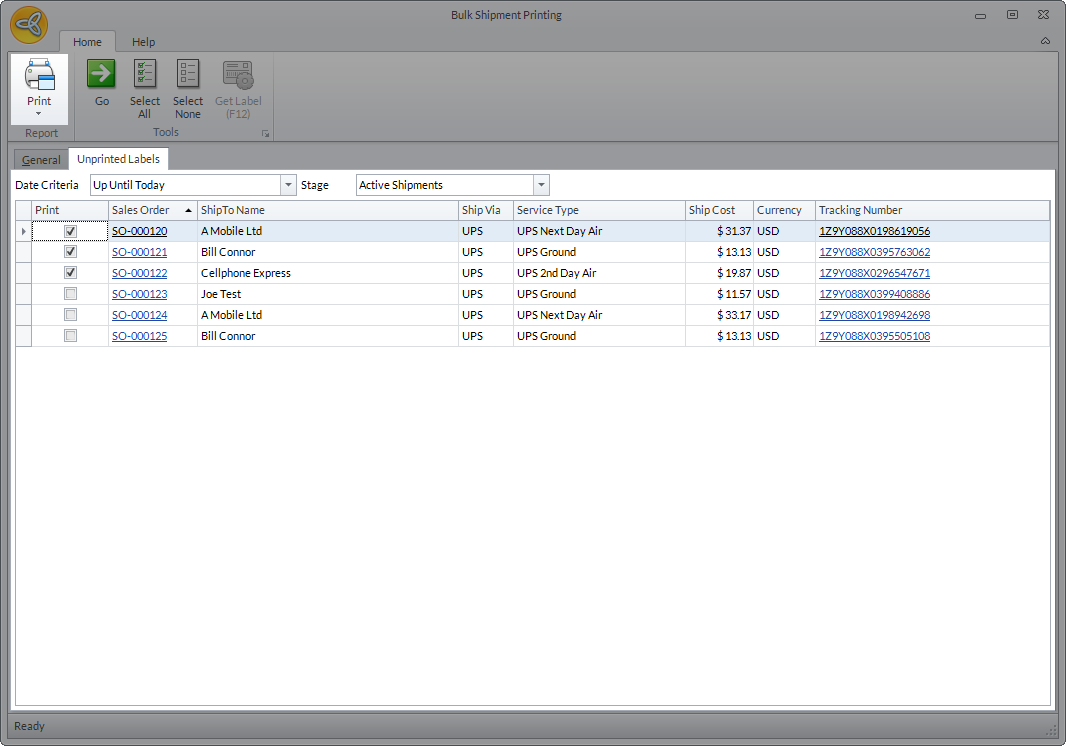
If you select No, the processed SO will be moved to the Unprinted Labels tab.
Click Image to Enlarge
- If you want to manually print the labels, select the SO from the Unprinted Labels tab and click Print.
All SO with labels generated will be removed from the list. If you want to reprint the labels, you can click on the History menu from the Shipping module, select the SO and generate the label directly from the shipment form.
Aside from going to the shipping module to print the shipping labels, you also have the option to print the shipping labels in bulk even right after printing the picking ticket.