
Manage Stock Counts
|
Content
|
|---|
Stock Take is taking physical count of the inventory items usually made at the end of the fiscal year. Connected Business streamlines this process inside the Inventory Module so maintaining stock counts is easy.
Perform Stock Take
- From the Inventory Module > Stock > Stock Take > New Stock Take.
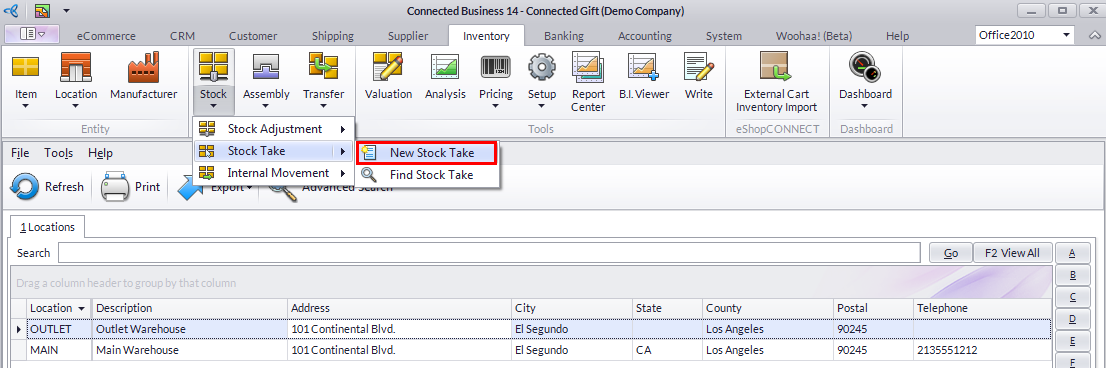
- The Stock Take screen will be displayed.
- Select your preferred location to display the Stock Take Form.
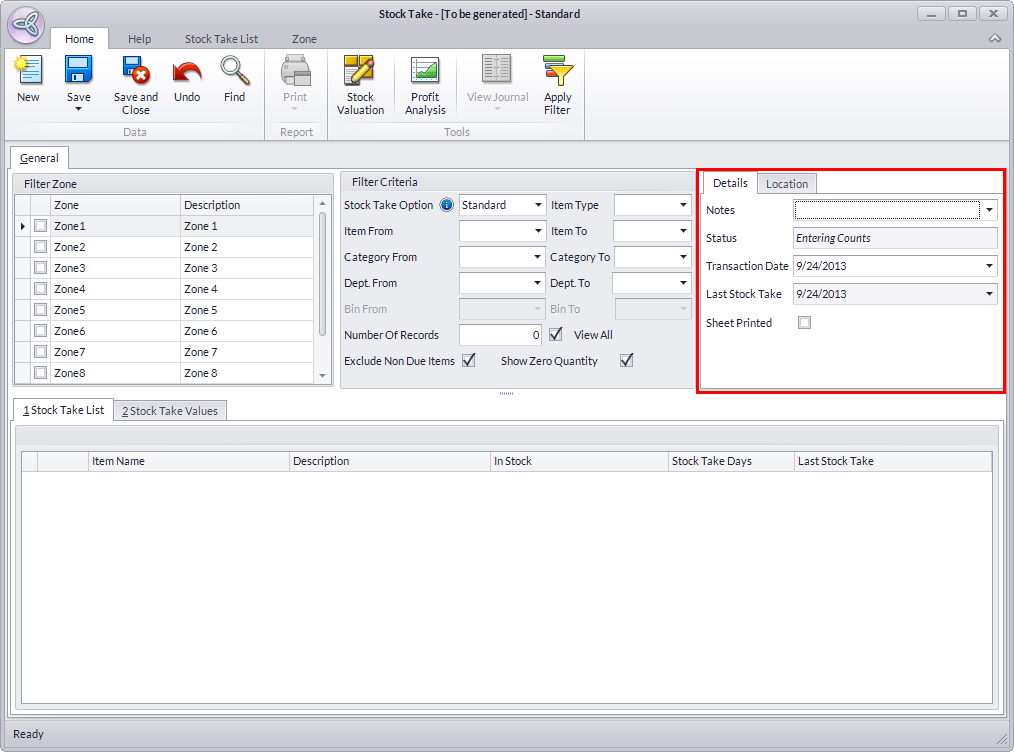
- Add Notes to the current stock take and enter the transaction date or actual stock take date. The Last Stock Take Datefield let’s you when the last stock take was performed.
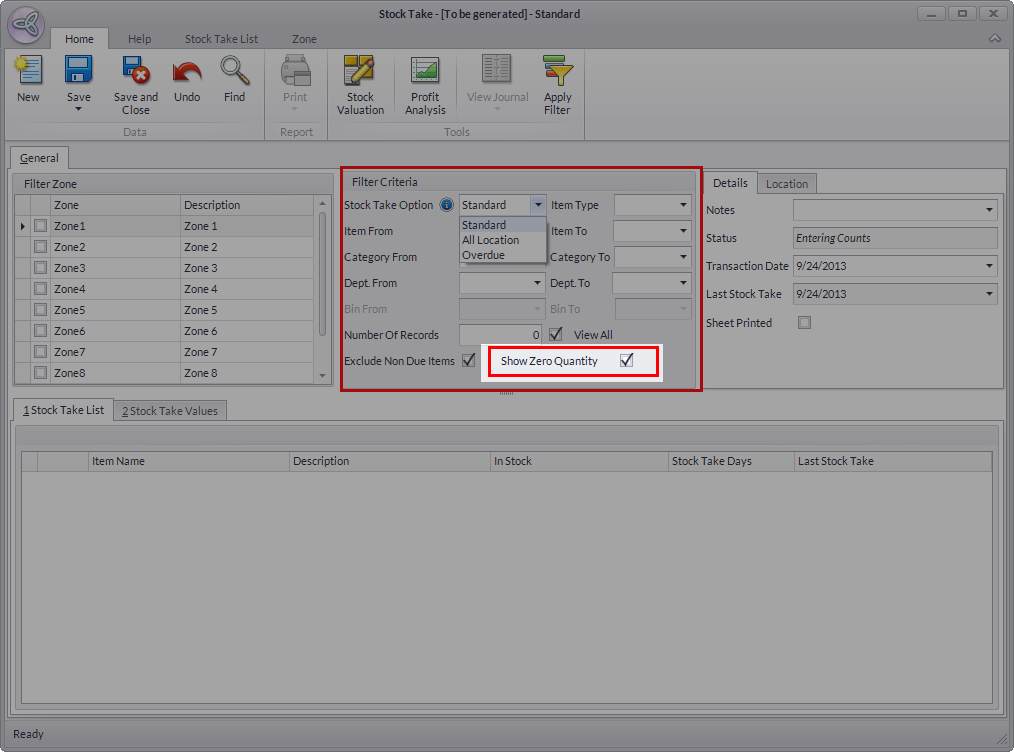
- Select the Stock Take Option for the new stock take. The options are:
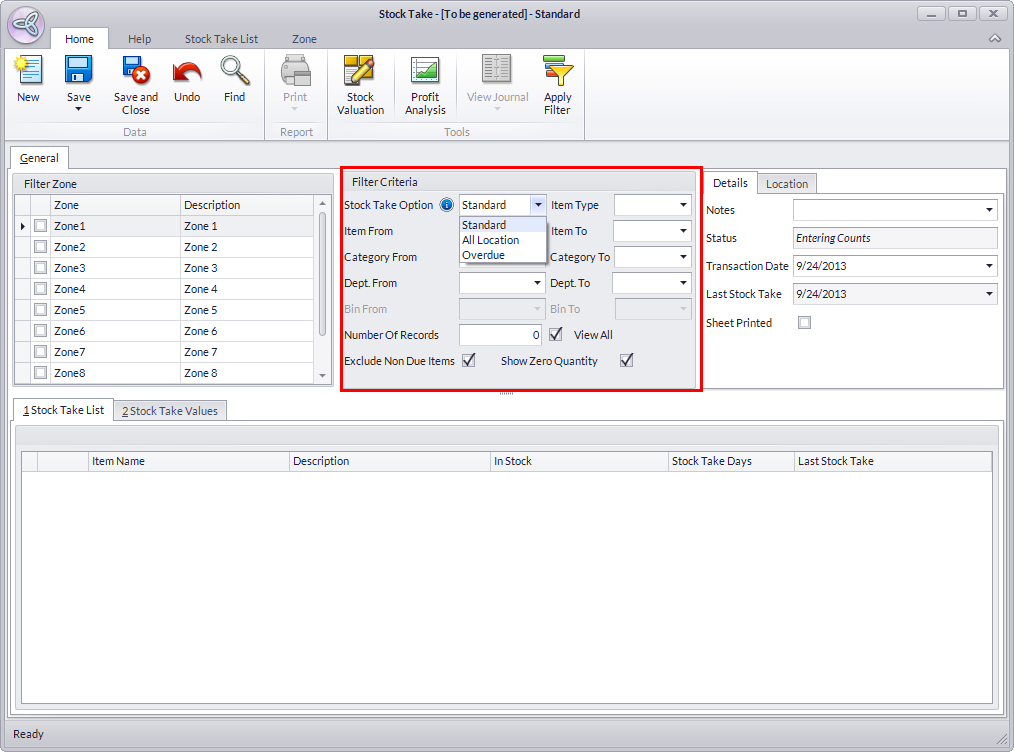
- Standard – select the location and items within the location.
- By Location – select items to count from all warehouse locations.
- Overdue (Stock Take Days) – Connected Business will display items that are overdue for stock take.
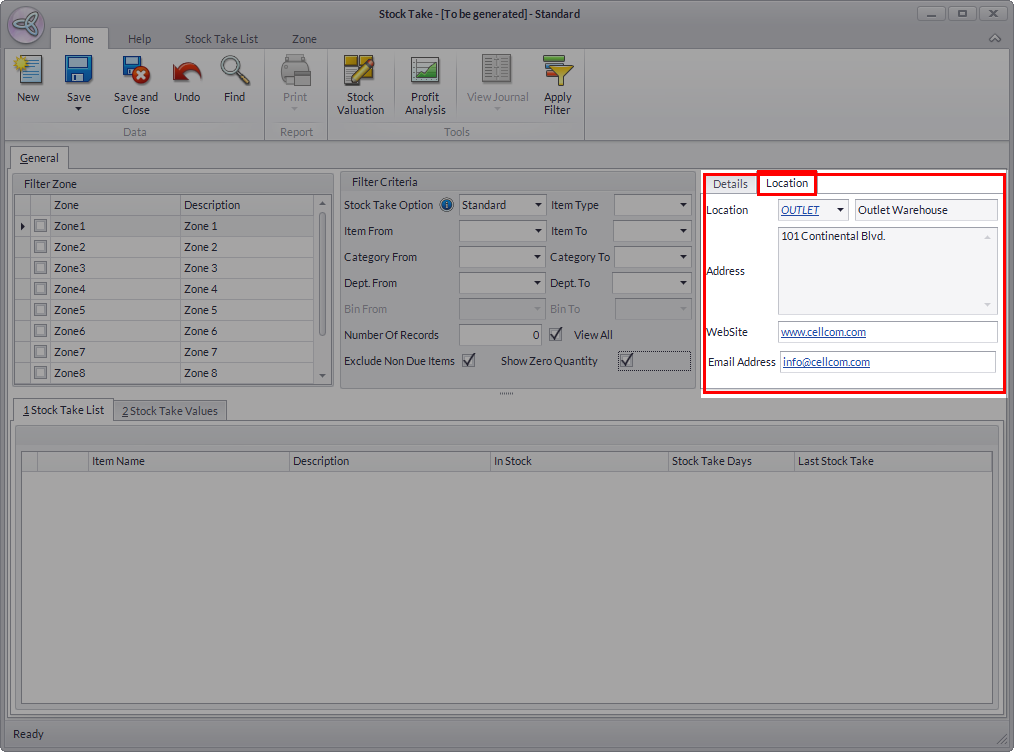
- In the Location section, select the appropriate location to perform the stock take.
Click Image to Enlarge
- In the Location section, select the locations included in the stock take. If Standard is selected in the stock take option, all locations are included.
- The Stock Take List tab will be populated. The columns in the Stock Take List tab will show the current stock quantity, stock take days and last stock take date for each item line allowing you to decide which items will be included in the current stock take.
- In the Stock Take List tab, select all the items to include in the stock take. You can use the Select All / Deselect options in the upper right of the tab.
- The Show zero quantity items checkbox lets you view zero quantity items and include them in the stock take.
Click Image to Enlarge


PRINTING THE STOCK TAKE
- To print, click on the Print button from the toolbar menu. The Print Dialog window will display.

- Select a printing Destination then click on the Print button to print.
ENTER THE ACTUAL COUNT AND ADJUST THE STOCK QUANTITIES
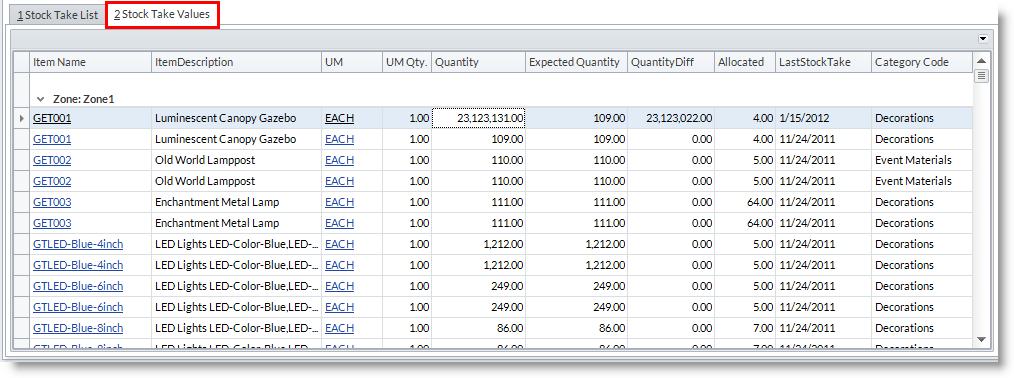
The Stock Take Values tab is provided to enter the actual stock quantity after performing a physical count of the items in the specified location and zone .
By entering the values in the Quantity Column, a difference in the expected quantity (quantity in your system) are shown, if any. If there is a difference, adjustment records are created accordingly to adjust the quantity in the system to the actual quantity.
COMPLETE THE STOCK TAKE OR LATER TO AMEND IT
To complete the stock take, click on any of the save options in the toolbar menu. You will be prompted to complete the current stock take:
- Choose Yes to complete the stock take and post the adjustments.
- Choose No to keep the stock take record and amend later.
SET-UP STOCK TAKE INFORMATION FOR INVENTORY ITEMS

To find out more about how to set-up inventory item information, please refer to: Edit and Maintain Inventory Item Information
VIEW ADJUSTMENT RECORDS FOR QUANTITY DIFFERENCES
From the Accounting Module > Journal > Find Journal Entries.
Please refer to: Maintaining Journal Entries
Maintain Stock Takes
- From the Inventory Module > Stock > Stock Take > Find Stock Take. The Find Stock Take screen will appear.

- Select the stock take record in the Closed Stock Take Transactions tab to display the Stock Take form.
AMEND INCOMPLETE STOCK TAKES
- From the Inventory Module > Stock > Stock Take > Find Stock Take. The Find Stock Take screen will appear.
- Double-click on your preferred stock take to amend to bring out the Stock Take form. Input or modify the details as necessary and save before closing to apply your changes.