
Job Calendar
| Content |
|---|
You can view all job plans and job items through the Job Calendar. This tool shows the actual status, execution and the dependencies of each job plan and job item in Connected Business.
View Job Calendar
From the System Manager module, click on Job Manager ► View Calendar. The Job Calendar will be displayed.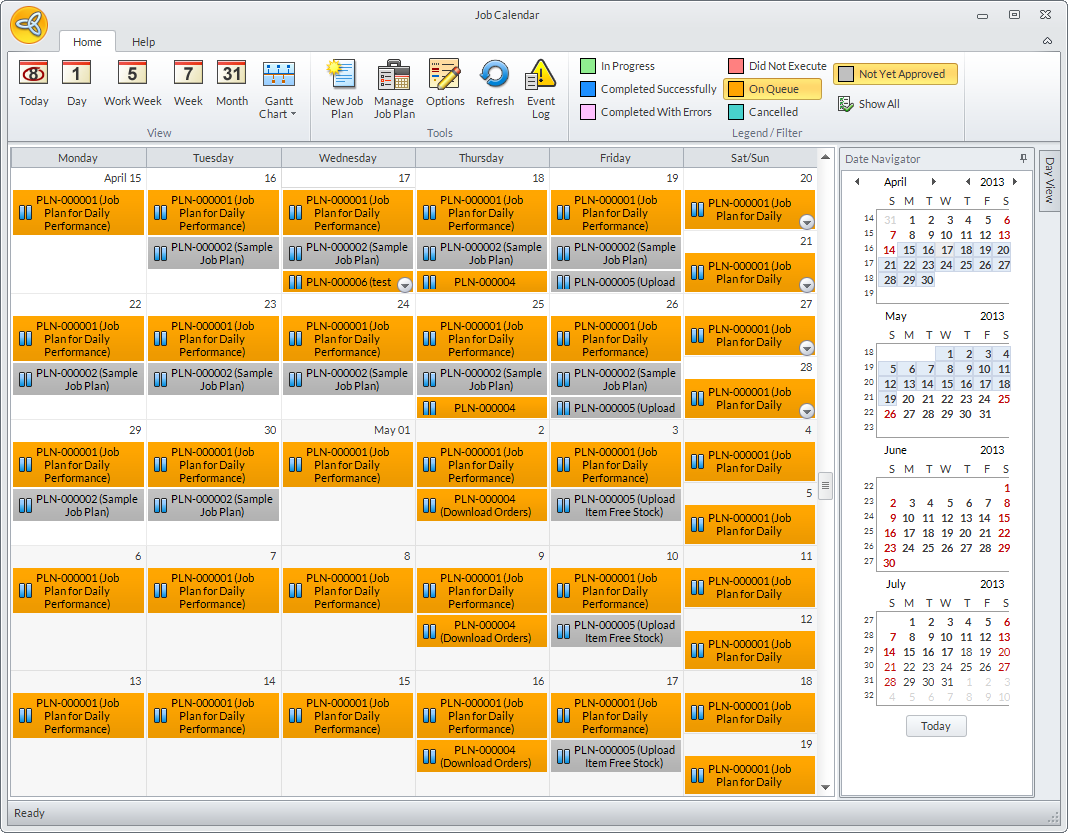
Click Image to Enlarge
Job Calendar View Types
The default view of the jobs in the calendar are set to month view. You may change the views by changing the view type. These views help organize jobs based on the timeline of the job plans set. The table below list the different view types available in the Job Calendar.
| Job Calendar Views | |
| View Options | Description |
| Today | This button allows the user to automatically select the current day. This is applicable in month, day, work week, week and Gantt chart views. |
| Day | This view shows the corresponding job items for the selected day. |
| Month | This is the default view when the Job Calendar form is loaded for the first time. It shows by default the current month and the corresponding job plans for the month. |
| Work Week | This view shows the corresponding job plans for the the selected week (Monday – Friday). |
| Week | This view shows the corresponding job plans for the the selected week (Monday – Sunday). |
| 'antt Chart ► Job Plan | This view shows all the job plans and its dependencies for the selected week (Monday – Sunday). |
| 'antt Chart ► Job Item | This view shows all the job items for the selected week (Monday – Sunday). |

View Job Status and Status Legend/Filter
If you want to view the latest status of a job queue on a calendar, click the Refresh button.

Click Image to Enlarge
Job Status Legend/Filter
The legend shown in the menu item of the Job Calendar form also serves as a filter for a job plan or a job item. The following are the status and the default color legends for job plans and job items:
| Legends | |
| Job Plan | Job Item |
|
|

Only checked status will be shown in the calendar. To show all jobs with different status, click the Show All button.
Customize Job Legend Display
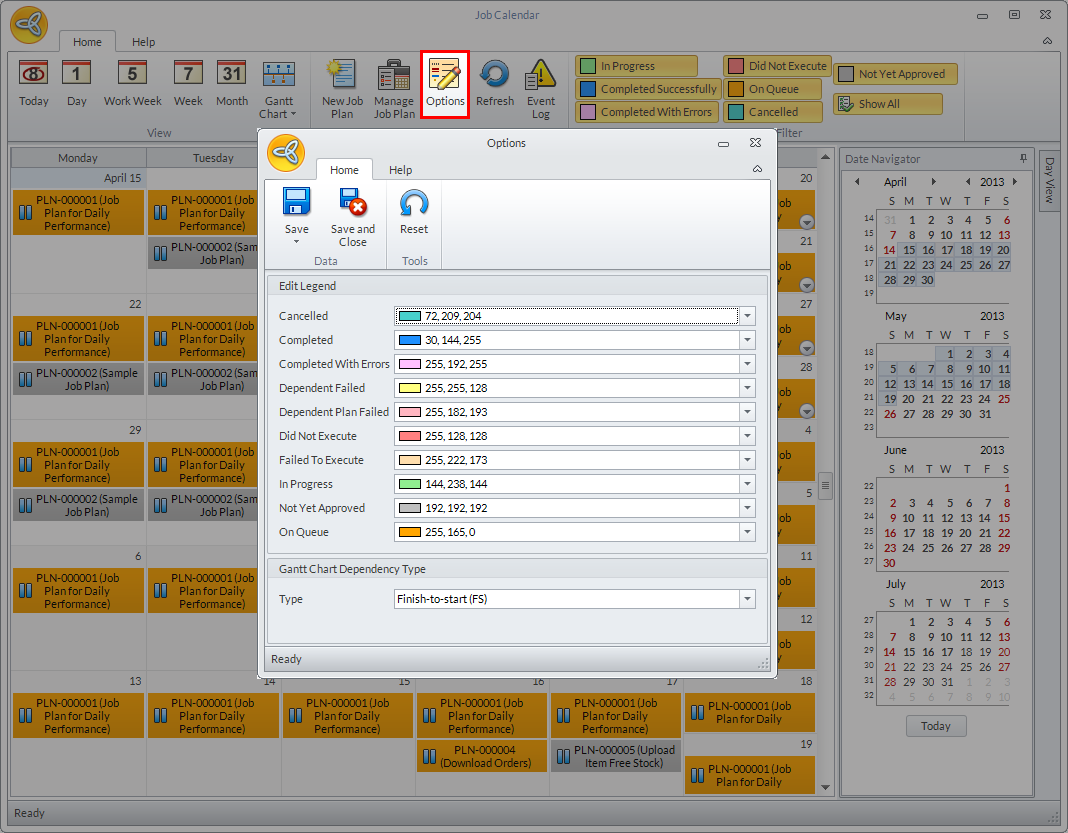
You may change the color of each job legends as needed by clicking the Options button from the menu.
Click Image to Enlarge
After changing the legend color, click on Save to apply the changes. Changes will be applied automatically after closing the Options window.
To revert color changes made on the job status legends, click Reset button from the Options window.
'antt Chart Dependency Type
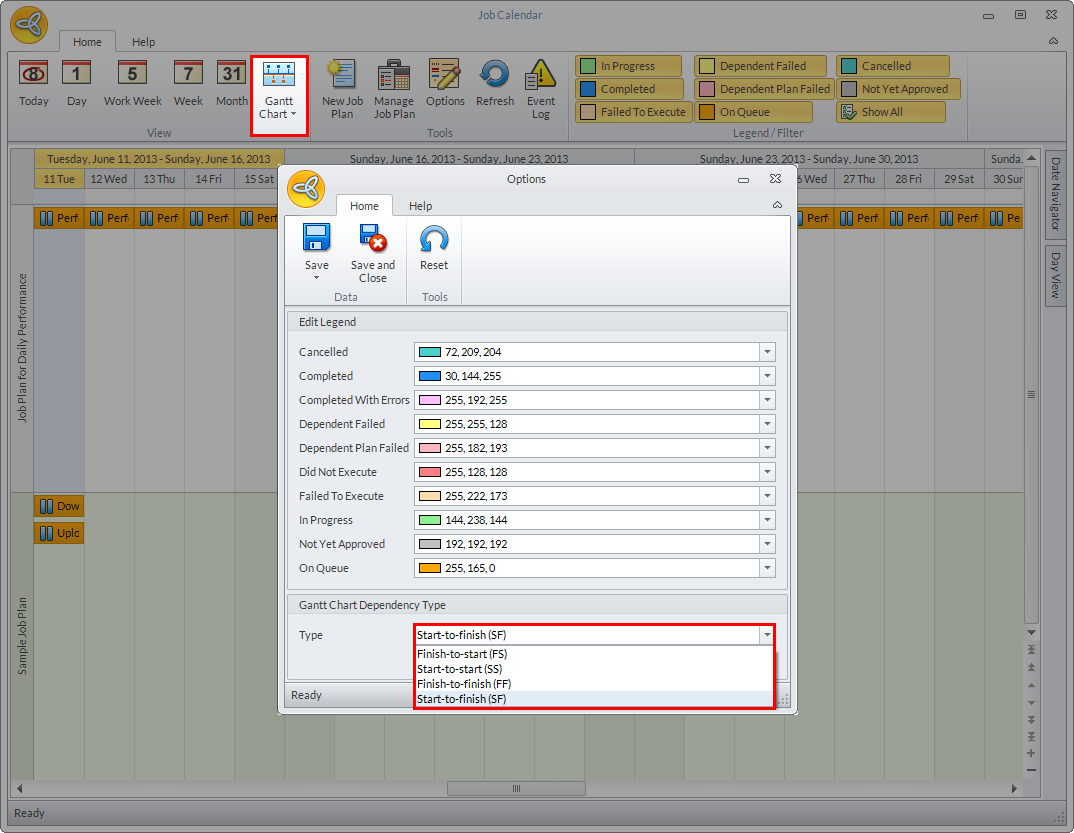
The following are the dependency types used to change the positioning of the dependency arrow of the Gantt chart view.
- Start-to-finish (SF) – This is the default Gantt chart dependency type.
- Finish-to-start (FS)
- Start-to-start (SS)
- Finish-to-finish (FF)
Click Image to Enlarge
Cancel Job Execution
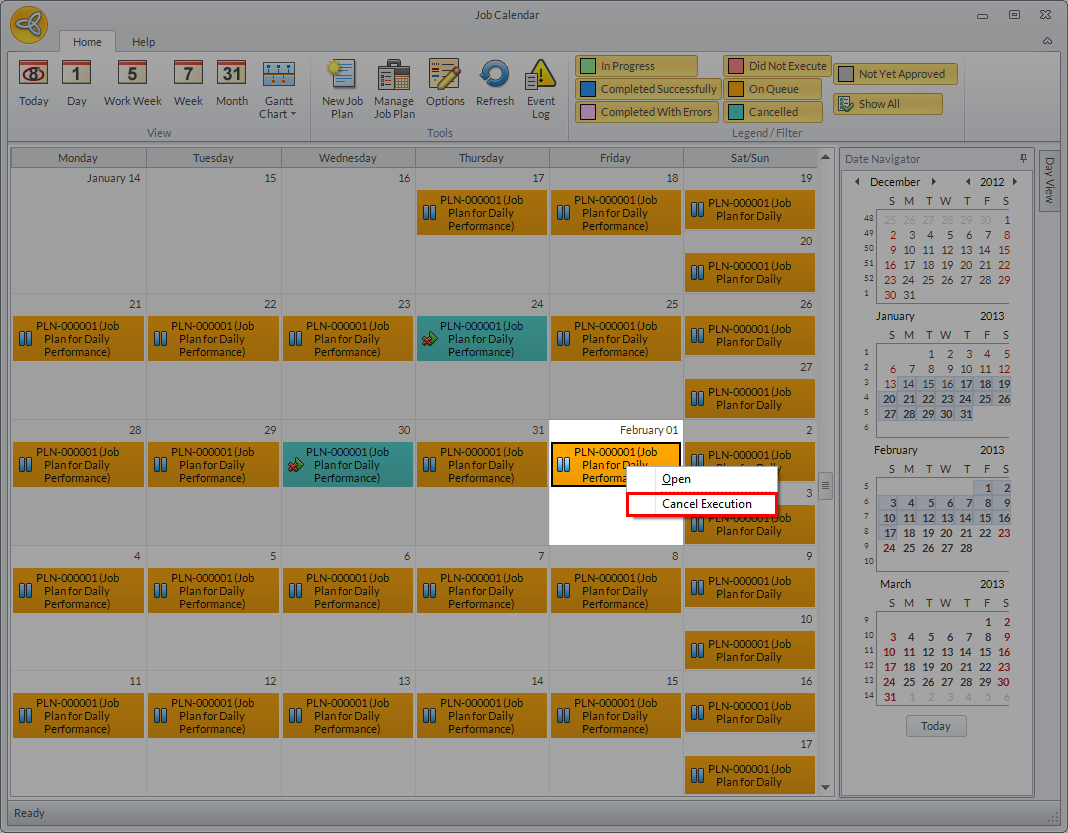
You may cancel job plans that are on queue and recurring from the Job Calendar.
Once cancelled, you can no longer execute a job on the selected scheduled date.
To cancel a job, right click on a job plan and select Cancel Execution. The job plan will be automatically cancelled
Click Image to Enlarge