
Manage Items in Tape
|
Content
|
|---|
You can add items, substitutes or accessories in the Mobile Connected Sale by following the processes discussed below.
Adding an Item
There are three ways with which you can add items into the transaction. You can:
- Add an Item through the Product Lookup
- Add an Item by manual entry of Item Code
- Add an Item by using a scanner
THROUGH THE PRODUCT LOOKUP
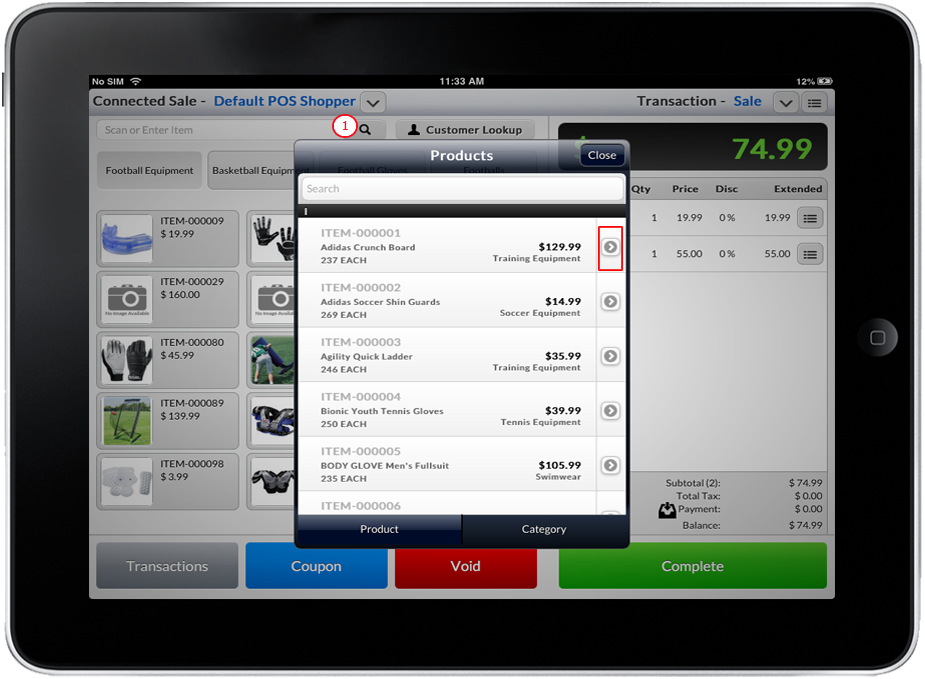
Tap on the Product Lookup button to display a list of available items. Select and tap the item from the product list or tap the arrow button next to the item.
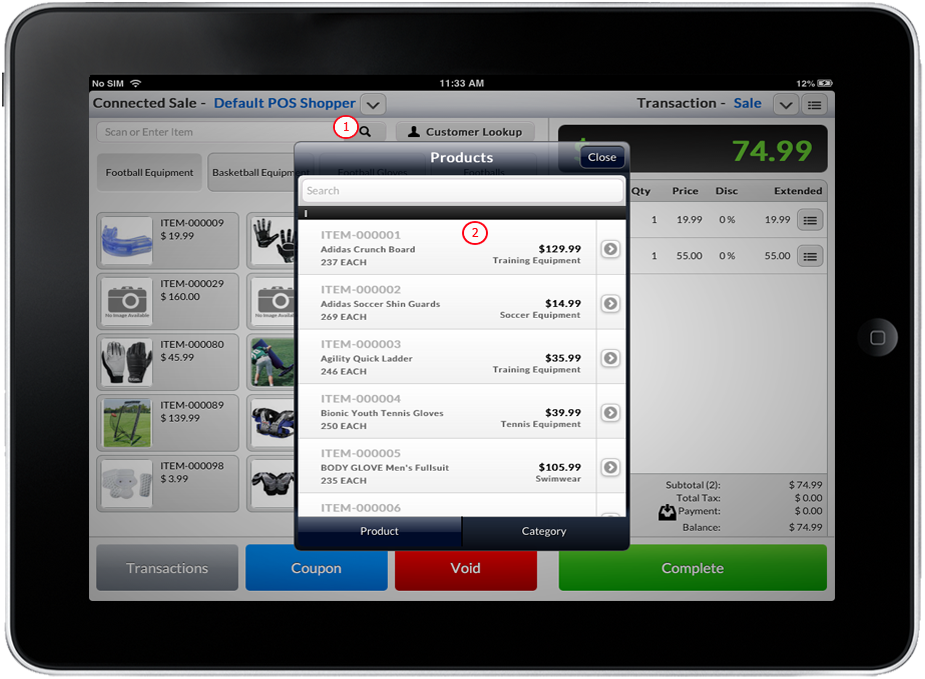
Click Image to Enlarge
MANUAL ENTRY OF ITEM CODE
Tap the Product Lookup button to display a list of available items. Input the partial/complete item code on the search text box field and Tap Return button on the keyboard display.
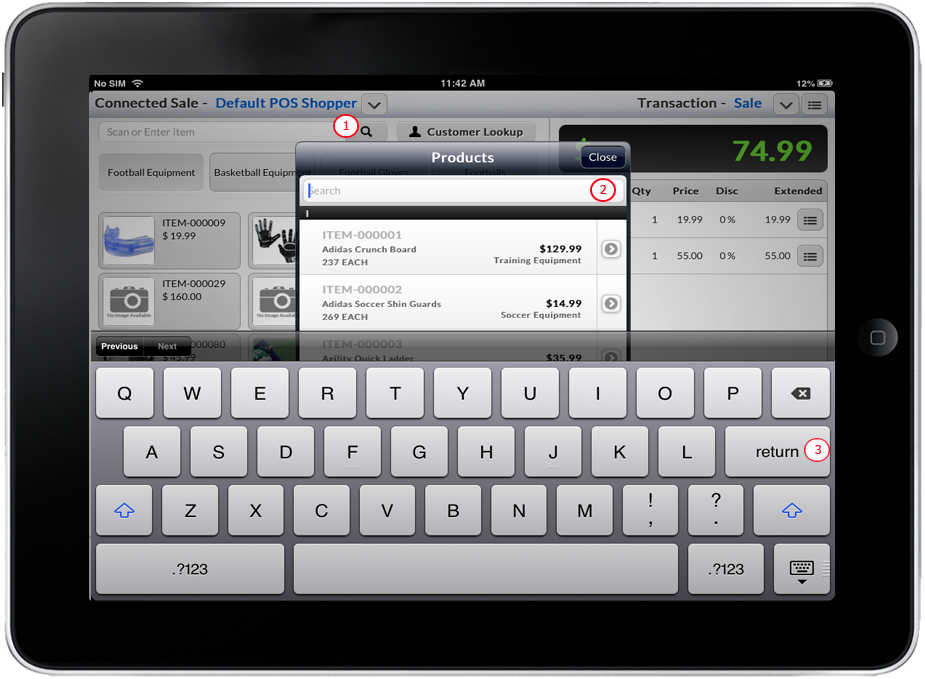
Click Image to Enlarge
SCAN OR ENTER THE ITEM
Input the complete barcode of the item in the Search Item text box field and tap Gobutton or just tap the Return button on the keyboard display. If a barcode scanner is used the item will automatically added on the item list.

Click Image to Enlarge
Adding an Accessory or Substitute
- After adding an item, Tap on an item. Then tap the Accessory or Substitute button. Make sure that an item has accessories or substitute associated to it.
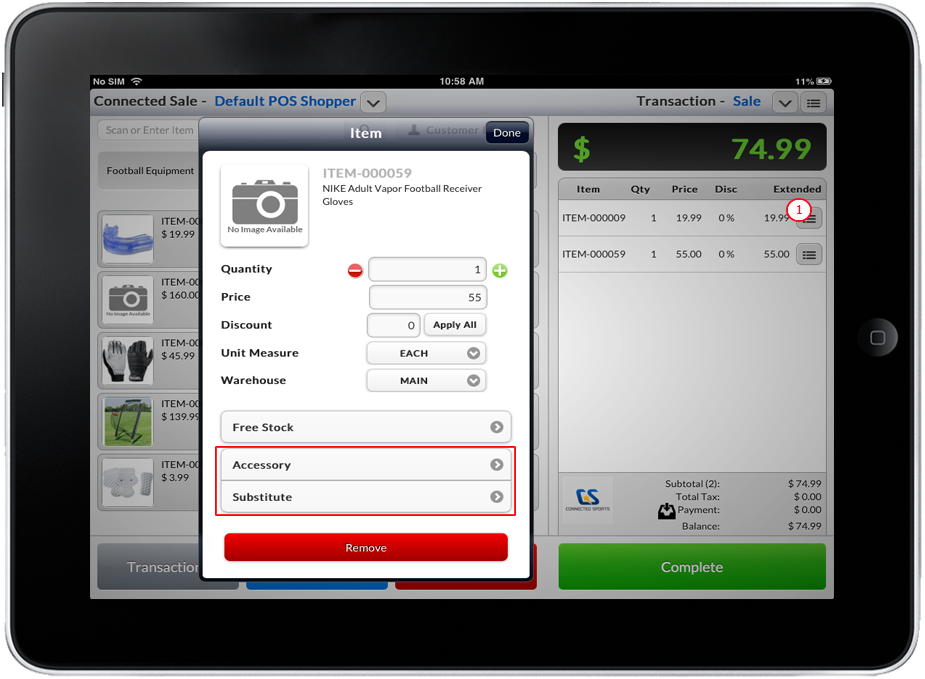
Click Image to Enlarge
- Select an Item on the list of the Accessory or Substitute items then tap the item or tap the arrow button next to the item.
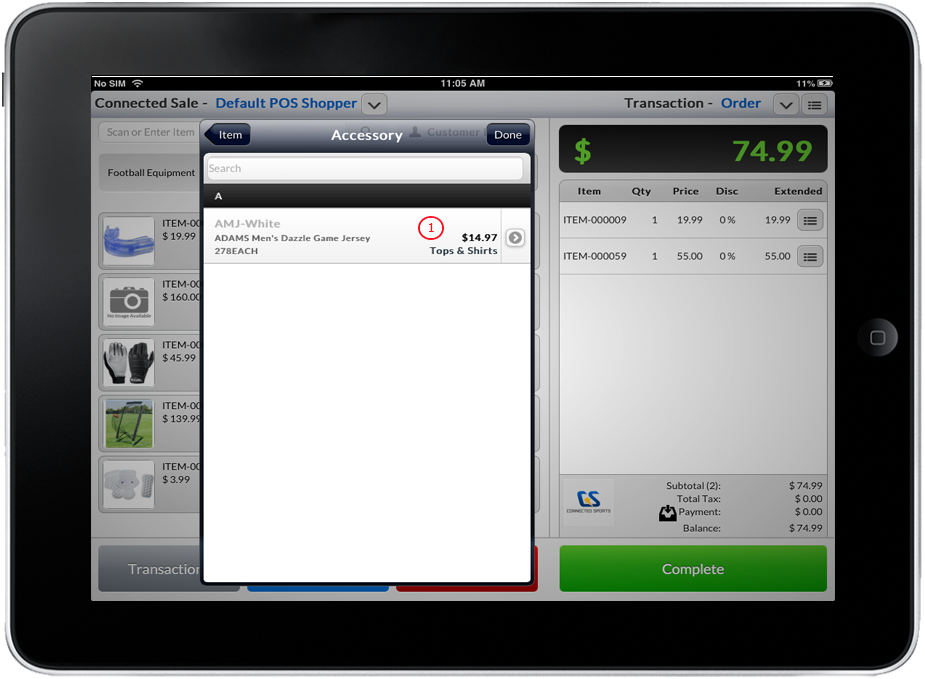
Click Image to Enlarge
- Item(s) will then be automatically add the list of items for Sale/Order/Quote transaction.
Change the Quantity of an Item
- Add items in the Mobile Connected Sale. See Also: Add an Item
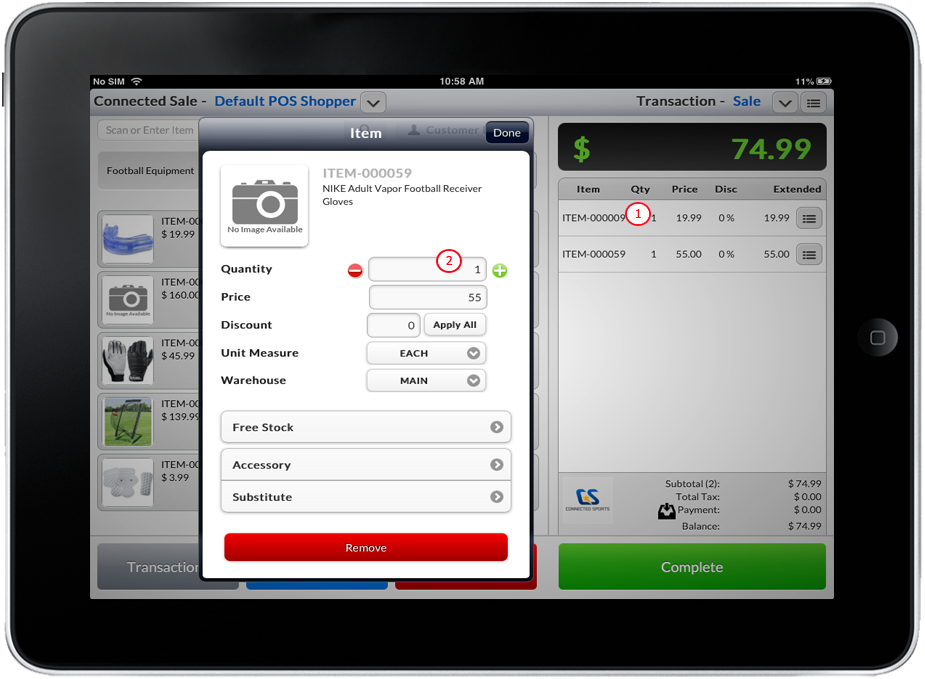
- There are two ways to change the quantity of an item:
- Tap the
 button to increase quantity of a specific item on the Item List, and
  button to decrease the quantity.
 - Tap the desired item/product present on the Item List. A new form will load, then key in the desired quantity of the product.
Click Image to Enlarge
- After item’s quantity is updated, the total price is also updated which can be seen in the “Extended” column of the Connected Sale Mobile item list.

Change the Price of an Item
- To set Change Price value to ON in General Setting Connected Sale Mobile, refer to: Setting up Preferences.
- To assign a specific user role with administrative rights to Allow Change Price, refer to: Setting up Manager Overrides.
- To add items in Connected Sale Mobile, refer to: Add an Item
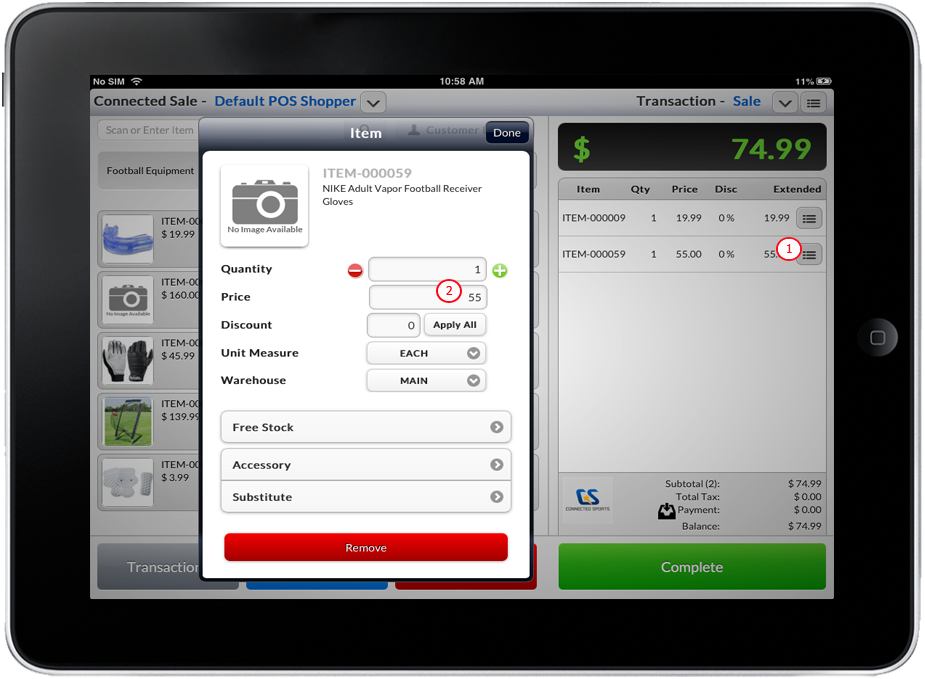
- Tap the desired item on the Item List. A new form will load.
- Input the amount you wish the price of item to be changed on the price textbox field.

If the Reason Code setting is ON for Change Price, a dialog box will appear and the user must enter or select the reason why the user gave discount. To change Reason Code Setting, refer to: Setting up Preferences.
Click Image to Enlarge
- After item’s price is updated, the total price is also updated which can be seen in the Extended column of the Connected Sale Mobile item list.
The assigned User Role with administrative rights to Allow Change Price is the only one who can change the selected item’s price. If the unassigned user role changed an item’s price, the Manager Override form will appear and will ask the current user to input the username and password of the account that has the administrative rights to change price. To change Manager Override settings, refer to: Setting up Preferences.
Change the Location of an Item
- To add items in the Mobile Connected Sale, refer to: Add an Item
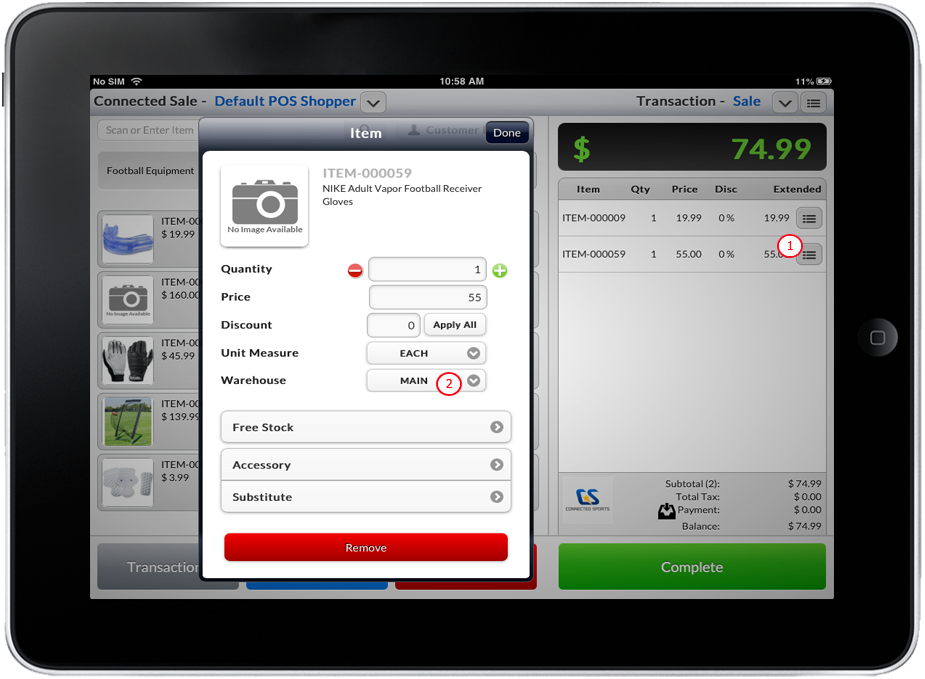
- Tap the desired item on the Item List. A new form will load.
- Tap the Warehouse dropdown list and select the desired location.
Click Image to Enlarge
Change the Unit Measure of an Item
- To add items in the Mobile Connected Sale, refer to: Add an Item
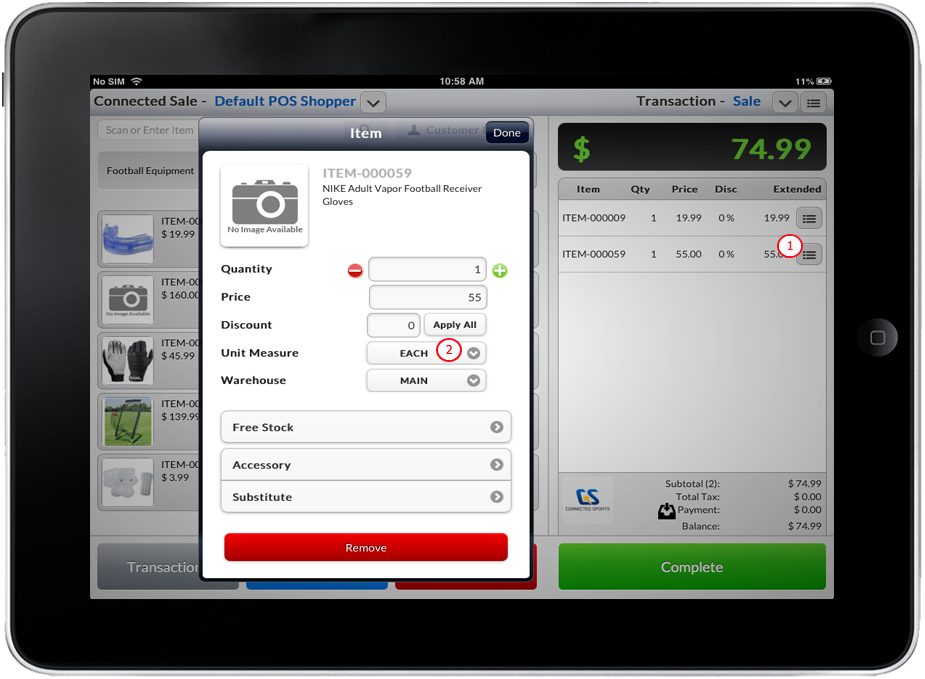
- Tap the desired item on the Item List. A new form will load.
- Tap the Unit Measure dropdown list and select the desired location.
Click Image to Enlarge
View Item Details
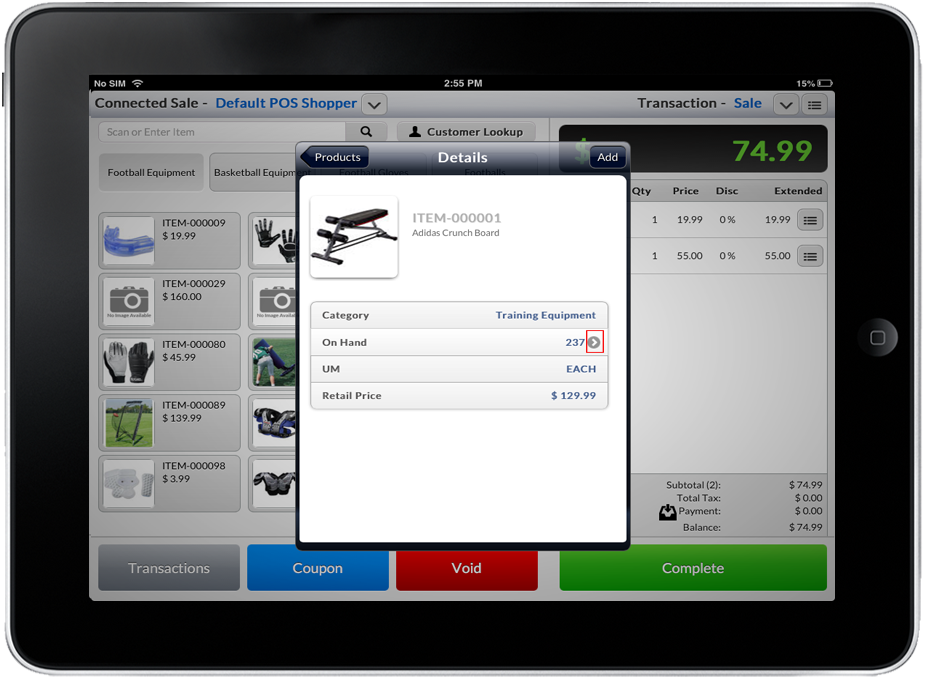
You can view specific details of an item such as the available items(on hand), price, unit measure and the warehouse. You can view these details by:
THROUGH THE PRODUCT LOOKUP BUTTON
- Tap the Product Lookup button. A list of available items will be displayed.
Click Image to Enlarge
- Tap an item from the list and click on On Hand button. A form/window will be displayed showing the item’s stock detail and the location of the stock available.
Click Image to Enlarge
THROUGH TAPPING AN ITEM
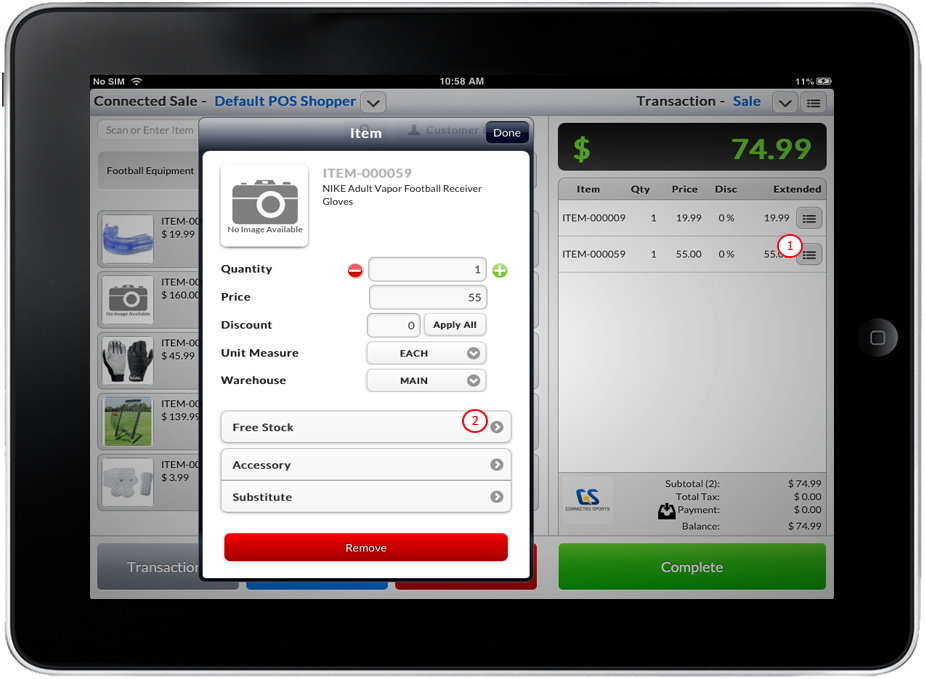
- Tap an item present on the Connected Sale Mobile Item List. A new form/window will be displayed.
- Tap the Free Stock field. A form/window will be displayed showing the item’s stock detail and the location of the stock available.
Click Image to Enlarge