
Manage Contact Section
Through the Customer Module one can modify contact information of webstore customers from the Customer form.
To do this,
- From the Customer Module > Customer > Find Customer. The Customer list will be displayed.
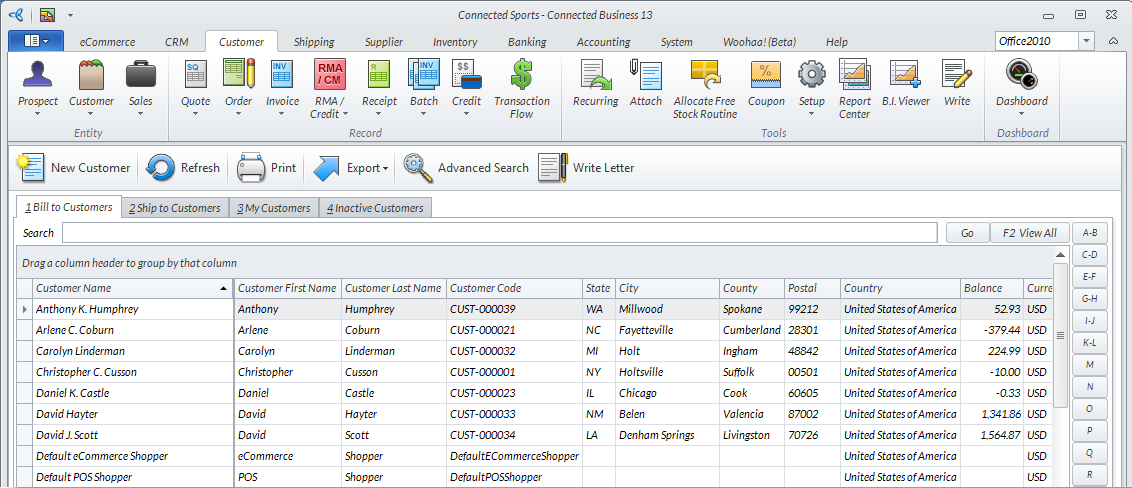
Click Image to Enlarge
- Select a customer from the list. The corresponding Customer form will be displayed.
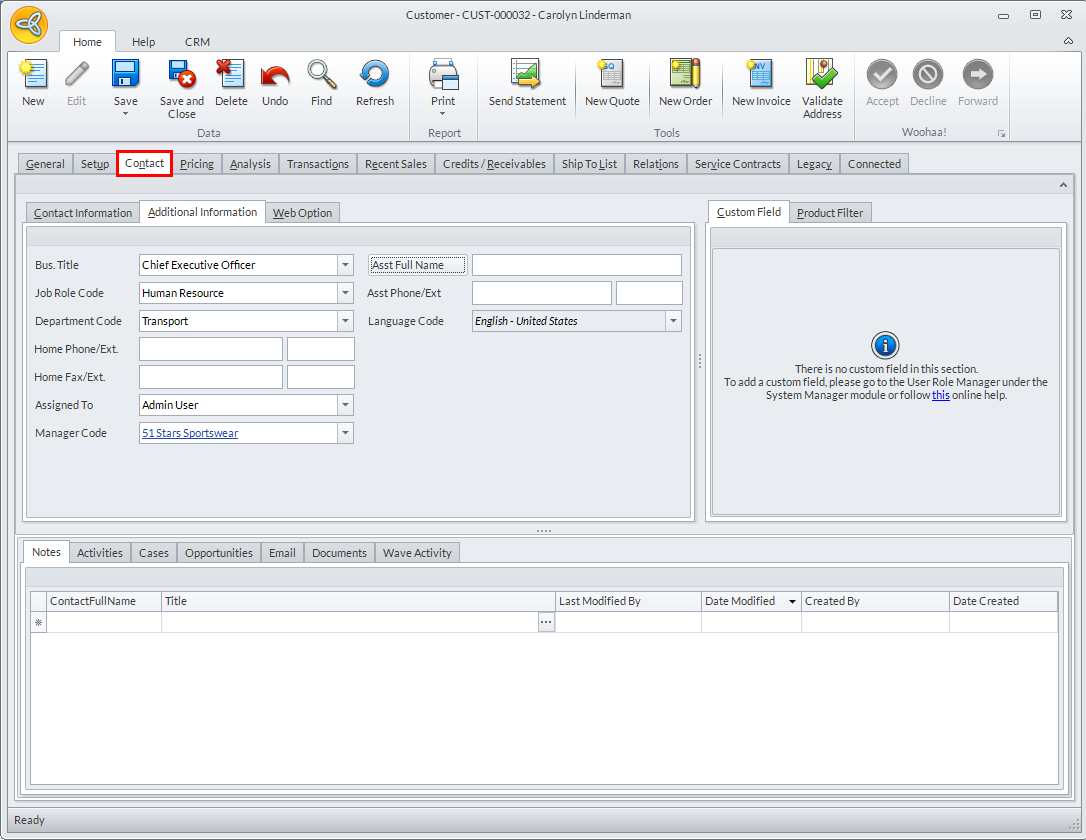
Click Image to Enlarge
- Switch to the Contact tab and enter values for or modify the fields in the following sub-tabs:
- Contact Information
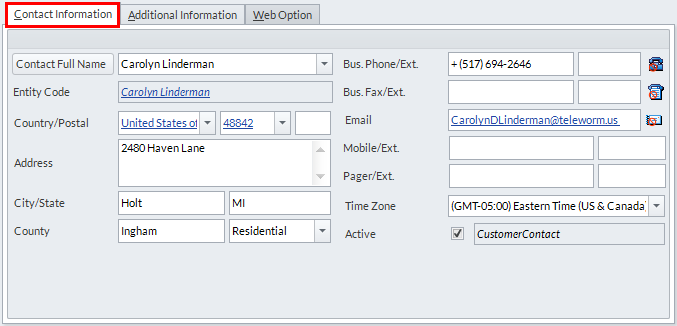
Click Image to Enlarge
Contact Information Fields
Fields
Value
Specifications
Contact Full Name Customer's full name if a customer is individual. If a customer is company, then contact person's full name. Non-Numeric and No Special Characters; This is provided by the customer during registration.
Country Customer’s Country Non-Numeric and No Special Characters This is provided by the customer during registration.
Address Customer’s Address Alphanumeric and Special Characters; This is provided by the customer during registration.
City/State/Postal Customer’s City/State/Postal Alphanumeric; This is provided by the customer during registration.
County Customer’s County Alphanumeric; This is provided by the customer during registration.
Email Customer's Email Address Alphanumeric; This is provided by the customer during registration.
Bus. Phone/Ext Customer's Business Phone Number with Extension, if necessary Numeric; This is provided by the customer during registration.
- Additional Information
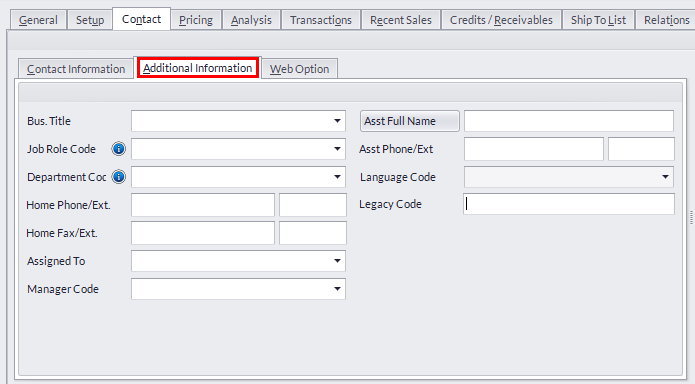
Click Image to Enlarge
Additional Information tab Fields
Fields
Value
Specifications
Bus. Title Contact's Job Title Choose the appropriate Title from the selection drop down box
Job Role Contact's Job Role Choose the appropriate Job Role from the selection drop down box
Department Contact’s Department Choose the appropriate Department from the selection drop down box
Home Phone/Ext Contact’s Home Phone number and Extension if necessary Numeric; Provided by the customer
Home Fax/Ext Contact’s Fax number Numeric; Provided by the customer
Password Contact’s Password Password change scenarios; Reset Password/ Lost or Forgotten Password – please check the next topic for further assistance.
Language Code Contact’s Language code Choose the appropriate Language Code from the selection drop down box
- Web Option tab
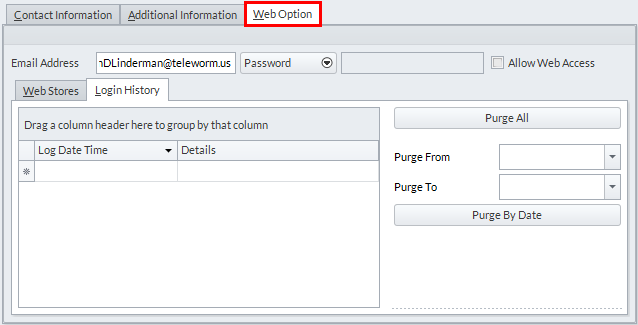
Click Image to Enlarge
Web Option tab Fields
Items
Value
Specifications
Email Address Contact’s Email Address Alphanumeric - provided by the customer
Password Contact's Webstore Account Password Alphanumeric - provided by the customer upon registration. Under the Password dropdown list are options you can choose from regarding the customer's password:
- Resend Password
- Auto Generate and Send Password
- Manually Change Password and Send
Allow Web Access Checkbox When clicked, indicates that the Ship To is or is not allowed access into your eCommerce store.
Web Stores tab Table lists down your webstores and the Enabled checkbox that indicates whether the customer account is activated for the webstore or not.
Login History tab Table indicates log in times of the selected customer. you can also purge login data from selected dates.
- Resend Password
- Contact Information
- Click Save and Close to apply changes and complete the process.