
Maintain Supplier Payments
|
Content
|
|---|
This section outlines how to maintain supplier payments in the Supplier module. This tackles voiding a payment if in case your supplier cancels the payment, the debts and payments to suppliers as well as configure default bank accounts used with which for the supplier payments will go through.
Steps
Note that only unposted or unallocated payments may be amended.
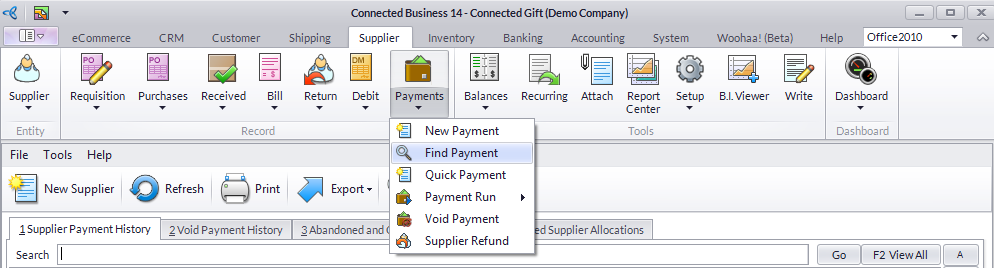
- From the Supplier module, select Payment > Find Payment. The supplier payment search screen will display.
- Select a supplier payment in the Supplier Payment History tab to display the Payment form.
VOID SUPPLIER PAYMENTS
In an event that the payment was cancelled, you may void the previous payment through the Void Payment option.
To void the supplier payment,
- From the Supplier module, select Payment > Find Payment. A search screen of posted supplier payments and voided supplier payments is displayed.
- On the Supplier Payment History tab, select a payment document code that is not voided. The Payment form will display.
- Click the Void button to void the payment. Click Yes in the prompt to void.

If you want to view the voided payment from your supplier, you may check the Voided Payment History tab for reference.
To remove voided payment in your records,
Since the supplier bill/purchase invoice was completed from the point of payment, the Void Payment record stands in place of the supplier’s payable. You may allocate other supplier documents or supplier payment to make up for the voided supplier payment.
- From the Supplier module, select Payment > Find Payment. A search screen of posted supplier payments and voided supplier payments is displayed.
- Open the supplier payment. In the Bills and Refunds tab of the Supplier Payment form, you will see the voided supplier payment.
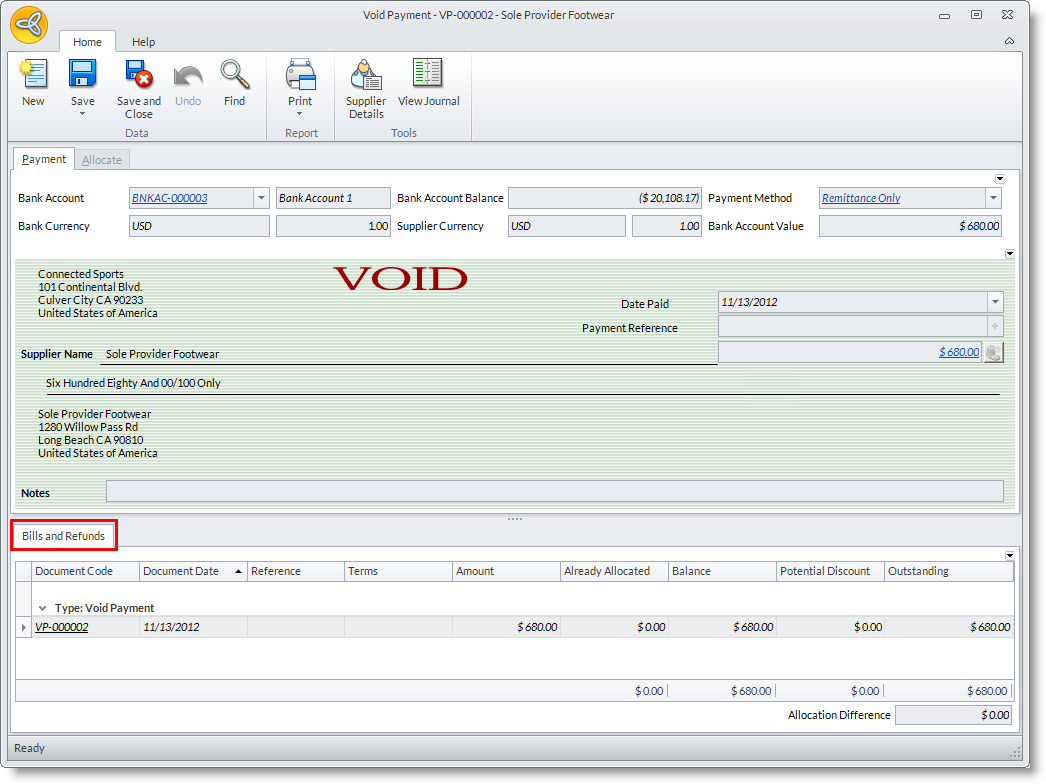
- Create a new payment or select existing payments from the Allocate tab to allocate to the voided payment.
REVIEW DEBTS AND PAYMENTS TO SUPPLIERS
The Aged Debts tab of the Supplier detail form allows you to review the supplier debts and payments.
- From the Supplier module, select Supplier > Find Supplier. The supplier search screen will display.
- Select the supplier in the list to display the Supplier detail form.
- Click on the Aged Debts tab to view the supplier aged debts and payments.


SETUP DEFAULT BANK ACCOUNTS FOR SUPPLIER PAYMENTS
- From the Supplier module, select Setup > Preferences. The supplier search screen will display. The Preferences form will display.
- In the Accounts Payable section, select a default bank account to use in supplier payments in the Default Bank Account for Payments field.

- Click Ok to apply your preferences and close the Preferences form.