
Maintain Sales Invoice
| Content |
|---|
Information on your sales invoice can be modified in Connected Business. Most of the fields in the Sales Invoice form can be edited such as the number of reserved or allocated items whether you are creating a new sales invoice or updating an existing one.
You can also cancel a sales invoice by clicking on the Void button or even view the journal entries related to it. Through this, integration with other modules such as the Accounting module makes it easier for the user to transfer from one tab to the other but still within the Connected Business application.
To amend an existing sales invoice,
- From the Customer module, select Invoice ► Find Invoice. A search list of open and closed sales invoices will display.
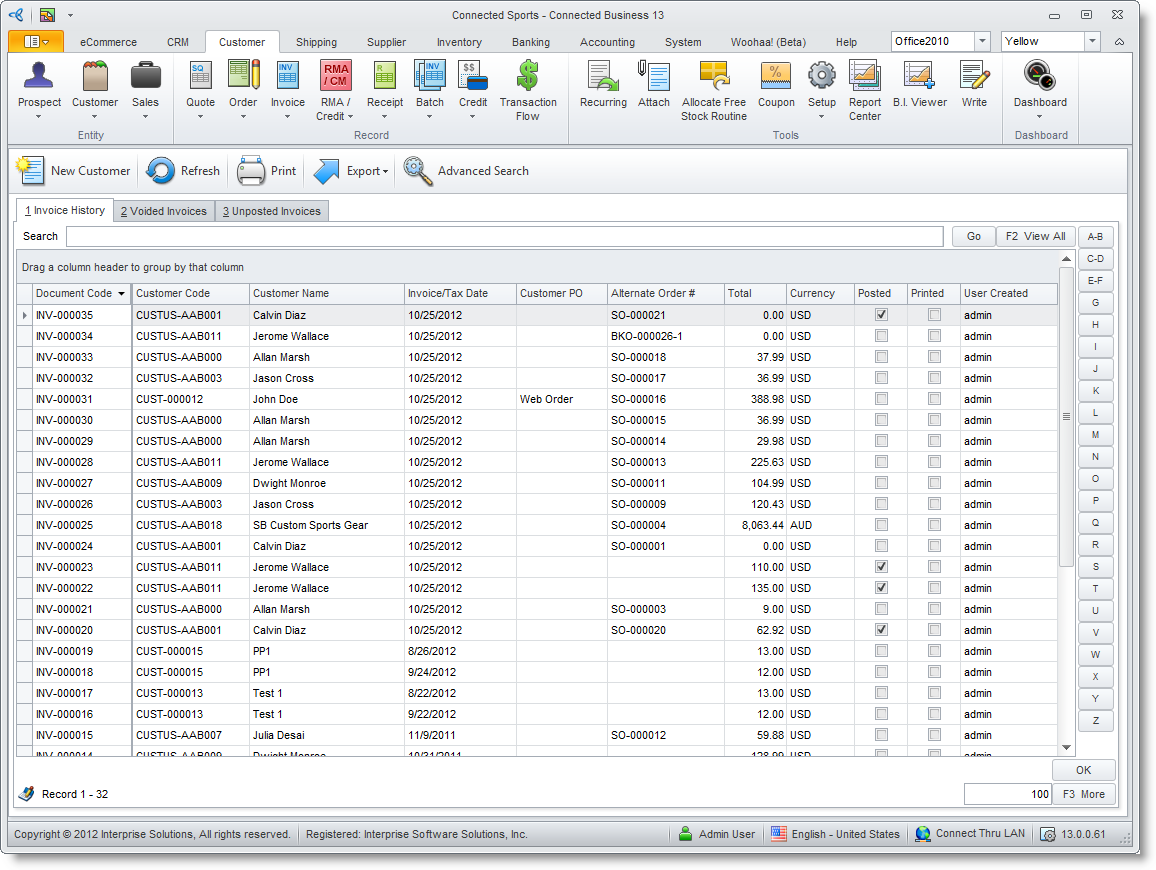
Click Image to Enlarge
- Select a sales invoice record to display the Sales Invoice form.
- Edit the details as necessary and save again before closing.

Note that only open sales invoices can be amended.
Item Reservation
On New Sales Invoice
To allow reservation in Sales Invoice, select Allow BO checkbox. The Reservation tab in the footer section will automatically display.
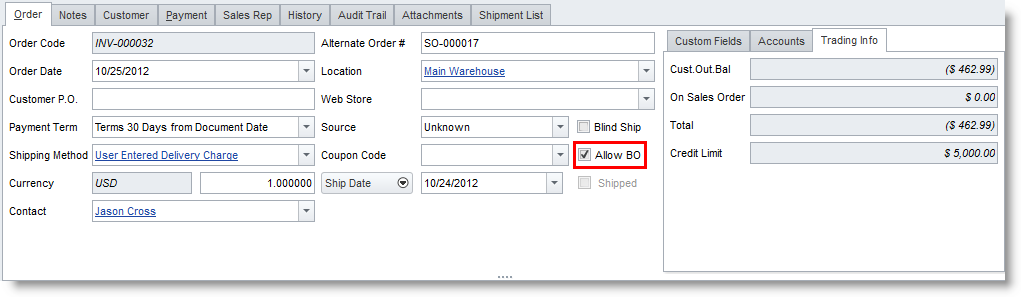
Click Image to Enlarge
You can no longer make any alterations for a posted invoice.
On an Existing Sales Invoice
- Once an existing Sales Invoice is already posted, you cannot uncheck the “Allow BO” box. Thus, the item reservation will still apply.
- If the Sales Invoice is not yet posted, you still have the option to check or uncheck the “Allow BO” box. This will give you the flexibility to view the item reservation through the PO reservation tab.
On a Voided Sales Invoice
- When a Sales Invoice is voided, the reservation will automatically adjust to zero.
- The reservation will be adjusted and reserved to the succeeding sales invoice provided the sales invoice has the same item ordered and from the same warehouse. In this case, the PO reservation tab can no longer be edited.
With Drop Ship items
- On the Inventory tab of the Sales Order form, enter the quantity amount of the item and the allocate amount less than the quantity amount.
- Once you select the "Drop" checkbox(scroll mouse to your right) on the line item and select click Create Drop Ship Order, the reservation tab on the footer will not allow you to reserve.
- Similarly, when you convert the Sales Order to Sales Invoice, the reservation tab will no longer be displayed.
- You can also check the quantity on the Allocate column has disappeared. This will not allow you to edit anymore changes for reservation.
Similarly, for if there are multiple items ordered and drop ship is checked, you cannot reserve any of the item.

View Journal Entry With Related Sales Invoice
To view the journal entry, you must first post the sales invoice to be able to use the View Journal options.
- In the Sales Invoice form, click on the View Journal from the menu. The Journal form will display.
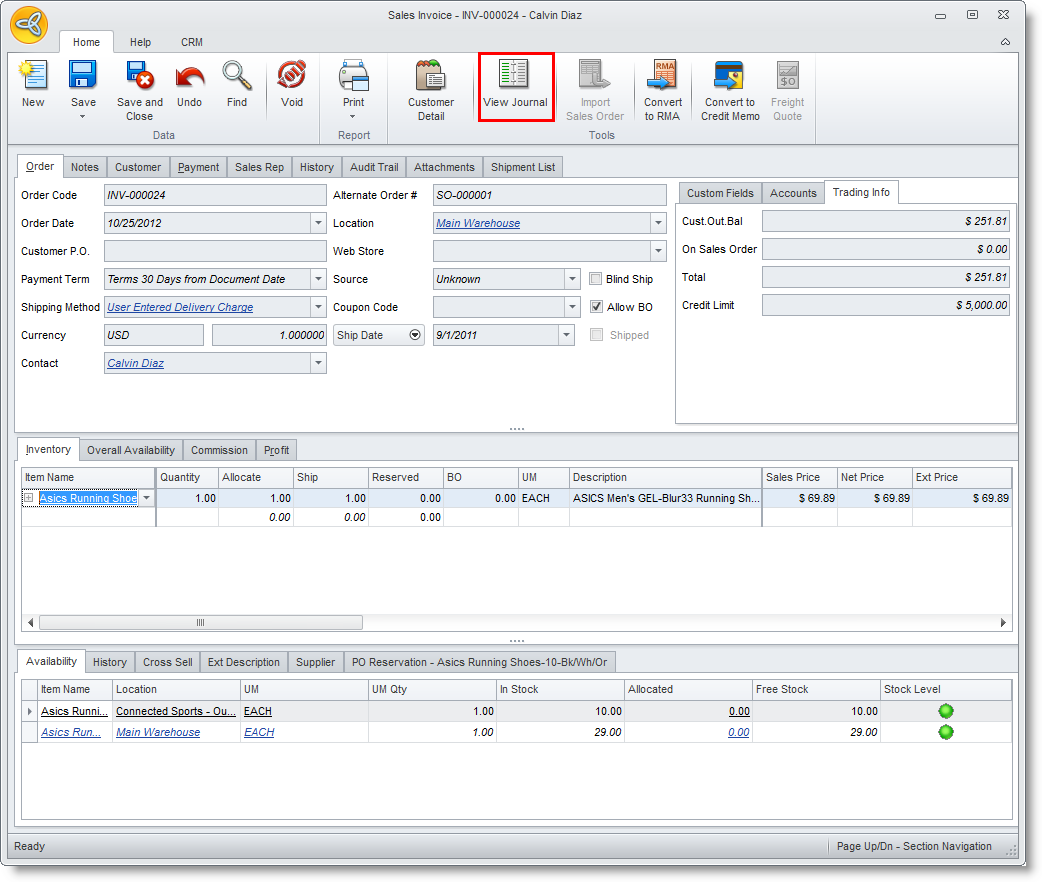
Click Image to Enlarge
- The journal entry may be amended until a batch post is made.
Convert Sales Invoice to Credit
This option allows you to create a Credit Memo for items reflected on the invoice.
- If you want to convert the invoice into credit, click on the Convert to Credit Memo option in the toolbar menu.
- Choose Yes in the prompt to create a Credit Memo document.
Convert Sales Invoice to RMA
This option allows you to create an RMA record for items reflected on the invoice.
- If the customer decides to return the items, you can convert the sales invoice directly into an RMA record by clicking on the Convert to RMA button from the toolbar menu.
- Choose Yes in the prompt to create the RMA document.
Void Sales Invoice
You can voided sales invoice that are open or already posted. For posted sales invoice, here are the cases with which you may be able to void a posted sales invoice:
- Partially or Fully Paid Direct Sales Invoice
- The system automatically creates a credit memo; allocates the credit memo against the posted Sales Invoice.
- Payments such as Cash, Check or Credit Card can be applied to other invoice or can be refunded.
- Partially or Fully Paid Converted Sales Invoice
- The system automatically creates a credit memo; allocates the credit memo against the posted Sales Invoice.
- However, the sales order’s status is open and ready for conversion to Sales Invoice.
- Payments such as Cash and Check are automatically reserved back to the Sales Order, while payments made with Credit Card will be refunded. (This creates new credit card authorization record for the sales order).
- The system automatically creates a credit memo; allocates the credit memo against the posted Sales Invoice.
- Direct Sales Invoice with Allocated Payments(Full or Partial)
- The system automatically creates a credit memo; allocates the credit memo against the posted Sales Invoice.
- If payments are made outside the Sales invoice form e.g. Receipt form, payment will be deallocated from the Sales Invoice.
- However, payments are re-applied to unpaid sales invoices.
- The system automatically creates a credit memo; allocates the credit memo against the posted Sales Invoice.
- Unpaid Direct Sales Invoice
- The system automatically creates a credit memo; allocates the credit memo against the posted Sales Invoice.
- The system automatically creates a credit memo; allocates the credit memo against the posted Sales Invoice.
- Unpaid Converted Sales Invoice
- The system automatically creates a credit memo; allocates the credit memo against the posted Sales Invoice.
- However, the sales order’s status is open and ready to be converted to a new sales invoice.
- The system automatically creates a credit memo; allocates the credit memo against the posted Sales Invoice.
To void a sales invoice,
- From the Customer module, select Invoice ► Find Invoice. The Sales invoice search screen will display.
- Select the sales invoice from the list to display the Sales Invoice form.
- Click on the Void option from the menu options.
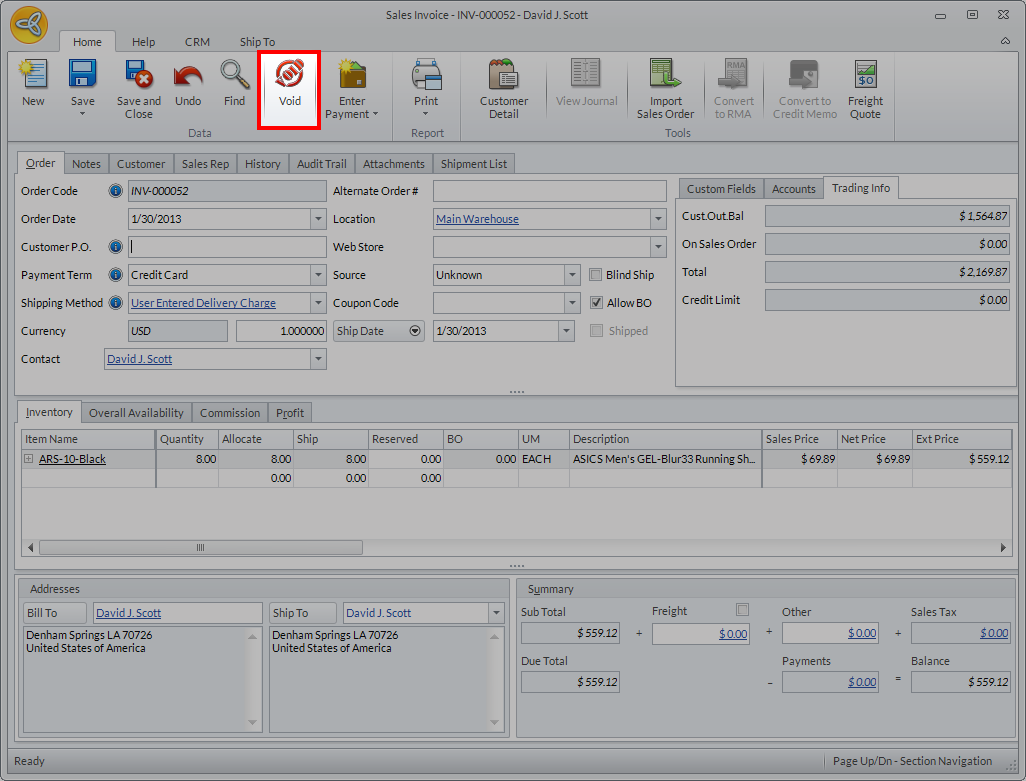
Click Image to Enlarge
- Choose Yes in the prompt to void the sales invoice.