Maintain Customer Refunds
Overview
You can maintain customer refunds by keeping track of the refunds on the history tab. You can also edit or modify the allocations and credits applied for the remaining balances.
Maintain Customer Refunds
Steps
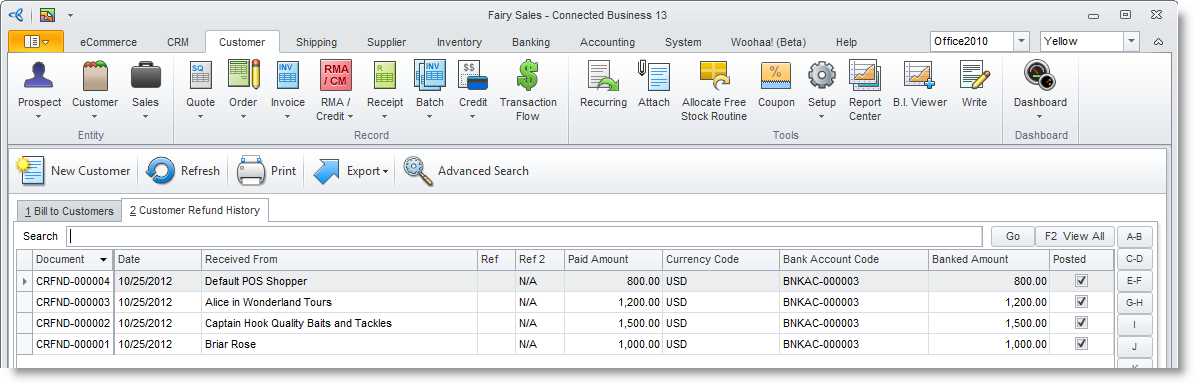
- From the Customer module, select Receipt > Customer Refund. A search screen of customers and previous refunds is displayed.
- Go to the Customer Refund History tab and select the refund record to display the Refund form.
Apply Customer Payments or Customer Credits to Refunds
You may allocate payments and other documents to customer refunds. To do this,
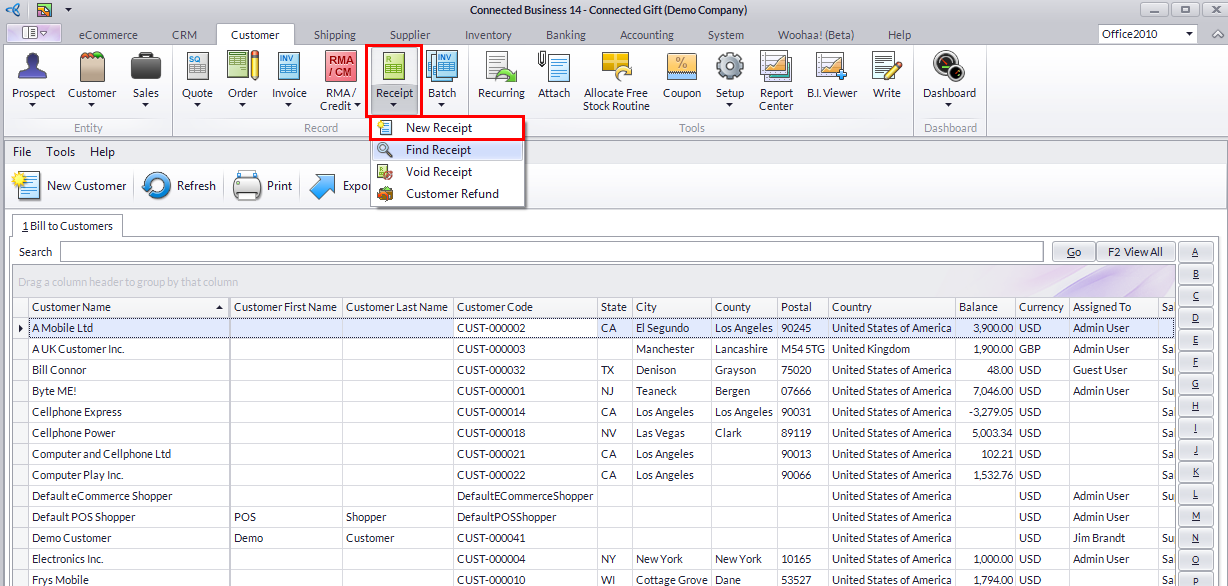
- From the Customer module, click on Receipt > New Receipt. A search screen of customers is displayed.
- Select the customer in the list to display the Receiptform.
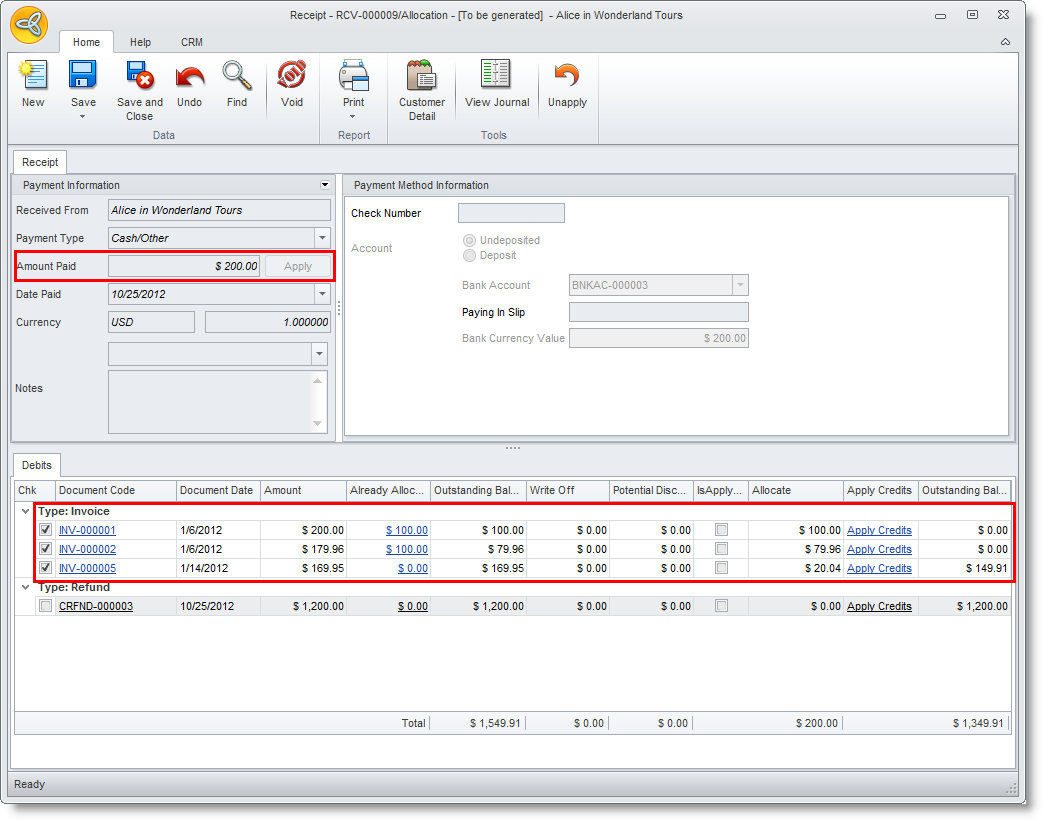
- On the Receipt tab, enter the amount to pay. You can select either cash, check or credit card for the payment. Click Apply button.
- The amount will be automatically processed among the balances of your sales invoices.
- If in case a customer still has a remaining credits from a refund, it can be used to pay for the remaining balance of his/her sales invoice.
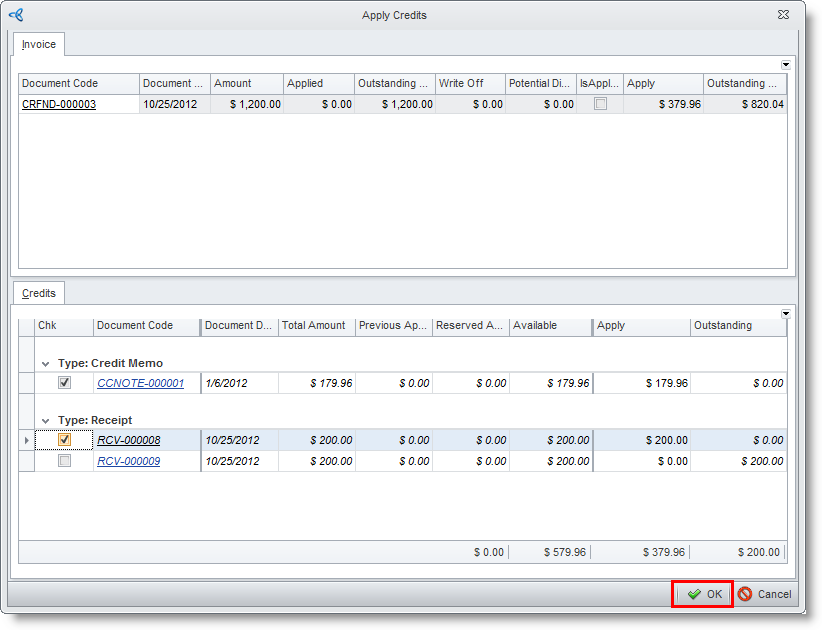
- On the Debits tab of the Receipt form, click on the Apply Credits button. The Apply Credits form will be displayed.
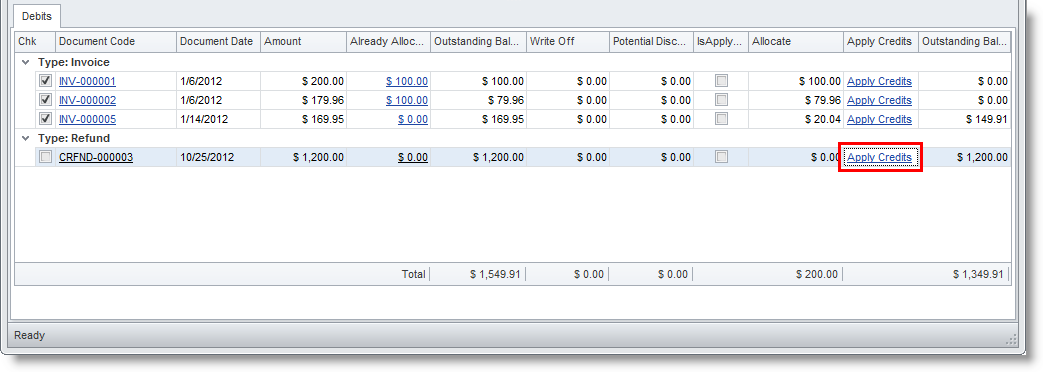
- On the Credits tab of the Apply Credit form, select the Document code you want to apply the credit with. Tick the boxes beside the document code and it will automaticallly be applied to the documents on the Invoice tab. Corresponding amounts will be deducted accordingly.