
Maintain Batch Invoice and Batch Credit
|
Content
|
|---|
Overview
You can edit the information or details in the Batch Invoice / Credit History form. The processes that you can create are allocating batch credits to outstanding balance documents, processing the payments or credits and keeping track of the allocations for the batch credit or batch invoice documents.
View the Batch Invoice / Credit History
Steps
- From the Customer Module, select Batch > Find Batch Invoice/Credit option. A search screen of batch invoice or batch credit is displayed.
- Select the batch invoice or credit in the list to display the Batch Invoice/Credit form.

Allocate Batch Credits to Outstanding Balance Documents
Batch credits can be allocated to outstanding balances as you would with a normal credit note document.
- In the Allocation Details tab of the Customer Receipt form, select the batch credit transaction.
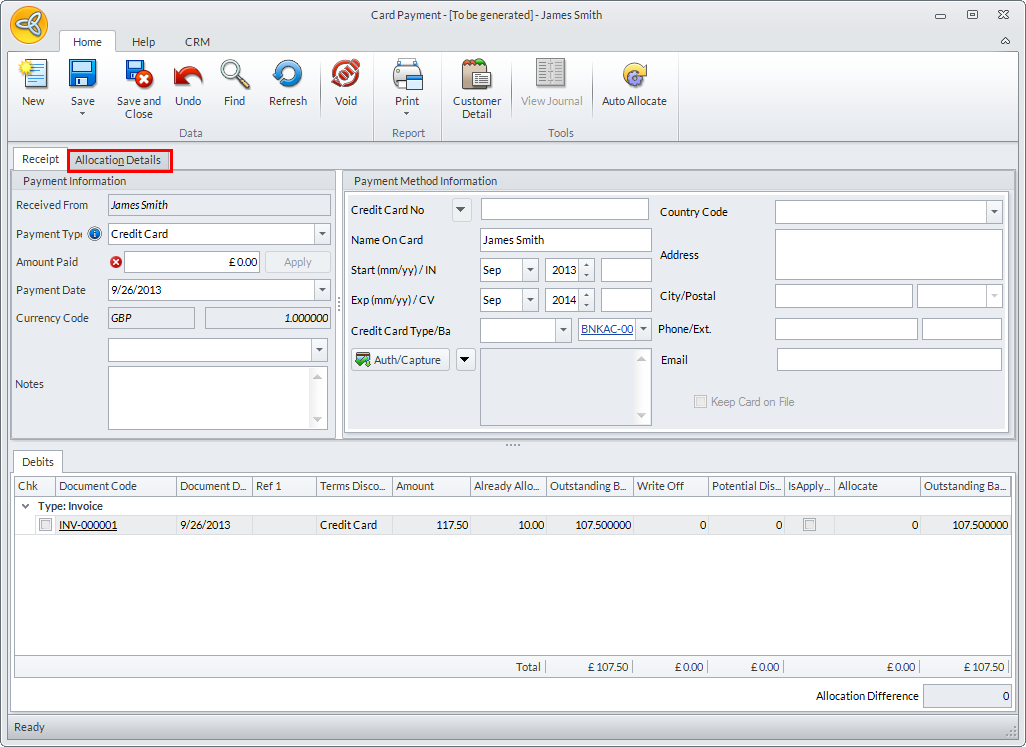
- Select a document in the Debits tab to allocate the batch credit document to or use the Autoallocate option in menu options.

- Save the allocation. Note that there must be no allocation difference to be able to save the customer receipt.
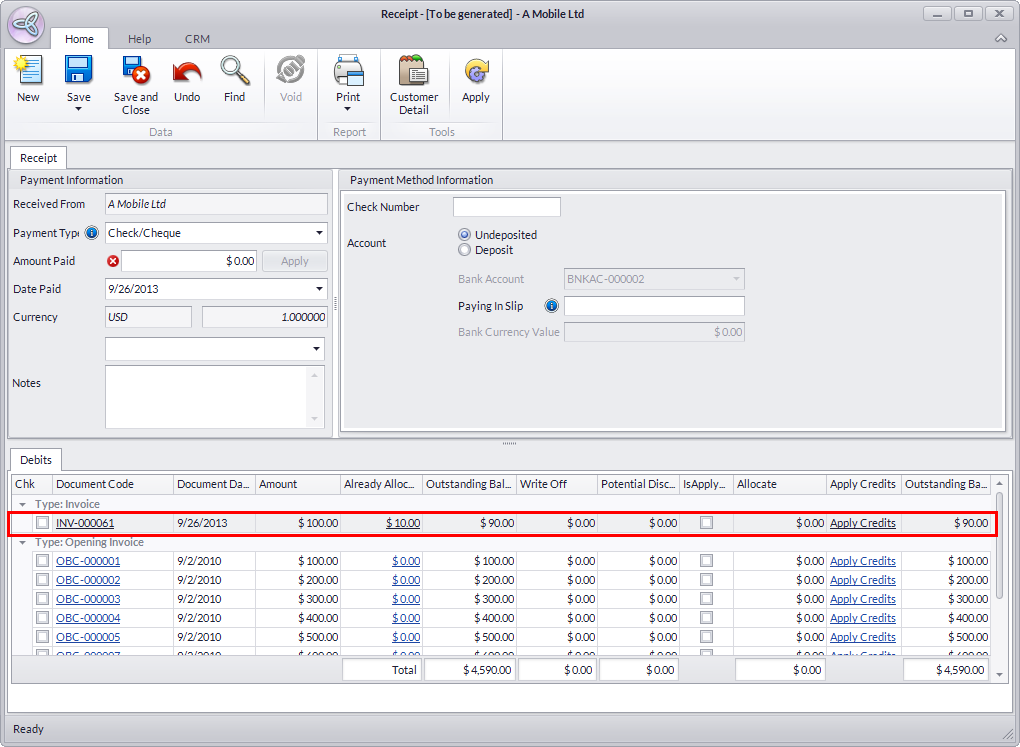
- In the case for Connected Business US database users, open the Customer Receipt form from Customer module > Receipt > New Receipt >.
Process Payments or Apply Credit to Batch Invoice Documents
- In the Customer Allocation tab of the Customer Receipt form, select a customer payment or credit.
- Select the batch invoice document in the Debits tab to allocate.
- Save the allocation.

Note that there must be no allocation difference to be able to save the customer receipt.
Monitor Allocations in the Batch Credit or Batch Invoice Document
- From the Customer Module, select Batch > Find Batch Invoice/Credit option. A search list of customers will display.
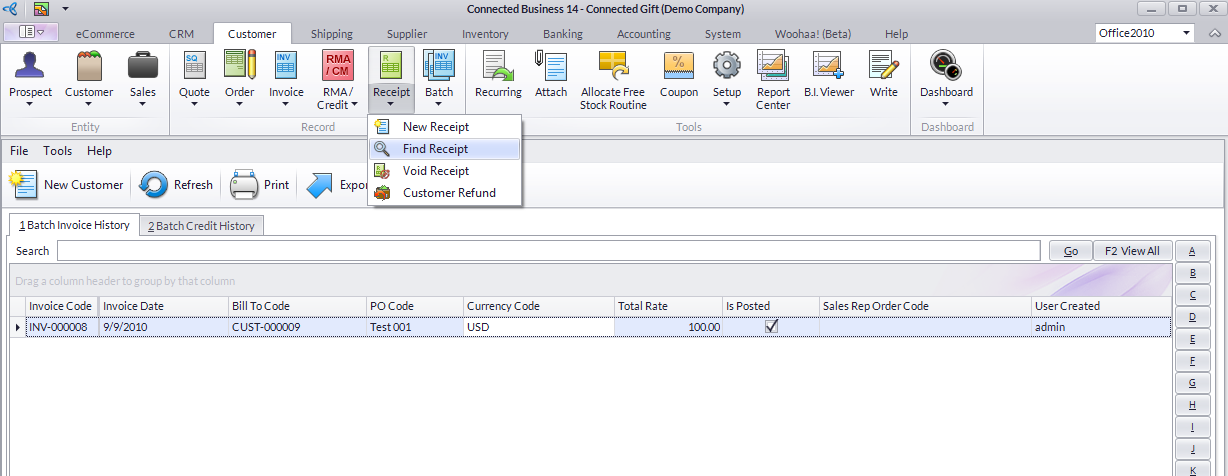
- Select a customer in the list to view the Customer Detail form.
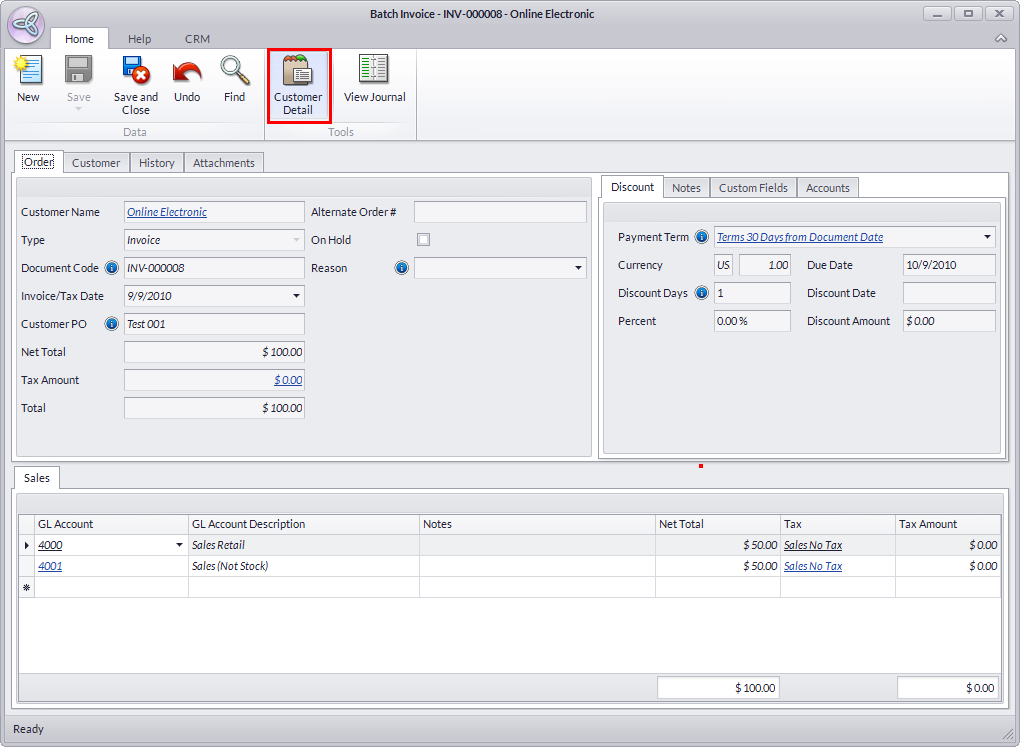
- Click on the Transaction tab then click on the Invoice tab (or Credit Memo tab).
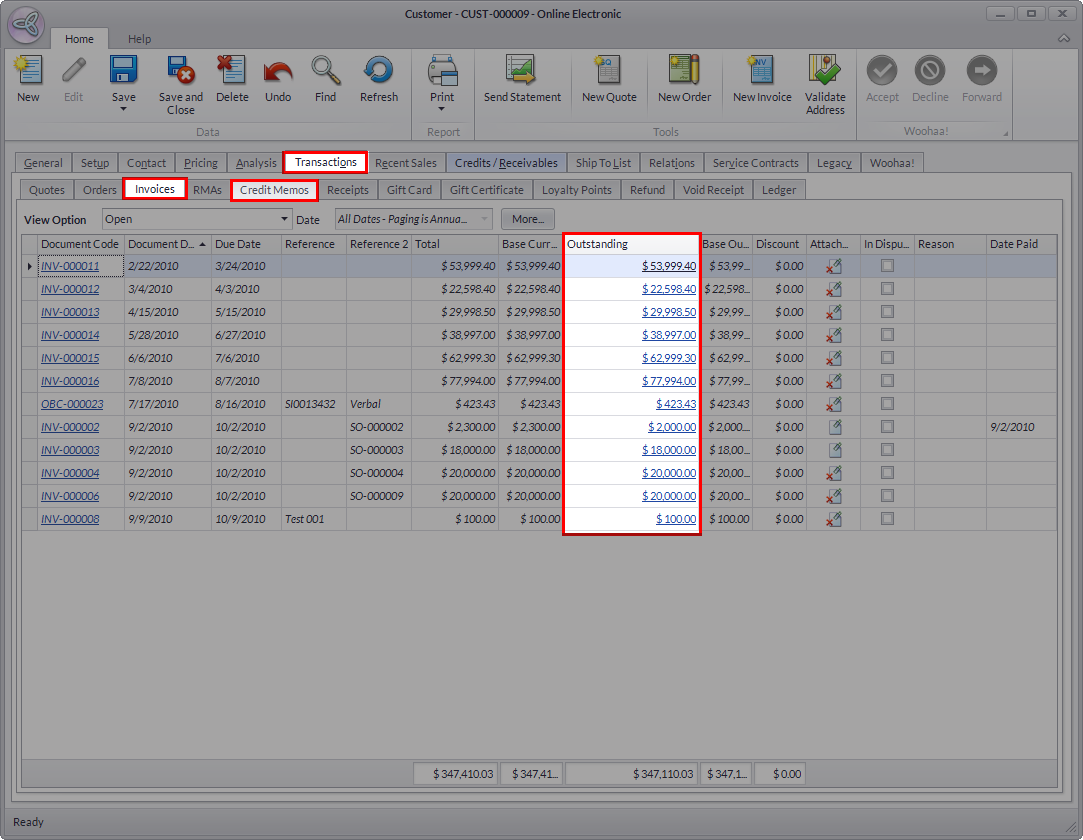
- The Outstanding column let’s you know how much the customer has left to pay or how much credit he still has.
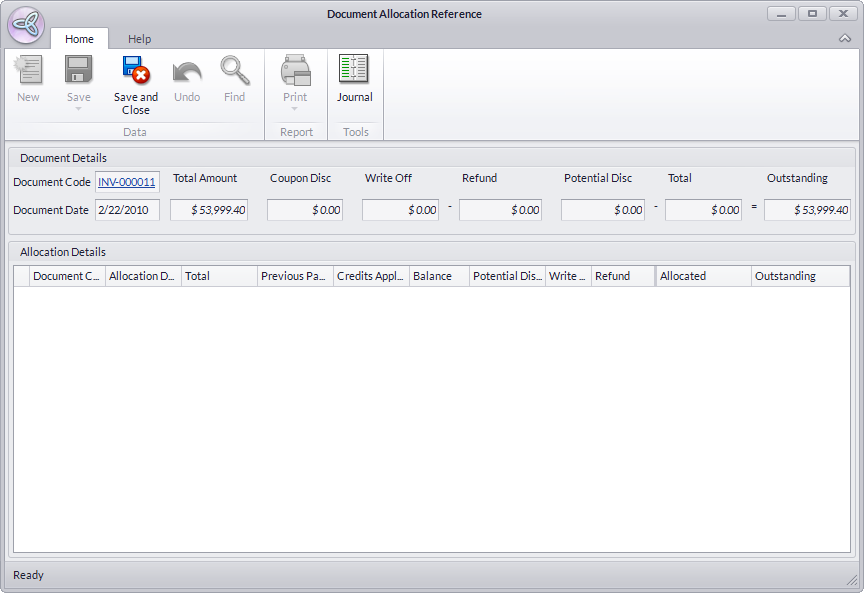
- Drill down on the value inside this column to view the Document Allocation Reference window.