
Kit Items
A Kit a product that consists of more than one interchangeable component and sold as a package.
To set up Kit Items through the Inventory Module's New Item Wizard,
- From the Inventory Module, got to Item > New Item. The New Item Wizard will be displayed.
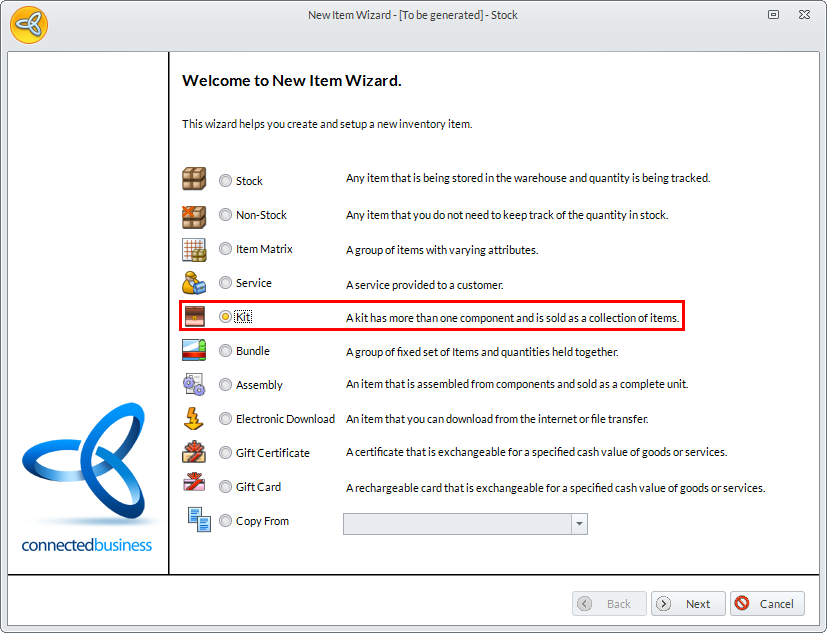
- Select the Kit item type and click Next.The General Information form will be displayed.
Click Image to Enlarge
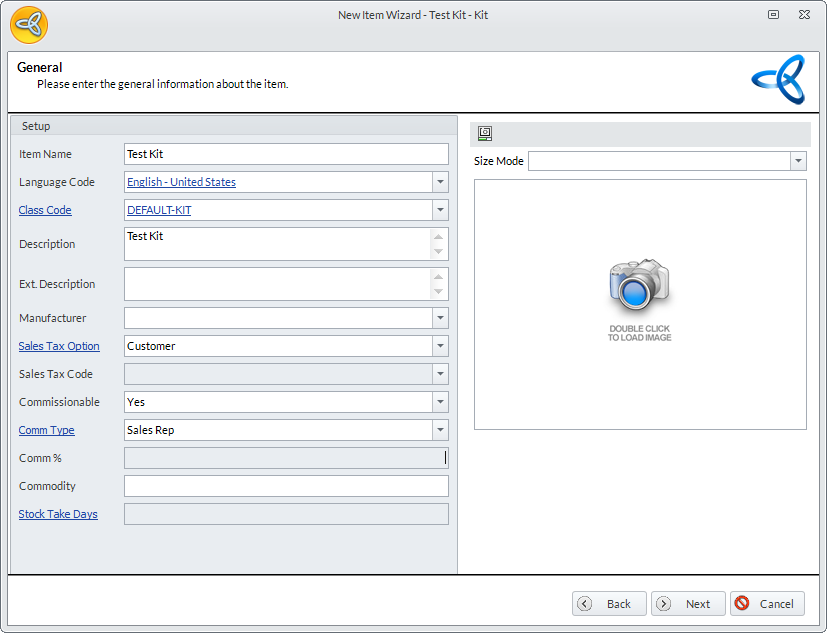
- Provide the Item Name, Description, and all other pertinent details then click Next. The Unit Measure and Category form will be displayed.
Click Image to Enlarge
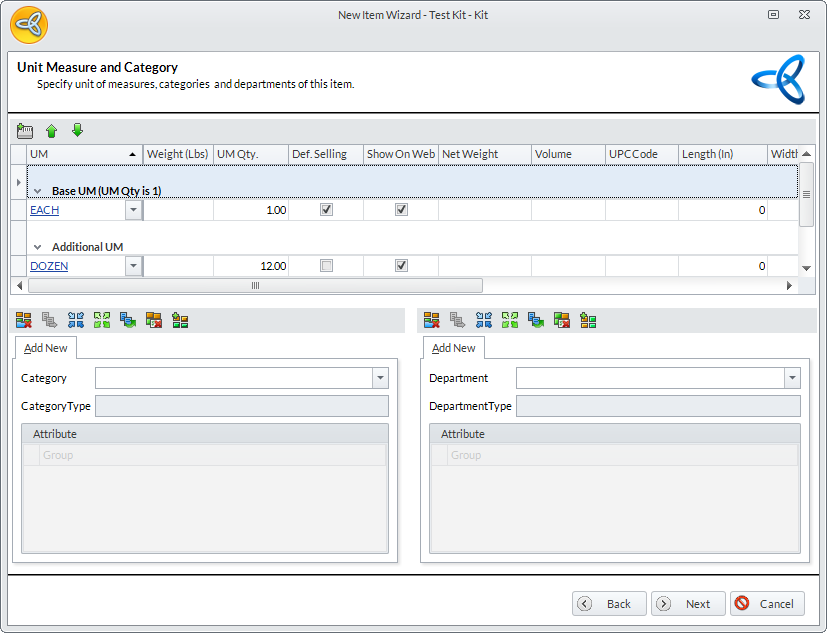
- A default or base Unit Measure (i.e. Each) will be present. Change or add to the unit measures, then select the item's category and department.
Click Image to Enlarge
- Click Next, then Finish to complete the wizard. The Item form will be displayed.
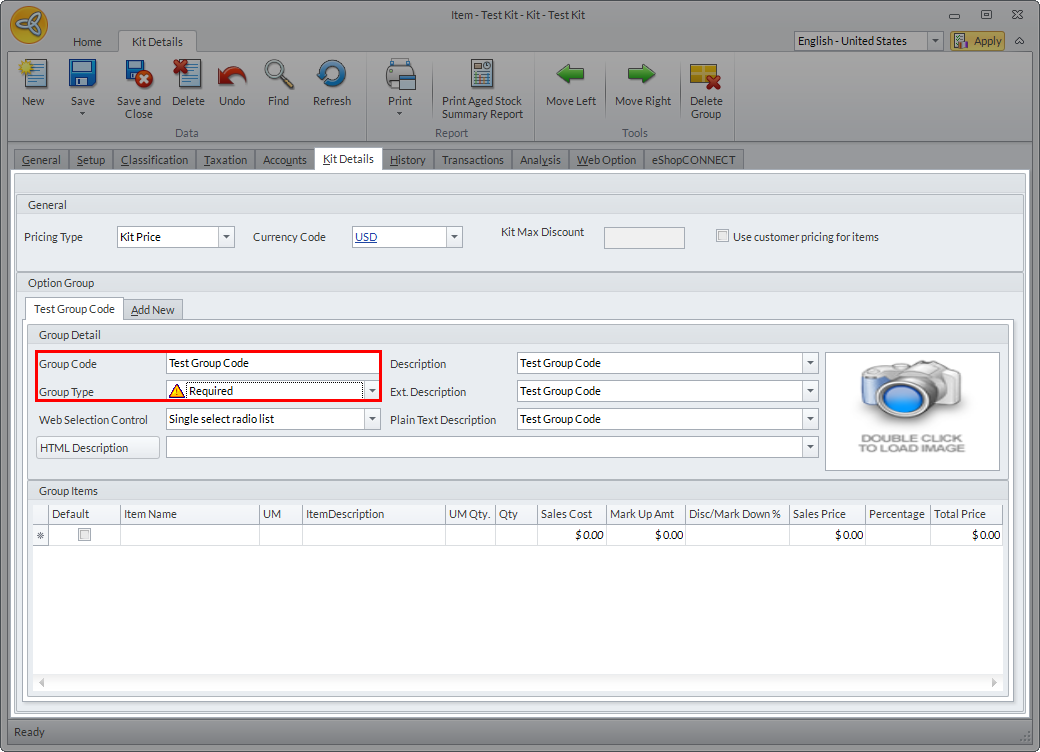
- In the Kit Detail tab, set a Group Code and Group Type in the Option Group section.
Click Image to Enlarge
The possible Group Types are as follows:
Group Type Description Required If selected, you will need to have at least one item in this group. Optional If selected, you can include or exclude the items in this group. Multi-Select If selected, you can select more than one of the items in this group.
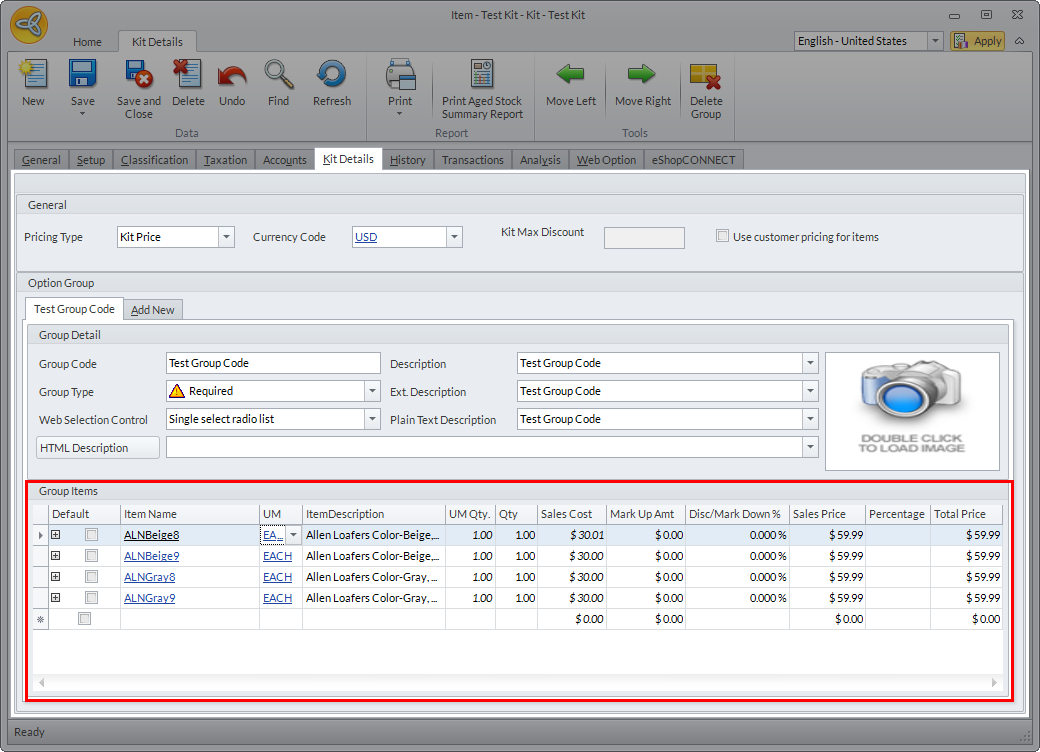
- In the Group Items section, select items to be included in the Option Group.
Click Image to Enlarge

Be sure to enter a default quantity (QTY) for each item (e.g. 1).
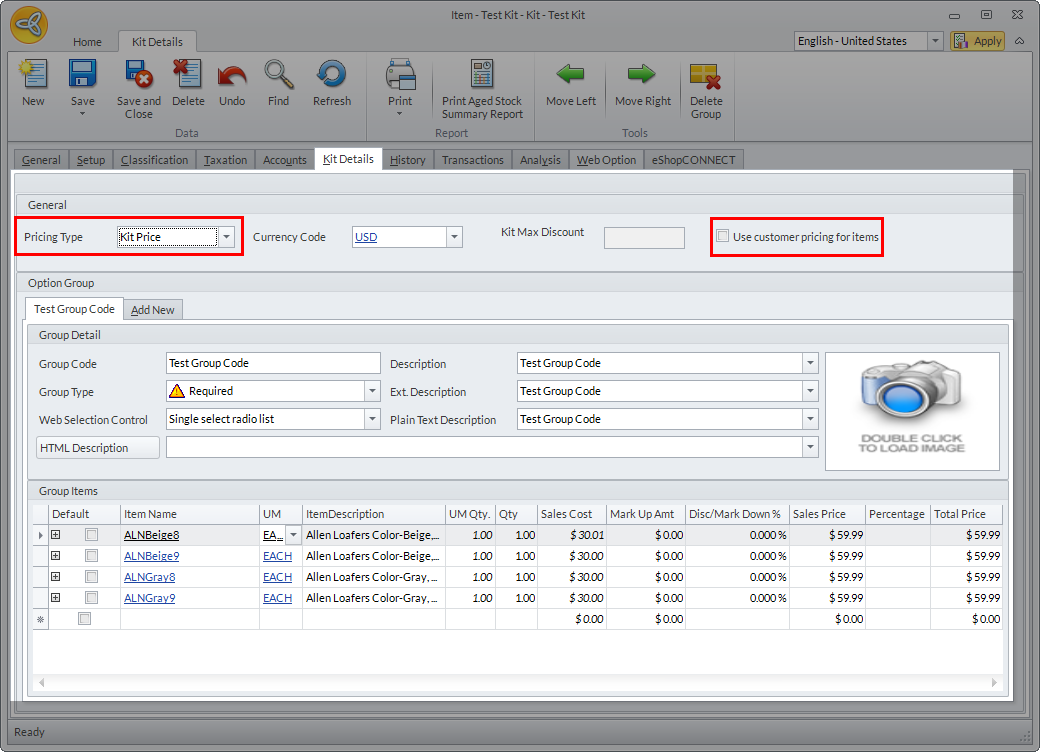
- Select a Pricing Type.
Click Image to Enlarge
The available options are as follows:
Pricing Type Description Kit Price The price for each kit component can be modified in relation to the kit where it is included (e.g. you can specify a marked down price that applies only when the item is included in the kit or package). Item Price The regular price of the items will apply and summed up with the other component prices. Customer Price Separate tickbox in the General section. If enabled, the select customer pricing will apply to the kit item.
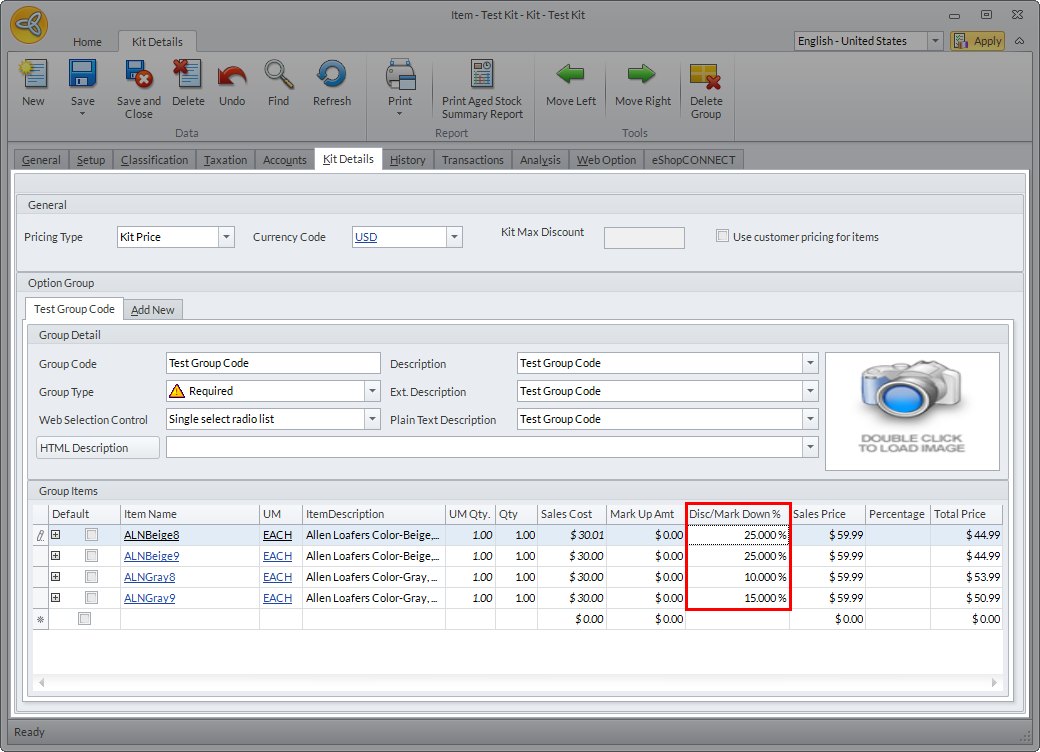
- Back in the Group Items section, set the Discount/Markdown Percentage of each item.
Click Image to Enlarge
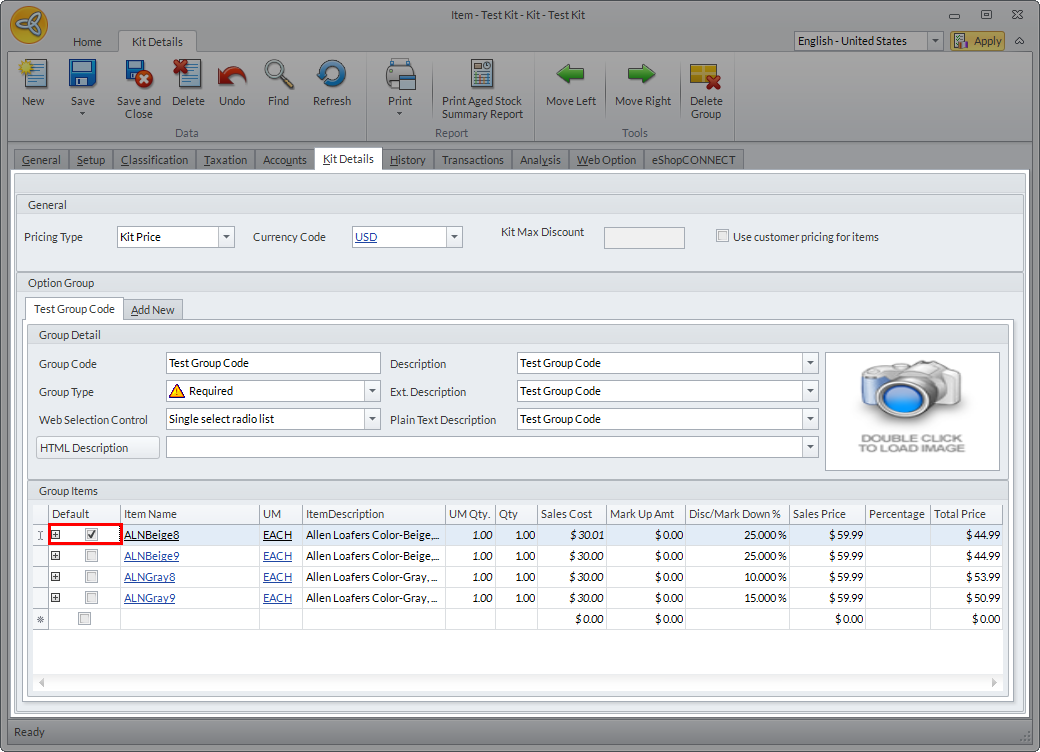
- Set the default "pre-selected" item by ticking its respective checkbox.
Click Image to Enlarge
- Click Save and Close to apply changes.