
Invoice Online Payment
Online Payments are various payments methods by which customers can pay online for items purchased from the webstore. In Connected Business, the Online Payment feature allows registered customers to pay any open or unpaid invoices online. All payments can be done partially or in full at the customer's discretion.
This article shows how the Online Payment feature is configured and how it can be used by customers.

This feature is only available in Connected Business v14 and higher.
Configure Online Payment
To enable a customer to pay online,
- Go to the eCommerce module > Setup > Application Configuration. The Application Configuration form will be displayed.
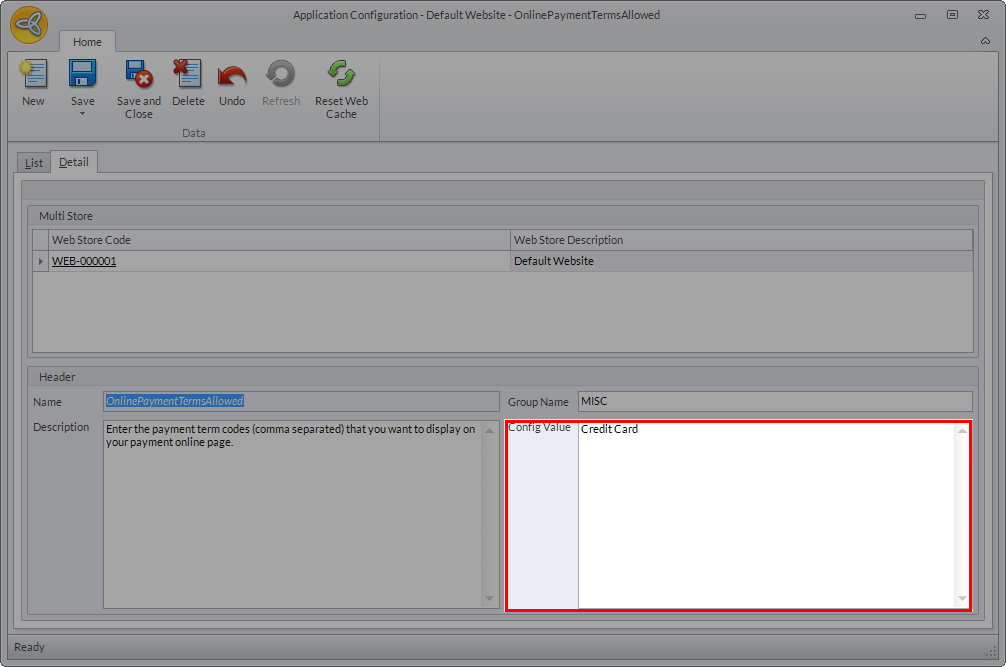
- Search for “OnlinePaymentTerms” appconfig. The OnlinePaymentTerms appconfig form will be displayed.
- In the Config Value field, enter the payment method/s separated by a coma (,).
Click Image to Enlarge
All payment methods entered in the Config Value field must be included in the Customer’s Payment Term Group.
- Click Save and Close to apply the changes.

Pay Invoice Online
Only unposted invoices can be paid online.
To pay online,
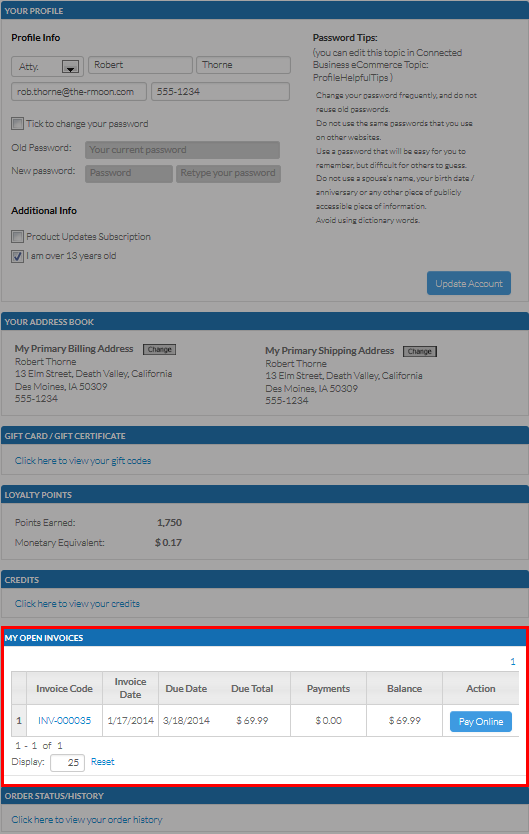
- On the store website, click on the User Name displayed at the upper corner of the page. The User Profile page will appear.
- Under the My Open Invoices section, click the “Click here to view your open invoices” link to display the list of unpaid invoices.
Click Image to Enlarge
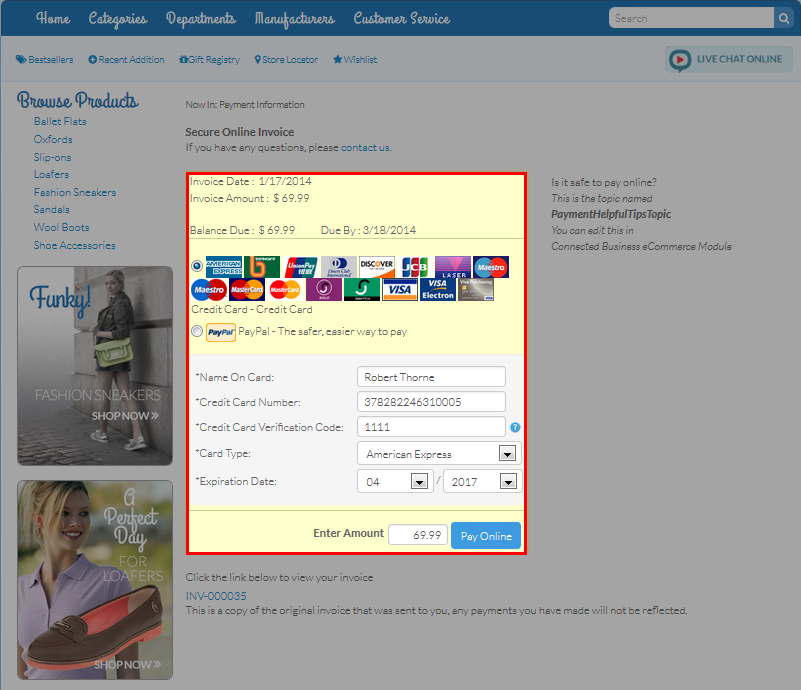
- Click the Pay Online button. The Payment Information page will be displayed.
- Select the payment method to be used for the online payment and enter the payment details.
- Click the Pay Online button to complete the transaction.
Click Image to Enlarge
If you made a partial payment, you can refer back to the My Open Invoices section of the user profile to check the outstanding balance.
The partial payment option is available for Credit Card payments only. Payments done via Paypal must be paid in full.