
In-Store Pickup
In general, In-Store Pickup allows customers to find and choose the nearest, most convenient store pickup point for receiving their purchased products via the webstore. This option provides faster and cost-efficient way of collecting their items by automatically calculating the distance of every store within a specified proximity to the customer’s current shipping address.

This feature is only available in Connected Business v14 and higher.
Set Up In-Store Pickup Location
To set up the In-Store Pickup to your webstore:
- Create a new Will Call option for the In-Store Pickup. You may refer to Process Will Call Transaction.
- Go to Inventory module > Location > New Location to add the locations of your store’s branches. Complete the store location’s details as needed.
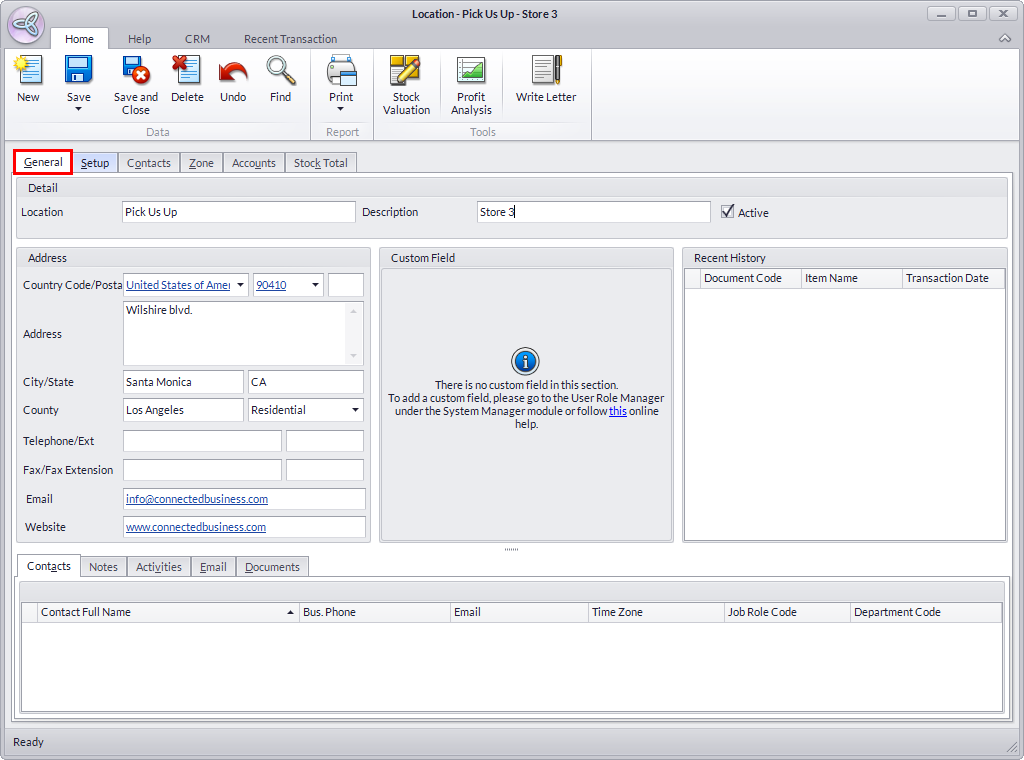
Click Image to Enlarge
- In the Setup tab, assign the Location Type to Store, and the Tax Code as Will Call Tax Scheme.
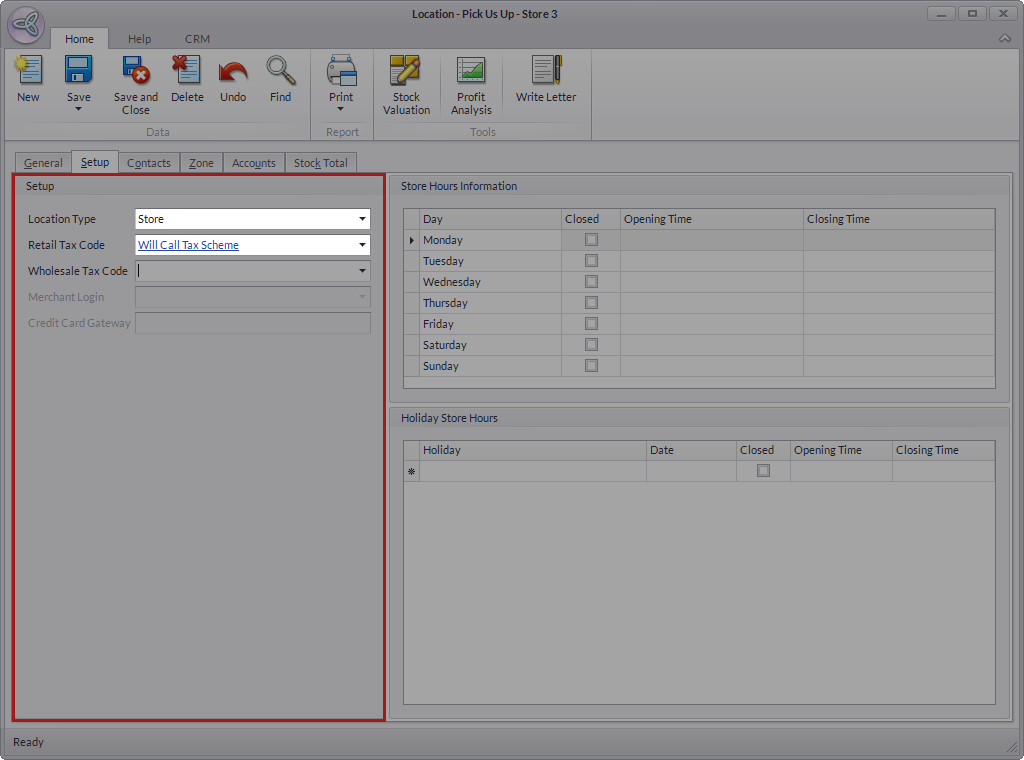
Click Image to Enlarge
- Specify the business hours of the store in the Store Hours Information section.
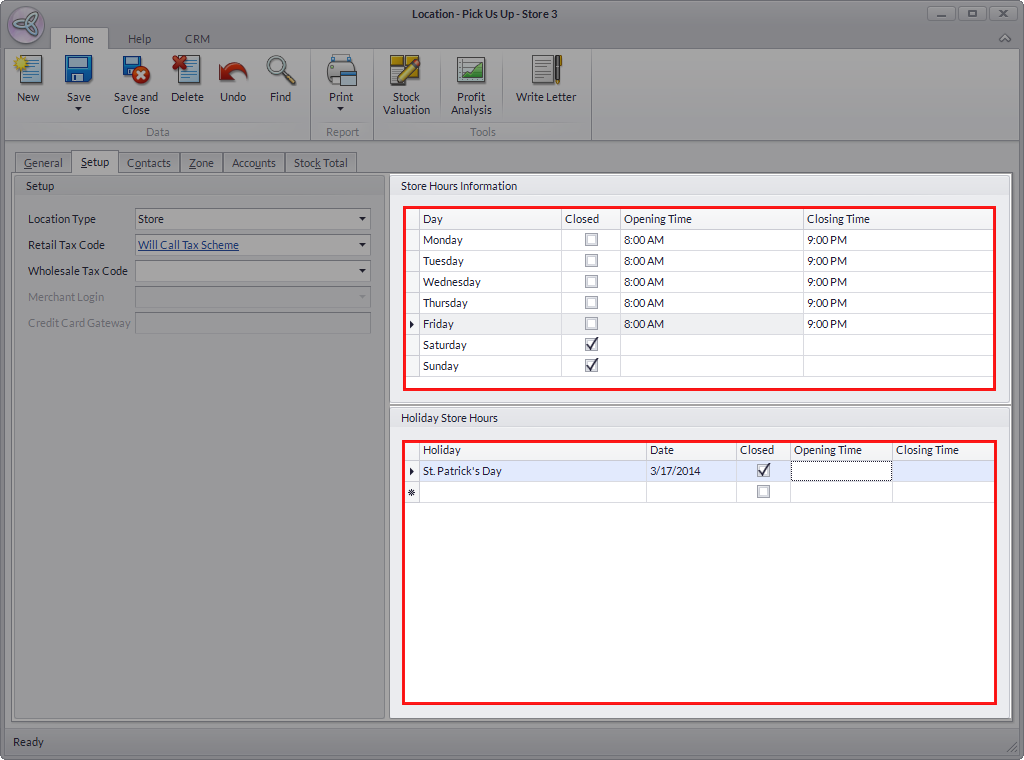
Click Image to Enlarge
- Click Save and Close to apply changes. The Pick Store link will be displayed in the product page and checkout page of the webstore. Customers can click on the link to choose a store nearest to them to redeem their purchased items.
Make sure that Pickup shipping method is included in the shipping method group assigned to the customer for the In-Store Pickup feature to work.
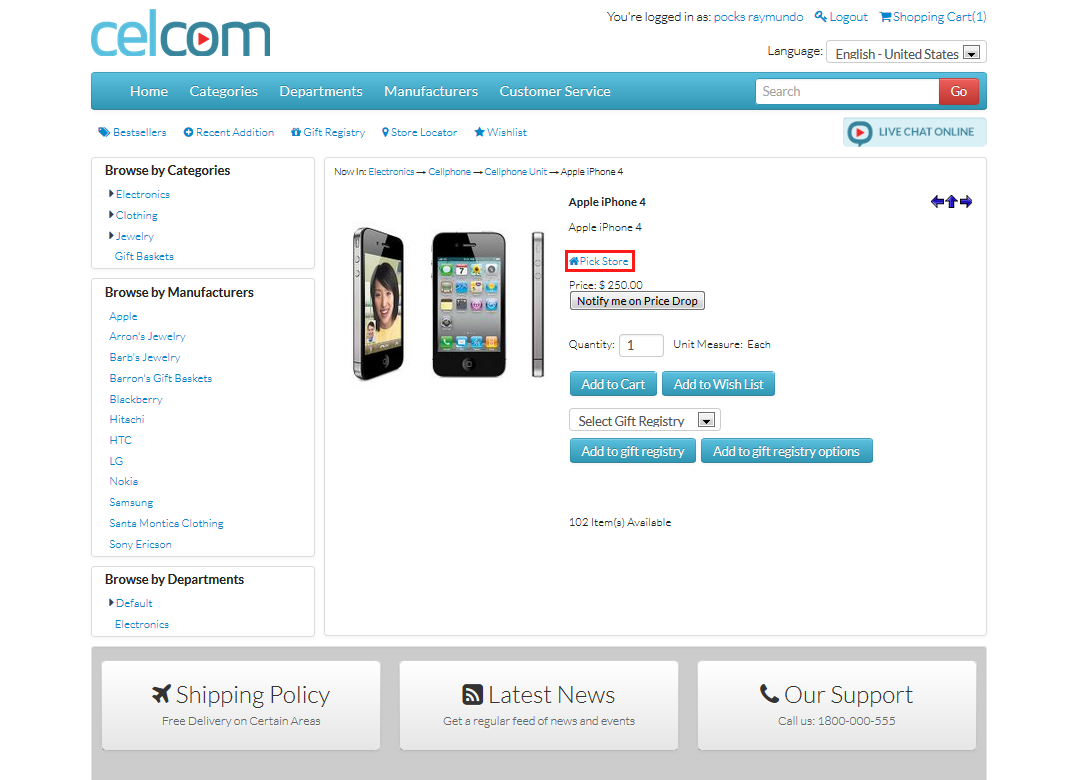
Click Image to Enlarge
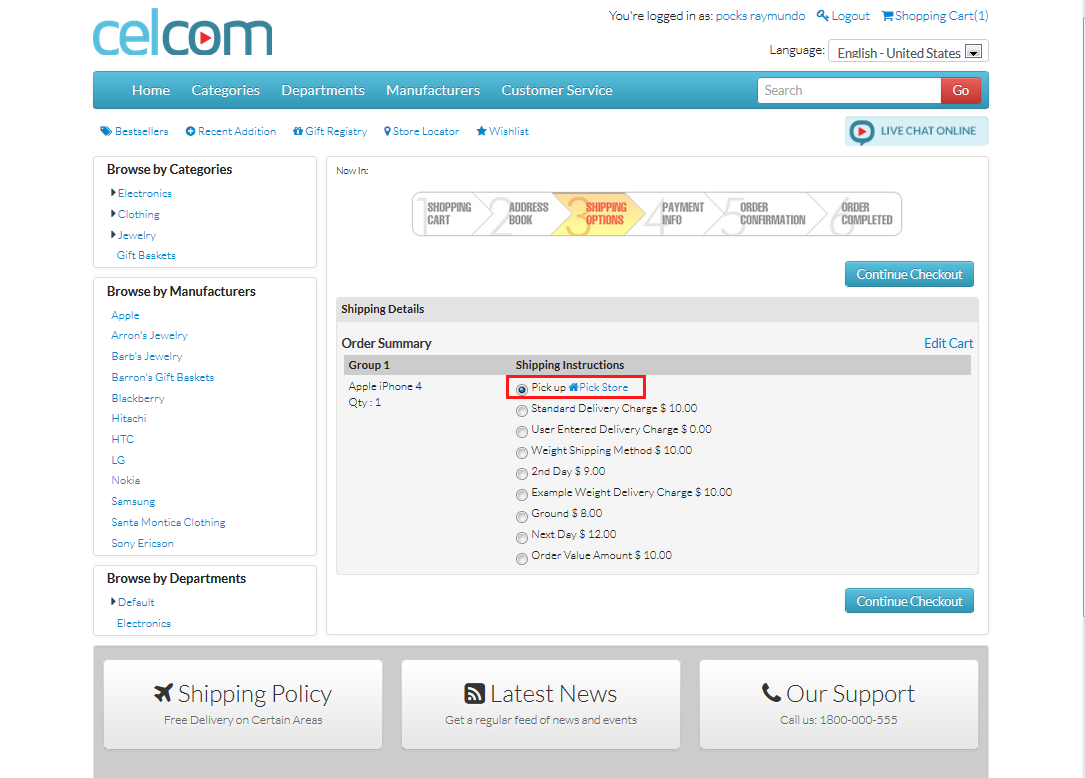
Click Image to Enlarge
In-Store Pickup option is not available for Anonymous Customers.
When some of the purchased items are set for Pick-Up, the system will automatically process the transaction as Multiple Shipping Method, and will create a separate Sales Order/receipt for each item, as a result of different tax codes for a specific location.

Pick Store
By clicking the Pick Store button either from the product page or checkout page, the customers will be able to choose the store nearest to their registered Ship To address for picking up their items.
Customers can either use the ZIP code or location (City, state, country) when searching for their preferred pick-up points.
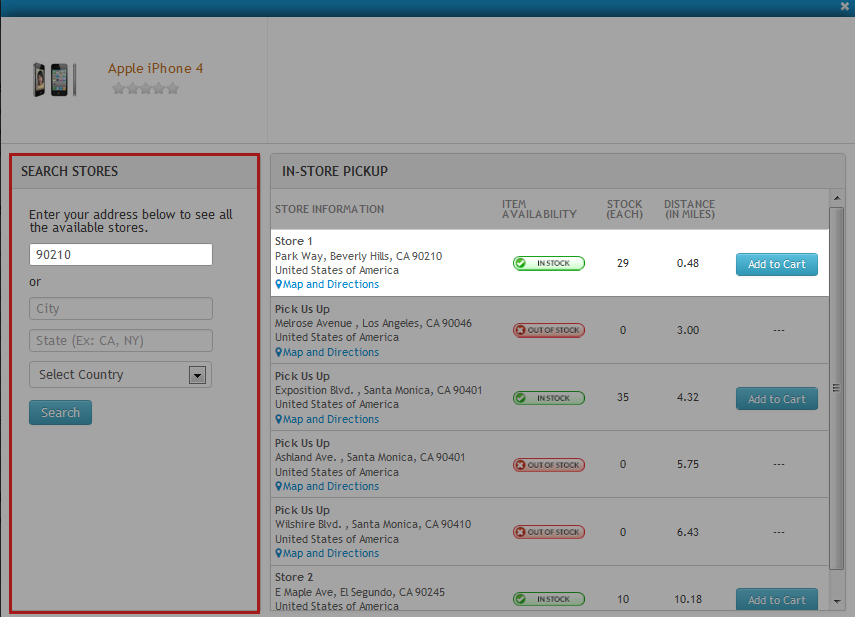
Click Image to Enlarge
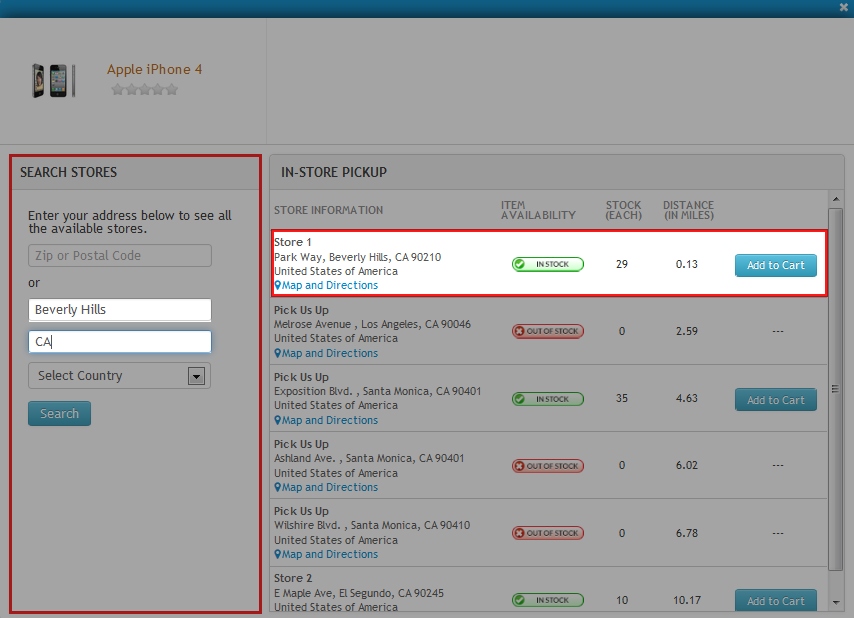
Click Image to Enlarge
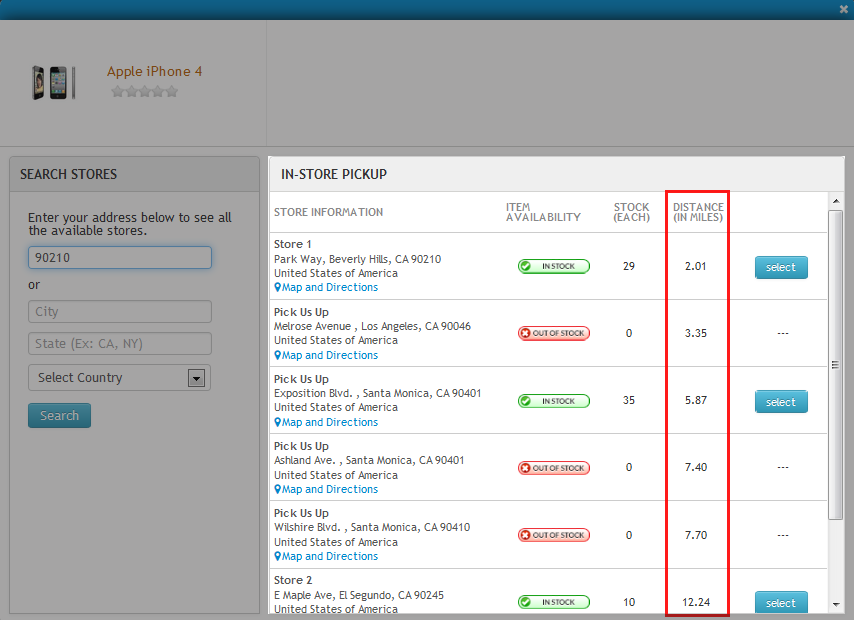
Click the Search button to display the list of available stores. The list will display the first 6 stores. Customers will need to scroll down the list to generate more search results.
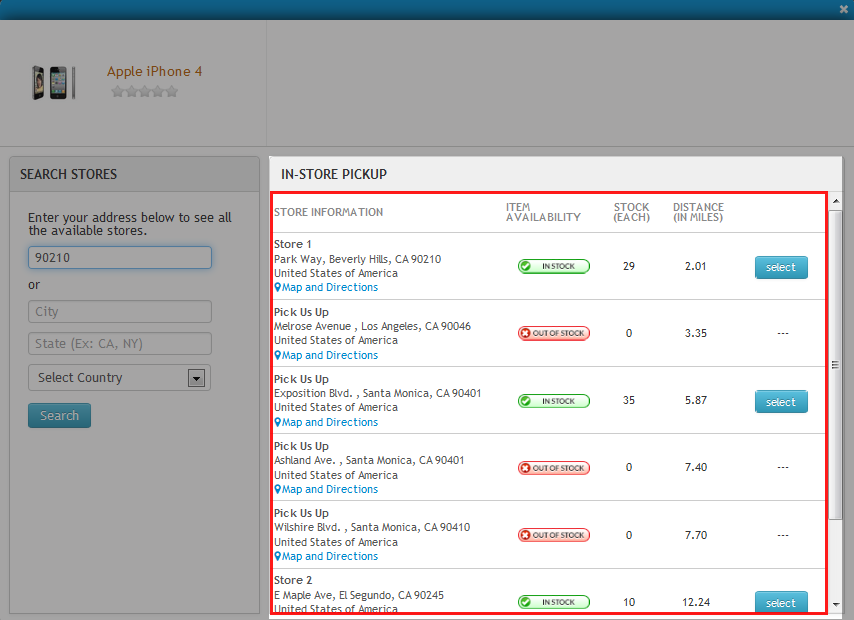
Click Image to Enlarge
From the page, the system will automatically compute and determine the distance (in miles) of each available store within the search parameter. Clicking the Distance column will sort the store list according to the nearest to the farthest store and vice versa.
Click Image to Enlarge
The Select button is disabled when an item is currently Out of Stock in a particular store on the list. Furthermore, the stock value will only show if the AppConfig, “ShowActualInventory” is set to TRUE. Refer to The Application Configuration Window for more details.
View Store Information
To view store information from the In-Store Pickup page:
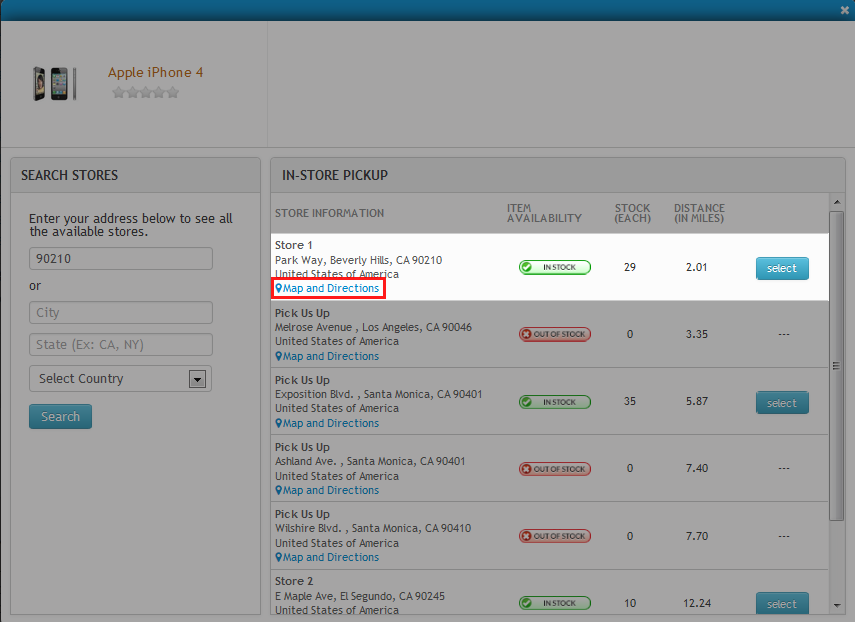
- Click the Map and Directions link at the bottom-part of an enlisted store to display the store information page.
Click Image to Enlarge
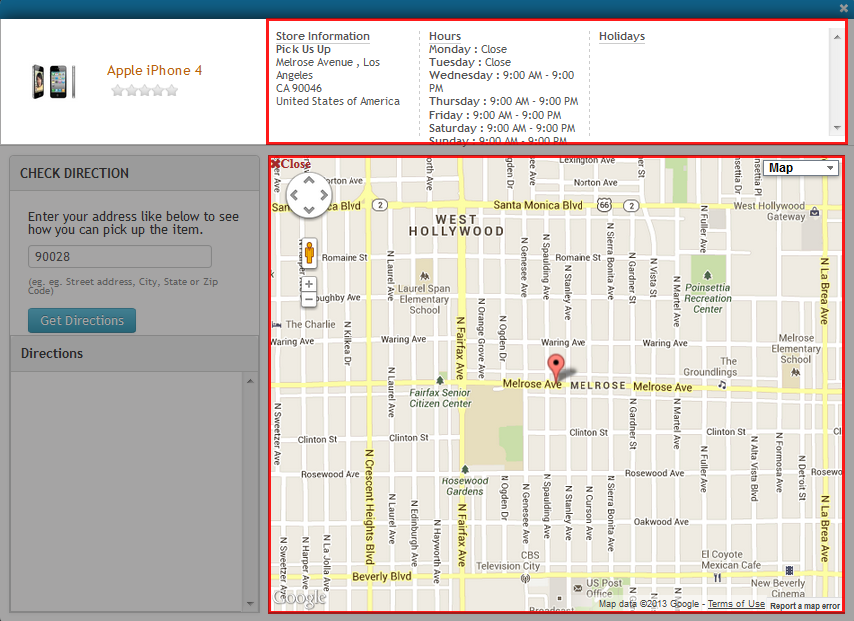
- Store information, including the product rating, address, business hours, holiday store hours and store map will be displayed on the main section of the page.
Click Image to Enlarge
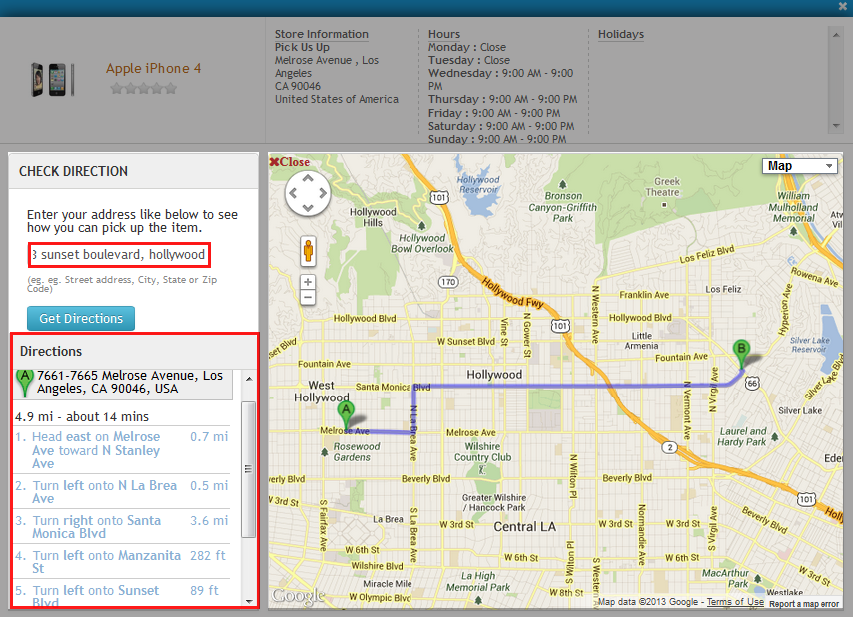
- On the Check Direction section, type in your address, then click “Get Directions” to get the exact waypoint navigation and directions from your place to the store. The map will display the exact routing directions to guide you on how to go to the store from your point of origin.
Click Image to Enlarge
Be specific when entering your address on the Get Directions search field to maintain accuracy in mapping directions.
In the Order Confirmation page, the address of the chosen pick-up points for the purchased items will also be displayed.
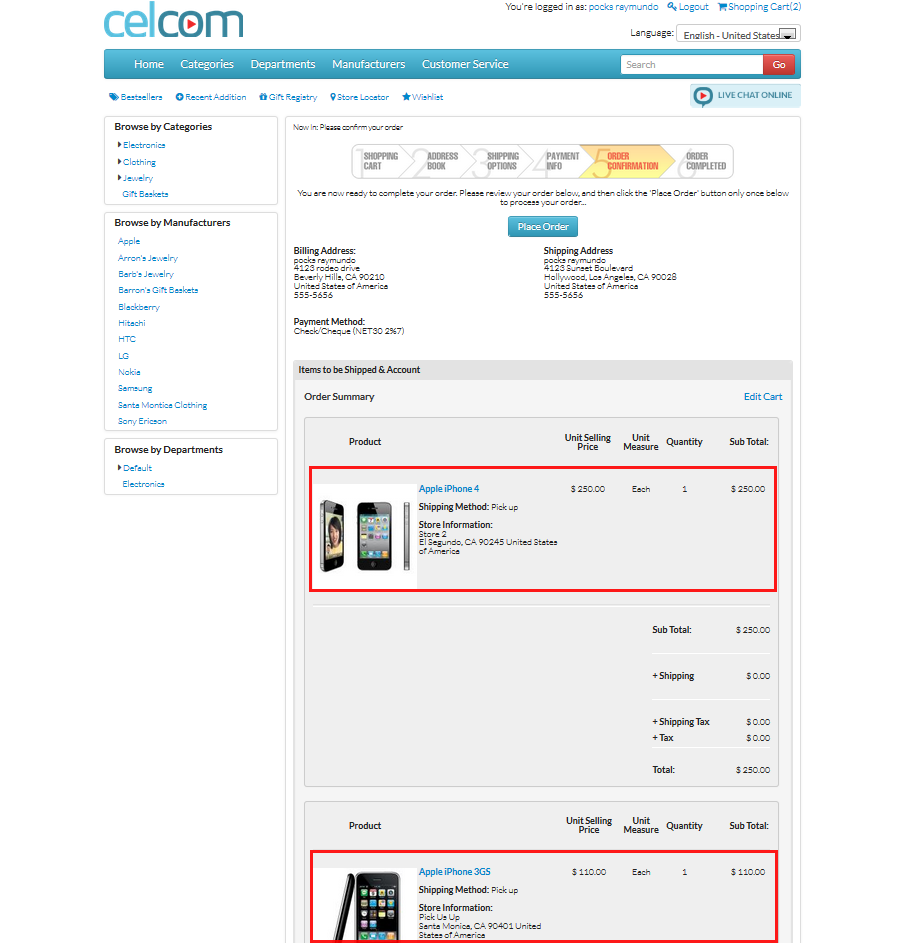
Click Image to Enlarge
Checking out multiple items for pick-up and other shipping method will create a separate receipt for each to comply with tax calculations for different locations, as well as with other miscellaneous computations.