
Import Guidelines
Take note of these guidelines whenever performing import processes through the Import Manager:
- If a field on the target table is not mapped, no data will be carried over to that field. The only instance where it will be populated by the Import Manager is if it is required by the business rules. The data would basically come from a class template or from an existing data of an entity record (i.e., Customer, Supplier, Item, etc).
- You cannot validate/import if there are missing mapping for any of the import items/tables that have assigned sources.
- All required fields should be mapped regardless if it has a value or not.
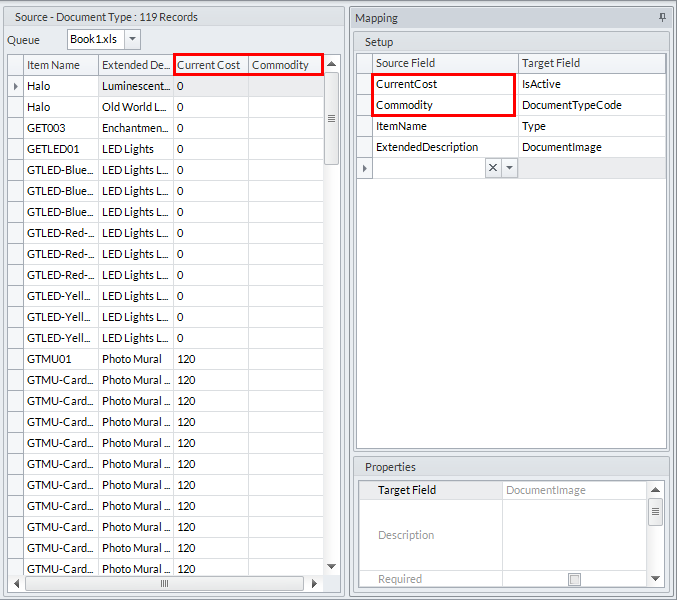
- If a required field is being auto-populated by the Import Manager and has an empty value, it will not error out. If there error is reported, it will inform you that those fields should be populated by the user.
- The City, State Code, Postal Code, and County fields should be correctly filled for searchable countries (US is on by default). This is to enforce accurate and complete data import. The Shipping module will also benefit from this.
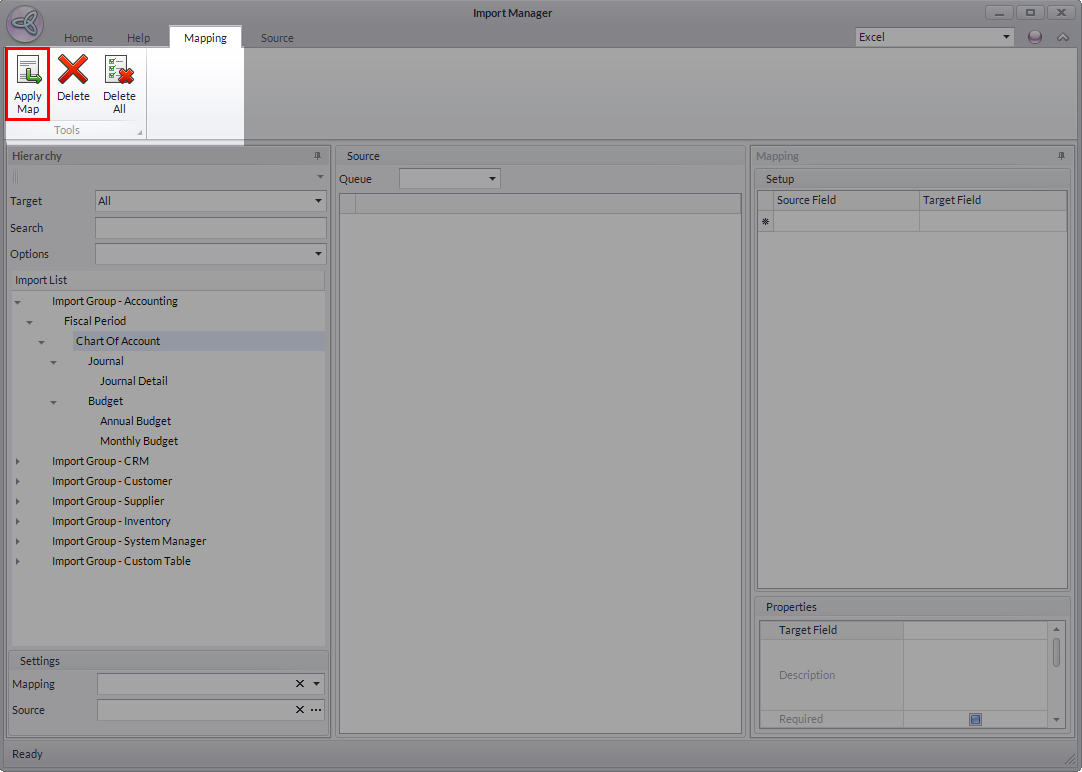
- Mapping does not automatically reflect on the source grid after adding, modifying or deleting entries on the Mapping setup grid. The user would still have to click on the Apply Map button in order for the source to reflect the changes made.
Click Image to Enlarge
- String values exceeding the maximum length of the target field are automatically trimmed.
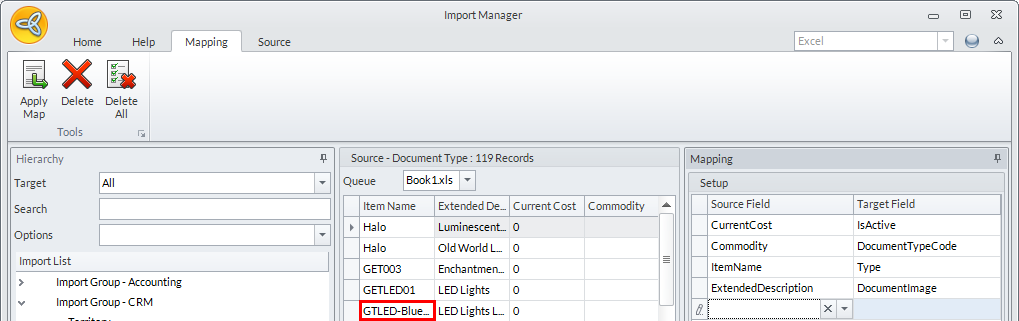
- A Source Field can only be mapped to one target. However, Address and Notes target fields can be mapped several times to several source fields. If the combined length of the Address or Notes field exceeds that of the target, it will be trimmed automatically.
Click Image to Enlarge
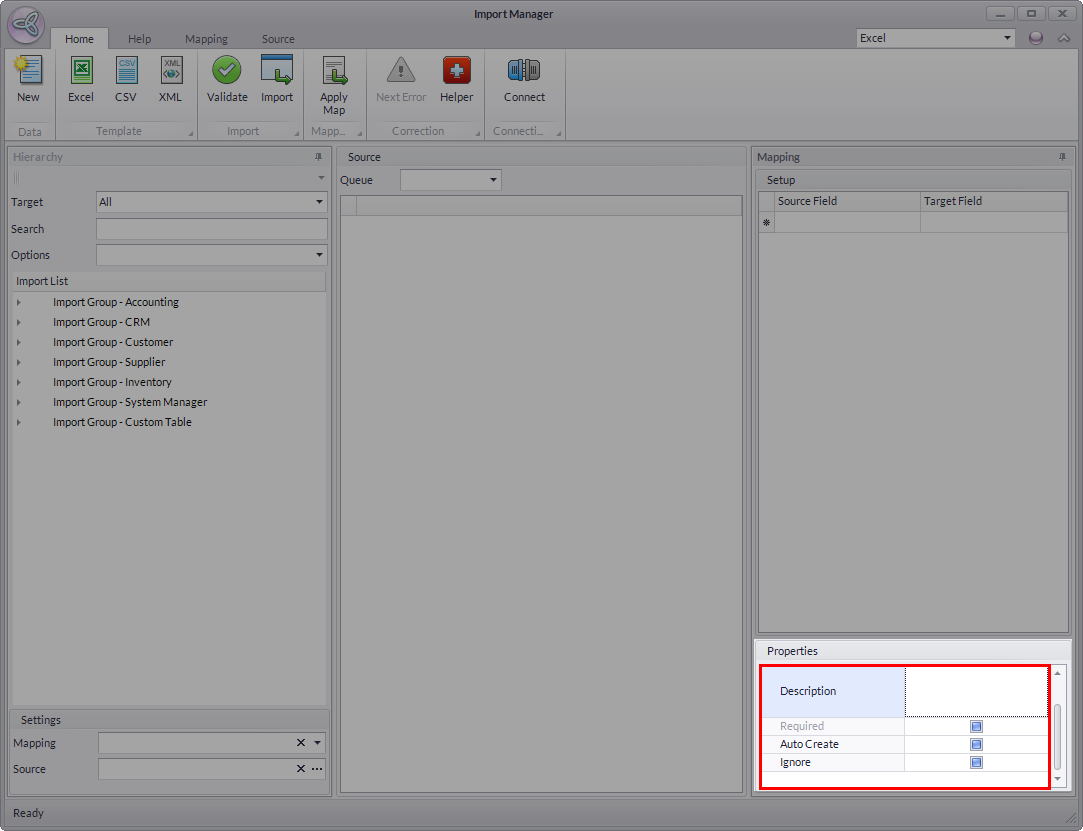
- The Auto Create function only supports simple table structures.
Click Image to Enlarge
- Users do not have to pre-import auto created data. It can be imported simultaneously with the table that will use the data. For instance, instead of importing Source then Customer, you can directly import Customers and non-existing Source all at once.
- Export files are generated only if there are errors found on the currently selected source data and only after the export files have been validated.
- When importing related data, you only need to use the parent table's imported legacy code. For instance, instead of using the pre-generated Customer Code, you can use the value stored on the Customer table's Legacy code field.
- For transactions, users must import both the parent and detail source files together in order for the Import Manager to process it.
- When using a generated mapping file, it requires the new source import file to have all the fields defined in the mapping for the match to be accepted.
- The Username and Password (including Salt and Vector) fields must be included and manually filled out when importing contacts. This is so your customers can log in to the web after importing.
- When importing customer and supplier data, make sure to clear out the ship to/ship from and contact fields. The import will automatically generate the ship to/ship from and contact data for the customer/supplier record. If you assign values in these fields and the data already belongs to a different customer/supplier, it is possible that the record wont show in the search tables or you wont be able to make trasactions.
Below are the fields that should be emptied:
Customer:
- DefaultContact
- DefaultAPContact
- DefaultShipToCode
Supplier:
- DefaultContact
- DefaultAPContact
- SupplierContactCode
- DefaultShipFrom
- DefaultShipFromContact

The user can use the Import Helper form to clear our the data in the fields above simply by selecting the fields and assigning empty to all data.
- DefaultContact
