
Image Zoom Options
The Image Zoom option allows you to add special effects on your product images by creating an enlarged or magnified image display of the product.
Change Image Zoom Effect
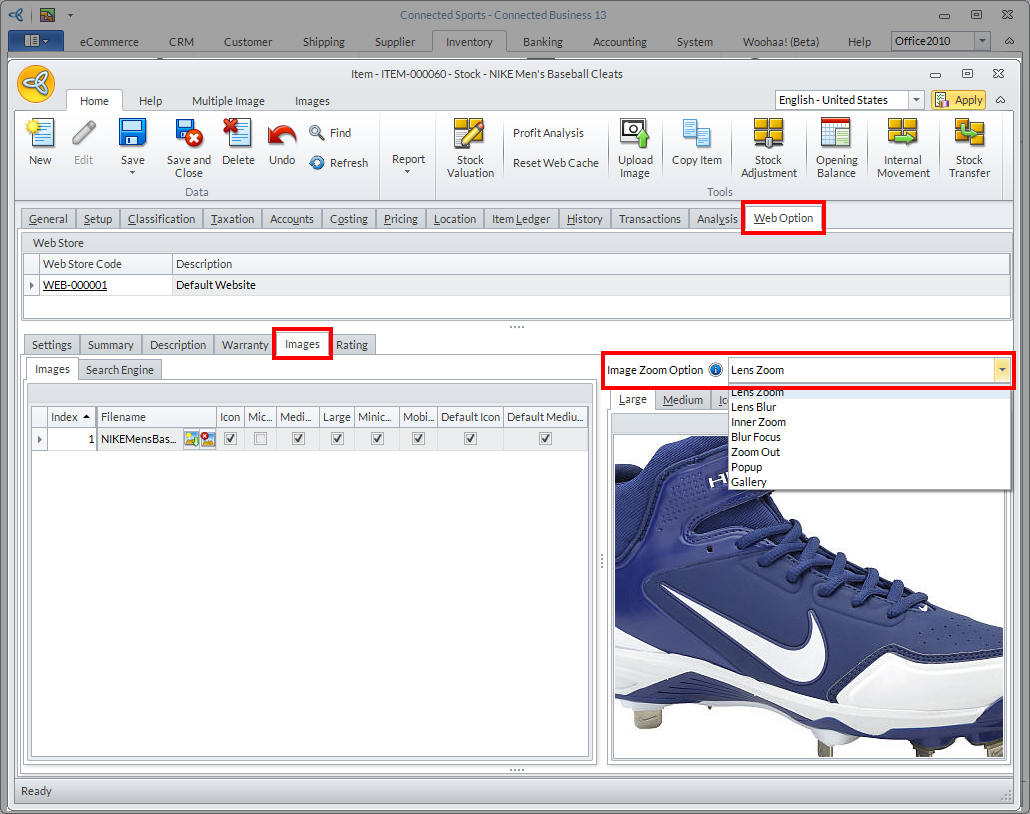
To change the image zoom effects,
- Go to the eCommerce or Inventory module > Find Item and select an item to open the Item Detail form.
- In the Item Detail form, go to Web Option tab > Image Zoom Option and select your preferred zoom effect.
Click Image to Enlarge
You can apply the following zoom effects on your product images.
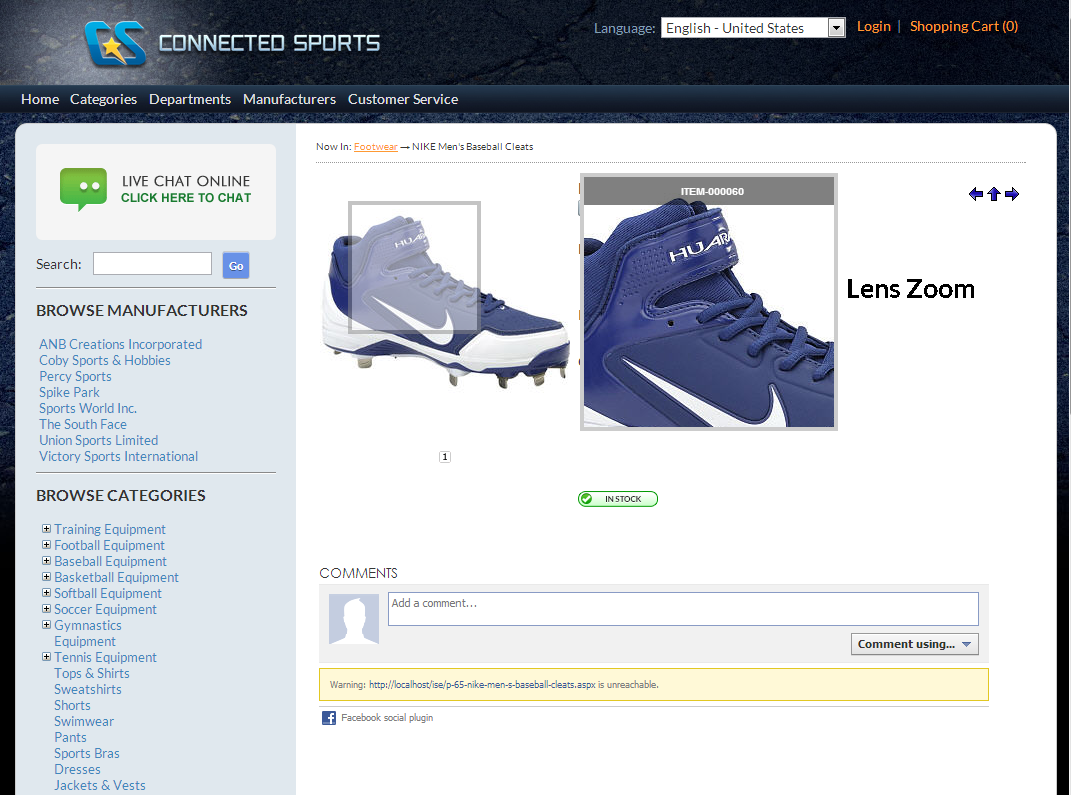
- Lens Zoom - lets you create a magnified version of the image detail that is hovered.
Click Image to Enlarge
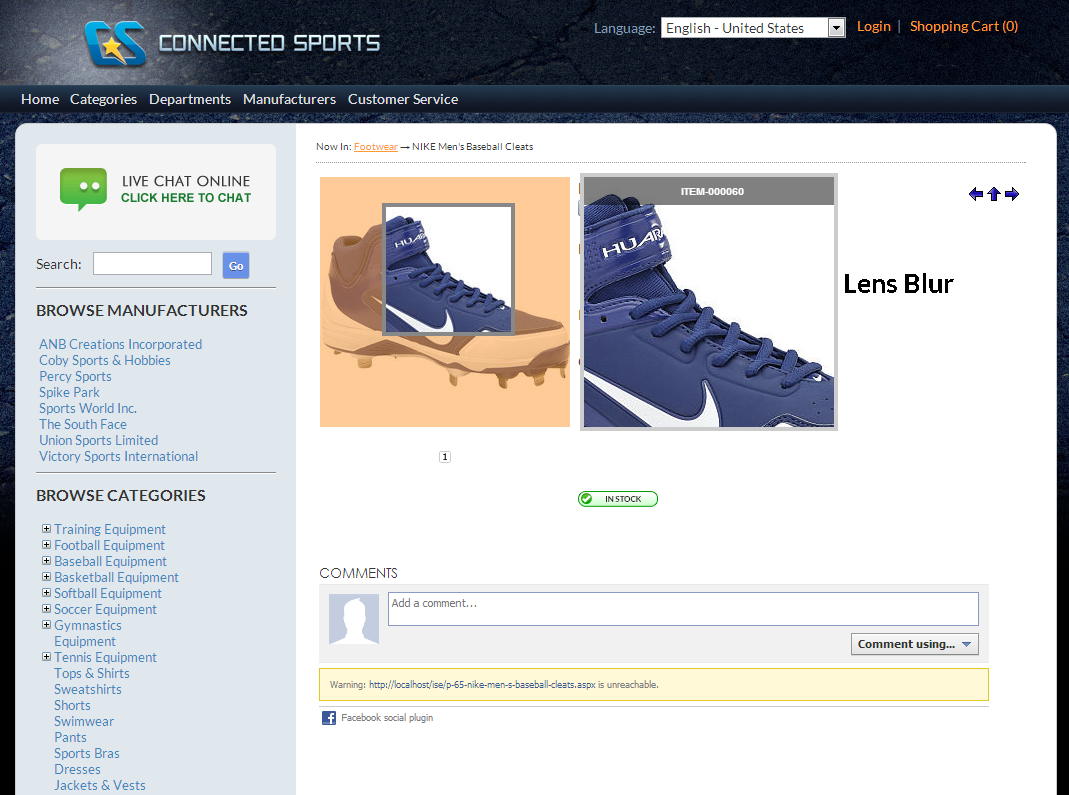
- Lens Blur - allows you to create a magnified version of the image detail that is hovered while the rest of the original image is blurred.
Click Image to Enlarge
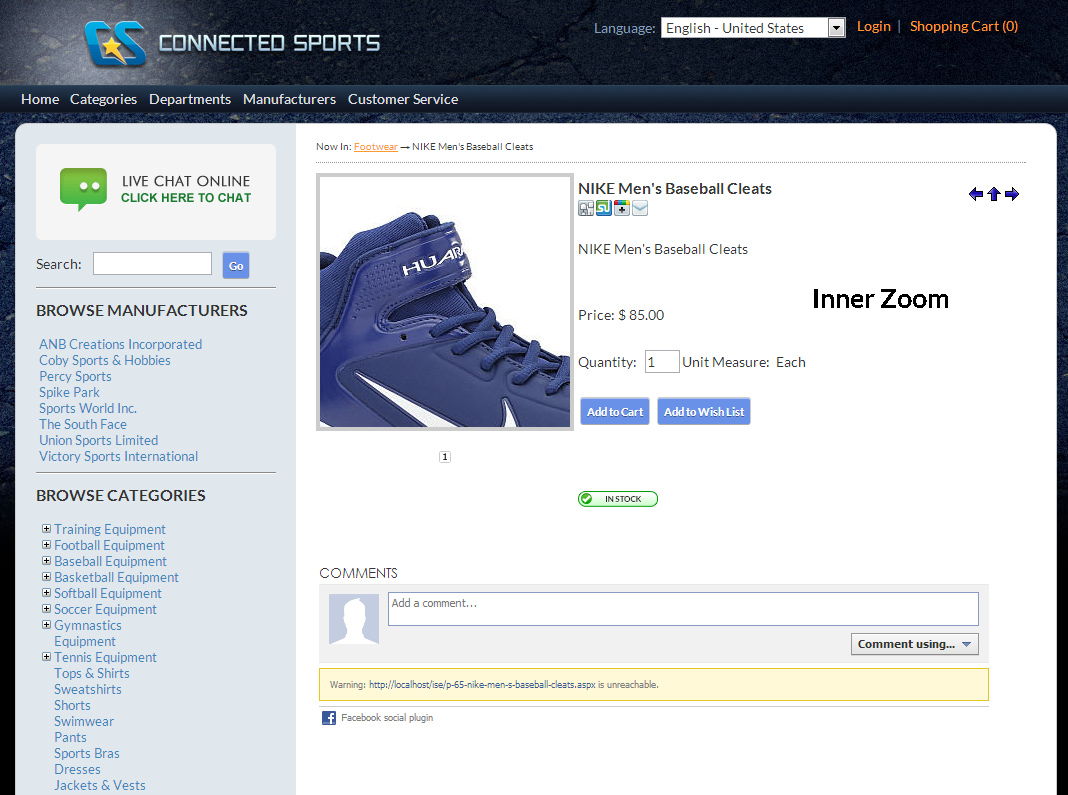
- Inner Zoom - allows you to magify the detail of the image that is hovered from within the original image.
Click Image to Enlarge
- Blur Focus - allows you to create a magnified version of the image detail that is hovered while the rest of the image is blurred with a smudge effect.
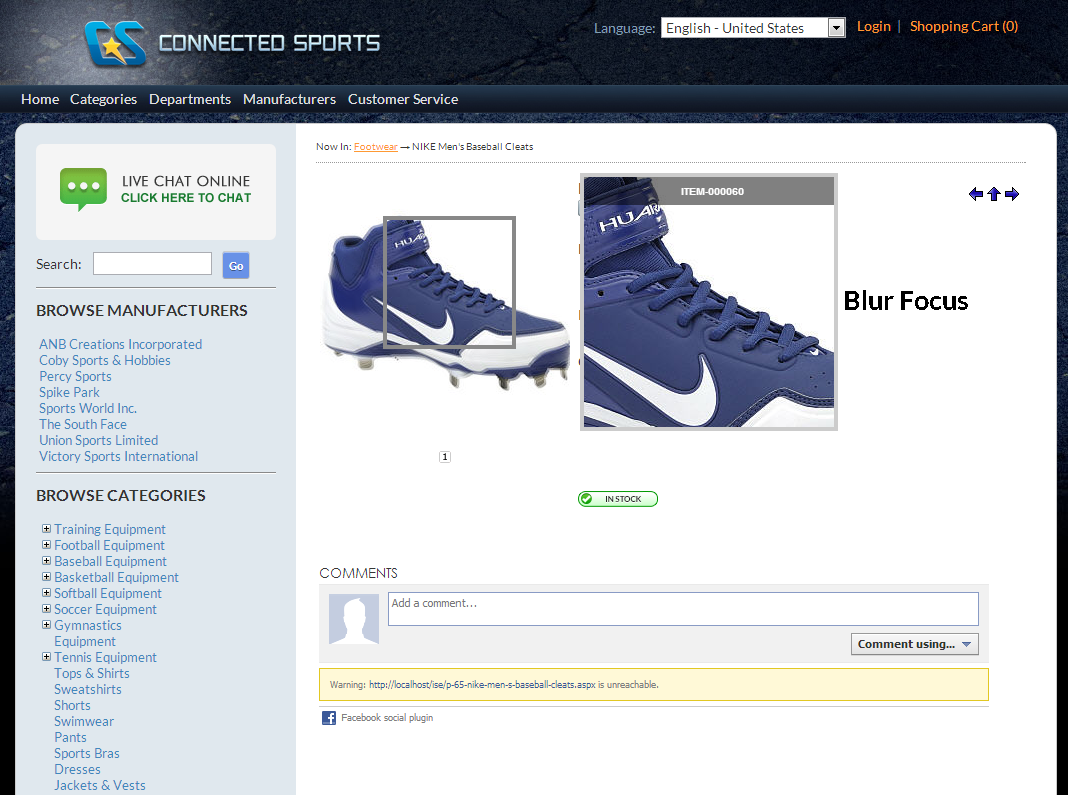
Click Image to Enlarge
- Zoom Out - allows you to create a window with an enlarged version of the image that is zoomed out directly from the original image.
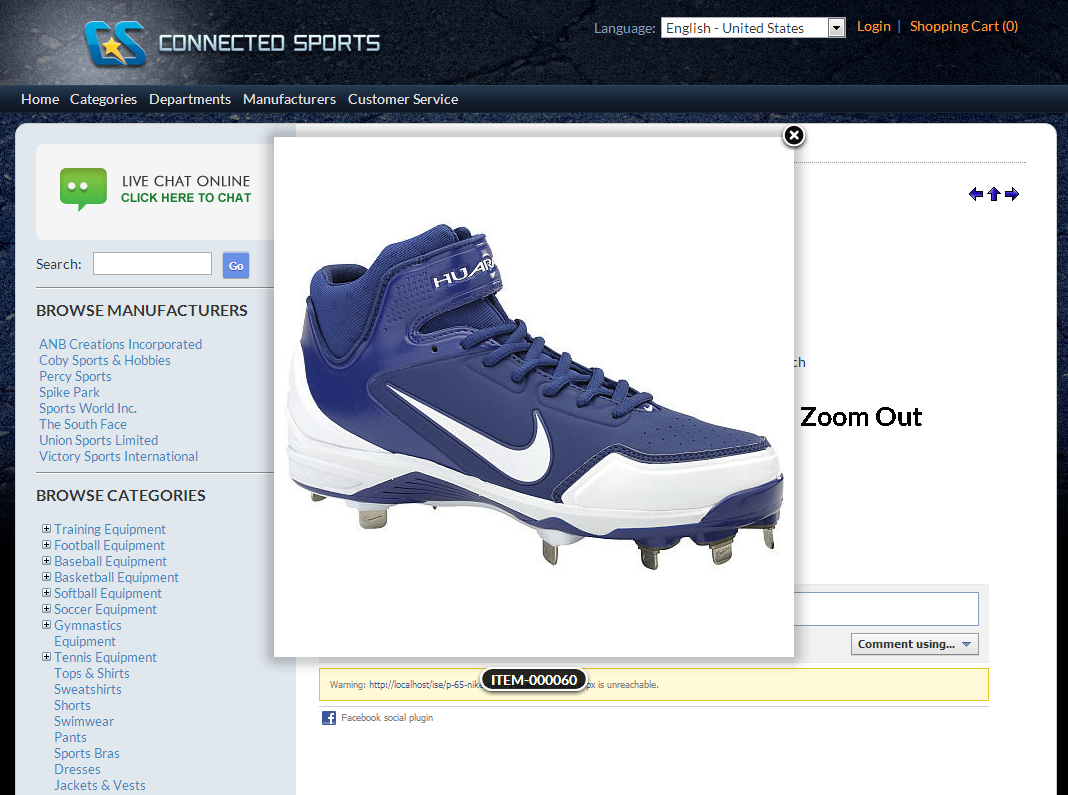
Click Image to Enlarge
- Popup - lets you create a window with an enlarged version of the original image while the rest of the image background dimmed.
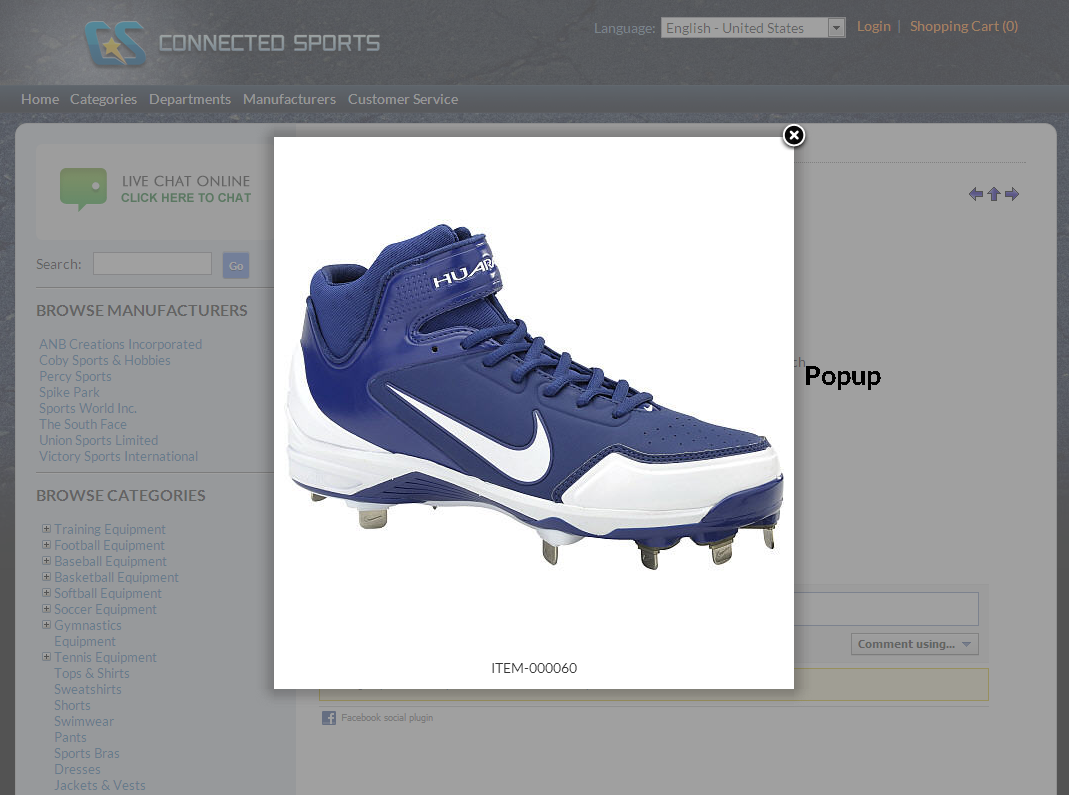
Click Image to Enlarge
- Gallery - lets you create a slideshow of images for the same product (applicable if the item has 2 or more images uploaded).
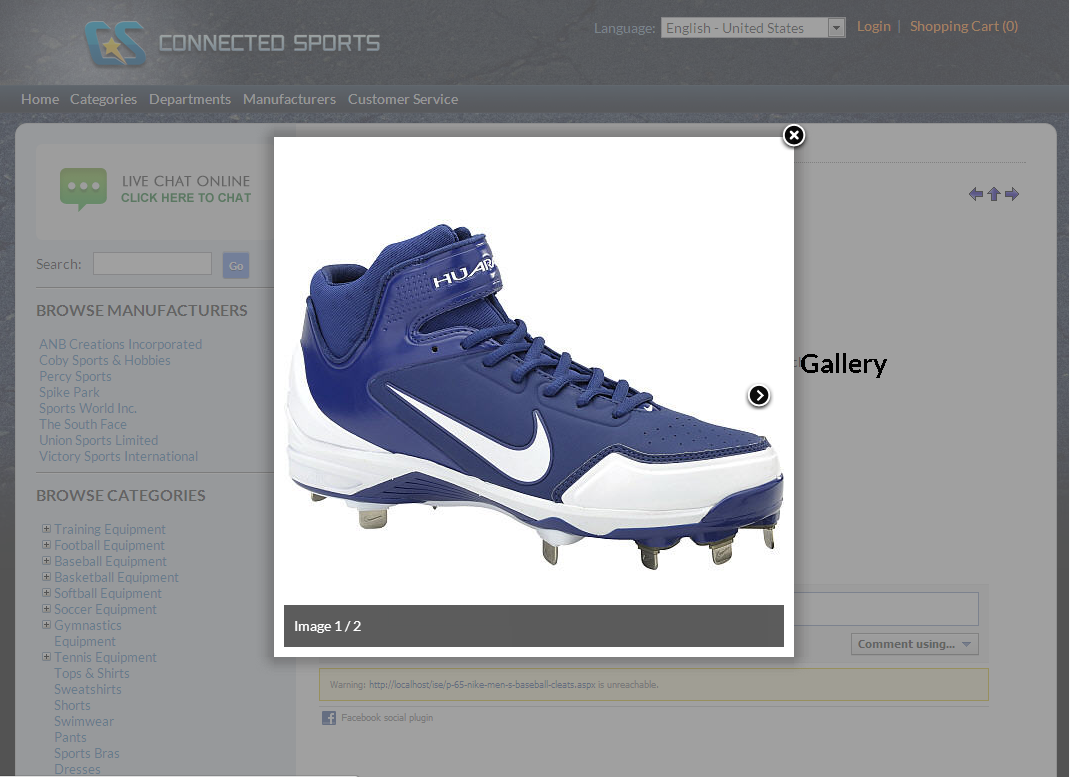
Click Image to Enlarge
- Lens Zoom - lets you create a magnified version of the image detail that is hovered.
- After applying your selected Zoom Effect, click Save and Close to apply changes.