
How To Verify Tax Location for Pickup Order
In Connected Business, the tax defined for all transactions is based on the tax code assigned in the Customer Ship To, regardless whether the customer’s default pricing is retail or wholesale. This is applied both in the backend application and in the webstore. However, in cases where the customer decides to pick up their orders at the location nearest to them, there may be a difference in the tax computation as tax may vary per location based on the customer’s default pricing.
Starting with Connected Business 14, the tax to be used for pick-up transactions will be based on the customer’s default pricing as defined in the pick-up location. This it to make sure that the system uses the correct tax computation for retail and wholesale pick-up transactions.

This feature is only available in Connected Business v14 and higher.
In the sales order, the tax code assigned in the order should match the tax code indicated in the pickup location based on the default pricing assigned to the customer.
This feature only applies to orders/invoices if the shipping method assigned is Pickup.
To check this,
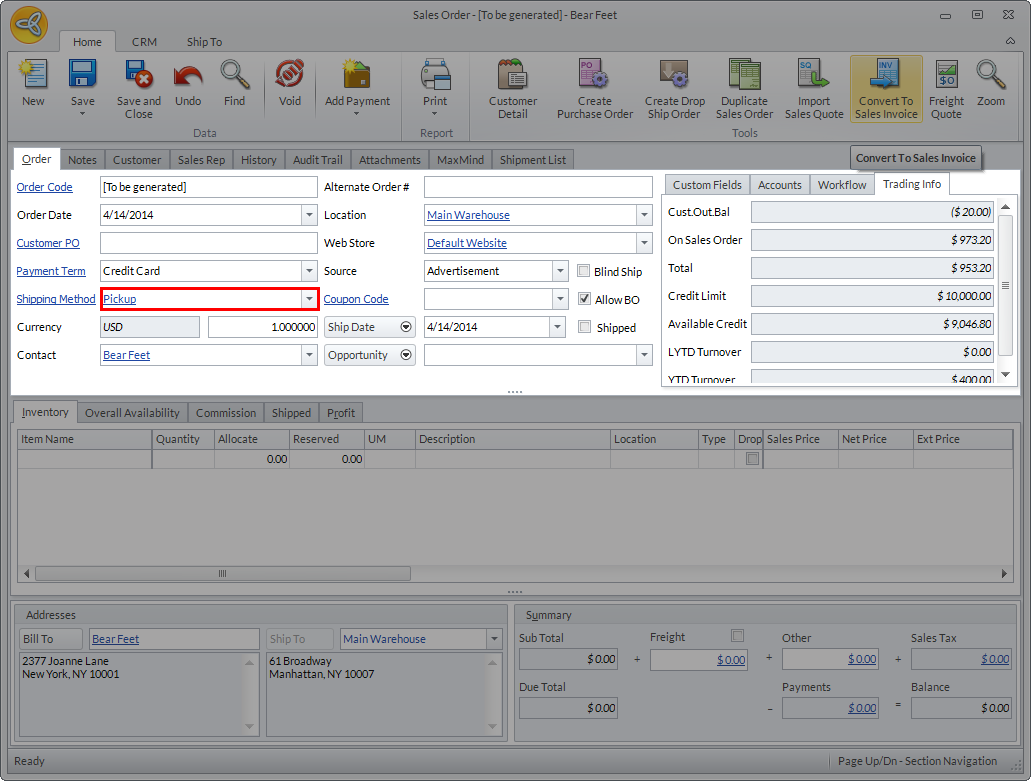
- Create a sales order and set the shipping method to Pickup.
Click Image to Enlarge
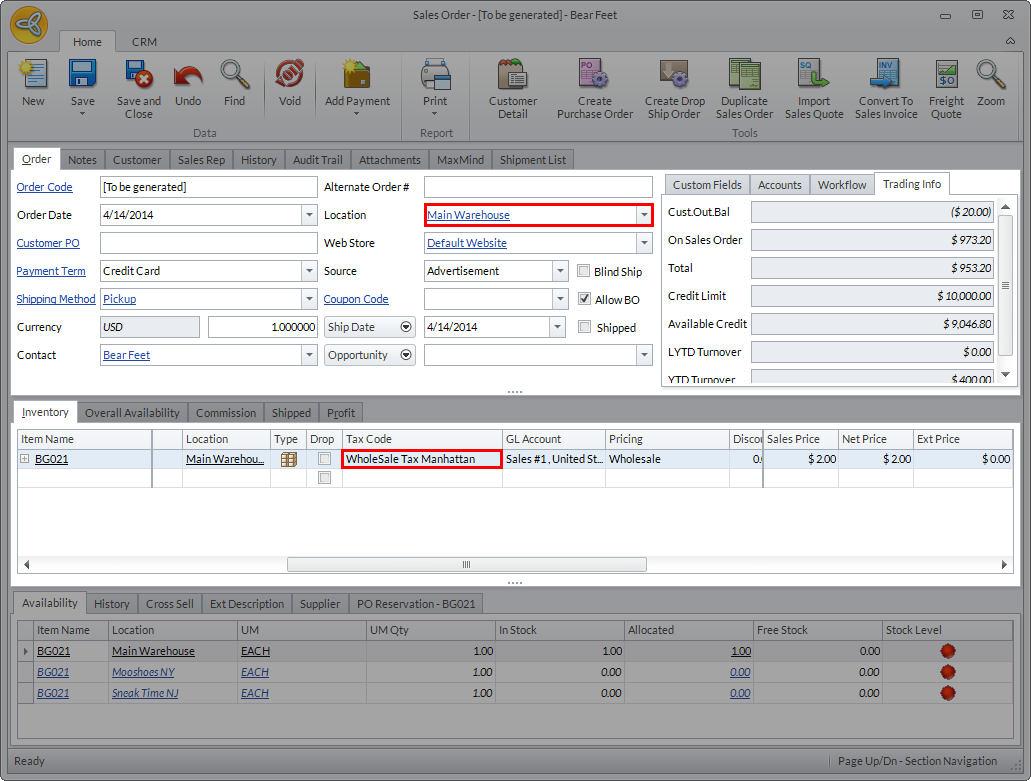
- Add an item in the sales order and take note of the location and the tax code indicated for the item. (e.g. Location – Main Warehouse ; Tax Code – Wholesale Tax Manhattan).
Click Image to Enlarge
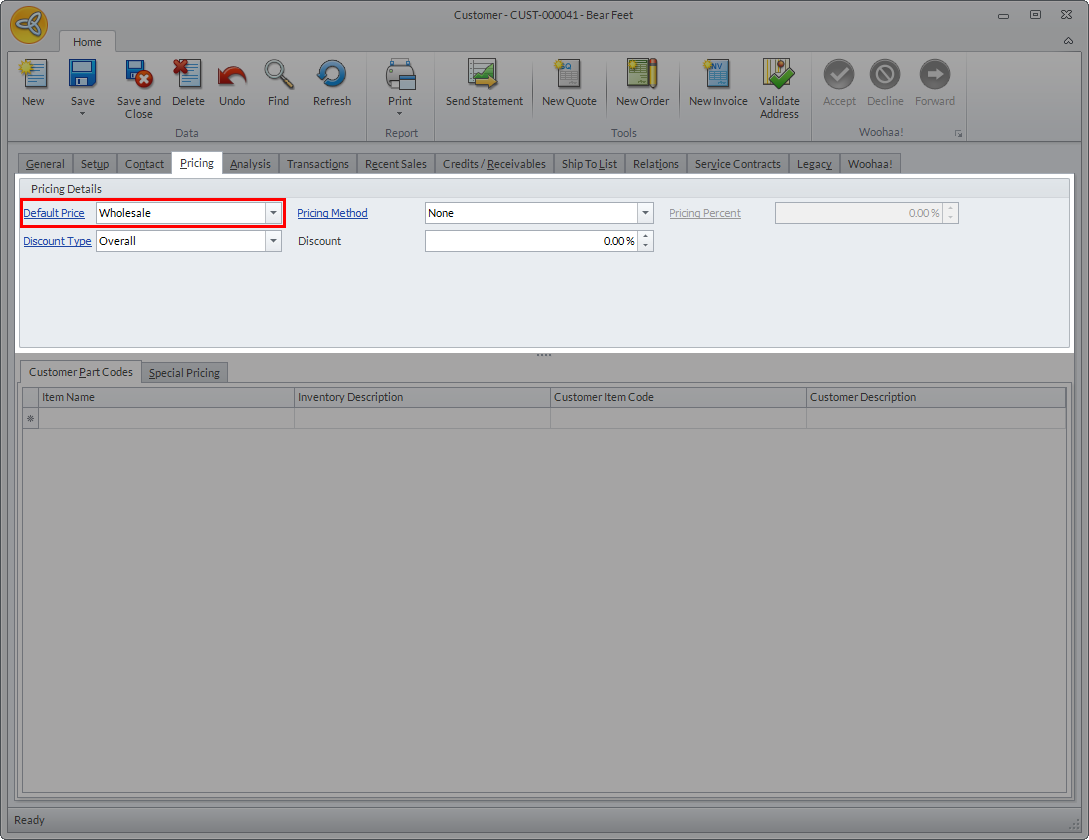
- To verify if the tax code used for the item is correct, check the pricing tax code for the location based on the default pricing set for the customer. To check the default price, go to Customer module > Customer > Find Customer. Select customer from the list to view the Customer Detail form (e.g. Bear Feet). Go to the Pricing tab > Default Price. In the sample sales order above, the default price set for the customer is Wholesale.
Click Image to Enlarge
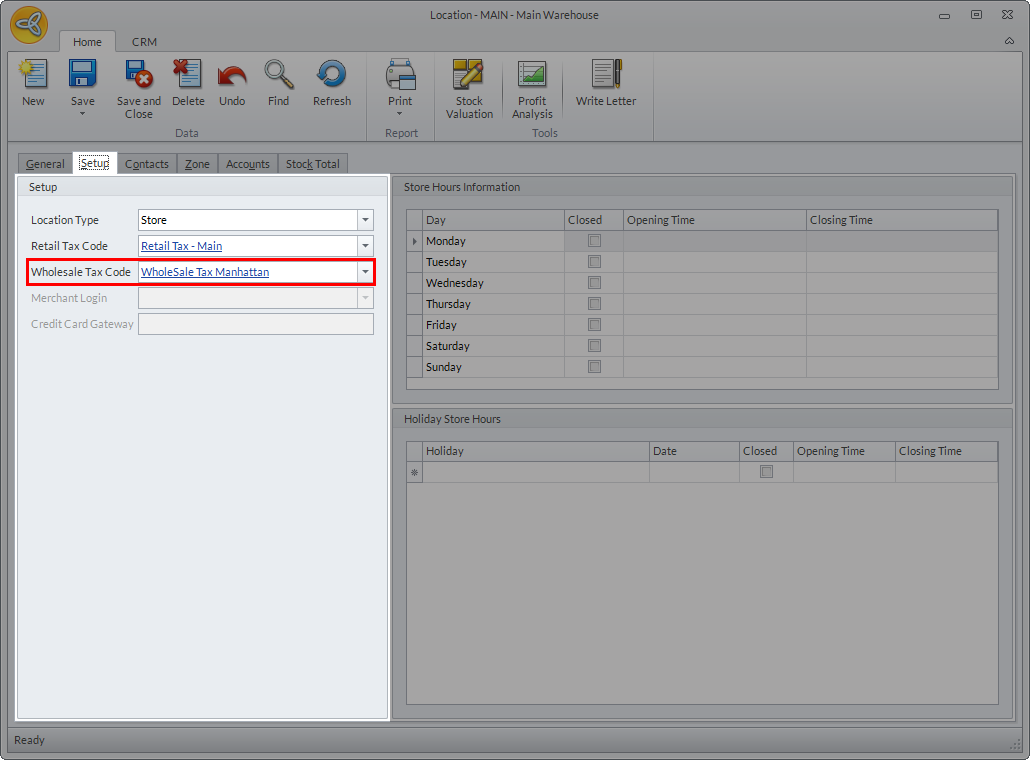
To check the tax code for the pricing assigned to the customer, in the location (e.g. Main Warehouse), go to Inventory module > Location Find Location. ) to view the location detail form. Go to the Setup tab > Setup.
Click Image to Enlarge
- Notice that the tax code in the sales order matches the tax code indicated for wholesale customers in the location form.

Click Image to Enlarge
Click Image to Enlarge