
How To Process Customer Refund in CB 14
In Connected Business 14, you can now apply or allocate customer refunds to existing customer credits directly from the Refund form.

This feature is only available in Connected Business v14 and higher.
To do this,
- Go to Customer module > Receipts > Customer Refund. The list of Bill To Customers will be displayed.
- Select customer from the list. The Refund form will be displayed.
- Select the payment type for the refund from the Payment Type dropdown list.
- In applying the refund, you can either enter the refund amount in the Amount Paid field then allocate it to the customer’s existing credits or you can select the credit transactions from the Credits tab and the amount to be refunded will be automatically entered in the Amount Paid field.
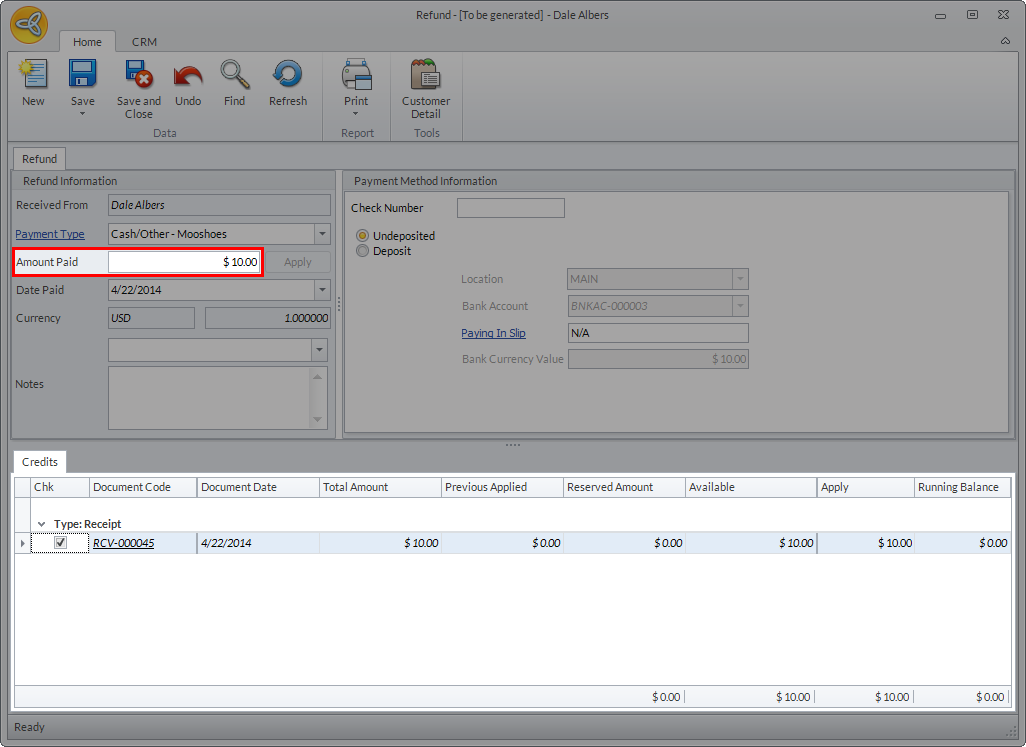
Click Image to Enlarge
You can apply customer refunds to existing customer receipts, credit memos, and opening credits.
- Click Save or Save and Close to apply refund.
- You can view the refund allocation from the Customer module > Receipts > Customer Refund > Customer Refund History.
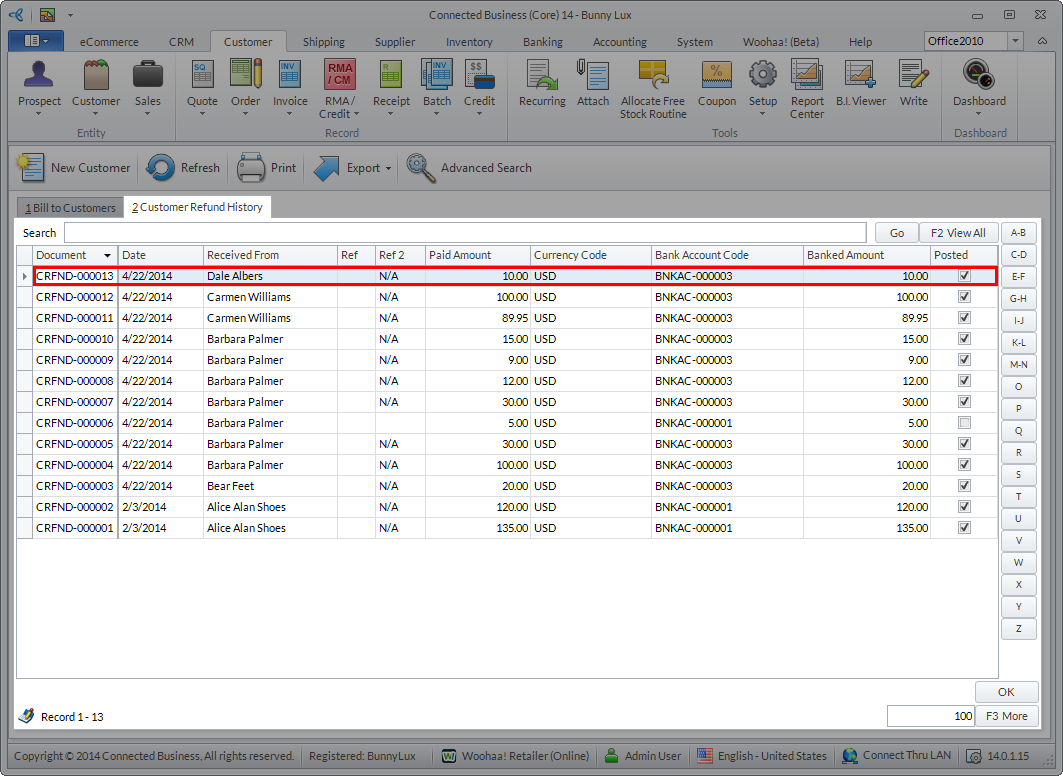
Click Image to Enlarge