
How to Handle Failed Credit Card Authorization
How does the system handle unauthorized credit card transactions?
When a credit card authorization fails, the page will return to the Payment Info page with an error message. No emails for order receipt or new order notification are generated when this happens.
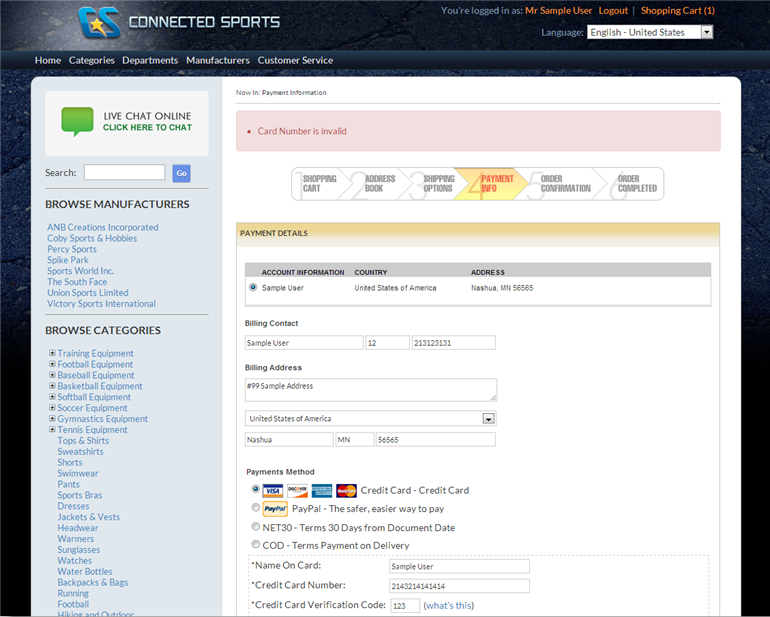
Click Image to Enlarge
You can choose to show the actual error message returned from the payment gateway. To do this,
- Go to the eCommerce module > Setup and select the Application Configuration option.
- In the Application Configuration window, enter the keyword "error" in the search field and click Go or hit Enter to begin the search for related appconfig parameters.
- A list of related appconfig parameters will be displayed. Select ShowGatewayError.
- The detail for ShowGatewayError appconfig will be displayed. Set the config value to "True".
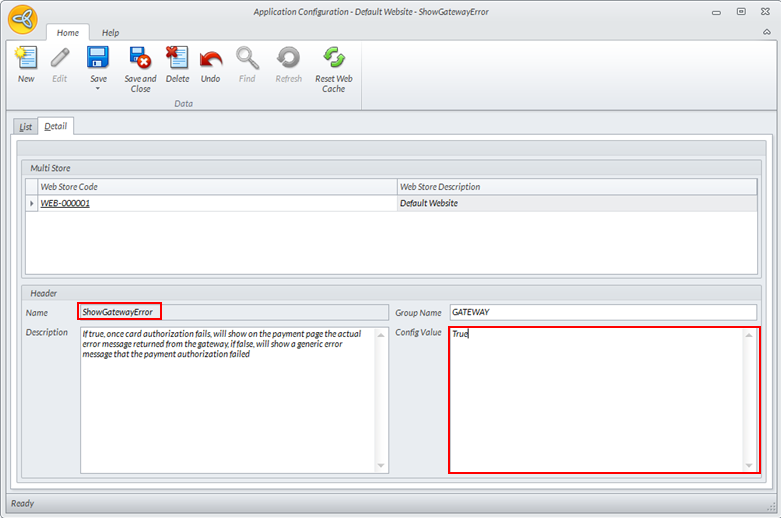
Click Image to Enlarge
- Click Save and Close.
You can also choose to show the generic error message as set in the system's string resource by changing the config value to "False". You can set your own error message if preferred. To do this,
- Go to eCommerce module > Setup and select the String Resource option.
- In the String Resource window, enter "checkoutpayment.aspx.cs.1" in the search fied and click Go or Enter.
- The detail form for checkoutpayment.aspx.cs.1 string resource loads. Enter your preferred message in the Config Value field.
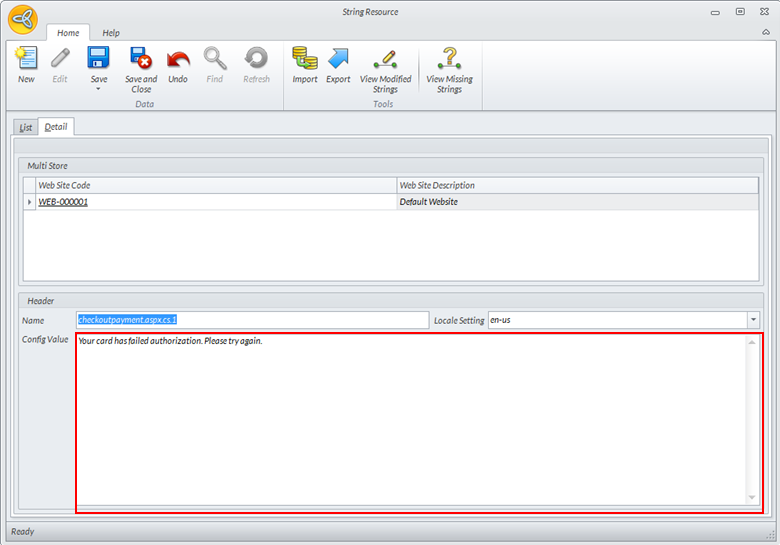
Click Image to Enlarge
- Click Save and Close to apply changes.
When an online transaction fails, the system does not automatically void the order. The number of counts for failed transactions depends on the value set in the MaxFailedTransactionCount in the application configuration. When the number of attempts exceeds the set value, the system clears the cart and voids the order. The customer will then be directed to the OrderFailed page where he/she can submit a feedback why the order didn’t go through.
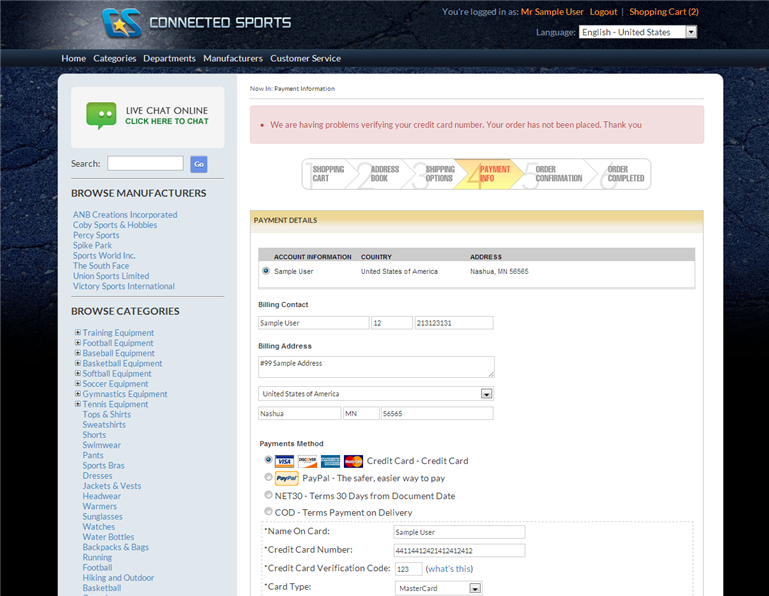
Click Image to Enlarge
To set the number of counts for failed transactions,
- Go to eCommerce module > Setup and select the Application Configuration option.
- In the Application Configuration window, enter the keyword "max" in the search field and click Go or hit Enter to search for related appconfig parameters.
- A list of related appconfig parameters will be displayed. Select MaxFailedTransactionCount.
- The detail for MaxFailedTransactionCount appconfig will be displayed. Set the preferred value of counts in the Config Value field.
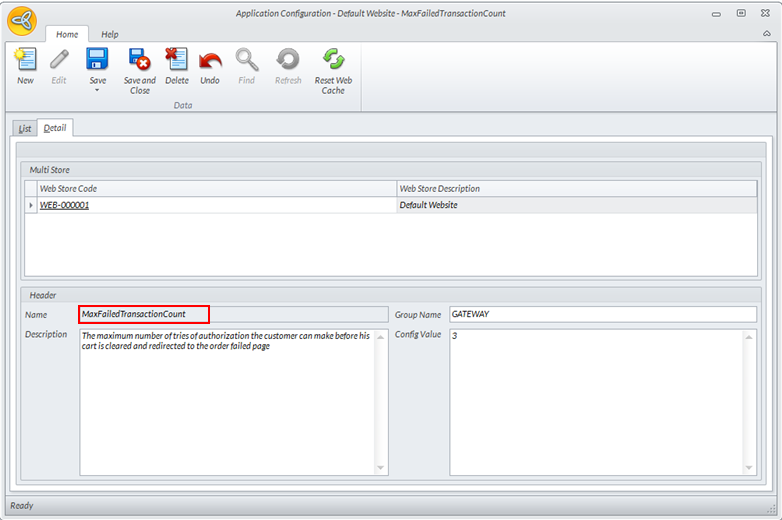
Click Image to Enlarge
- Click Save and Close to apply changes.