
How To Force Sign-Out Idle Users
This article will demonstrate how to force sign-out idle users in Connected Business.

This feature is only available in Connected Business v14 and higher.
In Connected Business v14, you can force sign-out idle users or those users who have been logged in for more than 12 hours in the application.
You can force sign-out all idle user accounts except webadmin, emailadmin, and jobadmin.
To force sign-out idle users,
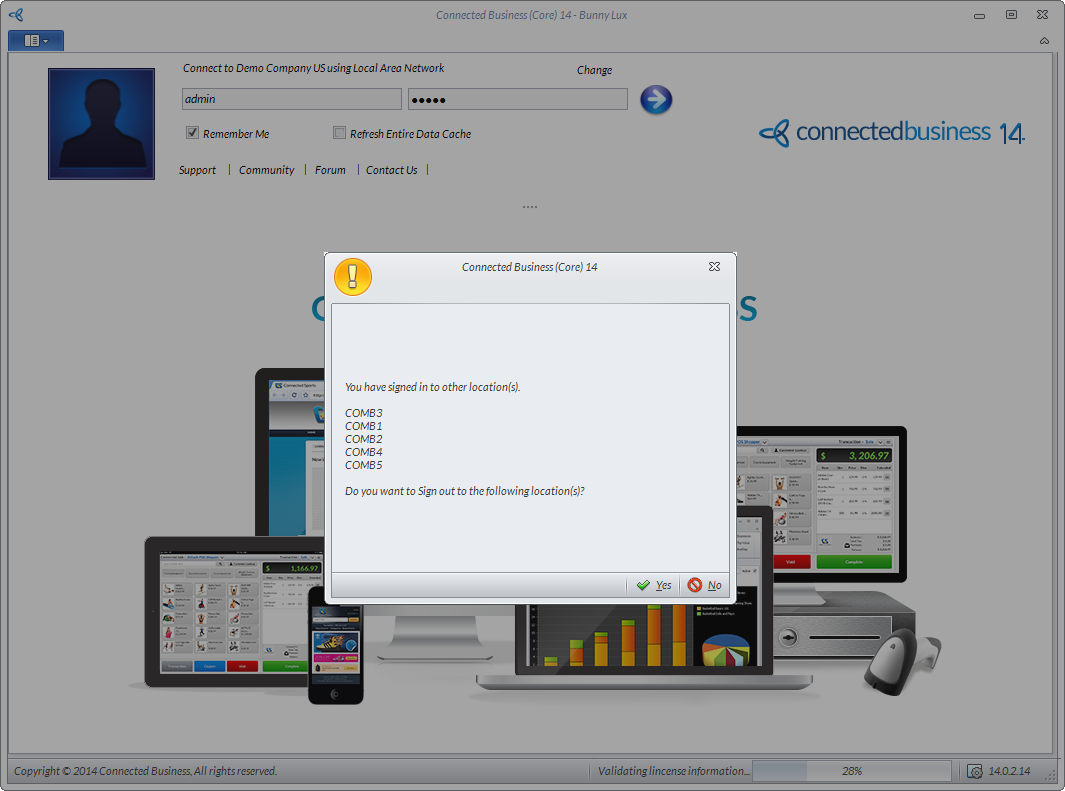
- Launch the Connected Business application then enter your user name and password. If the system detects idle users, a pop-up will be displayed with the list of logged-in idle users.
Click Image to Enlarge
- Click Yes if you want to force sign-out all idle users. Click No if you want to select the users to sign-out. Upon selecting your option, you will be signed-in to the application.
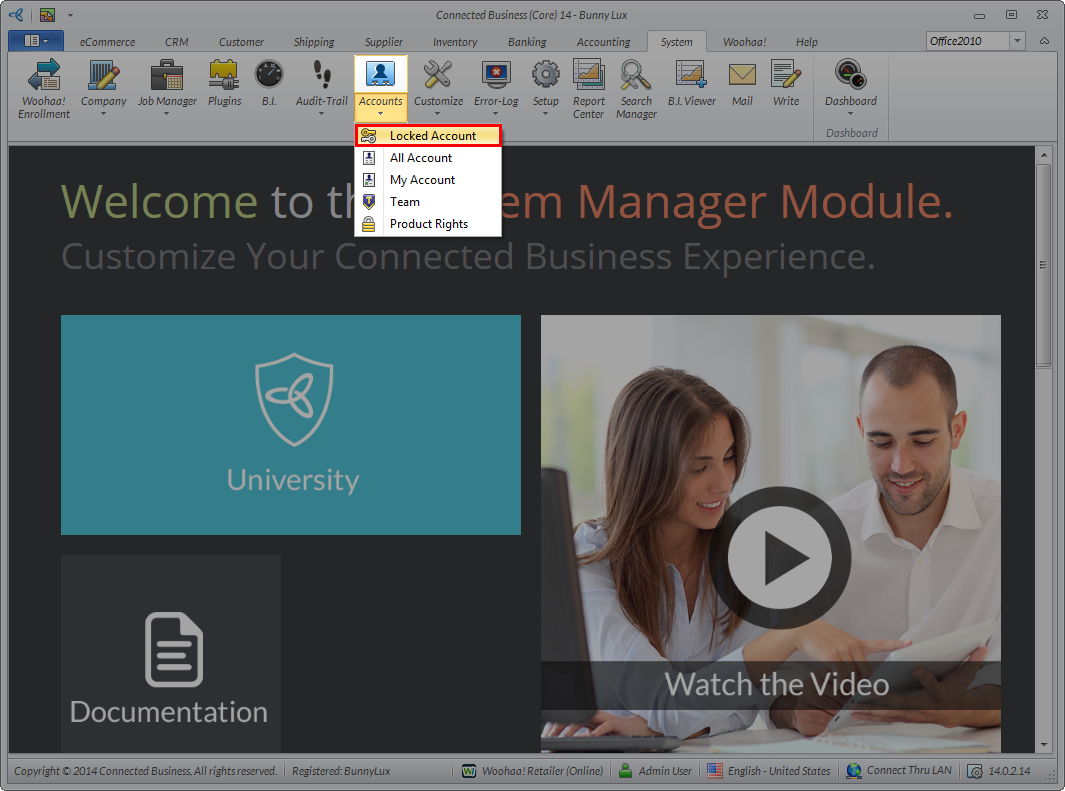
- If you want to select the user/s to sign out, go to System module > Accounts > Locked Account.
Click Image to Enlarge
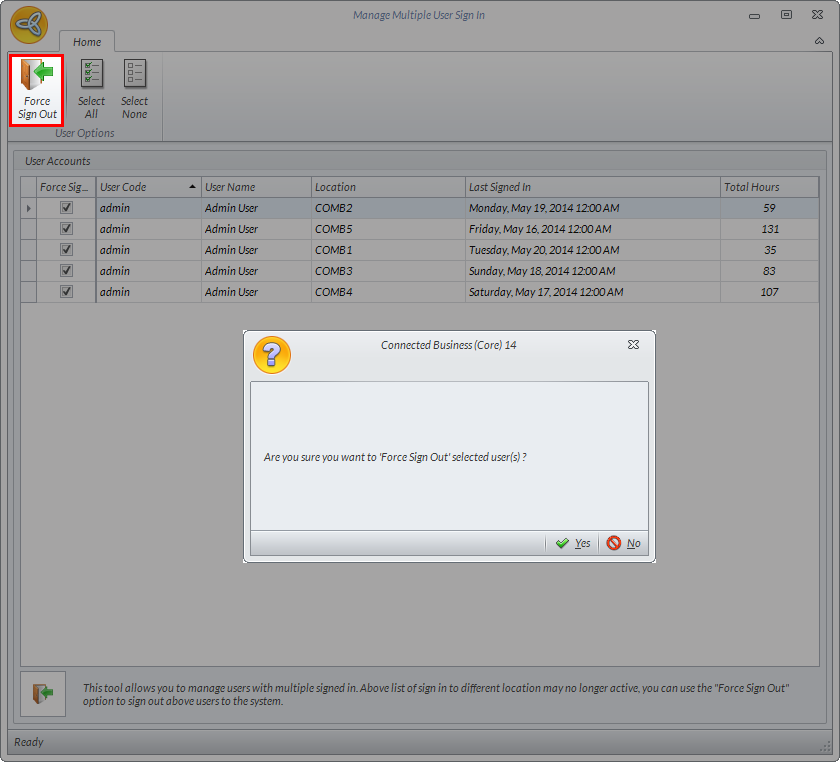
The Manage Multiple User Sign In form will be displayed.

Click Image to Enlarge
You can force sign-out all idle user accounts except webadmin, emailadmin, and jobadmin.
- Tick the Force Sign Out checkbox of the user you want to sign out then click the Force Sign Out button. A message prompt will be displayed confirming if you want to sign out the selected user/s. Click Yes to sign out the user/s, otherwise click No to select other or additional user/s to sign out.
Click Image to Enlarge
- Once signed out, the selected user/s will be deleted from the list.