
How To Create Returns
This article will demonstrate how to create returns or credit memo in Connected Business POS.
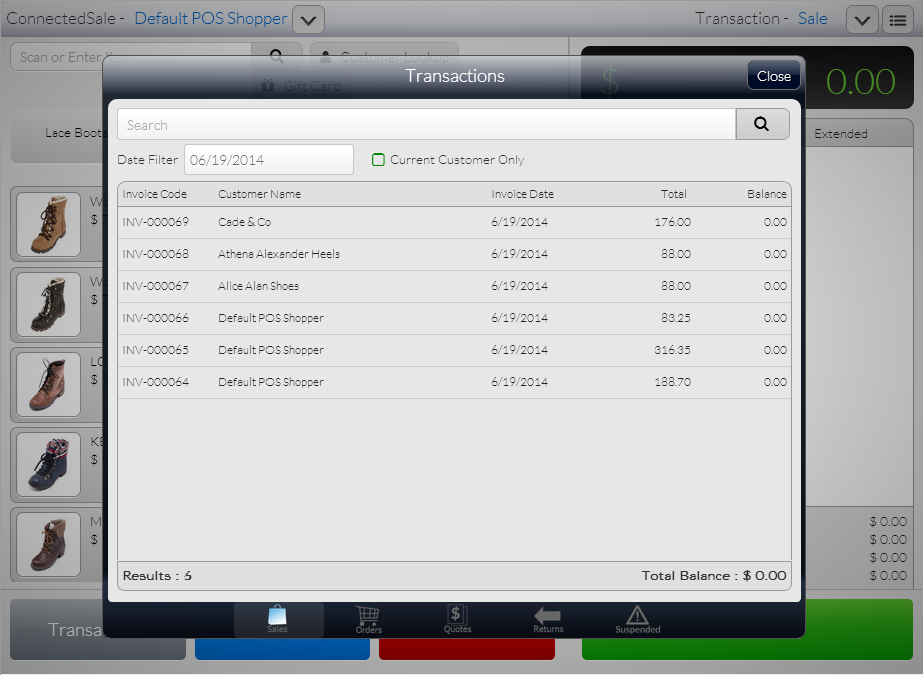
- From the POS screen, tap the Transactions button. The Transactions form will be displayed.
- Tap the Sales menu to view the list of all posted sale transactions.
Click Image to Enlarge

You can only process returns for posted sale transactions.
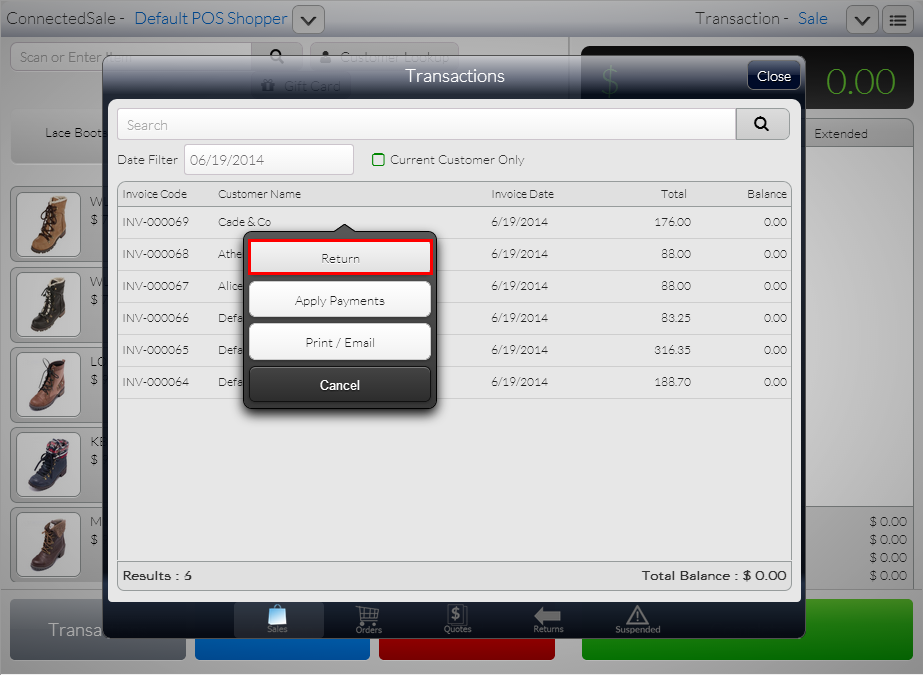
- Select the sale transaction from the list. A pop-up menu will be displayed.
- Select Return option. The transaction details will be displayed in the Transaction tape.
Click Image to Enlarge
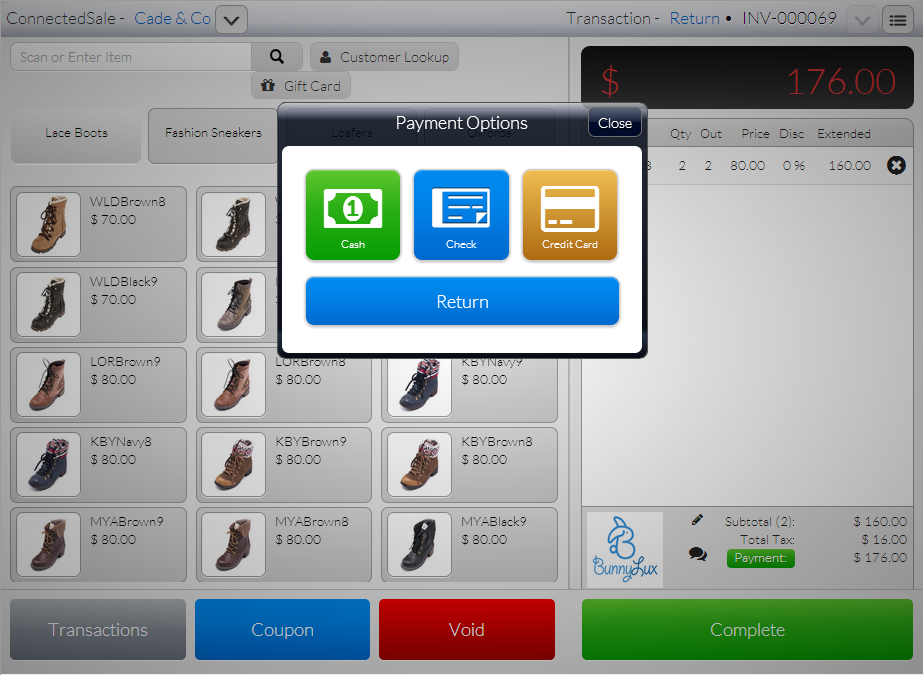
When processing returns, the transaction type (which is set to Return) and the invoice number will be indicated at the upper right corner of the POS screen.
- Tap Complete then select the payment option to be used for crediting the customer.
Click Image to Enlarge
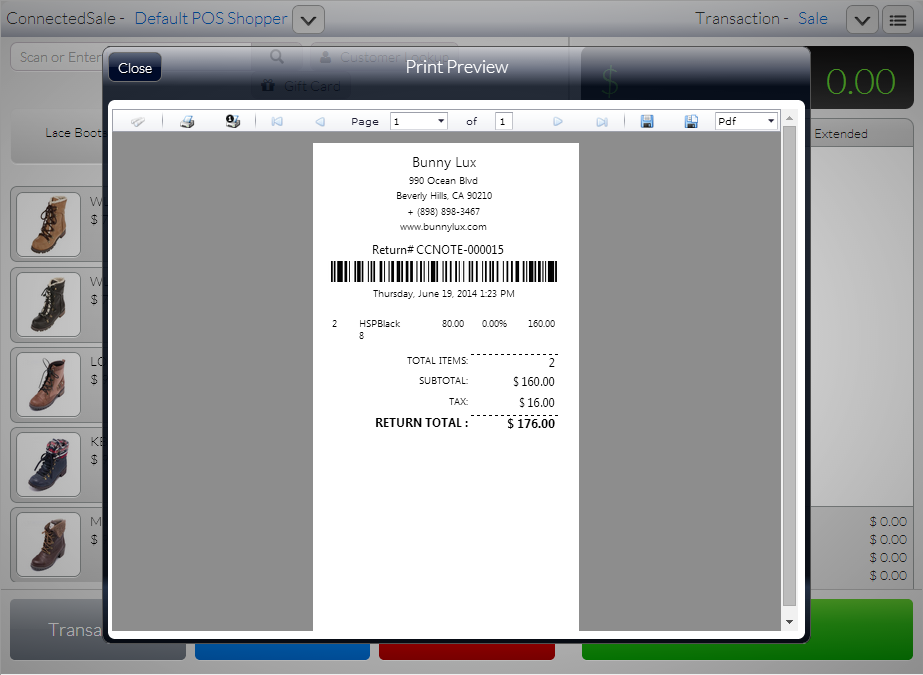
- Once the payment is completed, a print preview of the Return receipt will be displayed.
Click Image to Enlarge
- Click Close to close the Print Preview window.
- To view the list of all Return transactions, tap the Transactions button to load the Transactions form then select Returns menu.
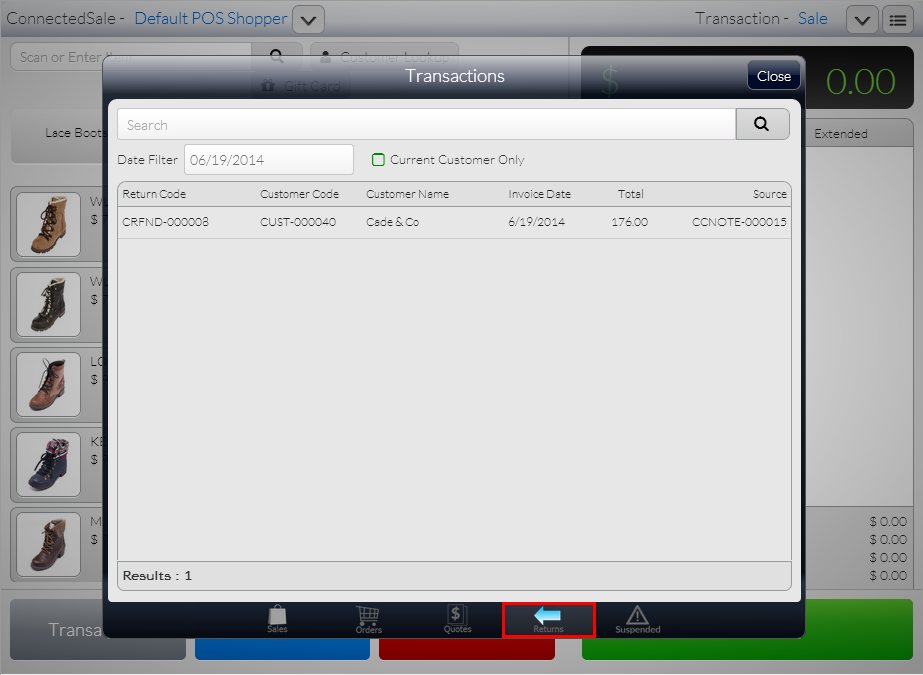
Click Image to Enlarge