
How To Add Order Notes
In Connected Business POS, Order Notes are pieces of information that describe specific additional details about a customer, transaction, or line item. This article will demonstrate how to add order notes for customers, transactions, and items in Connected Business POS.

This feature is only available in Connected Business v14 and higher.
Customer-Specific Order Note
To add a customer-specific order note,
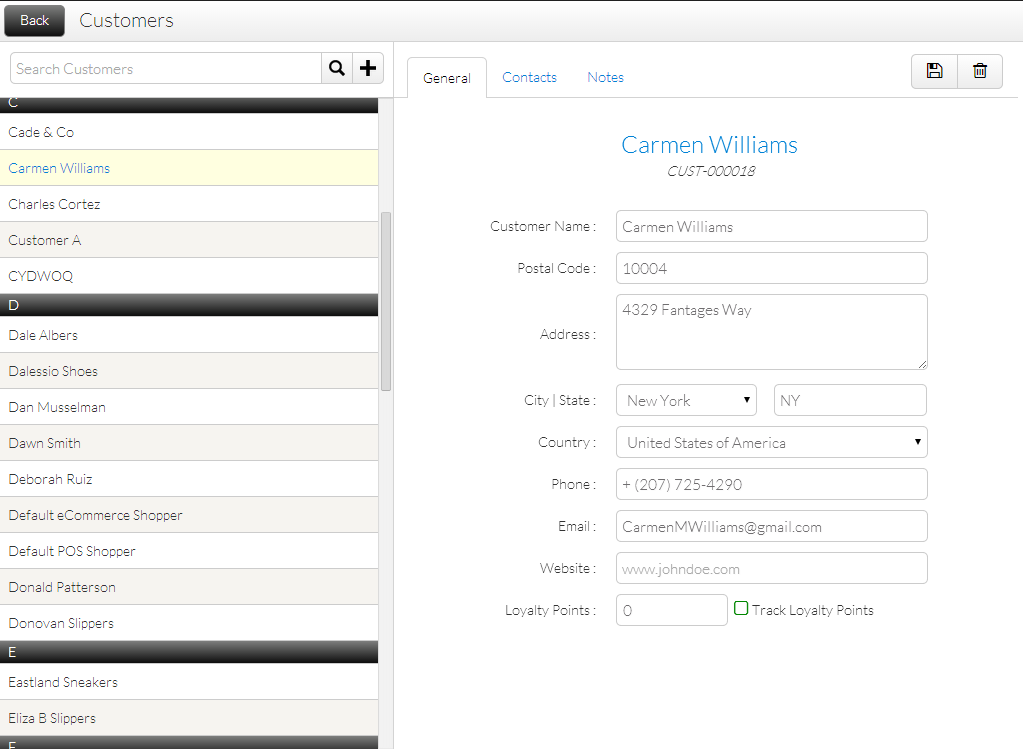
- From the POS Dashboard, go to the Customers module.
- Select a customer from the list.
Click Image to Enlarge
- Switch to the Notes tab then tap the (
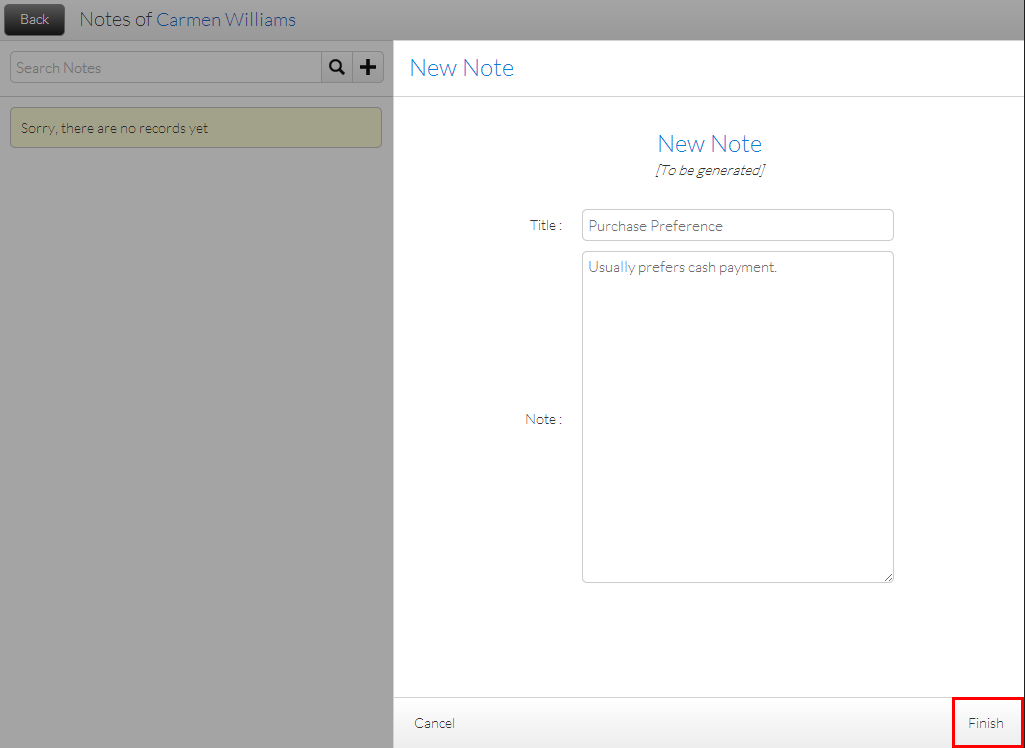
 ) button. The New Note form will be displayed.
- Fill in the form and tap Finish to save and add the Order Note.
Click Image to Enlarge
This can also be done on the POS module. To do so,
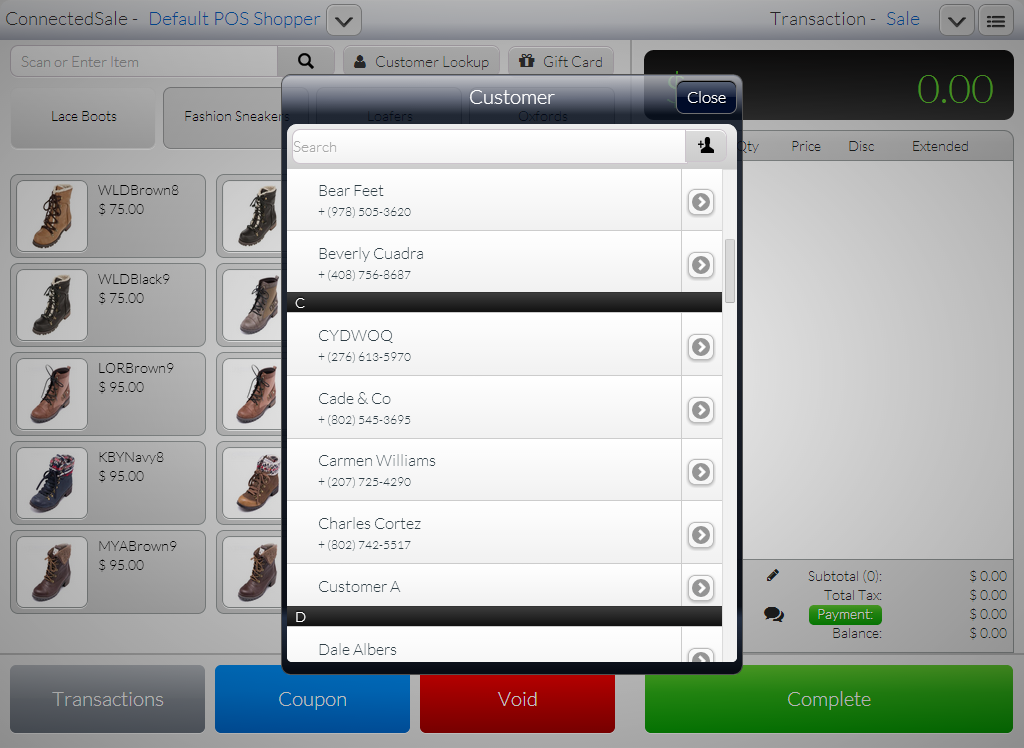
- On the POS module screen, tap Customer Lookup. The list of customers will be displayed.
Click Image to Enlarge
- Tap the (
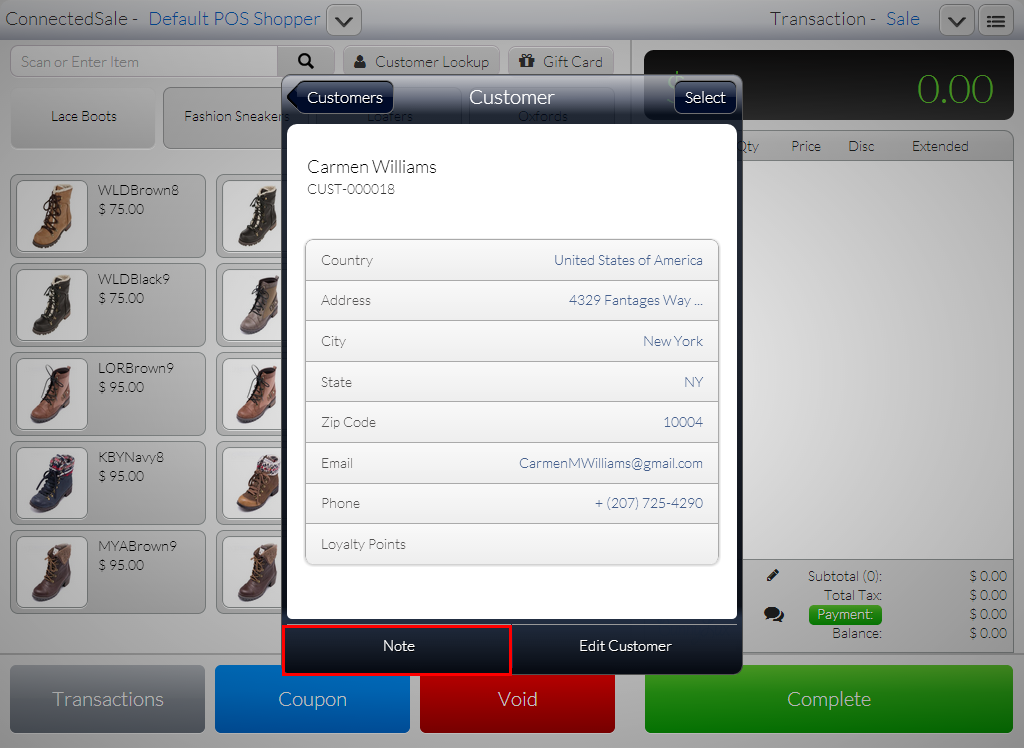
 ) button next to a customer name on the list. The Customer Information screen will be displayed.
Click Image to Enlarge
- Tap Note. The Customer Notes screen will be displayed.
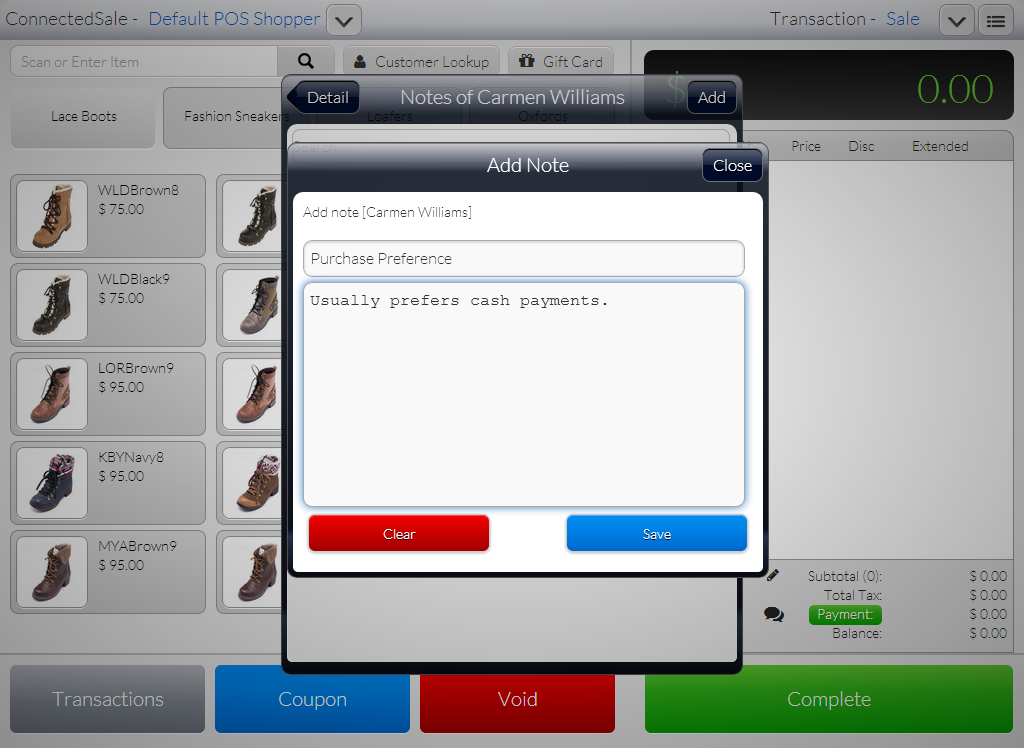
- Tap Add. The Add Note screen will be displayed.
Click Image to Enlarge
- Fill in the form then tap Save to add the Order Note.

Transaction-Specific Order Note
To add a transaction-specific order note,
- On the POS screen, select an item/s to purchase.
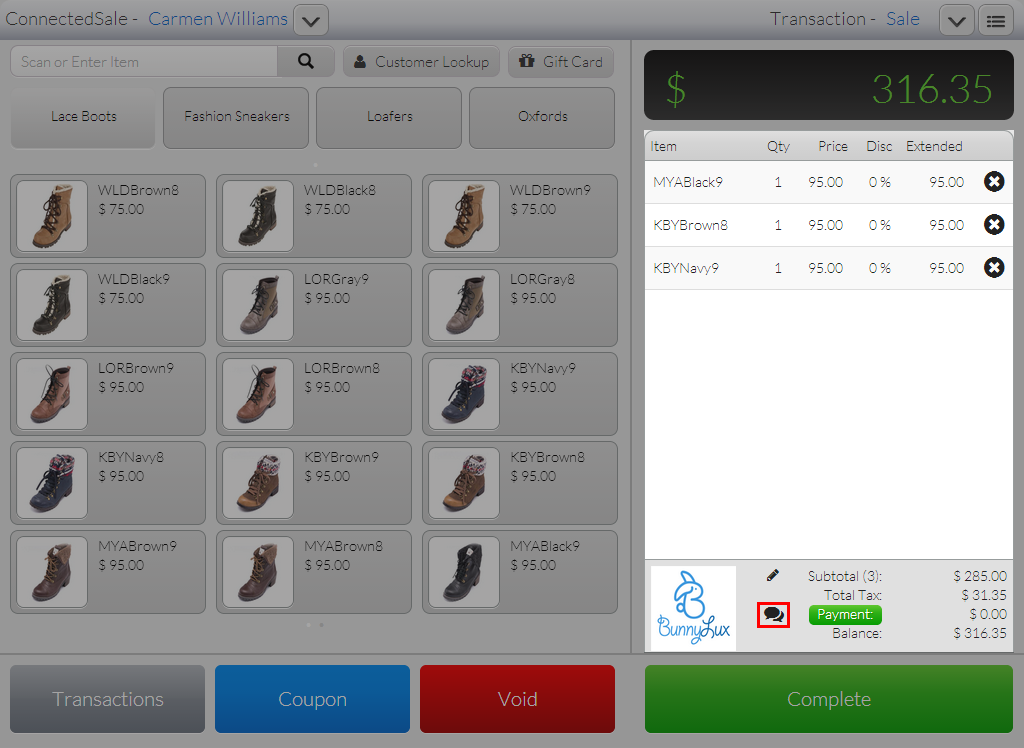
- On the Tape, tap the (
 ) icon next to payment. The Add Note form will be displayed.
Click Image to Enlarge
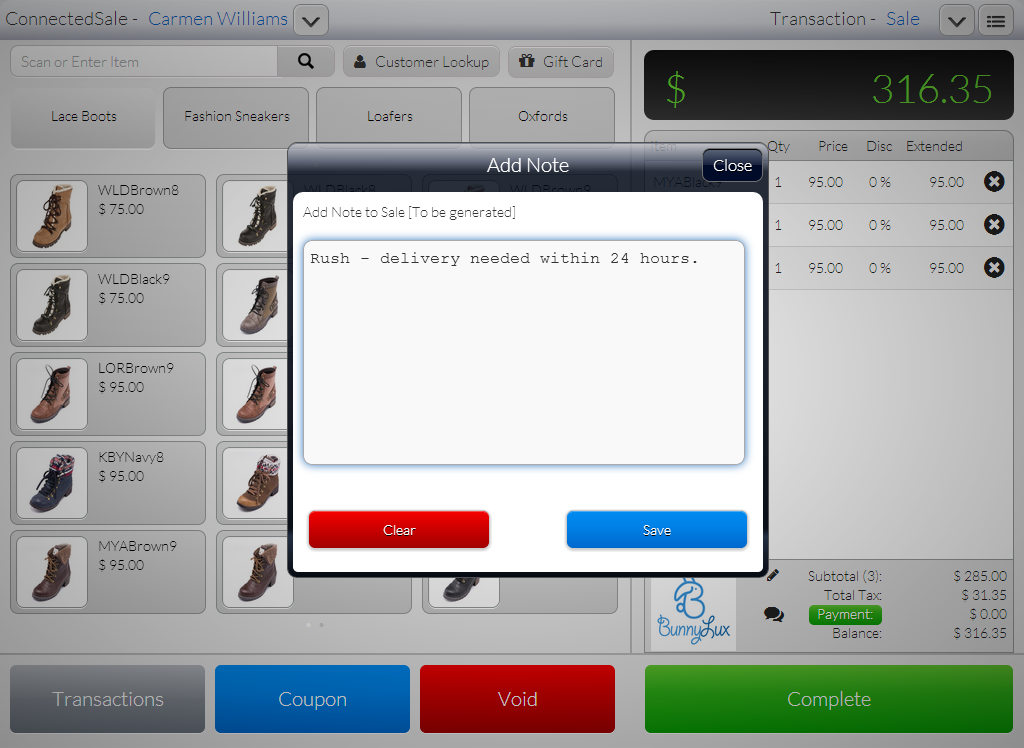
- Fill in the form and tap Save to add the Order Note and close the form.
Click Image to Enlarge
- Tap Complete and select a Payment Option to finish the transaction.
Transaction-specific notes can be added to all transaction types (i.e. Sale, Order, and Quote).
Line Item-Specific Order Note
To add a line item-specific order note,
- On the POS screen, select an item to purchase.
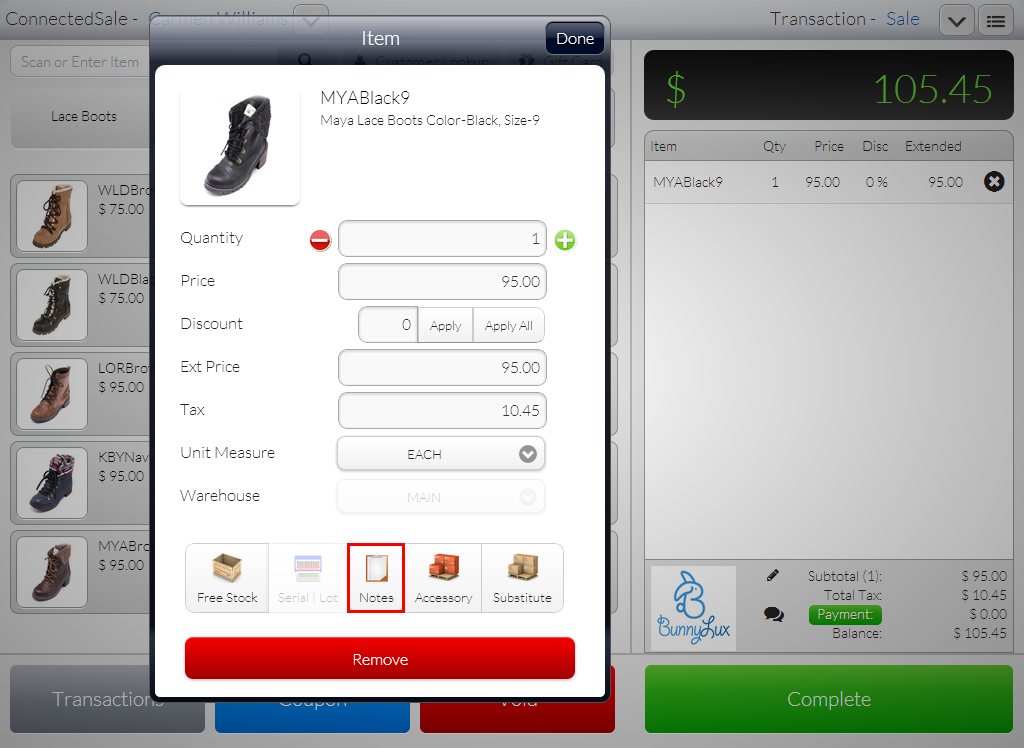
- On the Tape, tap the purchased item. The Item form will be displayed.
Click Image to Enlarge
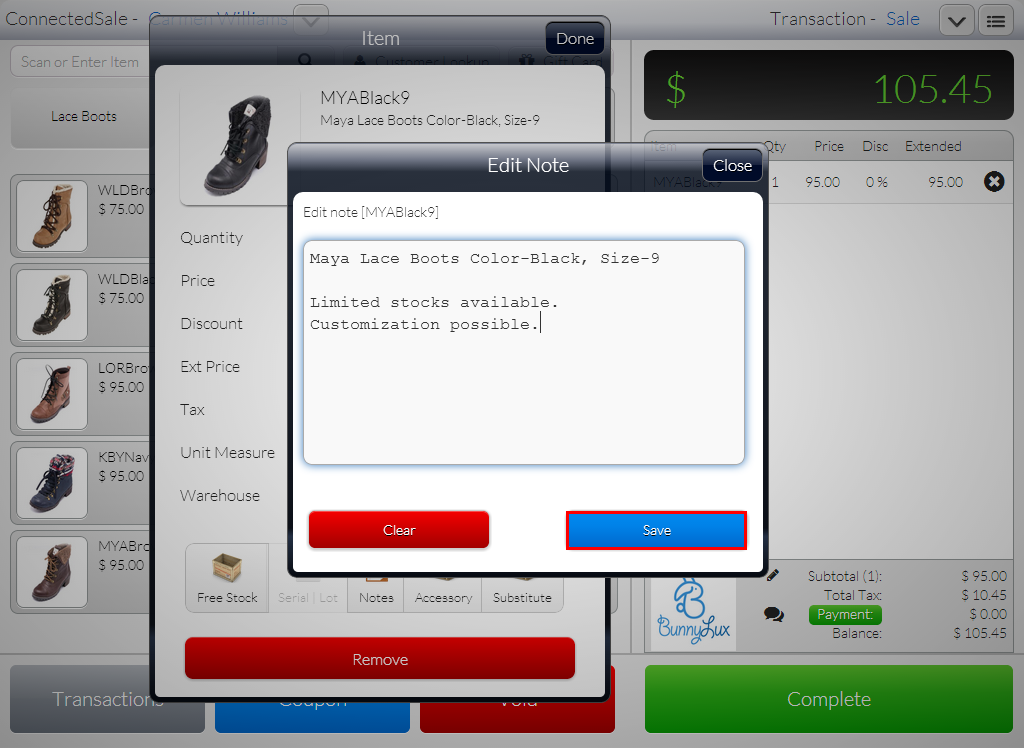
- Tap Notes. The Edit Note form will be displayed.
- Fill in the form and tap Save to add the Order Note.
Click Image to Enlarge
By default, all line items come with a note showing the item's description.
- Tap Done to close the Item form and return to the POS screen. Tap Complete and select a Payment Option to finish the transaction.