
Generate Documents for International Shipment
The Shipping module can automatically generate documents for international shipments. The files can be printed at your warehousing location and passed on to your third party carrier for processing.
The documents that are generated by Connected Business include:
- Commercial Invoice – This document is presented to customs officials declaring items that are exported across international borders.
- NAFTA - The NAFTA Certificate of Origin is used by the United States, Canada, and Mexico to determine if imported goods are eligible to receive reduced or eliminated duty as specified by the North American Free Trade Agreement.
- Certificate of Origin – An international trade document attesting the true origin of item that is moving across international borders. This documentation is separate from NAFTA.
- Shipper's Export Declaration – This document can be used as a census document for U.S. exports. If you are using UPS as a third party carrier, this document is also required for shipments that exceed $2,500 in value.

This feature is only available in Connected Business v14 and higher.
To create international shipment documents, go to the Shipping module and open a Shipment Form, either from an SO or an Invoice.
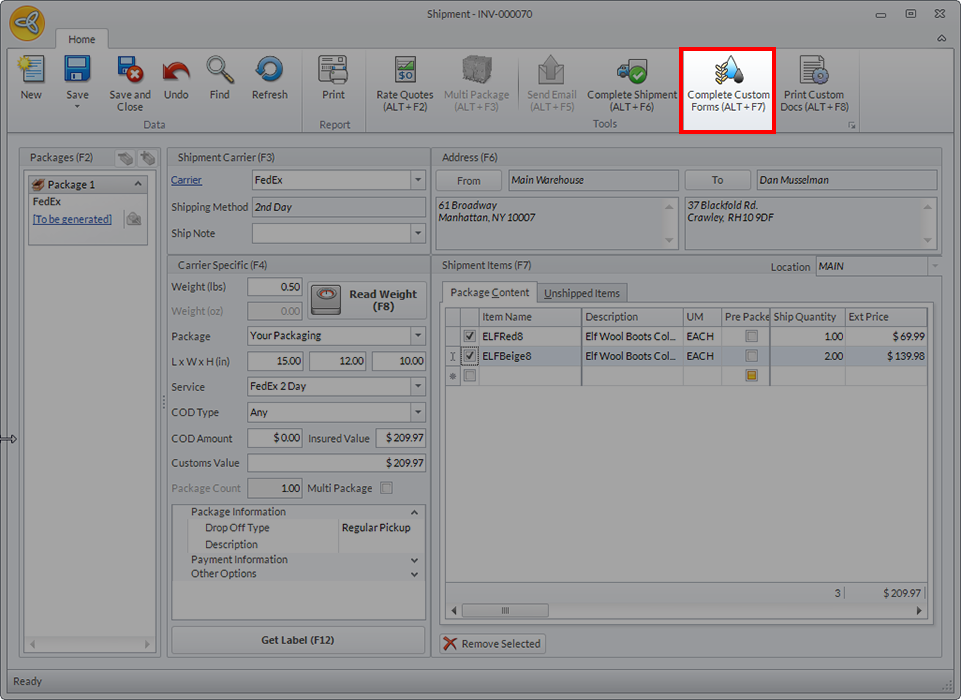
Click on the button labelled Complete Document Forms (ALT+F7).
Click Image to Enlarge
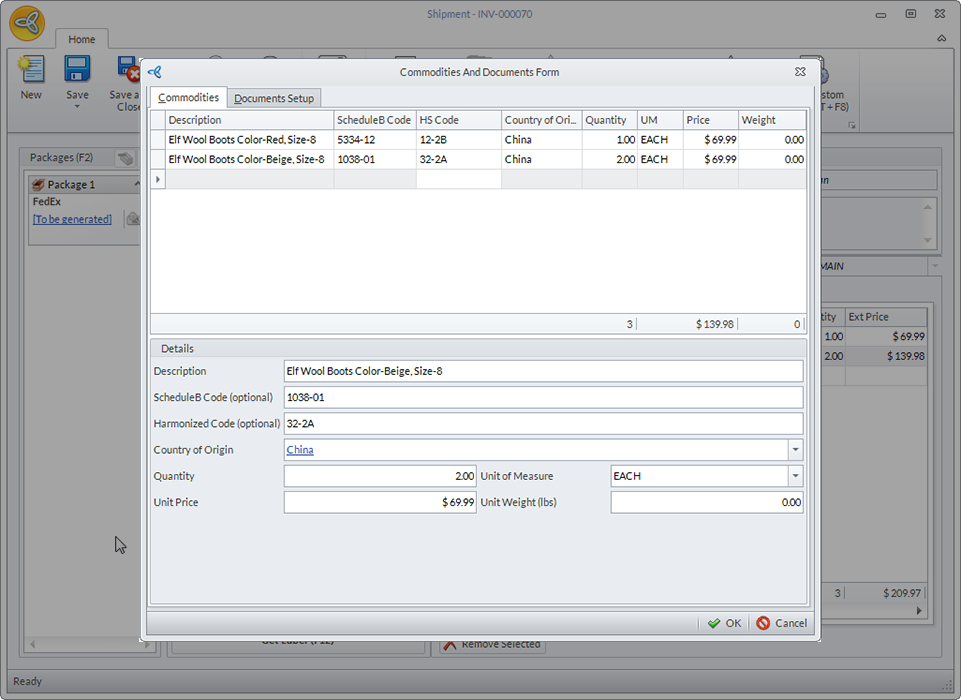
A new form will load titled the Commodities and Documents Form. Fill out the necessary fields in the Commodities tab.
Click Image to Enlarge
When creating documentation for international transactions, it is highly advisable to fill in all the necessary information about the items in the shipment. Including the Country of Origin is necessary to be able to move forward with this transaction.
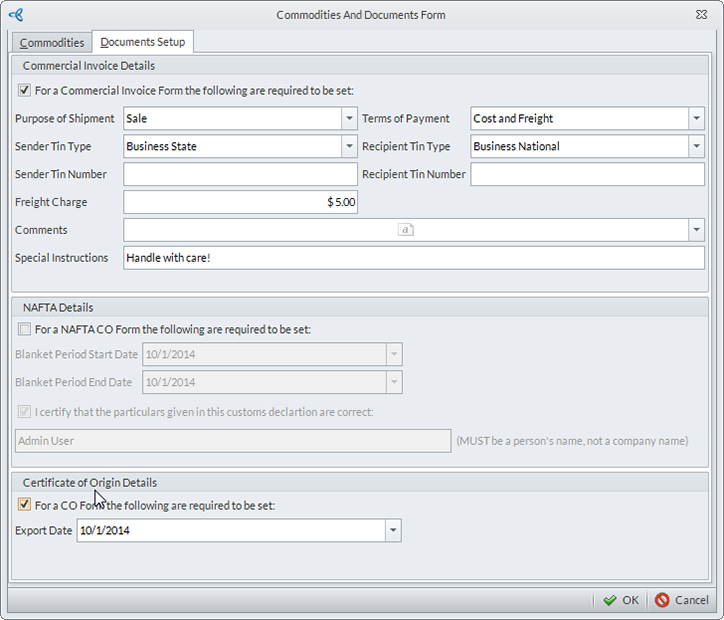
On the Document Setup tab of the Commodities and Documents Form, you can fill in the necessary information required for the different documents that you want to generate.
Click Image to Enlarge
After all the necessary fields are complete, click the OK button save all the changes.
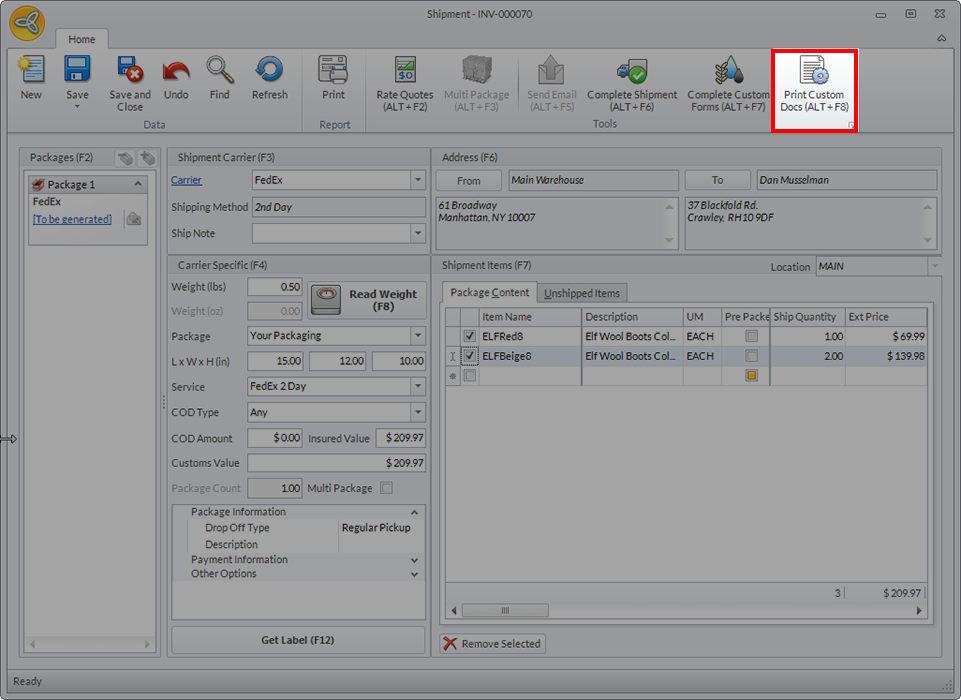
To generate the documents, go back the Shipment Form and click on the button titled Print Custom Docs (ALT+F8).
Click Image to Enlarge
It is advisable to print shipment documents after printing labels to ensure accuracy and standardization across your warehousing workflow.
The software will generate PDF files that display what the printed documents will look like.
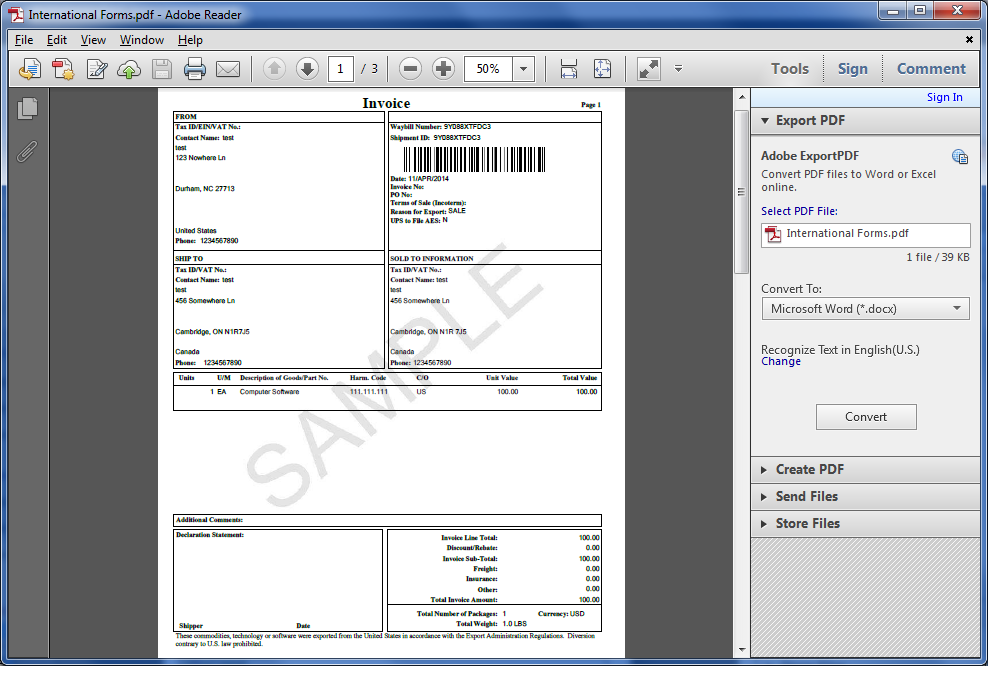
Click Image to Enlarge
Once you have authorized the shipment of the items with a third-party carrier, the carrier will then receive the generated files. They can then print copies to present to various customs representatives in the country where the shipment is exported.