
Enable Price Drop Notification
Notify Me on Price Drop button automatically informs customers of the recent price drop of a specific item in the web store via an automated email message, generated by the system.
Enable Price Drop AppConfig
To enable the price drop notification,
- Go to eCommerce module ► Setup ► Application Configuration.
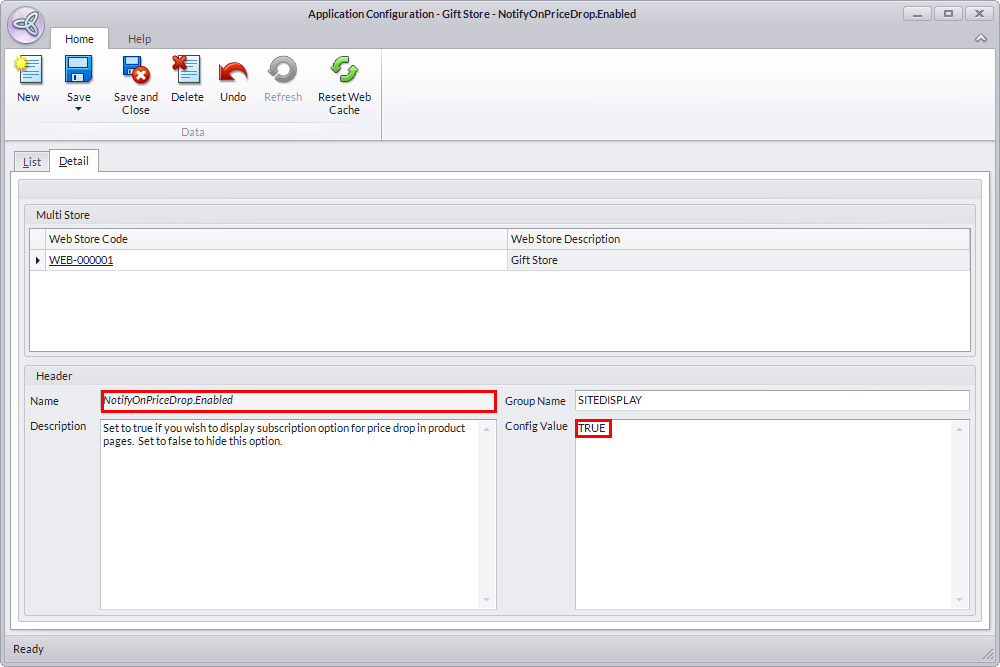
- On the Application Configuration window, search for NotifyOnPriceDrop.Enabled.
- On the Detail tab, set the Config Value to True. Setting this to true will allow your customers to subscribe to an item page for price drop activities.
- Save and Close to apply changes.
Click Image to Enlarge
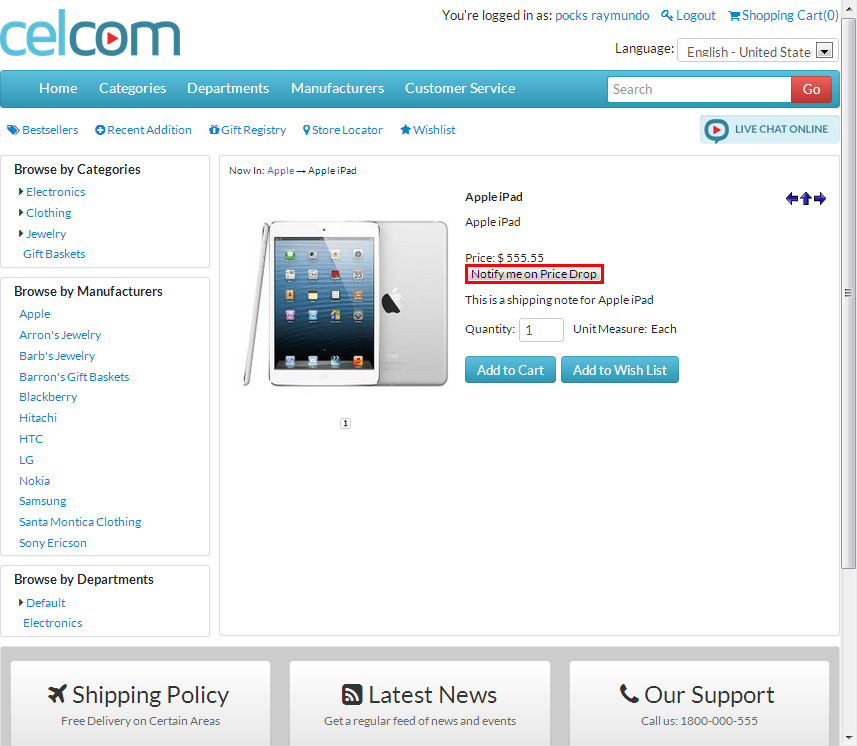
Open a specific item page. The Notify Me on Price Drop button should now be visible. Once clicked, customers will be informed with the latest price drop through email.
Click Image to Enlarge

This web store feature is not applicable for anonymous users. Web store customers should log in to the web store using their credentials to access this feature.

Change Item Price
Change the item's price via Connected Business' backend. To do this:
- Go to eCommerce module > Item > Find Item.
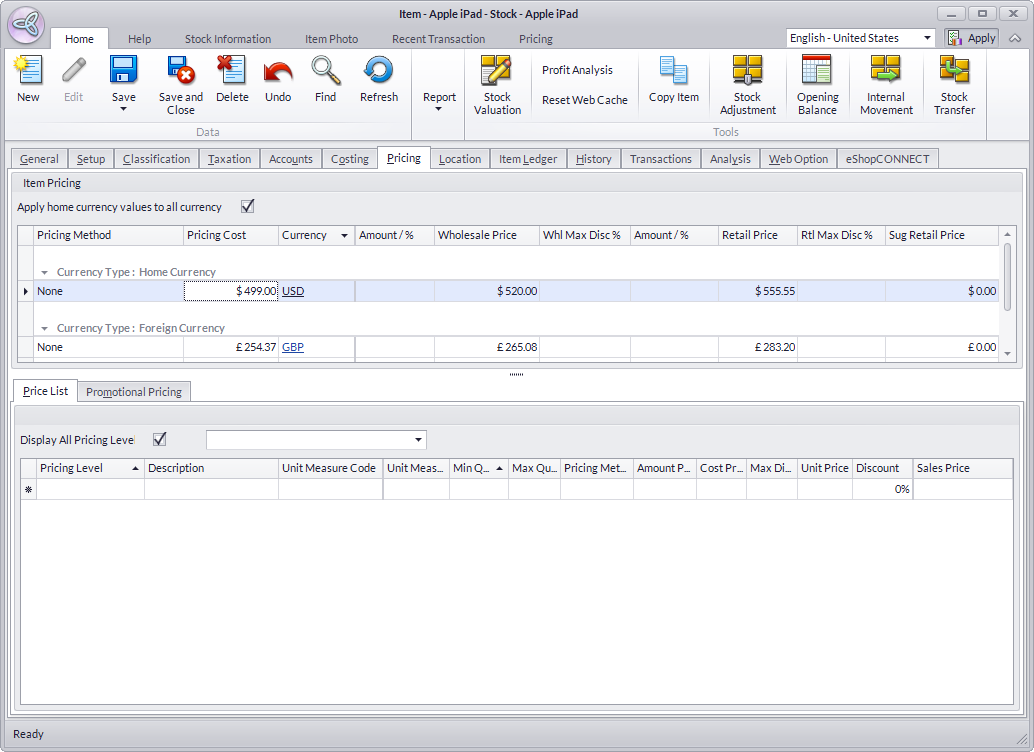
- On the Item Detail form, click on the Pricing tab to enter the item's Wholesale and/or Retail price.
Click Image to Enlarge
- Click Save and Close to apply changes.
Connected Business also supports bulk price update and promotional price changes. Refer to: Update the Retail and Wholesale Pricing and Set up Special or Promotional Pricing.
Check Notification Through Email
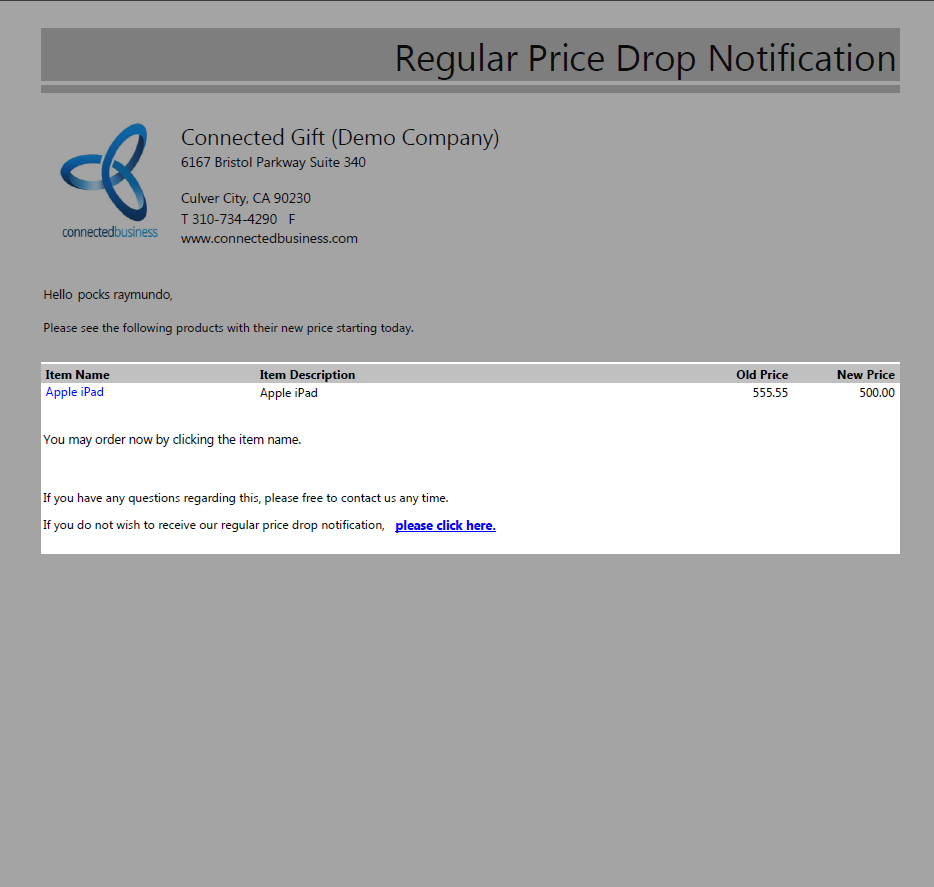
Once the price drop has taken effect, customers will receive the notification in the form of an email attachment. By clicking the item name, customers will be redirected to the item page. From here, customers can also unsubscribe to the item's Notify Me on Price Drop to disable the notification.
Click Image to Enlarge
Moreover, the email notification should also appear on the web store's default email account.