
Disable Date Filtering in Bank Reconciliation Form
The default setting for the Bank Reconciliation form enables you to filter banking transactions based on statement date. When the default date filter is enabled, the Bank Reconciliation form automatically hides transactions that are dated later than the indicated Statement Date.
Connected Business allows you disable this date filtering function by configuring the Setup of the Banking module. This document demonstrates how to change your banking module settings so that you can reconcile post-dated transactions.

This feature is only available in Connected Business v14 and higher.
- Click on Banking module > Setup > Preferences > Preferences to load the form.
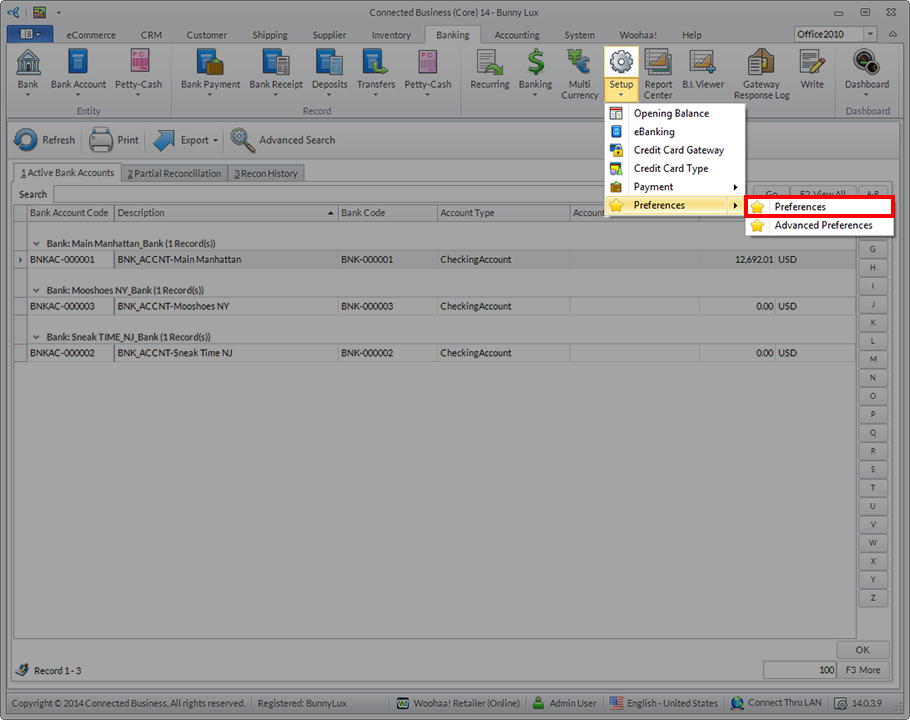
Click Image to Enlarge
- On the Banking Preferences form, there is a checkbox that enables you to filter records by Statement Date. Make sure that this option is unchecked before clicking OK.
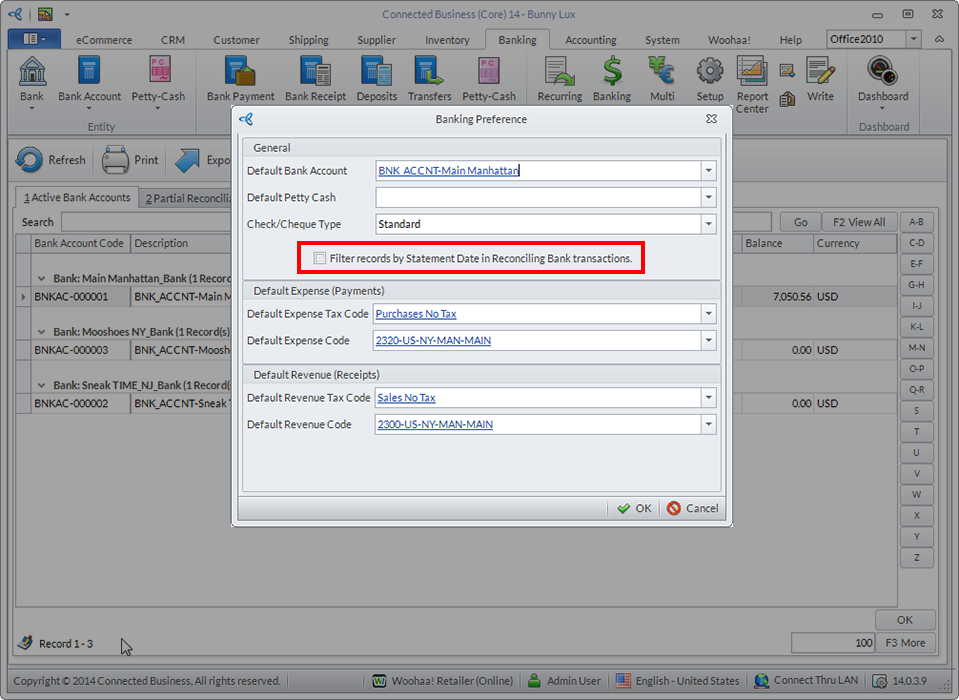
Click Image to Enlarge
- A message prompt will appear. It informs you that you need to sign out of your current session first so that you will be able to see the applied changes.
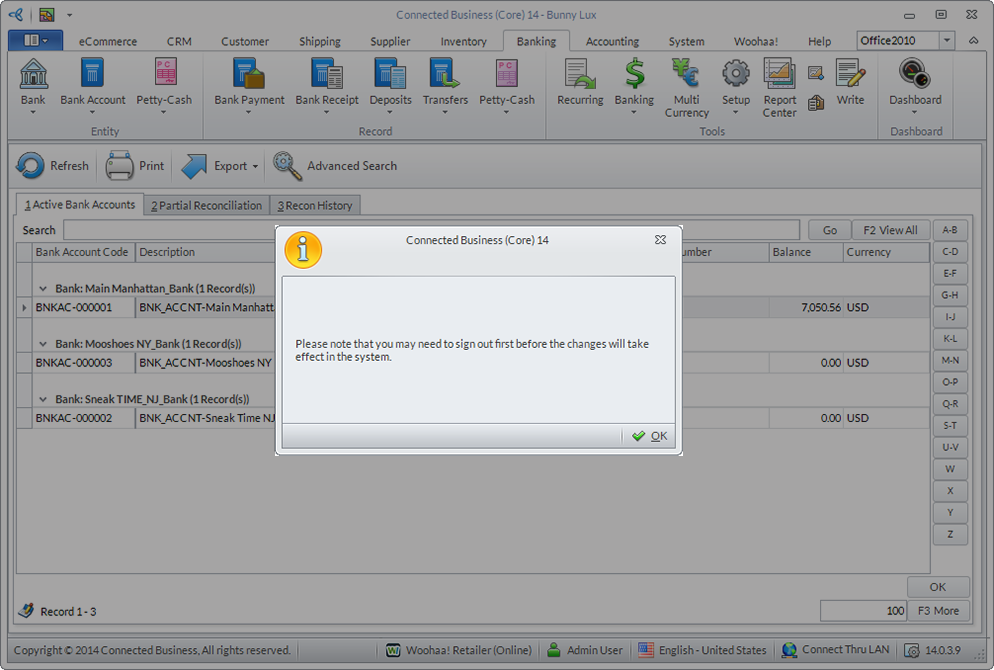
Click Image to Enlarge
- Sign out of Connected Business and sign back in.
- Once you've signed back in, go to Banking module > Banking > Reconciliation and load the Banking Reconciliation form. You can now view Payments and Deposits that are dated later than the statement date. You can also tick corresponding checkboxes in order to reconcile them with your bank statement.
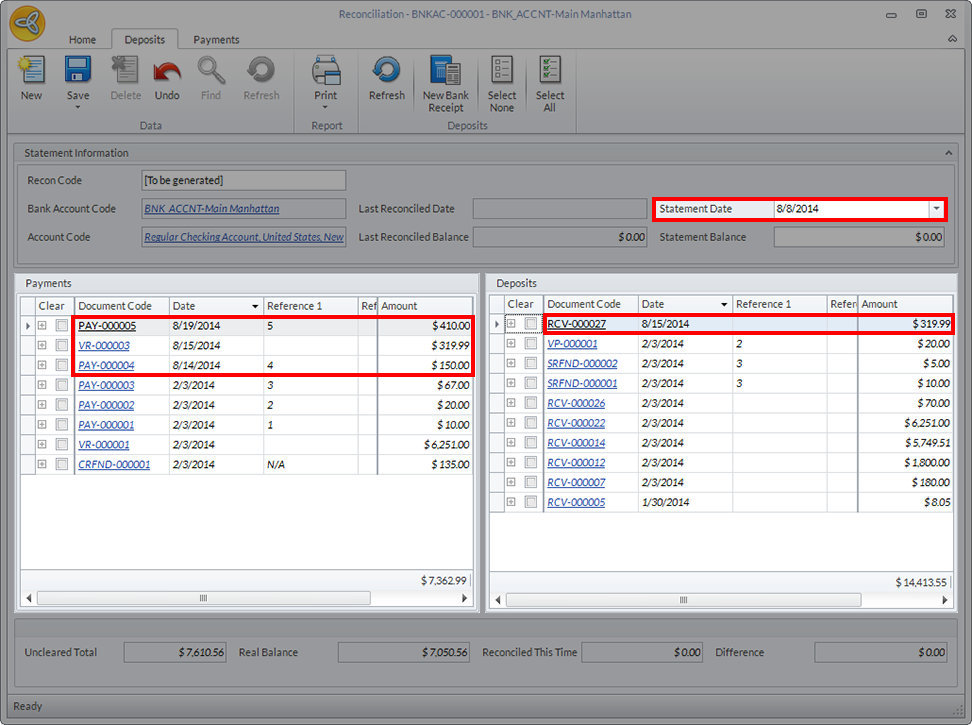
Click Image to Enlarge