
Detail Section
From the Customer Module, you can manage and modify customer information.
To do so,
- From the Customer Module > Customer > Find Customer. The Customer list screen will be displayed.
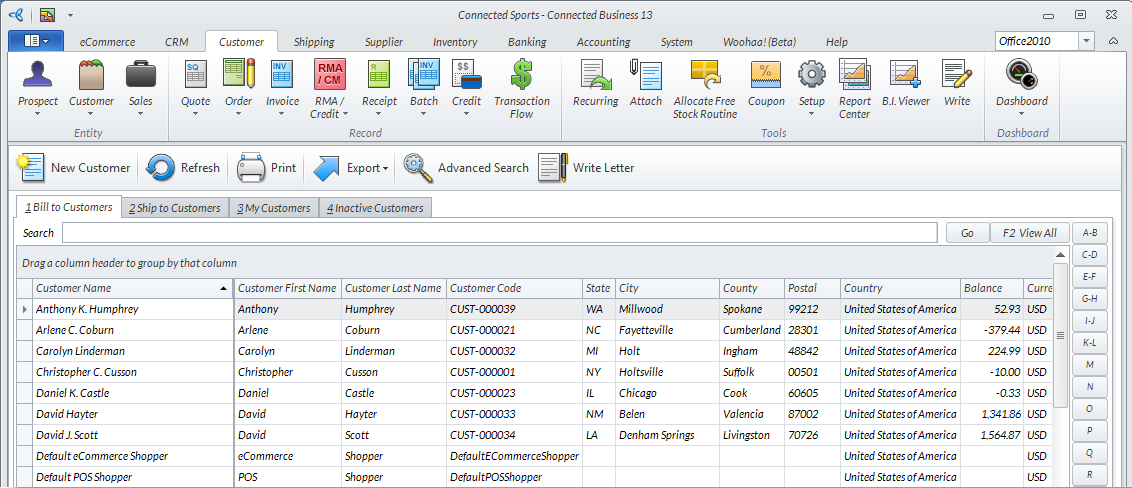
Click Image to Enlarge
- Select a customer. The Customer form will be displayed.
- In the General Tab, modify the values in the Detail Section as needed.
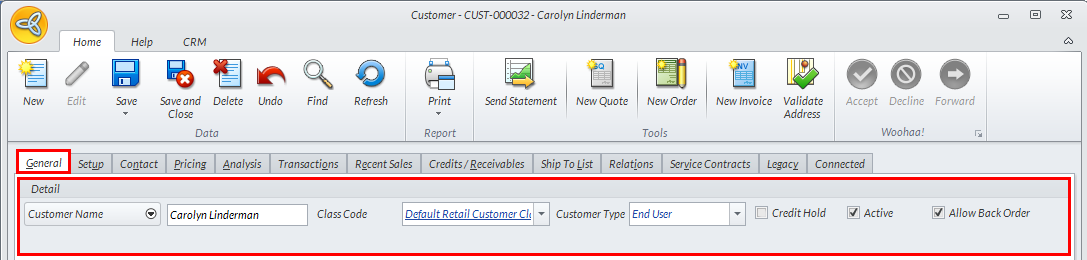
Click Image to Enlarge
The available fields are as follows:
Fields Description Customer Name Customer identity Class Code Assigned class template that determines the default information of a customer (e.g. Payment Terms, Shipping Methods, Tax Schemes, etc.). Customer Type Classifies the customer into defined types. Credit Hold Checkbox. Tick to place a customer account on hold due to exceeding the assigned credit limit or other payment deficencies. Active Checkbox that, If checked, the customer’s records are placed under the Active tab. If not, the customer’s records are placed under the Inactive tab. Allow Back Order Checkbox that, if checked, the customer will be allowed to have back orders. If not, the customer will be prompted that there is no available stock for the item he wants to order.

For related information, please see the Edit and Maintain Customer Billing Information online documentation.