
Credit Card Payment
The Credit Card option is one of the payment methods available in a webstore’s Payment Info screen. This article demonstrates how the credit card payment method is used and processed in Connected Business.
Use Credit Card as Payment Method
To pay using a credit card,
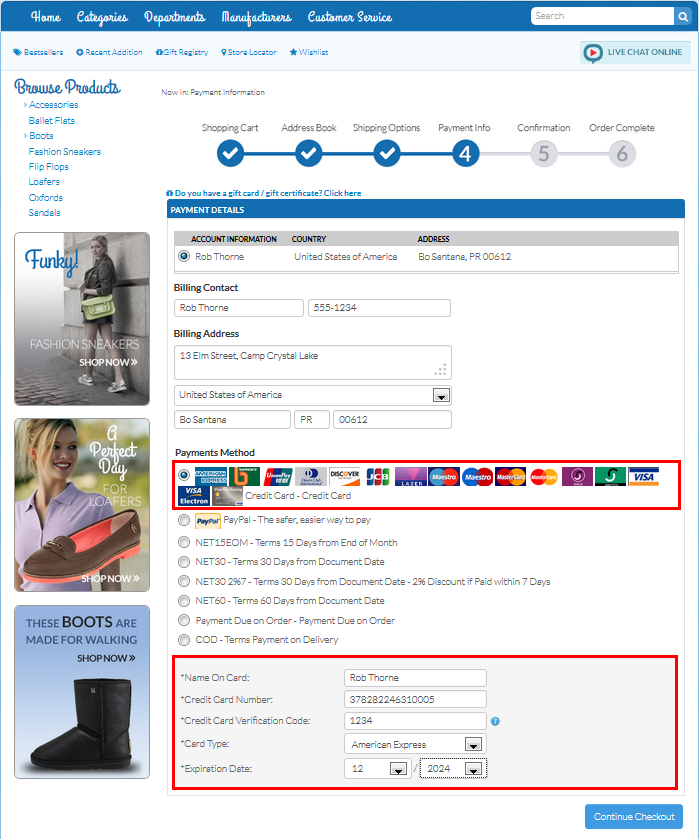
- From the shopping cart, click Checkout Now then select a Shipping Method. The Payment Details screen will be displayed.
- Select the Credit Card payment option and provide the pertinent details before continuing the checkout.
Click Image to Enlarge
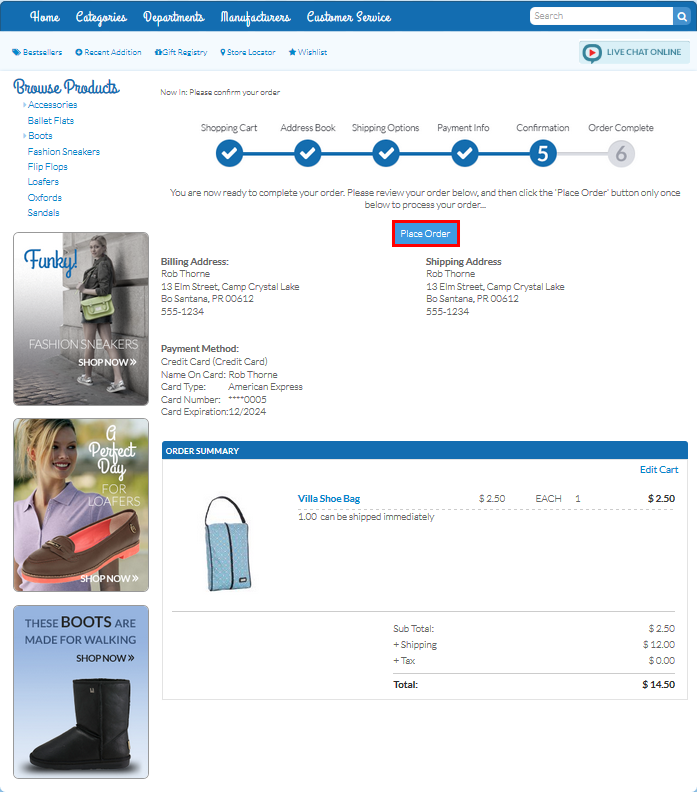
- In the Confirmation screen, confirm the order details then click Place Order.
Click Image to Enlarge
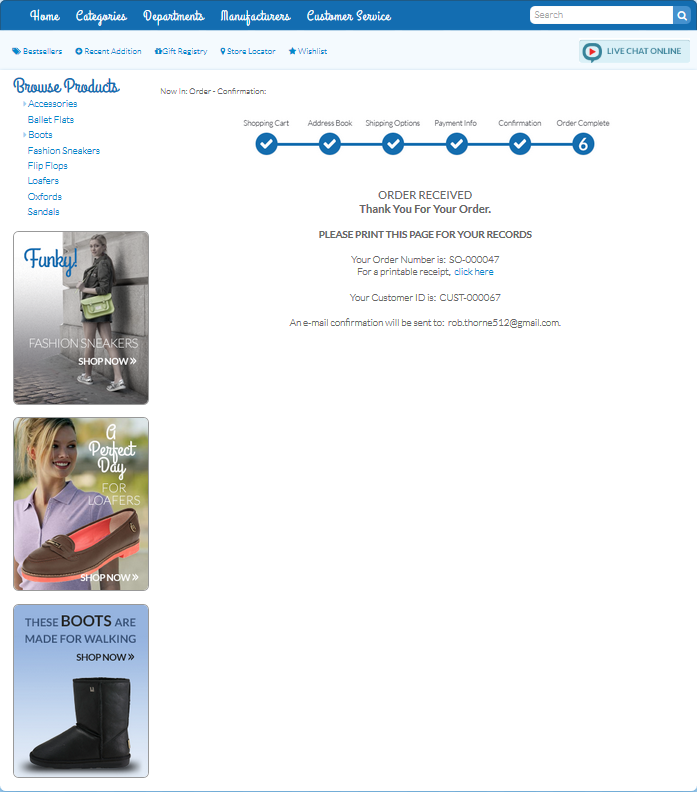
A confirmation message will be displayed indicating the order has been placed.
Click Image to Enlarge
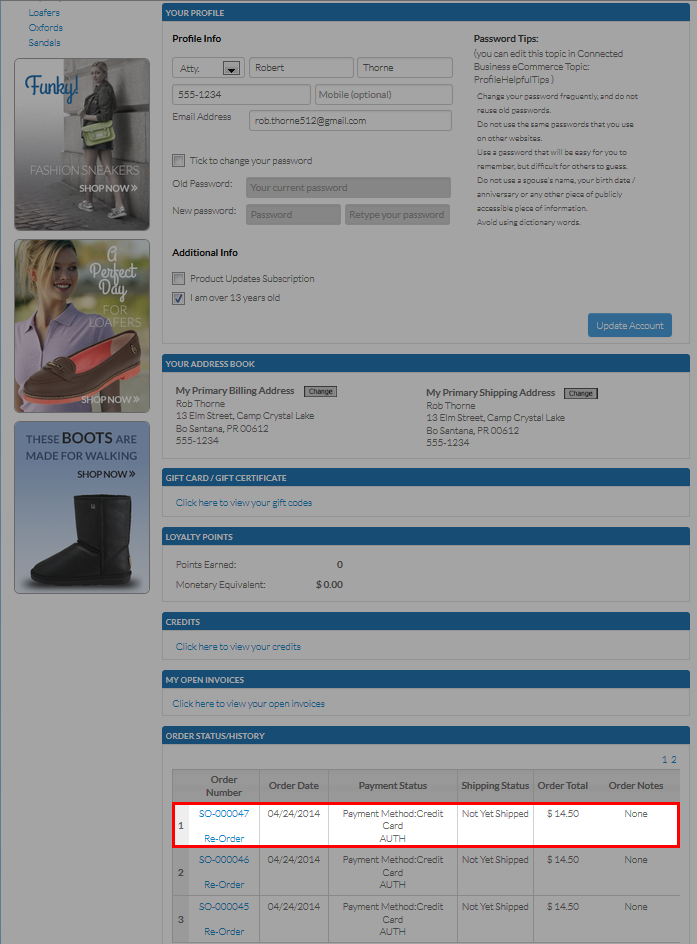
An entry will also be added under the Order Status/History section of the user’s Profile page.
Click Image to Enlarge

Process Credit Card Payment
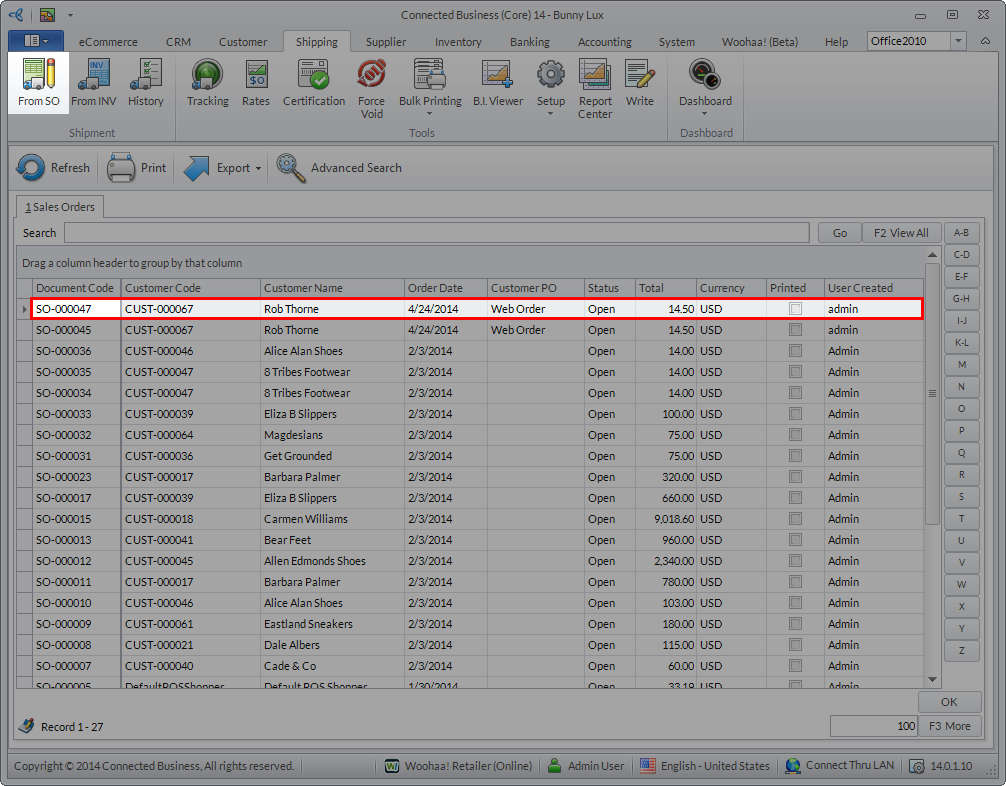
Orders made on the webstore are considered as regular Sales Orders in Connected Business’ backend. You may find the SO by going to the Customer module > Order > Find Order.
To process a credit card payment in the Connected Business backend,
- Go to the Shipping moduleand click From SO. Select the web order’s SO from the list. The Shipment form will be displayed.
Click Image to Enlarge
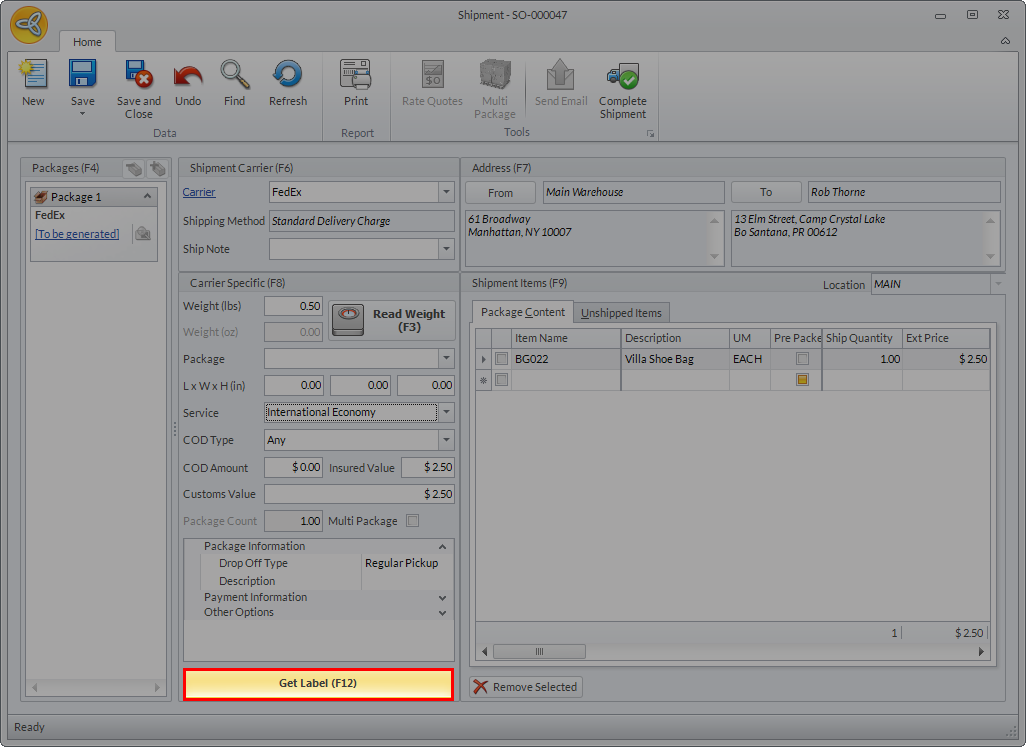
- Click Get Label (F12) to generate the Shipping Labels.
Click Image to Enlarge
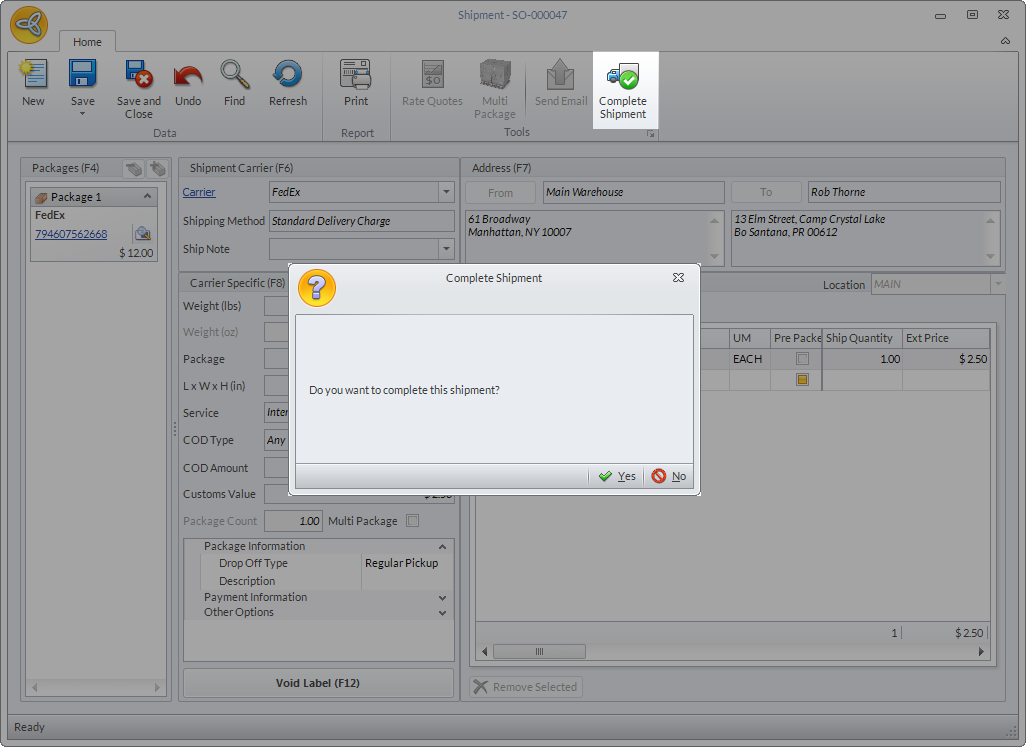
- Once the labels are generated, click Complete Shipment. Click Yes in the prompt to confirm.
Click Image to Enlarge
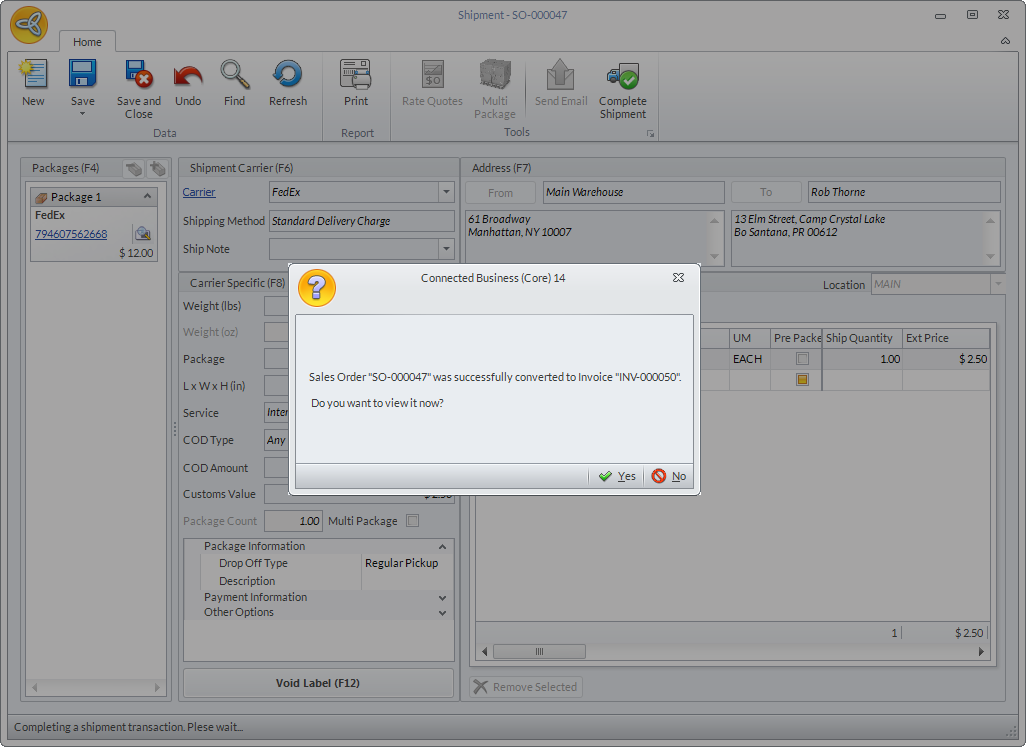
Completing the shipment automatically converts the SO to a Sales Invoice. Click Yes in the message prompt to view the invoice.
Click Image to Enlarge

Successfully generating the Shipping Labels transforms the Get Label (F12) button into a Void Label (F12) button.
- Expand the Add Payment dropdown and select View Payment. The Payment form will be displayed.
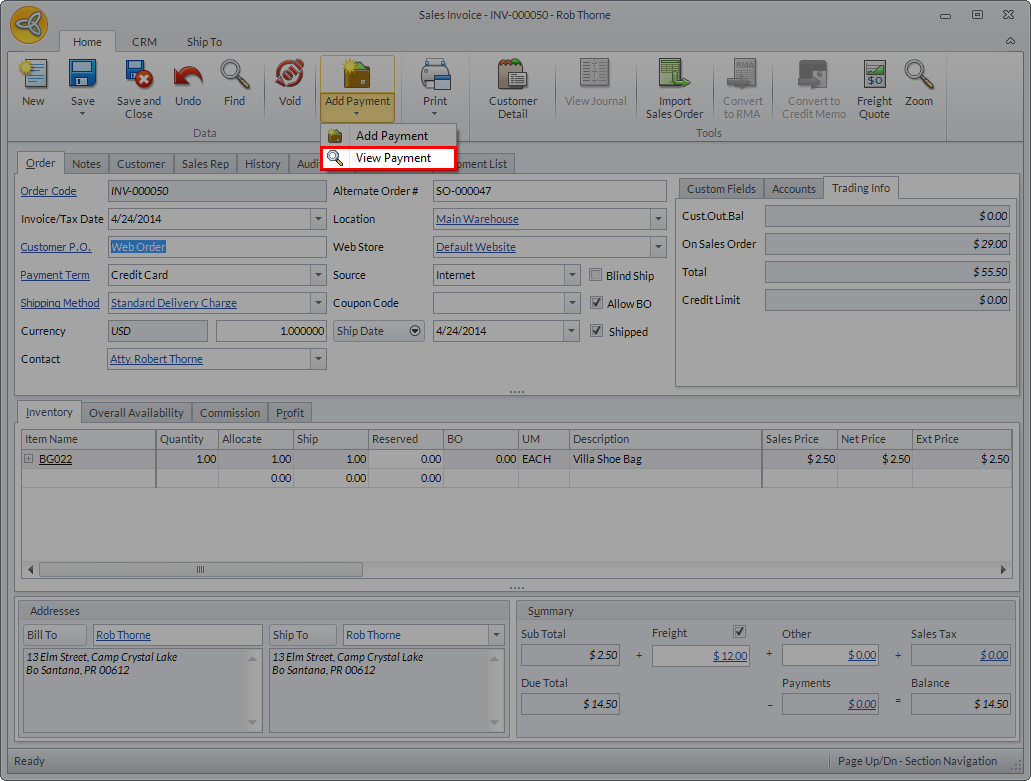
Click Image to Enlarge
- Click the Capture button. Select Yes in the prompt to capture the payment.
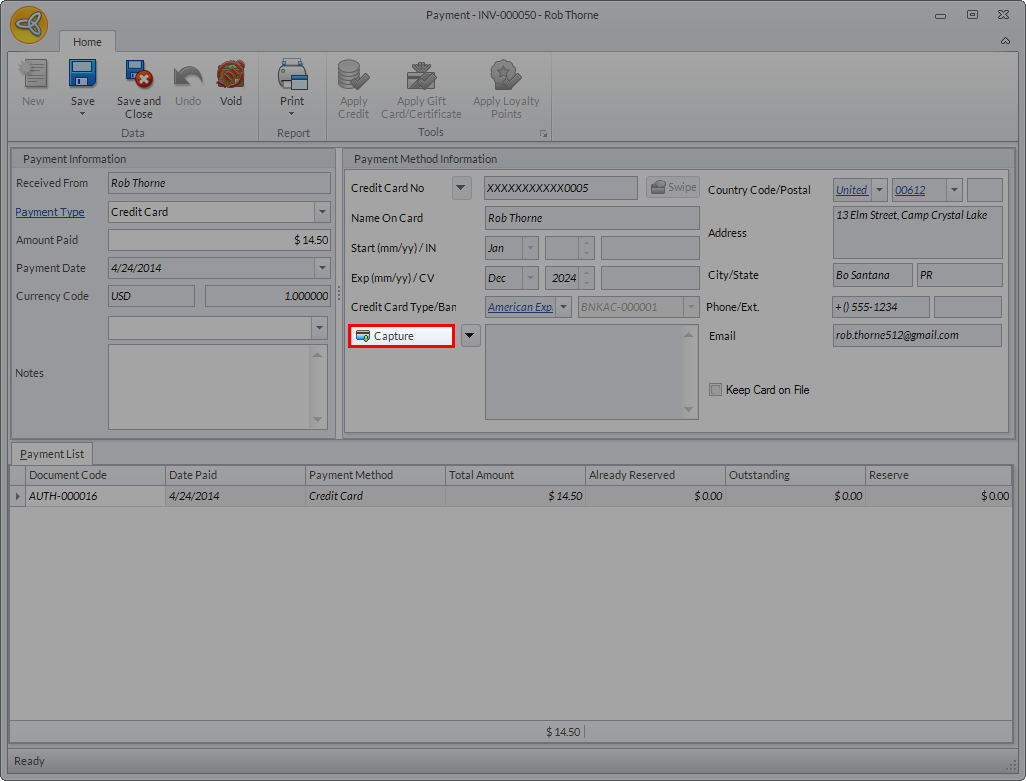
Click Image to Enlarge
Once the payment has been captured, a success response message will be displayed and the Document Code for the transaction will be given an RCV prefix. Click Save and Close to exit the Payment form and apply the changes.
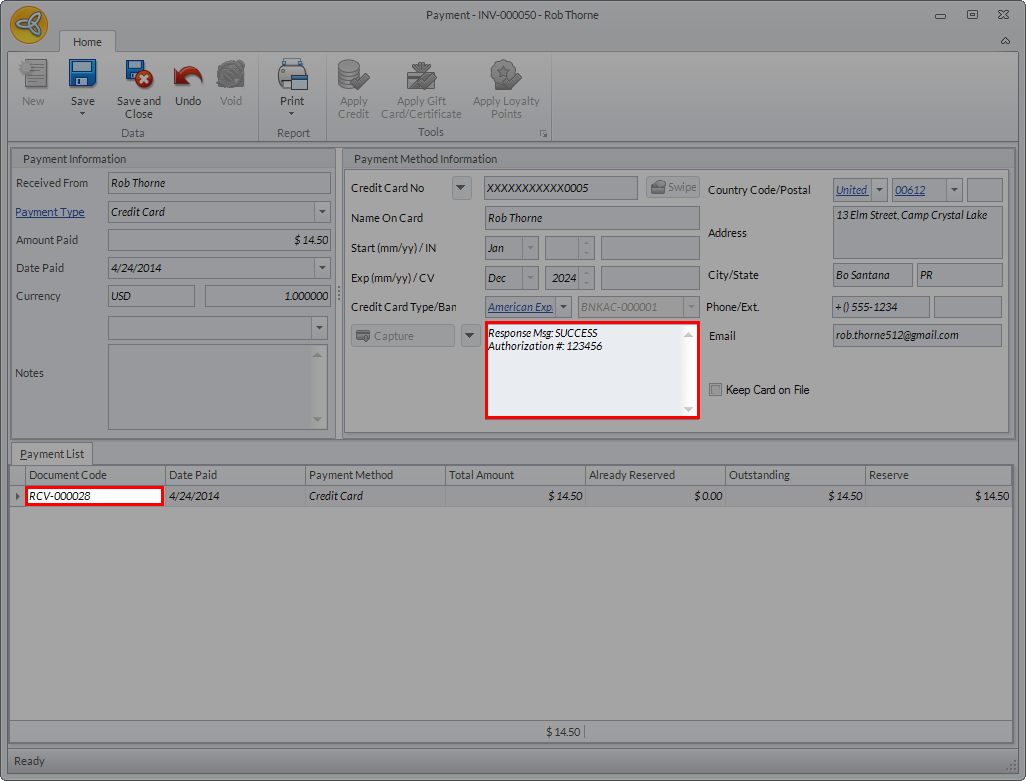
Click Image to Enlarge
In the customer profile’s Order Status/History, the Payment Status will be changed from AUTH to CAPTURED and the Shipping Status field will display the date shipped as well as the tracking number.
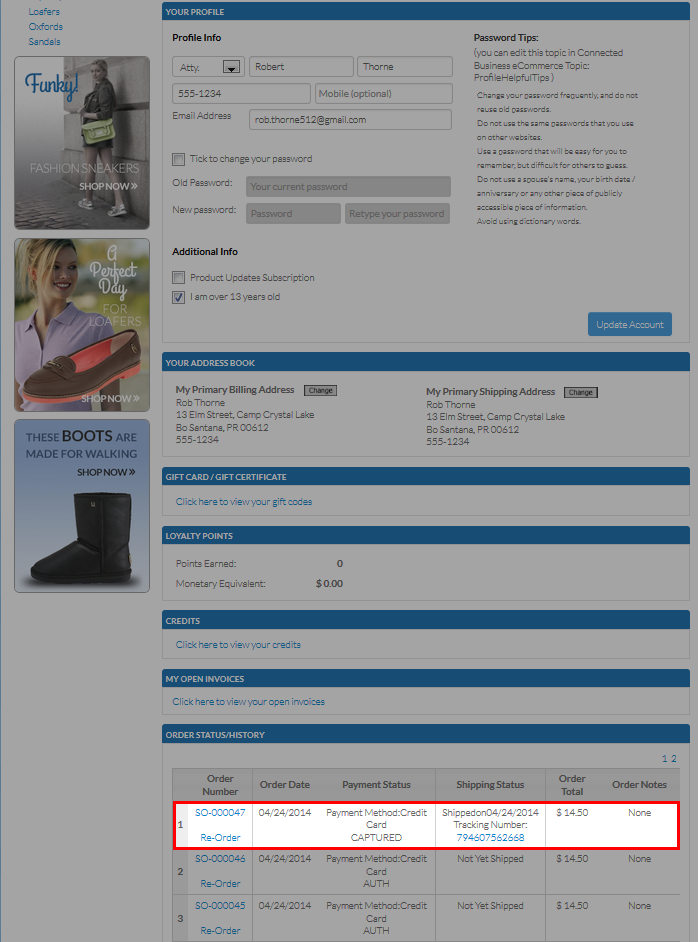
Click Image to Enlarge
- To complete the order, on the Sales Invoice, click Save and Post.
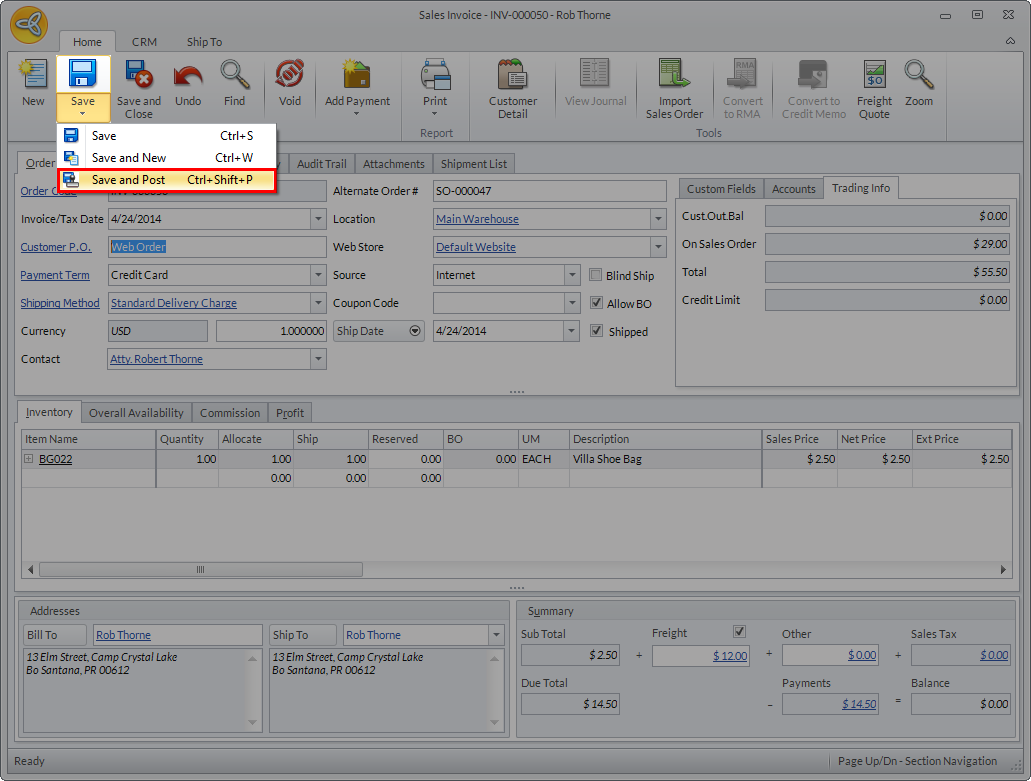
Click Image to Enlarge
On the customer’s webstore profile, the Payment Status will indicate that order has been completed.
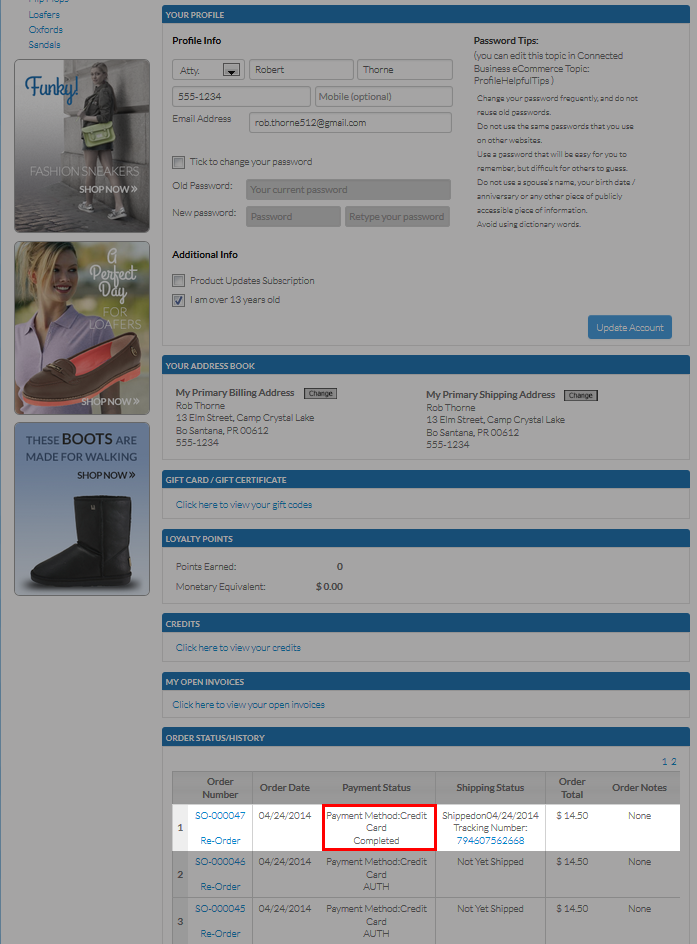
Click Image to Enlarge